How to set up vLLM in Docker on Windows (WSL2): serve an open-weight model on your own GPU
vLLM doesn't run on Windows natively, so this is the Docker Desktop and WSL2 route my rig has served on since July: the compose file, the image pin that stops it upgrading itself, the walls WSL2 puts in your way, and how the settings were found, with Claude writing the test harness.
 Richard Baxter AI Ops & Marketing Engineer
 On this page
- What you need before you start
- Try it with one command first
- The compose file
- Pin the image, or it upgrades itself
- Presets: how do you swap models?
- Three walls WSL2 puts in your way
- Verify it works
- How the settings got found
- Which model first, and the format trap
- Running a model across two GPUs
- Gotchas
- Where to go from here
vLLM doesn't run on Windows natively, and the docs say so in one line before moving on, so if you're on a Windows machine with an NVIDIA card the route is vLLM in Docker, via Docker Desktop on the WSL2 backend, which is what this guide sets up. By the end of it you'll have vLLM serving an open-weight model through an OpenAI-compatible endpoint (the same API shape ChatGPT clients speak, so your existing tools connect without changes), verified with a curl call. Mine has been serving the delegation fleet since July on a pair of modded 48GB RTX 4090s, and the compose file below is the one it runs. The software is free; the cost is disk for the weights, an evening of your time, and the electricity, of course.
I moved to vLLM after months on LM Studio because my tool calls kept leaking into chat as raw XML - the assistant would print <function=read_file> at me and carry on as if nothing had happened. vLLM ships a parser for each model family's tool-call dialect, and that one feature is why this stack got rebuilt. Learning vLLM is a bit like the old days of running your own servers, and that shaped everything that follows. There's no defaults button. You find the settings people recommend, or the official guide, you start from those, and you tune from there. That felt like a big ask when I started, and if it feels like one to you, LM Studio is a perfectly reasonable place to stay - it still suits me on the desktop side, it just isn't a server. If you want the endpoint, read on.
Quick Navigation
What you need
One command first
The compose file
Pin the image
Swapping models
The WSL2 walls
Verify it works
How the settings got found
Which model first
Two GPUs
Gotchas
Where to go from here
What you need before you start
- An NVIDIA GPU. I run a pair of modded 48GB RTX 4090s (the dual-slot blower cards built for the Chinese AI market), but one card with 12-16GB runs a usable 8-14B model. If you're weighing up hardware, my GPU guide covers which cards make sense and why VRAM is the number that matters.
- A current NVIDIA driver. The vLLM images moved to CUDA 13 over the summer, and a CUDA 13 image needs an R580 or newer driver on the host. The docs describe a compatibility mode for older drivers, but it only covers professional and datacentre cards, so on a GeForce card the answer is to update the driver. Mine is on 610.88.
- Docker Desktop with the WSL2 backend (on Linux, the NVIDIA Container Toolkit instead). Check the card is visible inside a container before anything else:
docker run --rm --gpus all nvidia/cuda:12.4.1-base-ubuntu22.04 nvidia-smishould print the same card thatnvidia-smishows on the host. - A free Hugging Face account and a read token. You can pull an ungated model anonymously, and I used to say you needed no account with anyone, but anonymous downloads are rate-limited and I've watched a day-one download stall in a loop of 429 retries until the token went in. Gated repos (Llama, some Gemma builds) need it regardless.
- Disk for weights. A quantised 27B is 15-20GB and you will end up with more than one; budget 100GB and thank yourself later. Docker Desktop keeps its volumes in a virtual disk, and mine hit 99% full in August, so keep an eye on it.
- A terminal you're comfortable in. Everything below is compose files and curl.
You don't need a Python environment or a CUDA toolkit install. The image carries its own runtime, and weights come down from Hugging Face on first load.
Try it with one command first
The docs' own run line, with two additions for Docker Desktop, gets you a served model in one go, and it's worth doing once before the compose file so you know the plumbing works. In PowerShell:
docker run --runtime nvidia --gpus all -v vllm_hf-cache:/root/.cache/huggingface -e HF_TOKEN=$env:HF_TOKEN -e VLLM_USE_V2_MODEL_RUNNER=0 -p 8000:8000 --ipc=host vllm/vllm-openai:latest --model Qwen/Qwen3-0.6BThe two additions are the named volume, so the weights survive the container, and the V2 model runner switched off, which is the first of the WSL2 walls below. Two traps live on the same line. The image's entrypoint is already vllm serve, so don't write serve yourself or you get unrecognized arguments: serve, and if you're in Git Bash rather than PowerShell, set MSYS_NO_PATHCONV=1 first or it mangles the volume path. The 0.6B Qwen is a toy, but it downloads in a minute and proves the whole path from driver to endpoint.
The compose file
One file runs the whole thing. This is mine, with the comments trimmed:
services:
  vllm:
    image: ${VLLM_IMAGE:-vllm/vllm-openai:latest}
    container_name: vllm
    restart: "no"
    ipc: host
    shm_size: 16g
    ulimits:
      memlock: -1
      stack: 67108864
    ports:
      - "8000:8000"
    volumes:
      - hf-cache:/root/.cache/huggingface
      - ../models:/models:ro
    environment:
      - HF_HUB_ENABLE_HF_TRANSFER=1
      - HF_TOKEN=${HF_TOKEN:-}
      - VLLM_USE_V2_MODEL_RUNNER=${V2_RUNNER:-0}
      - NCCL_P2P_DISABLE=${NCCL_P2P_DISABLE:-0}
    deploy:
      resources:
        reservations:
          devices:
            - driver: nvidia
              count: all
              capabilities: [gpu]
    command: >
      --model ${MODEL}
      --served-model-name ${SERVED_NAME}
      --max-model-len ${MAX_MODEL_LEN}
      --kv-cache-dtype ${KV_CACHE_DTYPE}
      --gpu-memory-utilization ${GPU_UTIL}
      --tensor-parallel-size ${TP_SIZE}
      ${EXTRA_ARGS}
    healthcheck:
      test: ["CMD", "curl", "-sf", "http://localhost:8000/health"]
      interval: 30s
      timeout: 5s
      retries: 3
      start_period: 600s

volumes:
  hf-cache:
Every model-specific value is a ${VARIABLE} read from a .env file next to it, so the compose file never changes; the .env does. That's what makes model swapping a one-command job later, and it's the difference between a serving setup and a pile of shell history you're afraid to touch. The lines that aren't obvious, in order:
ipc: hostgives the container the host's shared memory, which PyTorch uses to pass tensors between processes, and it matters most under tensor parallelism. The docs say to use either that or--shm-size, not both, and mine has both; theshm_size: 16gline is doing nothing whileipc: hostis there. I've left it in the listing because it's what runs, and I'd drop it if I were starting again.restart: "no"is quoted because bare YAMLnoparses as false, and it's deliberate. Loading a model is a burst of GPU power, and on my modded cards that burst at unlocked clocks, which is the state after a fresh boot, has blue-screened the machine. So the container never auto-starts. A small batch file locks the clocks first and then brings compose up, and that's the only loader. On stock cardsunless-stoppedis the normal choice; this line is a "why mine says no", not advice.- The
hf-cachenamed volume keeps downloaded weights outside the container, so pulling a new vLLM image doesn't cost you a 20GB re-download. It's a named volume rather than a folder on the Windows side for a reason I'll come back to in the WSL2 section: a Windows folder mounted into the container is a network filesystem as far as Linux is concerned, and loading weights off it measured 3.75x slower than the volume. The second mount,../models, is a read-only folder for weights I fetch by hand, which takes Hugging Face out of the load path entirely. - The environment lines:
HF_TOKENcomes from.env, which is gitignored, and the token never goes in the compose file or a preset;VLLM_USE_V2_MODEL_RUNNERdefaults to off for the WSL2 reason below;NCCL_P2P_DISABLEis there for the two-GPU presets. Thememlockandstackulimits came from the July tuning research rather than a failure of my own - vLLM's NCCL and IPC paths can bus-error on Docker's defaults - so I'll flag them as reported rather than measured.
One line I'd add today that mine doesn't have is a second volume for vLLM's own cache. Each new container starts with an empty VLLM_CACHE_ROOT and recompiles the model's torch.compile and Triton artefacts, which is a chunk of every cold start, and the Docker page fixes it with a vllm-cache:/root/.cache/vllm volume alongside the Hugging Face one. Reported, not something I've measured yet; it's next on my list.
Start it with docker compose up -d, then watch the logs while the model loads:
docker logs -f vllmFirst load of a new model downloads the weights, so give it time. When you see the Uvicorn startup line, the endpoint is live on port 8000. The health check's ten-minute start period is generous for a reason: a 77GB model across two cards takes 42 minutes to load on my board, and I'll come back to why.
Pin the image, or it upgrades itself
That image: line reads ${VLLM_IMAGE:-vllm/vllm-openai:latest}, and the default half of it bit me in August. The swap script in the next section recreates the container every time you change model, and latest is a moving target, so one routine swap pulled a new image and moved the whole fleet from 0.25.1 to 0.26.0 without my asking. Two of the three serving failures that week traced to the move: a speculative-decoding deadlock that had needed a specific setting to trigger on 0.25.1 now fired on the safe one, and the Gemma preset stopped fitting its own context by 0.72GiB because the KV accounting had shifted under it. Every benchmark number I'd recorded that month suddenly belonged to an engine version I couldn't name.
So the .env now pins the image by digest, and the swap script carries the pin across preset changes:
VLLM_IMAGE=vllm/vllm-openai@sha256:ffb2d59b... # the full 64-character digest; this one is 0.26.0A tag would do (vllm/vllm-openai:v0.28.0), but a digest can't be re-pointed. Version changes are now a dated event with their own benchmark run, which sounds like ceremony until you've spent an evening wondering why last week's numbers won't reproduce. Stable is v0.30.0 as I write this, released on 22 September, and I'm four minors behind it on purpose.
Presets: how do you swap models?
vLLM loads one model at a time. That's the constraint of the design, and you work with it rather than around it: each model gets its own .env preset, and a small script rewrites .env and restarts the container.
.\swap-model.ps1              # no arguments lists the presets
.\swap-model.ps1 qwen3.6-27b-awq-nomtp
A preset is nothing clever - it's the environment block for one model. Here's the daily driver, Qwen3.6-27B in cyankiwi's AWQ build (community quantisers are part of the story on this beat, not a footnote):
MODEL=cyankiwi/Qwen3.6-27B-AWQ-INT4
SERVED_NAME=qwen3.6-27b
MAX_MODEL_LEN=131072
KV_CACHE_DTYPE=fp8
GPU_UTIL=0.92
TP_SIZE=1
EXTRA_ARGS=--enable-auto-tool-choice --tool-call-parser qwen3_xml --reasoning-parser qwen3 --enable-prefix-caching --max-num-batched-tokens 8192 --max-num-seqs 16
V2_RUNNER=0
The script rewrites .env from the preset, carries the token and the image pin over from the old one, because the presets are committed to git and neither can live in them, and runs docker compose up -d --force-recreate. A swap takes a minute or two once weights are cached. The one-model-at-a-time rule shapes how you work: vision and coding in the same minute means either two machines or a compromise model, and pretending otherwise wastes an afternoon.
That --tool-call-parser qwen3_xml flag is the fix for the XML-in-chat failure that started this rebuild. Every model family speaks its own tool-call dialect - Qwen wraps calls in XML, Gemma uses a bracket format, others emit Hermes-style JSON - and the parser flag tells vLLM which translator to run so your client receives clean OpenAI-schema tool calls. Set it per preset to match the model family (qwen3_xml, gemma4, hermes, lfm2). Get it wrong, or leave it off, and you're back to raw dialect leaking into prose. As an aside, the docs' parser list lags what's in the image (gemma4 isn't on the page, and it has served Gemma 4 here for weeks), so the reliable way to check a name is to pass a wrong one on purpose: the container fails with a KeyError listing every parser it has. That's how I found out muse_glimmer didn't exist despite sitting in one of my own presets.
Three walls WSL2 puts in your way
Docker Desktop on Windows runs its containers inside a WSL2 virtual machine, and most of the time you can forget that. Three things about vLLM won't let you.
The V2 model runner needs memory WSL2 doesn't expose
vLLM's newer model runner wants unified virtual addressing, and under Docker Desktop the engine dies at start-up with RuntimeError: UVA is not available. The fix in my compose file is VLLM_USE_V2_MODEL_RUNNER=0, which puts the engine on the V1 path, and every preset on this rig runs that way. Since I hit it, the environment-variable reference has grown a switch for exactly this: VLLM_WSL2_ENABLE_PIN_MEMORY=1, which the docs say enables pinned memory on a WSL2 kernel of 4.19.121 or newer "when pinned memory or UVA is required (e.g. CPU offloading or v2 model runner)". I haven't tested it, so V1 is the setting I can vouch for, and the switch is the one to try if you want the newer runner. The related rule: never plan on CPU offload under WSL2. Pinned host memory is capped opaquely by the paravirtualised driver, so size the model and its KV cache to fit VRAM entirely.
Windows folders are a slow filesystem from inside the container
A folder on the Windows drive mounted into a container arrives as 9P, a network filesystem, and vLLM tells you so on every load if you read the log: Auto-prefetch is disabled because the filesystem (9P) is not a recognized network FS. That's why the weights live in a Docker named volume in the compose file: on the same model, loading from the volume measured 3.75x faster than loading from the bind mount. The log also names the workaround for the bind-mount case, --safetensors-load-strategy=prefetch, which I've not tried yet because changing it mid-benchmark would have made the load times incomparable week on week. One more thing to watch out for: when you do go looking at the volumes, don't run docker volume prune on a box like this. A volume nothing is currently mounting looks dangling to Docker's ref-counter, and mine holds 452GB of weights.
The container sees every GPU, whatever compose says
Compose's device_ids is ignored on Docker Desktop; every container gets every card. If you want two independent instances on two cards, which is how I run a pair of Gemma instances for parallel delegation, pin each with CUDA_VISIBLE_DEVICES=0 and CUDA_VISIBLE_DEVICES=1 in the environment block instead. The count: all reservation exposes the cards; the env var decides which one each vLLM uses. Two host-side settings from the same July research, reported rather than measured: swap=0 in .wslconfig, because silent paging turns milliseconds per token into seconds, and networkingMode=mirrored, which is the setting behind the 127.0.0.1 note in the next section.
Verify it works
Start with the cheapest check there is - asking the server what it thinks it's serving:
curl http://127.0.0.1:8000/v1/modelsHere's what mine returns with the daily driver loaded:
{"object":"list","data":[{"id":"qwen3.6-27b","object":"model","owned_by":"vllm","root":"cyankiwi/Qwen3.6-27B-AWQ-INT4","max_model_len":131072}]}Three fields matter. id is the served-name, the string that goes in the model field of every request you make (it's whatever you set SERVED_NAME to in the preset, so if the name reads oddly you've only yourself to blame). root shows the real Hugging Face repo behind the alias - useful once you're a few presets deep and can't remember whether "qwen3.6-27b" points at the AWQ build or the FP8 one. And max_model_len is the context window the server is running, worth a glance because it's set per preset and easy to lose track of.
One small thing before you copy that command: it says 127.0.0.1 rather than localhost, and that's deliberate. Under WSL2's mirrored networking, localhost can resolve to IPv6 (::1) while the container binds IPv4 only, so localhost:8000 can silently connect to nothing at all - no error worth reading, just a request going nowhere while the container sits there perfectly healthy. Use 127.0.0.1 and save yourself the confusion; I speak from experience.
With the model confirmed, the proof call, run after every swap:
curl http://127.0.0.1:8000/v1/chat/completions \
  -H "Content-Type: application/json" \
  -d '{
    "model": "qwen3.6-27b",
    "messages": [{"role": "user", "content": "Extract the product names from this text as JSON: ..."}],
    "chat_template_kwargs": {"enable_thinking": false}
  }'
That enable_thinking: false took me longer to find than I'd prefer to admit. Reasoning models think before they answer, and for plumbing calls - extraction, formatting, tool dispatch - the thinking phase is pure latency: 0.8 seconds with it off against 3.7 with it on, identical output. Thinking is for problems, not plumbing. Default it off for orchestrated work and switch it on when the task earns it. One catch: the key name changes per family. Qwen and Nemotron take enable_thinking, LFM2.5 and gpt-oss take thinking, and vLLM's own Granite example uses thinking: true with the opposite polarity. An unknown key is silently ignored, no error, so the wrong name means the model reasons anyway and you don't find out until the latency does.
What comes back follows the OpenAI chat-completion schema: a choices array carrying the message, and a usage block with prompt_tokens and completion_tokens - the same usage field my benchmarking reads its token counts from. When the model makes a tool call, finish_reason comes back as tool_calls and the arguments arrive as clean JSON in function.arguments, which is the whole point of the per-model tool-call parser from the presets section. If you ever see tool-call dialect sitting in the message text instead, the parser flag is wrong for the model family.
A response with a choices array means you're serving. Anything that speaks the OpenAI API - and nearly everything does - can now point at http://127.0.0.1:8000/v1 instead of a cloud endpoint.
How the settings got found
None of the flags in that preset came from a forum post, and I want to be straight about who found them. My reason for starting this at all was tensor parallelism: I had two cards and a feeling I was leaving performance on the table, and a vLLM setup that used both properly was the goal. I got the basic shape working myself, the compose file above and a first preset that served. Then Claude wrote the test harness. It measures five things per run - decode speed, prefill, time to first token on a cold 16k prompt, the same prompt repeated, and throughput with four concurrent requests - and logs a JSON line with the full config alongside the result, so any number on this site traces back to the exact flags that produced it. Over about three days it iterated across models, quant formats, power limits and tensor parallel on and off, and the settings that survived are the ones in the presets. It was a slightly odd experience, getting an AI to configure the AI, but that's plainly where this is heading, so I'd rather be early to it.
Three rules came out of those runs that I'd hand anyone starting.
Start from the vendor's settings, and don't set sampling from the client
vLLM reads the model's generation_config.json from the repo and applies its sampling defaults on every request, so a model card that says temperature 1.0 gets temperature 1.0 whether you asked or not. That's the right behaviour, and my orchestrator once pinned a model to 0.2 under a comment claiming the value was vendor-documented; an evening of measurements had to be binned. Leave sampling to the server. If you want vLLM's own neutral defaults instead, --generation-config vllm on the command line is the switch, per the quickstart.
The baseline that regressed nothing
--enable-prefix-caching --max-num-batched-tokens 8192 --max-num-seqs 16Prefix caching is the orchestration flag. Orchestrated calls repeat the same system prompt and tool definitions on every request, and on a repeated 16k-token prompt the time to first token drops from 3.92 seconds to 0.08. If your workload is agentic - same preamble, different question - this flag alone changes what the machine feels like. --kv-cache-dtype fp8 halves what the context cache eats, which is how a 27B runs 131k context on a single 48GB card; my accuracy-first Gemma preset keeps its KV cache at bf16 for code work and pays for it in context. One more measured result, because it saves you money: capping the card at 330W against its 370W default cost nothing on decode - 133.9 tokens per second (tok/s) against 133.1 on the 35B - which stands to reason once you know decode is memory-bandwidth-bound. Power capping a 24/7 serving box is free performance per watt. The clock lock I run for the boot-time reason above costs about 5% across the fleet, and I pay it.
Speculative decoding stays off until upstream fixes it
The preset used to carry --speculative-config '{"method": "mtp", "num_speculative_tokens": 2}' (a small draft head guesses the next couple of tokens; the full model verifies them in one pass), and it's worth about a third of this model's decode: 47 tok/s without it, 63 with, measured on the same day in the same container. It's off anyway. With it on, a cold 16k prefill wedges the engine while /health keeps returning 200, and on 0.26.0 that happens at the batched-tokens value that was safe on 0.25.1. It's a fault in the speculative draft path, consistent with an open upstream issue, not a memory or prefill problem: the identical preset with the speculative flag removed does the same prefill in 9.09 seconds. Availability beats a third more decode for a server other things depend on, so the nomtp preset is production and I retest MTP on each new stable.
Which model first, and the format trap
If you're setting up exactly one preset, make it the one above: Qwen3.6-27B in the AWQ build, dense, 47 tok/s without speculative decoding, and the best model in my stable at code review and bug-checking, which is what I delegate. The whole stable with its measured runs is on the model testing page, and the flag-by-flag settings for twelve models are their own piece, so I'll keep this to the two things that decide whether a download works at all.
The quant format is one. The official Qwen/Qwen3.6-27B-FP8 checkpoint ships block-format FP8, and on a 4090 vLLM loads it, warns Using default W8A8 Block FP8 kernel config. Performance might be sub-optimal!, and decodes at 18 tok/s. I wrote in July that Ada had no kernel for block-FP8 at all, and that was wrong: asked directly, the engine reports the format as permitted on this card. Permitted isn't tuned, though, and the AWQ build of the same model decodes at 47-63 tok/s. So on a 40-series card the formats I run are AWQ INT4 (its Marlin kernels are tuned for Ada), FP8-dynamic rather than FP8-block, Gemma's QAT W4A16, and BF16 only when the model fits inside 24GB. GGUF and MLX aren't on the vLLM path at all, so the community coder repos that only ship those are a pass for this stack.
Fit is the other. A 4-bit quant costs roughly 0.6GB of VRAM per billion parameters plus headroom - my 120B AWQ lands at 77GB and the 26B at 16GB - and the GPU guide has a calculator that does the arithmetic for your card and context length before you commit to a 40GB download.
And the architecture decides the speed
Architecture decides speed more than size does, and the numbers teach it better than a diagram: my dense 27B decodes at 47-63 tok/s and the 35B mixture-of-experts (35 billion parameters, about 3 billion active per token) at 120-134 on the same card, because decode speed is bytes-touched-per-token, not parameter count. The MoE also wouldn't stop on an open-ended code review, 19k tokens of ever-more-marginal findings, so cap any model you haven't watched self-terminate with max_tokens. Both stories are told in full on the settings page.
Running a model across two GPUs
You don't need this to start, and it isn't the place to start. It's the reason my box exists in its current form, though, so here's what I know as of August.
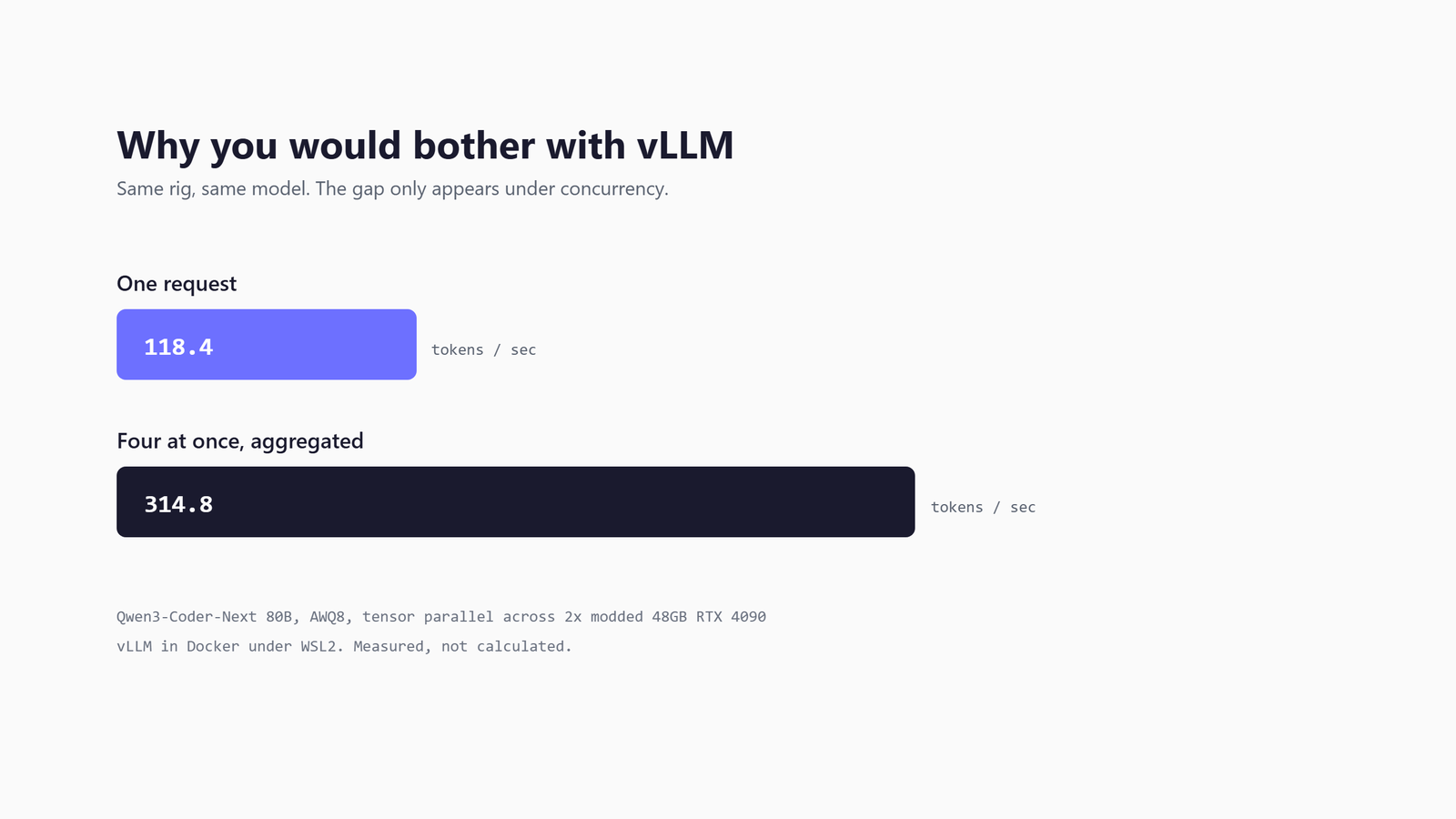
--tensor-parallel-size 2 splits each layer of the model across both cards. The obvious use is a model that doesn't fit one card: Qwen3-Coder-Next 80B at AWQ 8-bit runs 118.4 tok/s across the pair, 314.8 combined with four concurrent requests, and Nemotron 3 Super 120B lands at 77GB across the two. The less obvious use is the one I got wrong for a month. I'd written that you should never tensor-parallelise a model that fits one card, because the all-reduce traffic between cards crosses PCIe on every token and my second slot is only x4. Measured, on the 27B with a long context and a single stream: 34.4 tok/s on one card, 48.9 across two, a 42% gain, because two cards' worth of memory bandwidth beats the link tax. Pipeline parallelism doesn't rescue a slow link either, at 32.9 tok/s it's slower than one card. Scope: one model, one context length, single stream; I'd re-verify under concurrency before moving a production preset.
Two costs come with it. The x4 slot throttles loading as well as inference, because the whole checkpoint crosses it: 26GB takes twenty-odd minutes, the 77GB Nemotron 42, and a slow load is a board property, not a model one. And the consumer-board caveat comes wired into every dual-GPU preset:
NCCL_P2P_DISABLE=1Peer-to-peer GPU transfers hang on consumer motherboards - the cards try to talk directly, the board can't do it properly, and the container sits there forever. With P2P off, traffic routes through the PCIe bus and system memory, which works everywhere.
Gotchas
Each one of these wasted a bit of my time - I'm sharing so you don't have to go through the same thing.
Tool calls appear in chat as XML or bracketed text
The parser flag is missing or doesn't match the model family. --tool-call-parser qwen3_xml for Qwen models, gemma4 for Gemma, hermes for the JSON-dialect families. This is the failure that made me leave LM Studio, and vLLM only fixes it when you tell it which dialect to expect.
Reasoning appears in the answer instead of alongside it
Same family of fault, other flag. Without a --reasoning-parser, the model's chain-of-thought lands in content, inflating token counts and breaking anything that parses the reply. Nemotron 3 Super did this to me until --reasoning-parser nemotron_v3 went in; the custom parser script on the model card was obsolete by then, which is the docs-lag point again.
The engine wedges on a long prompt, and /health still returns 200
The signature: the engine core at 95% CPU, the GPU at 100% utilisation drawing 72W (a spin, not work), the engine's own log printing Running: 0 reqs, Waiting: 0 reqs and going quiet, and Docker's health check passing throughout. Cause and fix are in the speculative-decoding section above. The lesson that outlives the bug: a liveness probe that only hits /health cannot see this, so if something unattended depends on the server, probe it with a real token.
Some FP8 builds load and then crawl
The block-FP8 warning from the format section. It isn't a load failure, whatever I said in July; it's an untuned kernel path, and the fix is the AWQ or FP8-dynamic build of the same model.
Leave the port exposed and it's somebody else's free compute
vLLM has an --api-key flag (or VLLM_API_KEY), and it takes more than one key, so a client without the bearer token gets a 401 on the OpenAI routes. Read the security page before you lean on it: the key covers the /v1 endpoints only, and /invocations, /pooling, /health and the metrics route stay open. The compose file above binds port 8000 to every interface, which is right for a home network behind a router and wrong for anything with a public address. If the box is reachable from the internet, bind 127.0.0.1:8000:8000 and tunnel in, or put a reverse proxy in front. GPU time is exactly the kind of thing the internet's background scanners are looking for.
A model that flew in benchmarks crawls on your prompts
Check whether your prompts repeat a common prefix. Without --enable-prefix-caching, every request pays full prefill; with it, the repeat TTFT collapses. The flag is in the baseline for a reason.
Where to go from here
You've just opened up a world of choices - here's what you could do next. If the endpoint is the goal, you're done - point your tools at http://127.0.0.1:8000/v1 and get on with your work. The settings above measured well on my hardware, and they're a starting configuration rather than a verdict: the settings page walks every flag for twelve models, and the benchmark runbook is the method if you want to measure your own card the same way.
If you got here for the same reason I did - taking bulk work off a metered frontier-model bill - the next piece is the orchestration layer. houtini-lm is the MCP server I built to let Claude delegate bounded tasks to this endpoint: Claude does the reasoning and judgement, the local model does the volume, and the lifetime token counter tells you what the arrangement is worth. The backend write-up covers wiring the two together.
Either way: the endpoint on port 8000 doesn't care which model is behind it, and that's the point of the whole design. Bench your task, pick your preset, swap in a minute. The GPU you already own does the rest.
Continue reading.
- Local AIvLLM settings for a pair of RTX 4090s: the flags I run for twelve local models, and why
- Local AIKV Cache Explained: Why a Local LLM Won't Load on Your GPU
- Local AILLM Inference Optimization: What Made Two RTX 4090s Faster
- Local AIMuse Glimmer 30B vs qwen: my day-one local benchmark on a dual RTX 4090 rig
- AI at WorkAI isn't taking the jobs, it's taking the boring bits
- How-to GuidesHow to Connect Claude to Shopify with MCP (Dev MCP and Storefront Catalog)