How to run houtini-lm on vLLM
I moved my local models off my old server and onto vLLM in Docker. In today's post we're taking a closer look at pointing houtini-lm at it, and why thinking goes off for a model served under an alias.
 Richard Baxter AI Ops & Marketing Engineer
 On this page
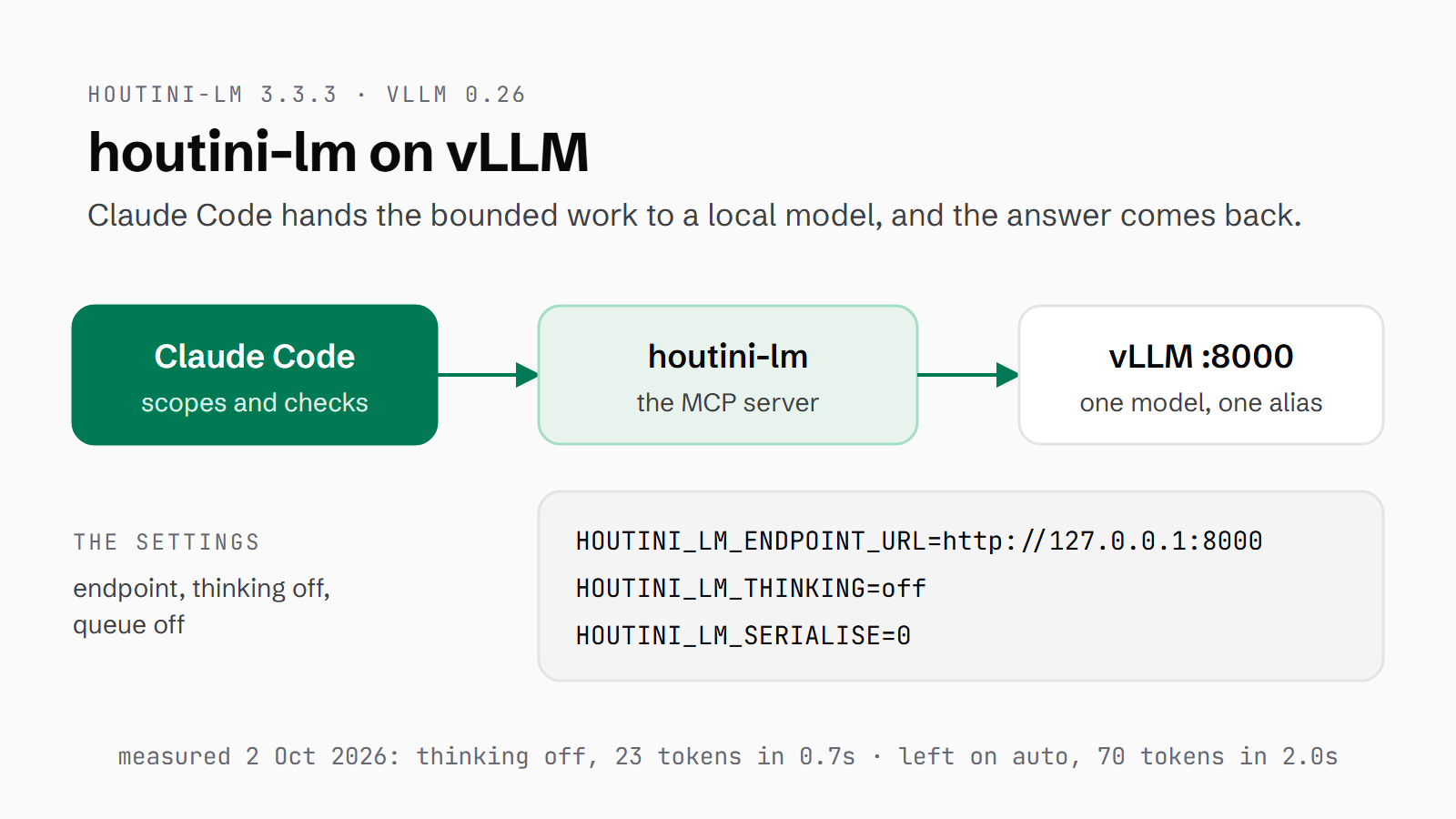
I decommissioned Hopper (my local LLM bootstrapped server) and moved my local models to a two-card 4090 rig with vLLM on Docker. It's so much faster. houtini-lm is my MCP server. MCP, the Model Context Protocol, is the standard that lets Claude talk to external tools, and houtini-lm uses it to take the bounded, bulky jobs off Claude Code, boilerplate or a code review for example. A local model does the work and Claude checks what comes back. Before the move I ran houtini-lm on LM Studio and Ollama, and it runs on vLLM now.
vLLM is an inference server that batches requests and serves an OpenAI-compatible API, and this is how to set houtini-lm up against it, first directly and then behind the LiteLLM router I use now. By the end, vLLM is serving a model under a name you choose, houtini-lm is pointed at it with thinking switched off, and one real call shows the answers coming back. It takes an NVIDIA GPU, Docker, Node and Claude Code.
Quick Navigation
What you need |
Start vLLM |
Point houtini-lm at it |
Thinking off |
Check it works |
Behind a router |
Gotchas |
Where next
What you need
There are four things to have in place before you start, all from the repo's setup guide:
- An NVIDIA GPU with room for the model and its KV cache, the memory that holds its context: about 20GB for a 4-bit ~30B model, two cards for a 4-bit ~80B.
- Docker with the NVIDIA Container Toolkit. On Windows, that's Docker Desktop with WSL2 and recent NVIDIA drivers.
- Node 22.5 or newer, ideally 22.13+.
- Claude Code or Claude Desktop.
If you don't have Claude Code yet, there's a free week of Claude Code to try it with. I run two modded 48GB RTX 4090s, 96GB in all, and the model below sits on one of them.
Start vLLM under a name you choose
The command below is close to what my delegation server runs. --served-model-name gives the model a short name you choose, and every client, houtini-lm included, calls the model by that name. That alias stays put when you change the underlying quant. My model is Qwen3.6-27B in cyankiwi's AWQ INT4 build, running on one card with 131k context.
docker run --gpus all --ipc=host -p 127.0.0.1:8000:8000 \
  -v ~/.cache/huggingface:/root/.cache/huggingface \
  vllm/vllm-openai:latest \
  --model cyankiwi/Qwen3.6-27B-AWQ-INT4 \
  --served-model-name qwen3.6-27b \
  --max-model-len 131072 --kv-cache-dtype fp8 \
  --enable-auto-tool-choice --tool-call-parser qwen3_xml \
  --reasoning-parser qwen3 --enable-prefix-caching
--ipc=host gives PyTorch the shared memory it needs, and the Hugging Face mount caches the weights so a restart doesn't download them again. On a smaller card, lower --max-model-len first, because the KV cache grows with context. The server is ready when the log shows Application startup complete.
The two parser flags have to match the model family. The tool-call parser turns the model's tool calls into standard OpenAI tool calls, and the reasoning parser keeps the model's thinking apart from its answer. Get the tool parser wrong and the tool calls arrive as raw XML or JSON text in the answer.
| Model family | --tool-call-parser | --reasoning-parser |
|---|---|---|
| Qwen3, Qwen3.6, Qwen3-Coder | qwen3_xml | qwen3 (thinking models) |
| Gemma 4 | gemma4 | gemma4 |
| Hermes and many Instruct models | hermes | none |
| Llama 3.x | llama3_json | none |
Then check the server is up. /v1/models reports the alias as the model's id:
curl http://127.0.0.1:8000/health      # 200 when it's live
curl http://127.0.0.1:8000/v1/models   # lists the served name
"id":"friend-70b" ... "root":"/models/Qwen3.8-27B-AWQ" ... "max_model_len":32768At that moment my server was running a Qwen3.8-27B under the name friend-70b for another project. A client reading the list sees the alias, and the real model only shows in root. An alias is a name you made up, so there's nothing to recognise it by, and that's why houtini-lm gets HOUTINI_LM_THINKING=off in the next step. And /v1/models answering isn't proof the model is warm. Only a real completion is.
Point houtini-lm at the server
In Claude Code it's one command:
claude mcp add houtini-lm \
  -e HOUTINI_LM_ENDPOINT_URL=http://127.0.0.1:8000 \
  -e HOUTINI_LM_THINKING=off \
  -e HOUTINI_LM_SERIALISE=0 \
  -- npx -y @houtini/lm
HOUTINI_LM_ENDPOINT_URL is the base URL without /v1, because houtini-lm adds that itself. It points at 127.0.0.1 rather than localhost for a Windows networking reason, covered under Gotchas below. HOUTINI_LM_THINKING=off gets its own section next. HOUTINI_LM_SERIALISE=0 turns the queue off: the default of 1 sends calls one at a time, which suits a single-stream backend, but vLLM batches natively. If your server needs a key, add it as HOUTINI_LM_API_KEY.
In Claude Desktop, head to Settings > Developer > Edit Config and put the same settings in the config file:
{
  "mcpServers": {
    "houtini-lm": {
      "command": "npx",
      "args": ["-y", "@houtini/lm"],
      "env": {
        "HOUTINI_LM_ENDPOINT_URL": "http://127.0.0.1:8000",
        "HOUTINI_LM_THINKING": "off",
        "HOUTINI_LM_SERIALISE": "0"
      }
    }
  }
}
Restart Claude after changing either one, as MCP servers load at launch.
Turn thinking off
Thinking models such as Qwen3 and DeepSeek R1 reason before they answer, and that reasoning comes out of the same output budget as the answer. My plan is that Claude does the reasoning and orchestration; the local model executes. So when the local model reasons as well, that's time and tokens spent for nothing.
Where the switch lives depends on the server:
// LM Studio and Ollama read the switch at the top level:
{ "enable_thinking": false }

// vLLM only reads it nested:
{ "chat_template_kwargs": { "enable_thinking": false } }
When houtini-lm switches thinking off, it sends both shapes. On auto, it recognises a model by looking its name up on Hugging Face, the public model registry. An alias you made up has no entry there, and discover says as much: Description: local model. No HuggingFace card found.
auto, the default, switches thinking off for models it recognises and leaves every other model as the backend serves it. off sends the no-think request on every call. on forces thinking on, which is worth it for bug-hunting or checking an argument, at a cost in time and tokens. For a model served under an alias, set off.
On 2 October I asked my server for a Python function that reverses a string, code only, and sent the request three ways:
| Request | Completion tokens | Time | Reasoning returned |
|---|---|---|---|
| no toggle | 79 | 3.0s | yes |
"enable_thinking": false at the top level | 69 | 2.0s | yes |
"chat_template_kwargs": {"enable_thinking": false} | 23 | 0.7s | none |
Then I sent two prompts through houtini-lm itself, once on auto and once on off: one asking for exactly one word, "ok", and the same reverse-a-string request.
HOUTINI_LM_THINKING | "ok" | reverse a string |
|---|---|---|
unset (auto) | 36 tokens, 1.4s | 70 tokens, 2.0s |
off | 2 tokens, 0.3s | 23 tokens, 0.7s |
Both settings returned correct answers. With off, the reverse-a-string call went from 2.0 to 0.7 seconds and used a third of the tokens. My earlier measurement on a tool call, written up in the repo's docs/VLLM-BACKEND.md, went the same way: 135 tokens and 3.7 seconds with thinking on, 26 tokens and 0.8 seconds with it off, and a correct tool call both times. When the reasoning does run, vLLM 0.26 returns it in a separate reasoning field, which older builds called reasoning_content. houtini-lm reads both.
Check it works
Ask Claude to run houtini-lm's discover tool. It reports the version, the endpoint, the active model and the context window. Mine came back like this, still on the friend-70b alias from earlier and with thinking off:
Status: ONLINE (houtini-lm 3.3.3)
Endpoint: http://127.0.0.1:8000 (OpenAI-compatible)
Active model: friend-70b
Context window: 32,768 tokens
Then make a real delegated call. Mine was the reverse-a-string request from the table above, and houtini-lm's footer put it at 125ms to the first token and 39.0 tokens per second (tok/s). If the code comes back, the endpoint and the parser are set up right, and the token count in the footer shows whether no-think took: 23 on mine, against 70 on auto. If the model has been sitting idle, send it a one-word prompt first to load it back in.
With a LiteLLM router in front
I don't point houtini-lm at vLLM directly any more. It points at a LiteLLM router running in Docker on port 4000, which puts several models behind one OpenAI-compatible endpoint. Behind mine sit vLLM and a couple of cheap API models, and my local alias on the router is the 27B on vLLM.
houtini-lm 3.3 and later read the router's /model/info as well as /v1/models. That names the real model behind each alias, so my local resolves to qwen3.6-27b and recognition works on its own there. I keep HOUTINI_LM_THINKING=off anyway, because it's faster. Pin the model with HOUTINI_LM_MODEL, because an unpinned call lands on whichever alias the router lists first. My router config also keeps drop_params: false, which means per-request fields like chat_template_kwargs go through to vLLM untouched.
claude mcp add houtini-lm \
  -e HOUTINI_LM_ENDPOINT_URL=http://127.0.0.1:4000 \
  -e HOUTINI_LM_API_KEY=your-litellm-key \
  -e HOUTINI_LM_MODEL=local \
  -e HOUTINI_LM_THINKING=off \
  -e HOUTINI_LM_SERIALISE=0 \
  -- npx -y @houtini/lm
Gotchas
These are the six things I'd check on a new vLLM setup, with what to do about each.
Use 127.0.0.1, not localhost
On Windows with WSL2 mirrored networking, localhost can resolve to IPv6, and the request times out. Use http://127.0.0.1:8000 for the endpoint instead. If the call comes from another container, a LiteLLM router in Docker for example, the address is http://host.docker.internal:8000.
Don't leave port 8000 open
-p 8000:8000 publishes the server on every network interface, and vLLM has no auth by default. Left like that, it's somebody else's free compute. Bind it to the machine with -p 127.0.0.1:8000:8000, as the command above does, or start vLLM with --api-key and give houtini-lm the same key in HOUTINI_LM_API_KEY.
The first call is slow
A model reloaded from idle takes 30-60 seconds before the first token, and the comment in my router config puts the reload at about 52 seconds. Big reasoning answers can take minutes. houtini-lm itself waits up to 180 seconds for the first token, and a proxy in front of vLLM wants a timeout of 600 seconds or more.
One model per server
vLLM loads one model per server. Switching means restarting the container with a new --model, which takes 1-2 minutes once the weights are cached. /v1/models only ever lists the loaded one.
Leave max_tokens alone
The output budget counts the reasoning and the answer together, so a low cap can be spent entirely on reasoning and come back as an empty answer. Leave it unset. houtini-lm sizes the budget from the model and its context window, and ignores caller caps under 4,096 unless you set HOUTINI_LM_MIN_TOKENS=0. A high cap is only a ceiling: my reverse-a-string call above had room for nearly 32,000 tokens and used 23.
Slow on a 4090? Check the quant
Block-format FP8 checkpoints have no tuned kernel on Ada (SM89), and vLLM says so in its log: "Using default W8A8 Block FP8 kernel config. Performance might be sub-optimal!" On one of my 4090s, the official FP8 build of Qwen3.6-27B decoded at 19 tok/s, and cyankiwi's AWQ INT4 build of the same model did 47.3 tok/s. Use an AWQ INT4 build, which runs on Marlin kernels, or FP8-dynamic weights instead, and keep plain FP8 for the KV cache.
Where to go from here
The repo keeps this setup as a reference copy in its `docs/SETUP-VLLM.md`. If you're starting from nothing on Windows, setting up vLLM in Docker on WSL2 is the place to stand the server up first. The tuning behind my rig's settings is in the vLLM settings work across twelve local models, and benchmarking vLLM is covered on the model testing page. The case for delegating in the first place is in cutting your Claude Code bill with houtini-lm.
Continue reading.
- How-to GuidesHow to Connect Claude to Shopify with MCP (Dev MCP and Storefront Catalog)
- How-to GuidesHow to Use AI for Market Research with Claude
- How-to Guidesn8n MCP: How to Connect Claude Code to n8n and Use Its API Safely
- How-to GuidesHow to Run Qwen3-Coder-Next Locally: My vLLM Settings for Two 48GB RTX 4090s
- How-to GuidesHow to Build a Competitor Price Monitoring Pipeline with n8n
- How-to GuidesOpenCode vs Claude Code: Setting Up OpenCode Desktop on Windows