Claude for Excel: How to Add It, Use It and Check Its Work
I first tested Claude for Excel in its February beta, and this week I ran it again on 20,000 rows of product data made messy on purpose. This guide covers how to add it, the edit setting to check before you start, and why it does its best work one simple step at a time.
 Richard Baxter AI Ops & Marketing Engineer
 On this page
- What Claude for Excel is (and isn't)
- How to add Claude to Excel
- Check the edit setting first
- How to use Claude in Excel: a worked example
- Prompt it one step at a time
- The data audit I ran in February
- What it can't do, and where its limits are
- Prompts for everyday Excel jobs
- Skills and connectors
- Claude for Excel vs Copilot in Excel
- When I skip the Excel sidebar
- Is Claude for Excel any good?

You've got a big spreadsheet and a job that will take all afternoon, and there's a Claude pane in Excel offering to do it for you. Can it?
I first tested Claude for Excel in February, while it was still in beta, on a product data audit I had already done by hand, so I had good context to judge how close (or accurate) Claude's approach to the data was. I ran it again this week on 20,000 rows of product data, made messy on purpose.
The short answer is yes, with conditions. It's very powerful at spotting patterns and answering questions about your data. It's at its best when you give it simple, step-by-step instructions rather than one big multi-step prompt. And there's one setting to check before you let it anywhere near data you care about.
Quick Navigation
What it is |
Install |
Edit setting |
Worked example |
Prompting |
February audit |
Limits |
Prompts |
Skills |
vs Copilot |
Scripts instead |
Verdict
What Claude for Excel is (and isn't)
Claude for Excel is an add-in. An add-in is a small app that installs inside Excel and adds its own button and pane. This one puts Claude in a pane on the right of the Excel window, where it can read and edit the workbook you have open.
It's part of Claude for Microsoft 365, which covers Excel, PowerPoint and Word, and all three became generally available on 5 May 2026. Claude for Outlook is still in beta.
You need a paid Claude plan (Pro, Max, Team or Enterprise); the free plan doesn't get it.
| Claude for Excel | |
|---|---|
| Plans | Pro, Max, Team and Enterprise (not the free plan) |
| Windows | Excel with a Microsoft 365 subscription |
| Mac | Excel 16.46 or later |
| Web | Excel on the web (no dictation there) |
| Not supported | iPad, Android, Excel 2016 and 2019 perpetual licences |
It isn't the same as uploading a spreadsheet to a Claude chat, although that works too: if all you want is for Claude to read an Excel file, you can drop the file into a chat. And it isn't Claude running inside Microsoft Copilot, which I'll come to later.
There's no Google Sheets version, either: Anthropic's add-ins are for Microsoft 365 only.
How to add Claude to Excel
In Excel for Windows, go to Home > Add-ins, search for "Claude" and click Claude for Microsoft 365 to install it. Or open the Claude for Microsoft 365 listing on Microsoft AppSource and click Get it now, then open Excel and activate the add-in. Either way, you then sign in with your Claude account. Once you're signed in, the Claude button sits on the Home tab, and clicking it opens the pane.
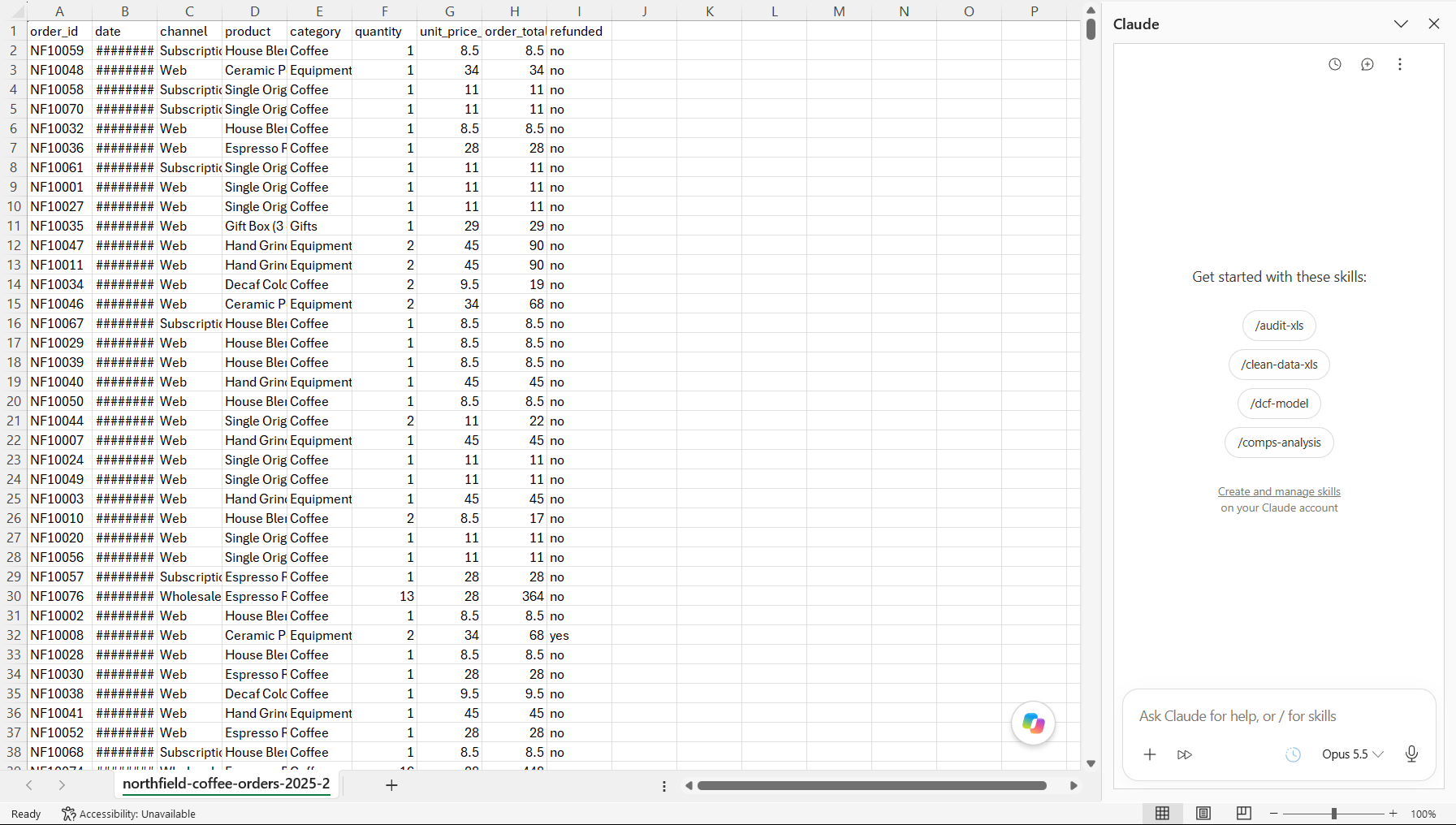
One more thing to watch out for: the older listing, "Claude by Anthropic for Excel", is still live on AppSource, and that add-in was retired in July. Users on Reddit who were still on it got a retirement warning and a pane that stopped working. The fix was to install Claude for Microsoft 365 instead. My own machine still had the old one sitting in its add-in cache when I signed in to the current one this week, so check which listing you're installing from.
If you're rolling it out across a company, your admin deploys it from the Microsoft 365 admin centre, under Integrated apps.
If you're signing up to Claude for this, new accounts get a free week of Claude Code.
Check the edit setting first
Before you type anything, look at the bottom row of the message box. The icon beside the + button is the edit setting: a hand means Ask before edits, and a double arrow means Accept all edits. Click it to see both choices.
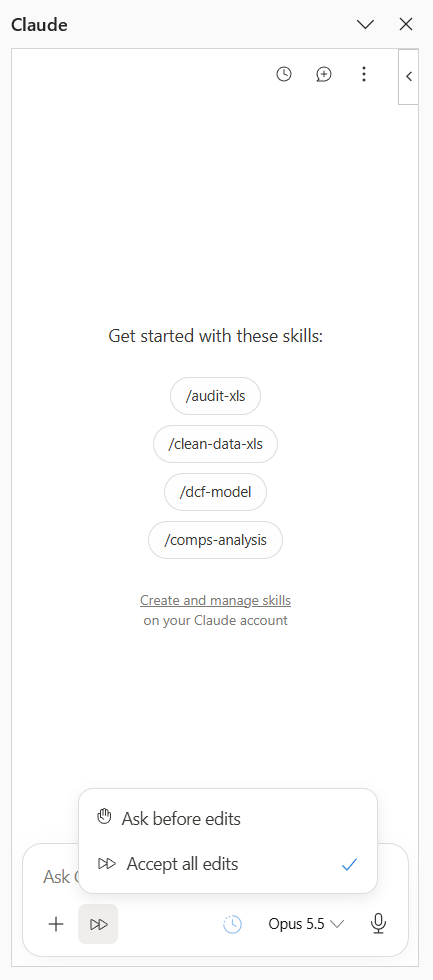
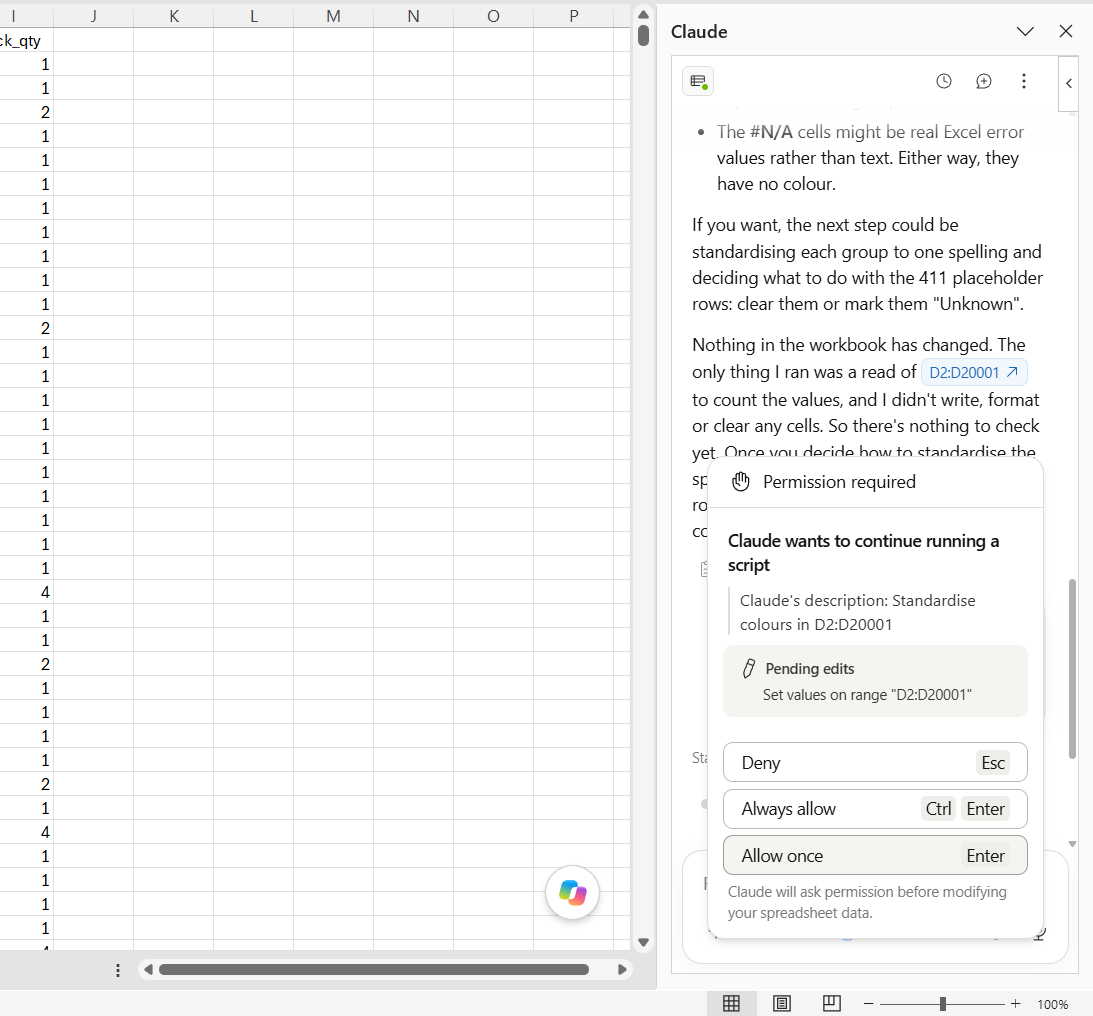
With Ask before edits on, Claude shows you the change it wants to make and waits. You get a permission card with three buttons, Deny, Always allow and Allow once, and nothing in the sheet changes until you pick one.
In February my main complaint was that Claude was just a little too keen to make changes to the data directly, without asking for permission. Looking back, my February recording shows the pane set to Accept all edits, and when I opened it this week, it was on the same setting again. In Mike Dion's walkthrough from the beta, which I come back to further down, clicking Always allow on a permission card switched the pane to Accept all edits, which is an easy way to end up there without ever deciding to.
Anthropic's docs describe overwrite protection, which warns you before Claude overwrites existing data, and a confirm step for risky operations. They don't mention this setting at all, or say which way it starts.
I can't tell you which way a fresh install starts, either. My account had used the older add-in, and I may well have clicked Always allow on it at some point before this week.
So keep a copy of the workbook, and look at the setting before every session on real data.
How to use Claude in Excel: a worked example
For this week's run I used a made-up product export (20,000 products, nine columns, 180,000 cells) with problems planted in it on purpose, so every answer Claude gave could be checked against a known list. The colour column, for example, has variant spellings like GREY, Gray and Yelow, and it has placeholder values. A placeholder value is something typed into a cell to fill it when nobody had the real answer. In this sheet they're 0, N/A, undefined and #N/A.
The first prompt was a read, with nothing to change and Ask before edits switched on:
"List every distinct value in the colour column (D) with how many rows use it, and group the values that mean the same colour. Don't change anything yet."
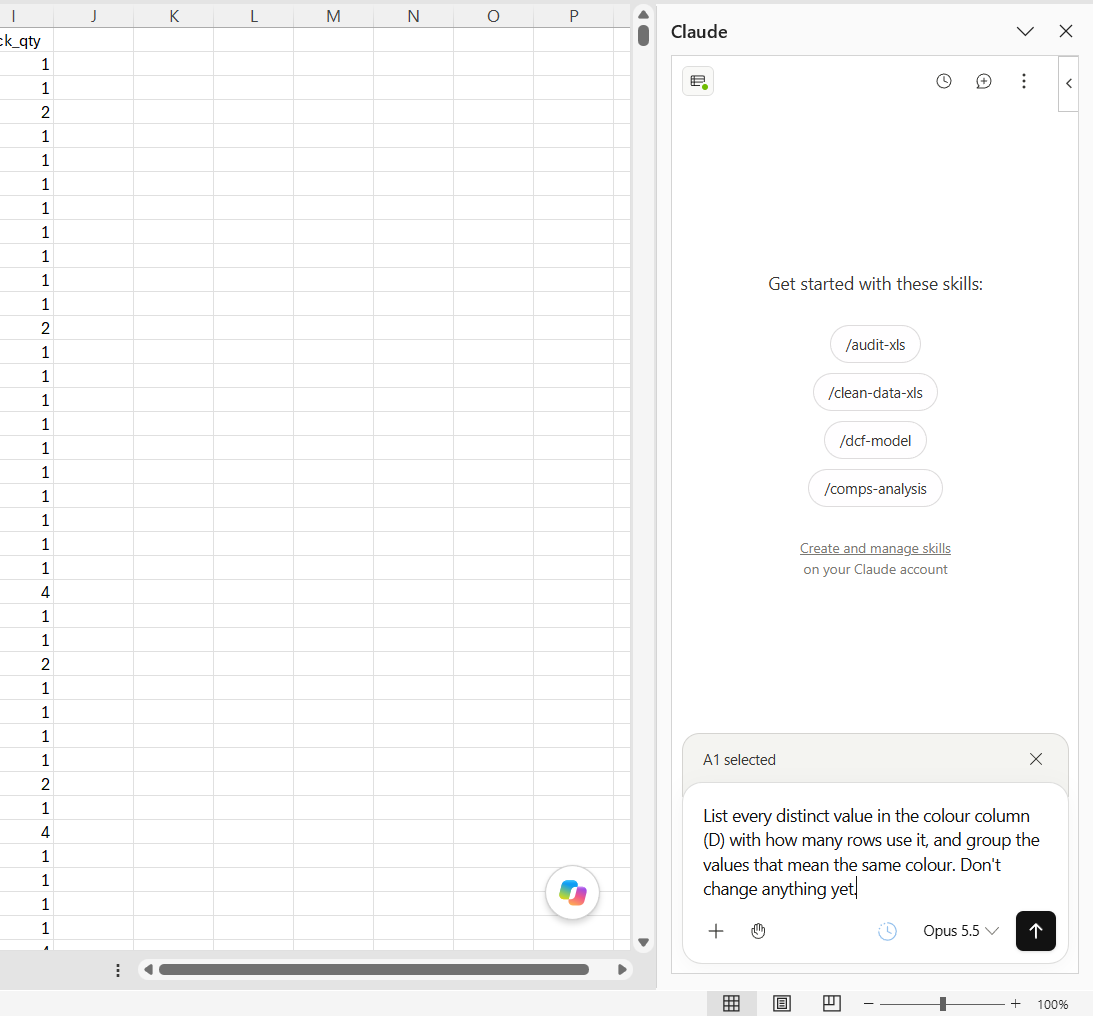
The answer came back in under 45 seconds. It found 23 distinct values, sorted them into six groups plus one for placeholders, and every count matched what had been planted, from Grey at 3,310 rows down to the 411 placeholder cells. It noted that Zinc Plated is a metal finish rather than a colour, and kept it as its own group. It flagged Blk as shorthand and Yelow as a typo, and told me it hadn't changed anything.
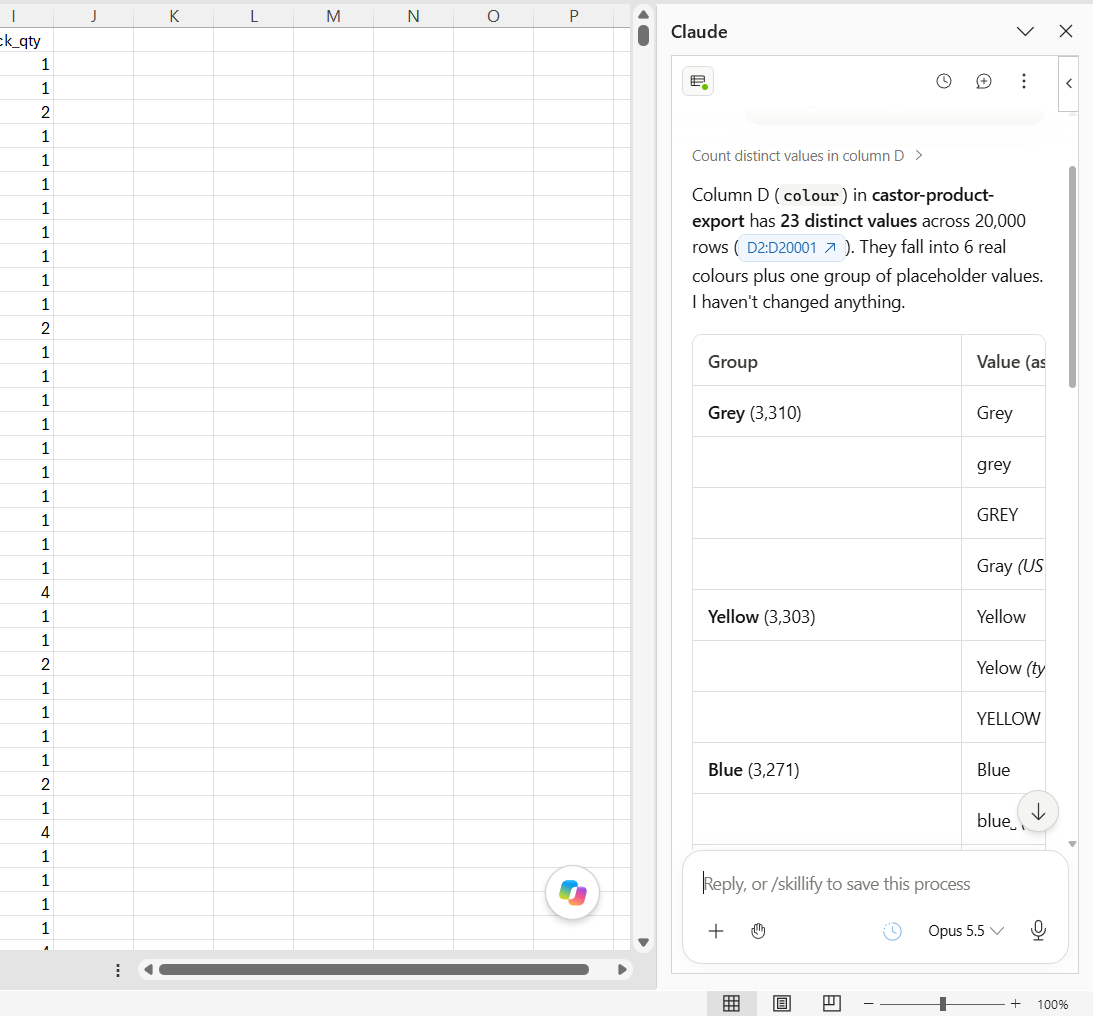
The second prompt made the edit:
"Standardise column D: change every value to the first spelling in its group, and clear the 411 placeholder cells so they're blank."
Up came the permission card, with the pending edit listed as setting values on D2:D20001. I clicked Allow once, and it went ahead. It rewrote the column, re-read it, and checked the totals still added up to 20,000.
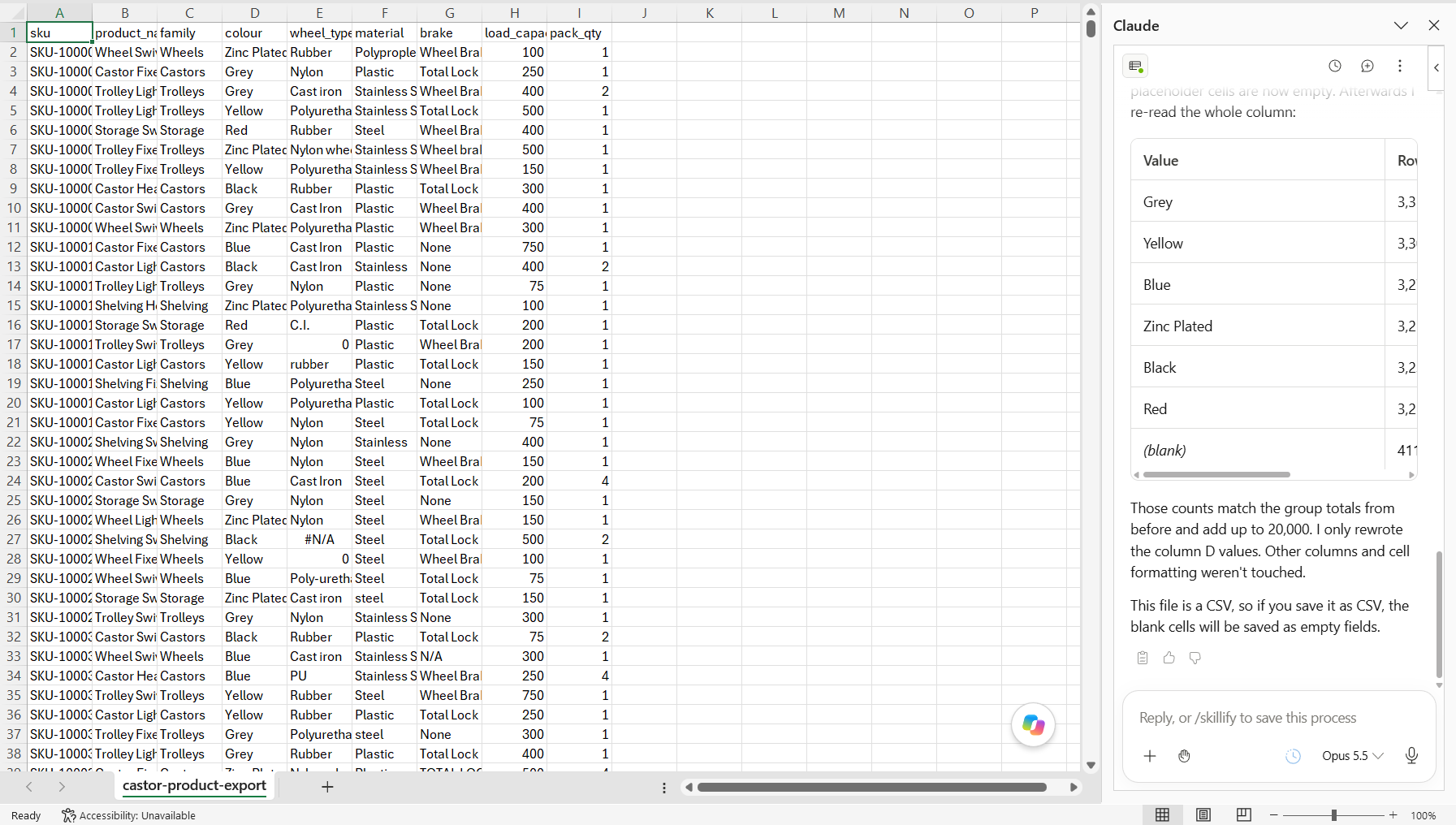
After that, I open the filter dropdown on the column, because it's always worth checking there are no unwelcome visitors left in it.
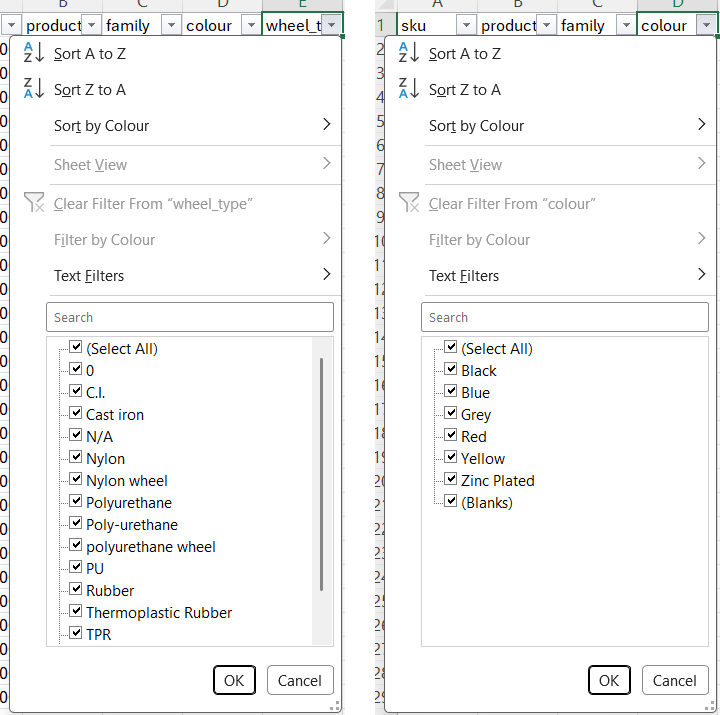
The filter list has one blind spot, though: it ignores case, so "Cast Iron" and "Cast iron" show up as one entry, and GREY would sit under Grey. The distinct-values read at the start is what catches those.
Prompt it one step at a time
In my experience, Claude gets more accurate with more than one pass, and with prompts that ask for one simple thing. "Find all cells that follow this pattern" is a better type of prompt than a multi-step prompt in one go.
Find every cell in the wheel_type column (E) that isn't Polyurethane, Rubber, Nylon or Cast Iron, matching case exactly, and tell me how many rows each of those values is on. Don't change anything yet.The simpler, step-by-step approach also takes away a lot of the risk of just accepting all edits. Claude can only do so much in one small step before you look at what it's done.
If a change is the product of a formula, it's deterministic, so it's difficult to go wrong unless there's a flaw in the formula itself. Fixing problems in text is different, whether that's formatting, random characters or junk values, and there you check with a filter.
In the same walkthrough on YouTube, filmed in February, Dion planted two errors in a cash flow model, and Claude found one of them on the first pass and missed the other. It only found the second when he told it there was still an error in there. People on Reddit land in much the same place. Their consensus is that it's good, and you verify everything.
The data audit I ran in February
In February I was auditing a product data spreadsheet with a huge number of product attributes. It came from a PIM (a product information management system, which is where a retailer keeps its product data), and because I'd already audited the file by hand, I had a way to check Claude's answers. It was the beta then, running Opus 4.6.
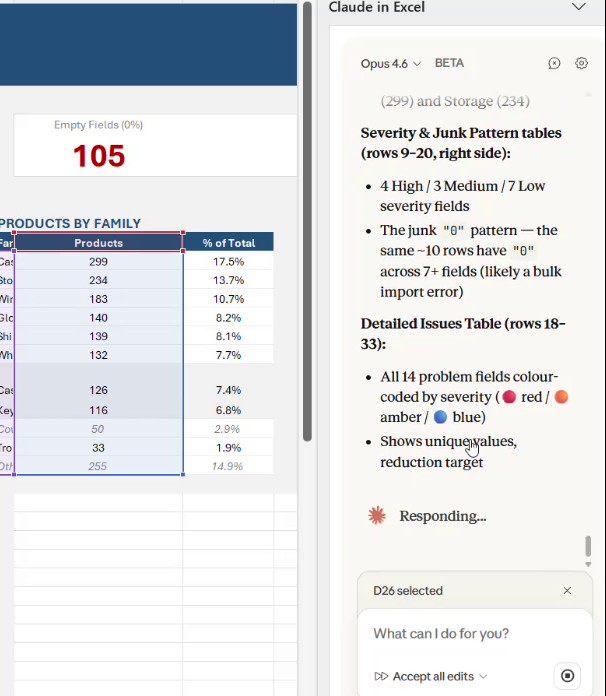
It correctly identified a group of columns with inconsistent data names, precisely the reason why I was auditing the data in the first place. It gave me a list of the columns I should investigate, so off I went to correct those very columns. The clickable cell references were very helpful on a big multi-tab workbook. There were no crashes or timeouts.
Then I asked it to build a dashboard, which looked promising: a data-quality audit of 1,707 products and 364 fields, with column completeness, a field-by-field issues table and charts.
In the end, the dashboard added no real utility to my particular use case.
The export alone was about 620,000 cells, comfortably under the one-million-cell mark that Anthropic says works well.
What it can't do, and where its limits are
What it can't do
Data tables, macros and VBA aren't supported. Power Query isn't mentioned anywhere in Anthropic's docs. One Reddit commenter found it lays the M code out in a tab for you to paste in, rather than editing the query. It can only read and write files that are already open, and it can't open, close or switch between files on its own. So open everything it needs before you ask. If the job needs a macro, build that part yourself and use Claude for the analysis around it.
How big a workbook
Claude reads 2,000 cells with data at a time, which means a big sheet gets read in steps. Anthropic sorts workbooks into bands by how many cells are in use. Under a million works well. Between one and five million is riskier, and you should narrow your request. Over five million is at your own risk.
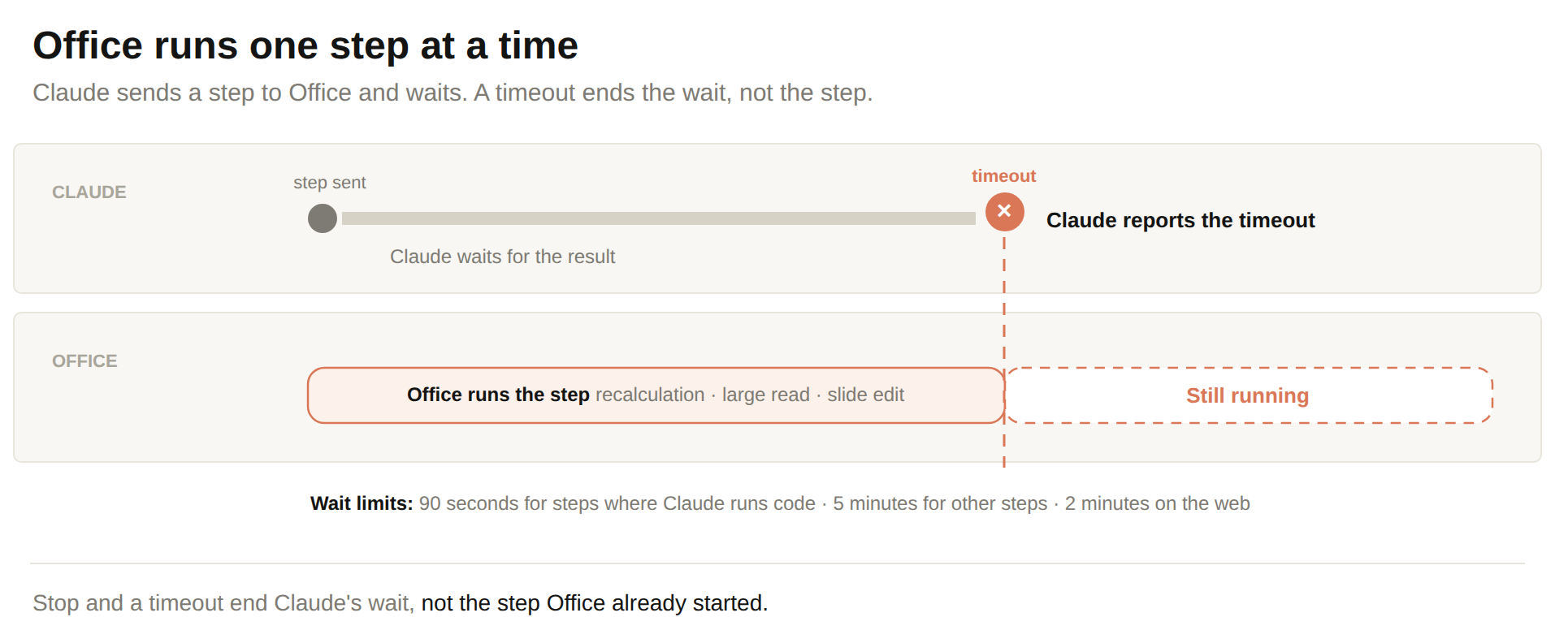
Each step has a timeout too: 90 seconds where Claude is running code, and five minutes for other steps on desktop, or two minutes on the web. For big workbooks, Anthropic suggests asking for SUMIFS rather than array formulas, avoiding OFFSET and INDIRECT, and setting calculation to Manual while Claude makes big changes.
Usage limits
The add-in uses your Claude plan's usage limits, and file work is heavy on them. Your plan gives you a set amount of use, counted in tokens, which are the chunks of text a model reads and writes. Every read of the sheet uses them.
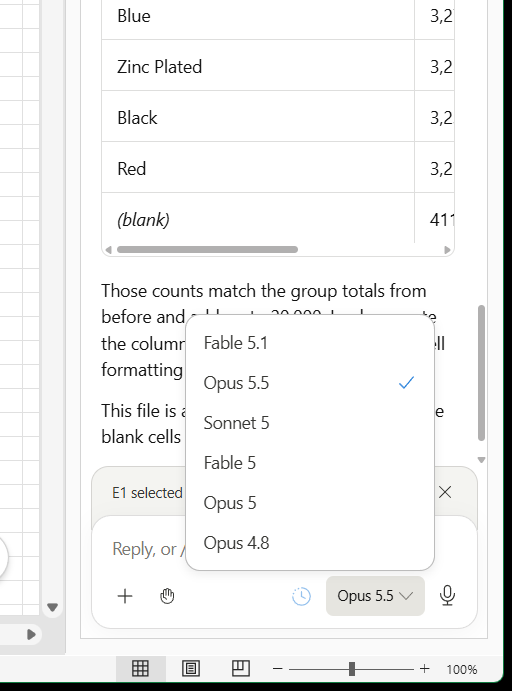
On Reddit, one user running forecasting and inventory models worked out it was costing about a dollar a minute on Opus, and a finance user had got through $399 of a $400 monthly allowance. Point it at a range rather than the whole workbook, and pick Sonnet 5 over Opus for simple jobs. The model picker lists Fable 5.1, Opus 5.5, Sonnet 5, Fable 5, Opus 5 and Opus 4.8.
Chat history
Conversations stay with the file, so you can close the pane and pick up where you left off later. They're stored on that device only, though, and won't be there if you open the file on another machine. Only the 50 most recent conversations are kept for each app. In Excel on the web, treat the history as temporary, because the browser clears that storage on its own schedule.
Losing chat history was my other big complaint in February, and it's mostly fixed. Keep your own notes of what you decided, because one user on Reddit reported add-in chats vanishing now and then as recently as September.
Prompts for everyday Excel jobs
Most days the job is smaller than an audit: a lookup that keeps breaking, a column of #N/A, a supplier list someone has typed six different ways. With Claude for Excel you stop writing the formula: you say what you want and what's going wrong, and it writes the XLOOKUP.
Each prompt below does one job, which is how I'd use it anyway. Four of them end with a "check with me first" line. The summary and the split change the sheet as well, so if you're on Accept all edits, add the line to those two. On that setting there's no permission card, so the line is what stops Claude rewriting a column before you've looked at it.
Pulling a value across from another sheet
You name the column to fill, the tab to pull from and the key to match on, and the prompt asks Claude to show you the formula before it fills anything.
In column E, pull the supplier name from the "Suppliers" tab by matching the SKU
in column A. Where a SKU has no match, write "no supplier on file" instead of
leaving an error. Show me the formula you used, and check with me before you
fill the column.
Fixing a column of #N/A
A lookup returns #N/A for four common reasons: trailing spaces on one side of the match, numbers stored as text, an approximate match where you needed an exact one, or a value that isn't in the source at all. You don't need to know which.
Column F is full of #N/A from a lookup. Work out why each one is failing -
trailing spaces, numbers stored as text, an approximate match, or a value that
isn't in the source - and fix the ones caused by formatting. List the ones with
no match in the source so I can chase them. Don't change anything until you've
shown me the list.
Standardising a messy column
Company names get the same treatment as the colour column in the worked example above, so read the before-and-after list before you let anything change.
Column C has company names entered inconsistently - extra spaces, mixed
capitalisation, "Ltd" in some rows and "Limited" in others. Standardise them to
one consistent format. Show me a before-and-after for everything you'd change
and wait for my go-ahead before applying it.
Understanding a formula you inherited
Before you trust a formula someone else wrote, or rip it out, ask what it does in plain English and where it could break. The prompt also asks for a sturdier version, if there is one.
Explain what the formula in cell H2 does in plain English. Tell me where it
could break - empty cells, text where it expects numbers, a moved column - and
suggest a more robust version if there is one.
Summarising without building the pivot by hand
Asking Claude to say whether it used a pivot table or formulas, and how it set them up, means you can rebuild the totals yourself next time.
From the data in A1:F500, give me total revenue by region and by month. Tell me
whether you used a pivot table or formulas, and how you set it up, so I can
rebuild it myself next time.
Finding duplicates that aren't identical
When rows share a key but don't agree on everything else, the prompt asks Claude to lay each conflicting set side by side, recommend which row to keep, and delete nothing until you confirm.
Rows in this sheet are duplicated on the SKU in column A, but the other columns
don't always agree. Find the duplicate SKUs, show me each conflicting set side
by side, and recommend which row to keep. Don't delete anything until I confirm.
Splitting one column into several
This is Text to Columns, described rather than clicked, and the last line asks Claude to flag the rows that don't fit the pattern instead of guessing.
Column B holds full names as "Surname, Firstname". Split them into two new
columns, Firstname and Surname. Flag any rows that don't fit that pattern
instead of guessing.
The workbook below is somewhere to practise before anything goes near your own data. There are three workflows in it, each with sample data and a prompt to copy: writing a formula, cleaning a messy export and summarising a year of revenue. There's a prompt library too, and you're free to adapt any of it. Change the column names to match your own sheet, work on a copy, and keep the "check with me first" line in any prompt that changes data.
Download claude-for-excel-workflows.xlsx (MIT-licensed)
Skills and connectors
A skill is a saved way of doing a job, which Claude applies when your request fits it. The pane opens with four starter skills: /audit-xls, /clean-data-xls, /dcf-model and /comps-analysis, which you can see in the install screenshot further up. Type / in the message box to see the ones available. After a reply, the box offers /skillify, which saves what you've just done as a skill of your own.
When I first tested it, I thought the gamechanger would be MCP support, so live data could flow into a model. That has landed as connectors. A connector links Claude to an outside source of data. Under the hood it uses MCP, which is a standard way for Claude to talk to other tools. Click the + button below the message box, then Connectors, to see them: S&P Global, LSEG and Daloopa for financial data, plus any custom connectors your organisation has enabled. Anthropic warns that a custom connector can carry security risks.
Only use Claude on workbooks you trust, too. A file from outside can carry a prompt injection, which is an instruction hidden in a cell to steer Claude into doing something you didn't ask for.
Claude for Excel vs Copilot in Excel
In February I said Claude for Excel beats anything I'd experienced from Copilot in Excel by default, and it beats Gemini in Google Sheets too. Copilot in Excel has a bit of a reputation for struggling with longer spreadsheets and royally screwing your data up.
Finance users on Reddit agree, strongly, about default Copilot. It's hard to find anyone there arguing that it does a better job than the add-in.
To be fair to Microsoft, Copilot (renamed from Microsoft 365 Copilot) now lets you pick Claude models inside Excel, PowerPoint and Word. Opus 5.5 started rolling out there on 22 September. You need a commercial Copilot subscription, and Anthropic's models have to be allowed in your organisation's admin settings.
| Claude for Excel | Claude in Microsoft Copilot | |
|---|---|---|
| Made by | Anthropic | Microsoft |
| You pay for | A paid Claude plan | A commercial Copilot subscription |
| Turned on by | You, by installing the add-in | Your organisation's admin settings (on by default for newer UK and EU tenants) |
| Models | Claude only, from a curated list | Claude alongside other models in Copilot's picker |
So is it the same thing? Most people on Reddit who've tried both say the add-in still does better with the same model, because of the tools Anthropic has built around it. Others find Copilot with Claude good enough, and one tester found it faster.
If you're in the UK or the EU, Claude inside Copilot is processed outside Microsoft's EU Data Boundary, and on UK and EU tenants created after 25 March 2026 it's switched on by default, so raise it with whoever looks after your data.
When I skip the Excel sidebar
Working in Excel through the pane isn't the natural approach I'd take. I'd be writing scripts to generate CSVs, or processing data from an API. A CSV is a plain-text file of values separated by commas, which almost any tool can open.
So you'll probably always find that Claude for Excel is slightly behind what Claude can do on a file system, generating files with scripts. A couple of heavy model builders on Reddit rate Claude Code above the pane for big builds, and a finance user generates the model with Python and has the add-in apply the house formatting.
But if you understand that it works better with simple instructions, one step at a time, you can get some fantastic results from it.
Is Claude for Excel any good?
Yes. It's very good at finding patterns and problems in data, and on both of my runs its answers matched what I already had: my hand audit in February, and the planted colour problems in September. In February, while it was in beta, I'd have said proceed with caution. It's out of beta now, and the caution sits in how you use it.
Software companies have nothing to fear here. It integrates with Excel. It doesn't replace it. I'm very bullish on the importance of implementing AI tool use in the workplace.
Download the workbook above and run the prompts on a copy of your own data. Then try the read-first prompt on your messiest column, and see what it groups together that you didn't know was there.
List every distinct value in column [letter] with how many rows use it, and group the values that mean the same thing. Don't change anything yet.Continue reading.
- How-to GuidesHow to Connect Claude to Shopify with MCP (Dev MCP and Storefront Catalog)
- How-to GuidesHow to Use AI for Market Research with Claude
- How-to Guidesn8n MCP: How to Connect Claude Code to n8n and Use Its API Safely
- How-to GuidesHow to Run Qwen3-Coder-Next Locally: My vLLM Settings for Two 48GB RTX 4090s
- How-to GuidesHow to Build a Competitor Price Monitoring Pipeline with n8n
- How-to GuidesOpenCode vs Claude Code: Setting Up OpenCode Desktop on Windows