Which AI is right for your job? ChatGPT, Claude, Gemini and Copilot, task by task
Everyone's talking about AI assistants - ChatGPT, Claude, Gemini, Copilot - and if you've a real job to get through, you mostly want to know one thing: which of them will build Monday's deck, sort the badly-exported spreadsheet, write up the meeting, and clear the inbox? Here's the answer, task by task.
 Richard Baxter AI Ops & Marketing Engineer
 On this page

You don't have a job called "use AI". What you've got is a Monday: a deck for the ten o'clock, a spreadsheet somebody exported badly, a meeting you'd rather skip, and forty-odd emails of which maybe six need a decision. None of that cares which assistant tops a benchmark this week - what decides it is duller and more useful than that, and it's mostly about where you already work. So I've organised this the way your week runs: by the job, not the tool.
And the answer's shifted more in the last year than most people have clocked. The chatbot will now hand you a real, downloadable PowerPoint file - slides, not an outline. It will write and run proper code on your spreadsheet and give you back a chart with numbers it computed rather than guessed at. In Teams and Google Meet, the meeting takes its own notes. If your mental picture of AI is still "a thing that writes text you copy and paste somewhere", quite a lot has moved while you were busy doing the deck yourself. The wry bit is that the admin these tools are best at is exactly the stuff likely to half-disappear from our jobs over the next few years - so we're automating the doomed work first. Anyway - it's where the hours go for now, so it's where AI earns its keep.
The short version: if your work runs on Microsoft 365, your answer is probably Copilot. If you live in Gmail and Google Docs, it's Gemini. If you want one standalone tool, it's ChatGPT or Claude, and the deciding factor there is less about cleverness than about what happens to the things you paste in. The rest of this article is the working.
Quick Navigation
Jump to the task you care about:
Building a presentation |
Spreadsheets and data |
Meetings |
Email |
So which one should you get? |
Where to go next
Building a presentation
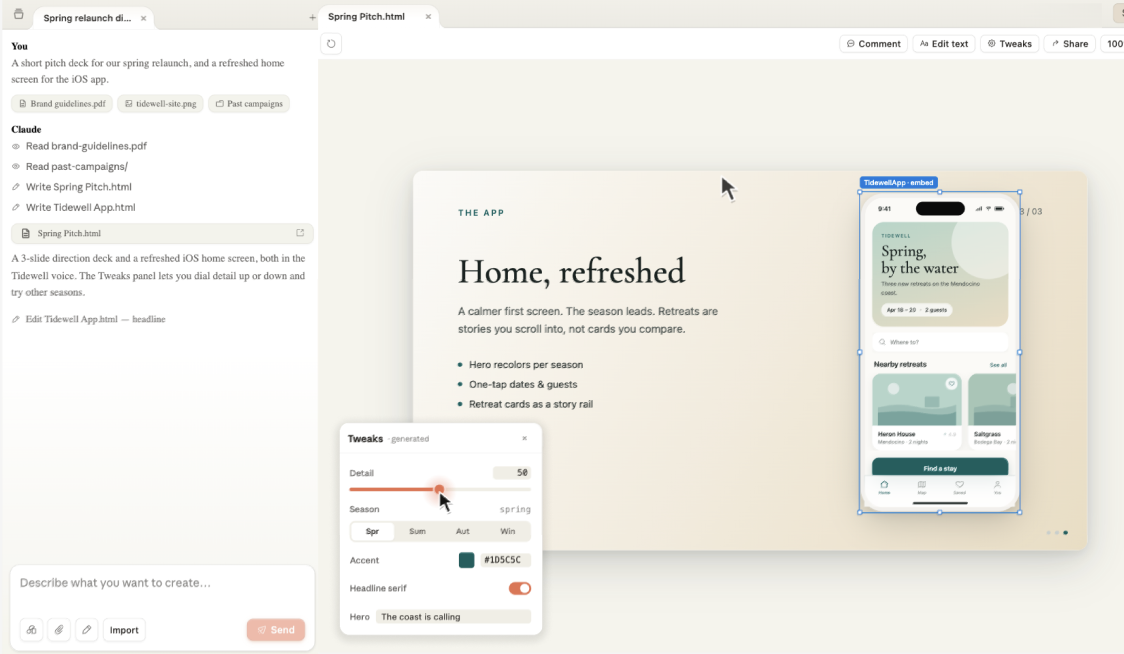
Hand it your rough notes - the bullet points, the half-finished report, the email thread where the decision quietly got made - and ask for a deck. From the better tools, what comes back is a real PowerPoint file you can download and open. Titles, slides, speaker notes, a layout that mostly holds together. Not a list of suggested slides for you to go and build. The file.
Claude is the one I use all day, and this is where it's strongest - with one setting turned on. Flip "Code Execution and File Creation" on in Settings (it's off to begin with, which trips people up), then describe the deck, attach the source material, and it builds a real downloadable .pptx in the chat. Leave that setting off and what you get is the slide content laid out to paste in yourself - handy, but not the file. The first time I had it build the actual thing I downloaded it half-expecting an empty template, because for years "make me a presentation" meant "here is an outline, off you go". There's also a Microsoft 365 add-in that runs Claude inside PowerPoint itself, though that sits on the paid side of the fence.
If your company pays for Microsoft 365 Copilot, the same trick happens without leaving PowerPoint - Copilot drafts the deck from your report and your data in the app, which spares you the download-and-upload shuffle. (A detail I enjoy: Microsoft now routes some of this work behind the scenes to Anthropic's Claude. Same engine, different badge.) ChatGPT was my daily driver for a couple of years, until Claude and Gemini pulled ahead for the work I do - Claude especially, for building things. Going back to it for this piece: strong outline, decent speaker notes, and it'll generate you a title-slide graphic, though its export to an actual PowerPoint file is rougher than Claude's. Gemini builds slides and infographics in its Canvas workspace and inside Google Slides, which is the right answer if Slides is where the deck was going to live anyway.
Now the let-down, because there is one. What you get is a strong first draft, not a finished deck. The fonts won't be your company's, the chart on slide six will want redrawing, and someone from brand will have opinions (someone from brand always has opinions). In my experience you land at about 80% done - which sounds like a complaint until you remember that the 80% used to take the whole morning. I say this as a man whose own slides have been described, kindly, as "functional".
The pick: inside Microsoft 365, use Copilot. Want a real file out of a plain chat, use Claude. Living in Google, use Gemini in Slides. Whichever you choose, budget twenty minutes of tidying before the deck goes anywhere near a projector.
Spreadsheets and data
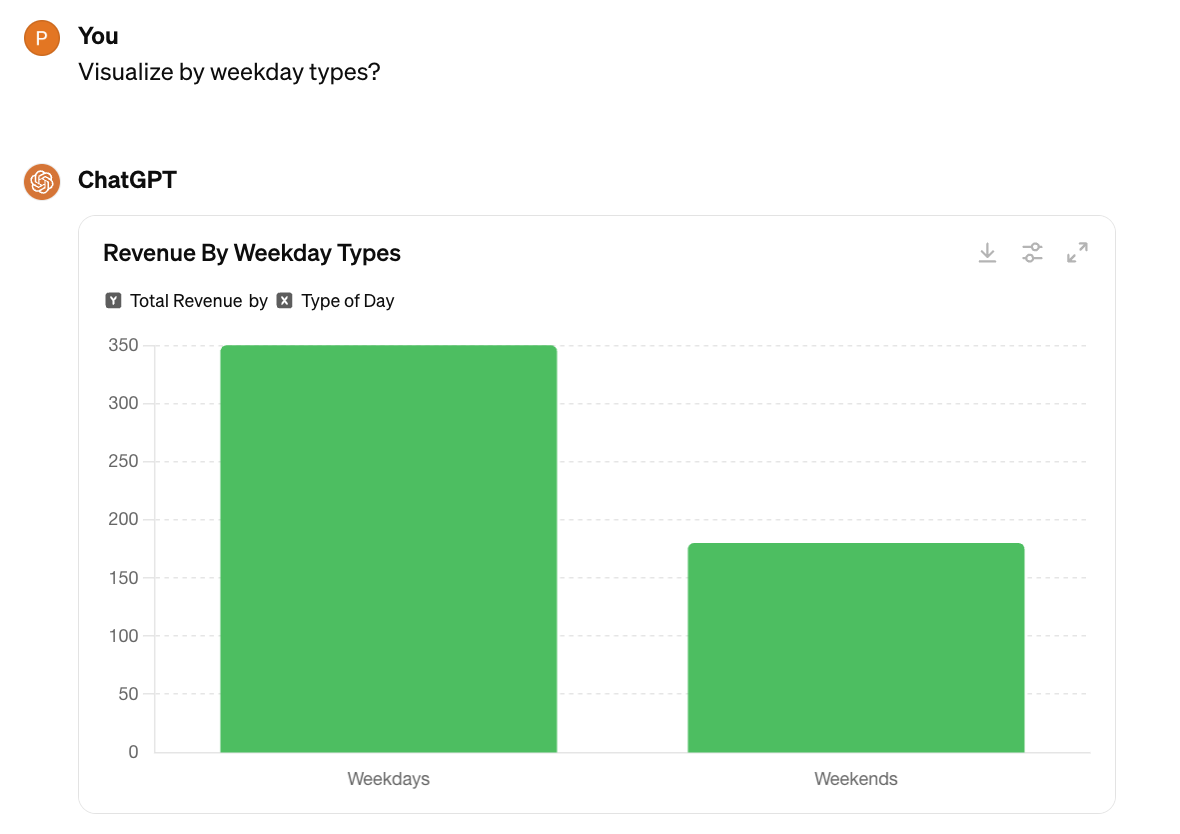
This is the change I'd nominate as the biggest of the lot, and the least understood. These tools no longer do arithmetic by guessing at it in prose. They write real Python code, run it on the file you uploaded, and show you the code next to the answer - so when you ask "which three regions grew fastest quarter on quarter, and give me a bar chart", the numbers in that chart came out of code you can watch it run. For anyone who's been burned by a chatbot confidently inventing a percentage (most of us, by now), that shift is the whole reason to trust it with a spreadsheet at all. I've written up Claude for Excel in full separately - the workflows, the prompts and where it still bites.
ChatGPT's version is called Advanced Data Analysis, and it's the one this workflow is famous for: upload a year of messy CSV exports, ask questions in plain English, get charts and cleaned data back. That's on the Plus plan at around $20 a month at the time of writing - the free tier gets you formula help and explanations, capped at three file uploads a day. Claude runs the same kind of analysis and then does the bit I find most useful: it hands back a downloadable Excel file with working formulas, so the cells recalculate when you change the inputs (that's the same "Code Execution and File Creation" switch as the decks - one toggle unlocks both). That's the difference between a screenshot of an answer and a spreadsheet you can keep using. I've fed it some properly horrid exports - merged cells, three header rows, dates in two formats - and watched it grumble through the cleaning steps in code, which is oddly reassuring to see written down.
If you have a Microsoft 365 Copilot licence, Copilot sits inside Excel itself: plain-English formulas, trend summaries, charts, PivotTables, and Python in Excel (rolling out US-and-Windows-first at the time of writing). One thing to watch out for: Copilot in Excel only works on files saved to OneDrive with AutoSave on, so the spreadsheet living on your desktop since 2019 needs moving first. Gemini in a plain chat mostly narrates its analysis and can chart a sheet, but it doesn't recalculate formulas by default - the real formula work lives in Gemini inside Google Sheets.
The pick: already in Excel with the licence, Copilot. A messy file and a plain chat window, ChatGPT - or Claude if what you want back is the finished Excel. And a small caveat on that last mile: ChatGPT's exports default to CSV rather than a tidy .xlsx, so check what format lands in your downloads folder.
Meetings
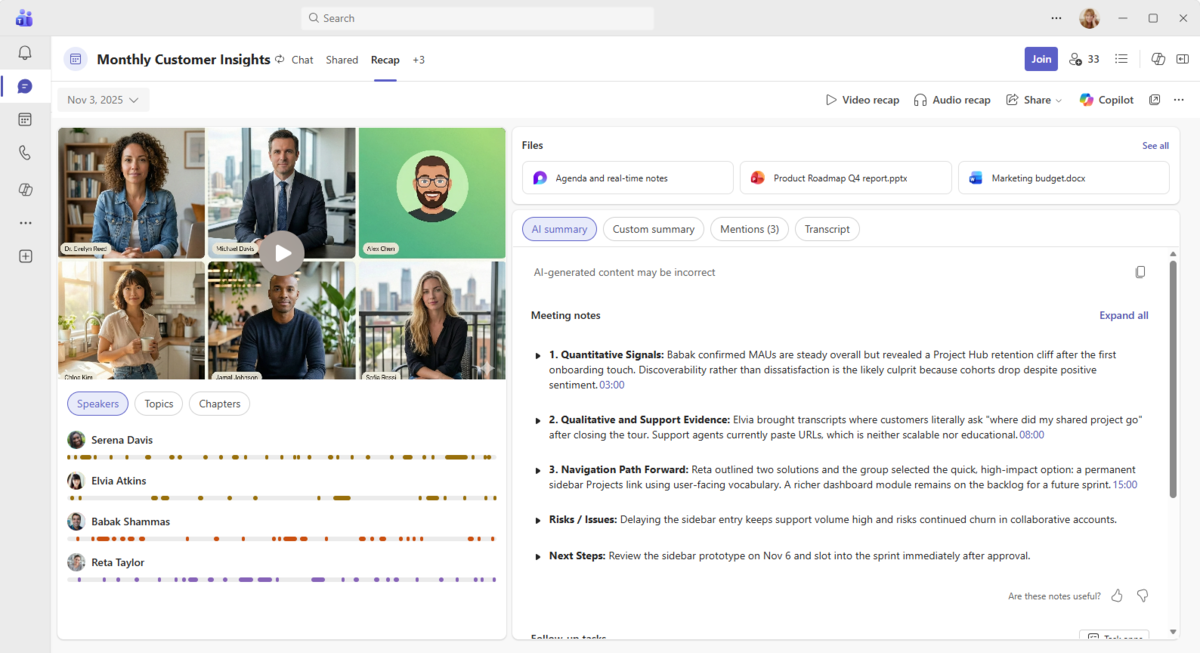
The meeting takes its own notes now. That sentence would have sounded like marketing three years ago, and I still find it mildly startling: in Microsoft Teams, Intelligent Recap transcribes the call, summarises it, and assigns the action items to named people. You can ask it "what did they decide about the budget?" about a meeting you didn't attend - which, depending on your calendar, may be the single most valuable feature in this whole article. It needs a Copilot licence or Teams Premium, so this is one your employer switches on rather than you.
Google's version lives in Meet: tell it to "take notes for me" and it joins the call, then saves a summary Doc with owners against the actions. You'll need Gemini Pro or Ultra, or a qualifying Workspace plan. ChatGPT approaches it differently - its Record mode captures your device's audio rather than joining the call as a participant, then transcribes and pulls out the actions (paid tiers). And Claude doesn't record anything at all, which sounds like a gap until you notice what it's for: paste in a transcript you already have and it's the best of the four at turning the raw text into clean minutes, decisions and owners. That last one is the version I use myself, transcripts in, minutes out, and it's quietly become the only way I process calls.
Before you switch any of this on, two warnings that belong together. First, recording is the feature your IT department is most likely to have blocked, and for defensible reasons - don't be surprised when the button isn't there. Second, everyone in the meeting should know it's being recorded; in some jurisdictions that's the law, and everywhere else it's basic manners. There's a quieter issue underneath both: a transcript of your leadership call is precisely the sort of thing to think twice about pasting into a tool that trains on your conversations. Which tools do that by default is covered below, because it turns out to matter more than any feature.
The pick: a Teams shop, Copilot. Google Meet, Gemini. A transcript already in hand, paste it into Claude.
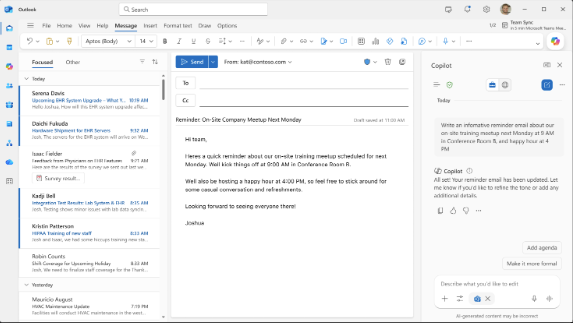
Email is where these tools have quietly become good at the unglamorous stuff: draft a reply, shift the tone from "furious" to "professionally disappointed", summarise a forty-message thread down to the one decision nobody has made yet, triage the pile into "needs you" and "doesn't". None of it is showy. All of it is Tuesday.
Copilot in Outlook has the trick I'd want if I lived in Microsoft-land: it drafts replies grounded in your real files, so "draft a response using last quarter's status report" means it goes and reads the status report first. Gemini does the equivalent natively in Gmail - drafting and replying right there in the compose window - and its connectors reach across Google's apps, so "find the flight confirmation in Gmail and add it to my calendar" is a one-line request rather than a five-minute rummage. ChatGPT and Claude both do careful drafting and tone-shifting well; Claude's long memory for context is the standout when the thread is a rambling monster, because it can swallow the whole thing and tell you what's still unresolved before it drafts a word.
One thing to watch out for if you're reading this in the UK or Europe, which is a fair chunk of this site's readers: ChatGPT's Gmail, Outlook and Drive connectors are blocked in the UK, EU, EEA and Switzerland at the time of writing. Regulatory, not technical, and possibly temporary - but today it means the "ChatGPT reads my inbox" workflows you'll see demonstrated in American videos won't work from here. Gemini's Gmail integration is native and unaffected, and Copilot connects Gmail and Drive even on its free tier.
The pick: Outlook, Copilot. Gmail, Gemini. Careful or sensitive drafting where the words matter, Claude - and give it the whole thread, not your summary of it.
So which one should you get?
Run the tasks back and a pattern falls out. Copilot wins wherever your work already lives in Microsoft's apps, because it's sitting inside them and it owns the meetings. Gemini wins the same way on the Google side. ChatGPT is the most polished standalone all-rounder with the most tutorials, templates and help around it. Claude produces the best writing of the four and is the one that hands you real files back. Which is smartest barely comes into it. It comes down to two things: which apps you already live in, and how sensitive what you'll paste is.
The second half - what happens to the things you paste in - is where they differ most. Claude doesn't train on your conversations unless you switch that on yourself - the default is no, even on the free tier. ChatGPT and Gemini both train on consumer chats by default, with opt-outs you have to go and find, and Gemini additionally has human reviewers read a sample. Copilot's business tier doesn't train on your work data; for the consumer version I couldn't pin down a straight answer in Microsoft's documentation, and I've had a couple of goes at it - check before you rely on it. If your week involves client material, contracts, or anything with a name attached, this is the tiebreaker.
On money: most of what's described above sits behind a paid tier, roughly $17 to $20 a month for the consumer plans at the time of writing, and the free tiers cap hard just as the tool gets useful. The Copilot catch is different in kind - the version that reads your files and recaps your meetings can't be bought by you at all. Your employer buys it and switches it on, so if that's your route, your first step is a conversation with whoever owns the M365 budget.
My own answer is Claude: my week is documents, drafts and analysis rather than Teams calls, the writing quality is the reason I stay, and the data posture means I don't pause before pasting client work in. Your week may look nothing like mine, in which case the routing above is the answer and my preference is trivia. The best AI for your job is the one sitting inside the apps your job already runs on.
Where to go next
Whichever tool you've landed on, the question that arrives next - usually within a day of getting access - is "hang on, is it OK to paste this in?" That one matters more than the tool choice, it has a proper answer rather than a vibe, and it's the next piece to read: what's safe to paste into AI at work, and what isn't.
And if none of this is new to you - if you're fluent in all four already and wondering what sits past them - the next rung is connecting these tools to your own data and systems, which is what MCPs (Model Context Protocol servers) do. It's a proper step up, and it's where our own work lives: start with what an MCP server actually is, then have a look at our Gemini MCP, which wires Gemini's image, video and search into whatever assistant you already use.
Beyond that, start with whichever task annoys you most. If that's Friday's deck, hand your notes to whatever you've already got access to and look at what comes back. The first attempt will make you smirk in places - a chart in a colour no brand has ever approved, a bullet point of pure committee-speak. The second attempt, once you've told it what you meant, tends to save you an hour. Let me know how you get on.
Continue reading.
- How-to GuidesClaude Code Memory: How to Keep It Useful
- ExplainerWhat is a Marketing Engineer (and do you need one)?
- AI WorkflowsInfographics and articles that update themselves, built on free APIs
- Case StudiesComplex ERP trade pricing on Shopify Plus B2B, native-first
- Local AIvLLM settings for a pair of RTX 4090s: the flags I run for twelve local models, and why
- StrategyThe 26%: what the companies actually making money from AI do differently