How to Set Up the DataForSEO MCP with Claude Desktop (2026)
In today's guide we're connecting the official DataForSEO MCP (v3) to Claude Desktop: there's a zero-install hosted option, a local setup if you'd rather hold the keys, and a new docs-plus-gateway model worth understanding before you start.
 Richard Baxter AI Ops & Marketing Engineer
 On this page
DataForSEO is an API service that gives you programmatic access to the type of SEO data you'd normally have to click through tools like Ahrefs or SEMrush to access. Data like search engine listings, LLM visibility, keyword volumes, backlink profiles and more.
DataForSEO built their own infrastructure to collect this data and make it available at scale, so you're not paying a "wrapped in a pretty dashboard" premium. You send an API request, you get JSON back with the raw data. This is excellent for building your own tools, automating SEO workflows, or running competitor analysis within a system of your choice, be it in your own app or (as we will be looking at today) via an MCP connection into your AI Assistant.
Quick Navigation
API key | The MCP | What you'll need | Login details | Quick setup | Other setups | Checking it works | What you can do | seo-audit | Troubleshooting
Where do I get a DataForSEO API key?
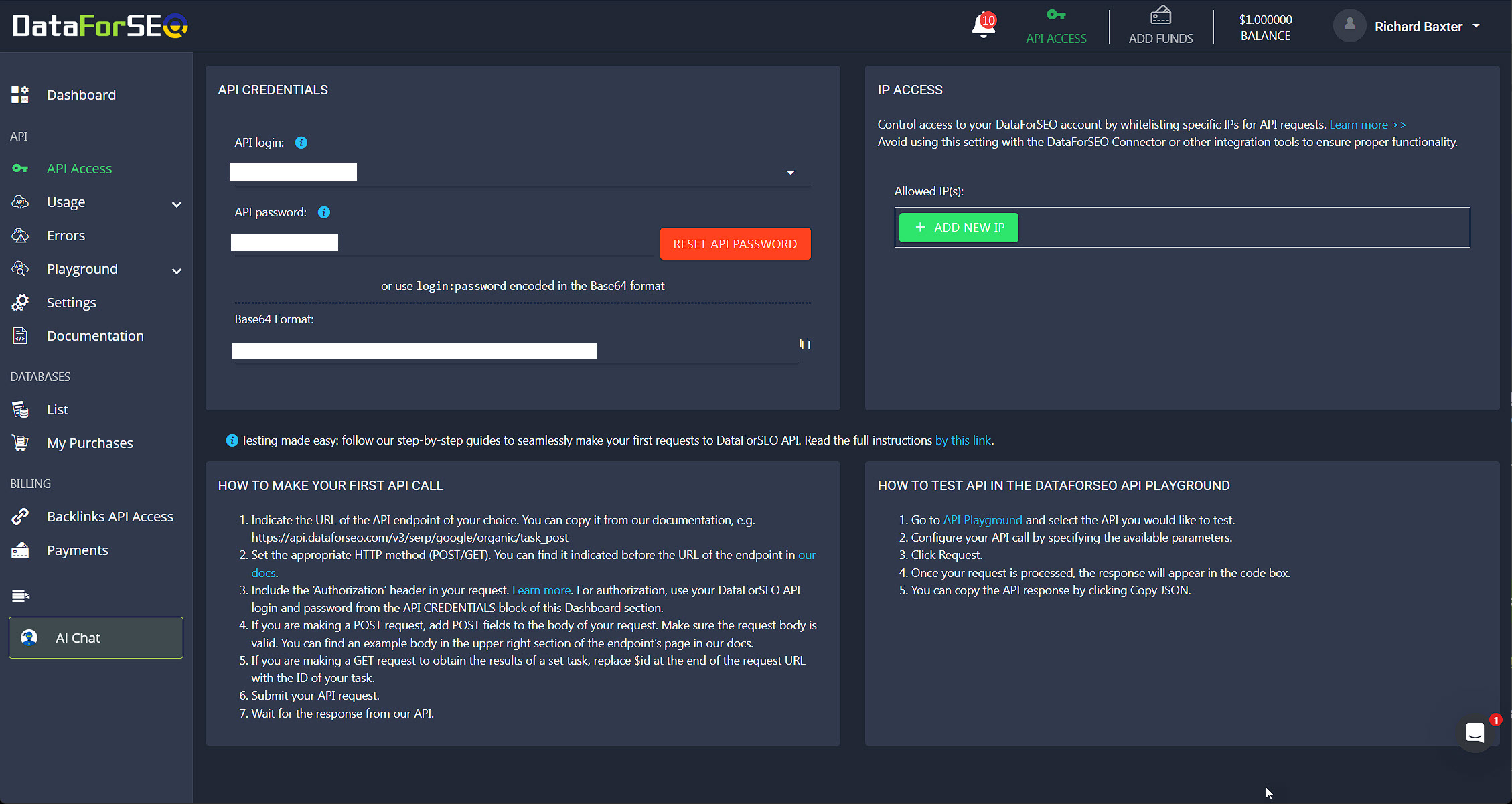
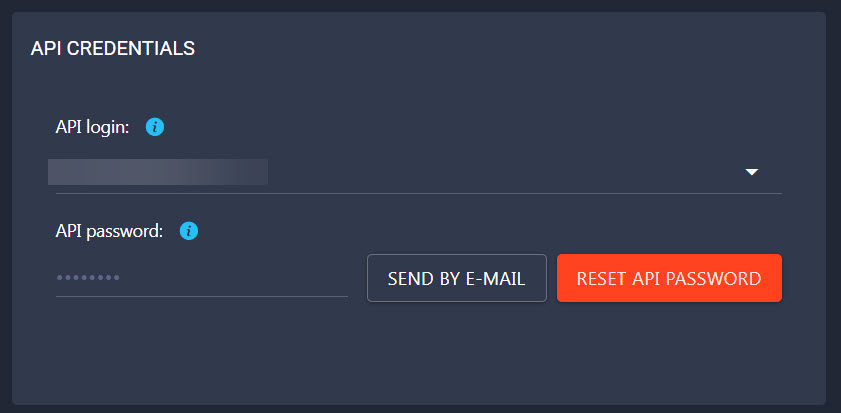
Head to: Dashboard > API Access and copy the API login and the API password:
DataForSEO has different API modules for different jobs:
- AI_OPTIMIZATION API: provides data for keyword discovery, conversational optimisation, and real-time LLM benchmarking
- SERP API: real-time Search Engine Results Page (SERP) data for Google, Bing, and Yahoo
- KEYWORDS_DATA API: keyword research and clickstream data, including search volume, cost-per-click, and other metrics
- ONPAGE API: allows crawling websites and webpages according to customisable parameters to obtain on-page SEO performance metrics
- DATAFORSEO LABS API: data on keywords, SERPs, and domains based on DataForSEO's in-house databases and proprietary algorithms
- BACKLINKS API: backlink analysis covering referring domains, anchor text distribution, and link quality metrics
- BUSINESS DATA API: publicly available data on any business entity;
- DOMAIN ANALYTICS API: data on website traffic, technologies, and Whois details;
- CONTENT ANALYSIS API: data for brand monitoring, sentiment analysis, and citation management
The DataForSEO MCP
The MCP hooks all of this API functionality directly into Claude. You ask a question like "what is ranking for X" or "analyse competitor Y," and Claude calls the DataForSEO APIs behind the scenes, then explains the results in chat - no dashboards, no CSV exports, no switching tabs.
One thing to know before you start: DataForSEO rewrote this MCP in 2026, and this guide covers the current version, v3. If you've seen an older tutorial that had you list modules in an ENABLED_MODULES line, that was the previous version. It still works, but it is no longer the one DataForSEO develops. More on that below.
If you're not familiar with an MCP or how to set it up in Claude Desktop, take a look at this guide.
What You'll Need First
You'll need a Claude account too, since this MCP runs inside Claude Desktop. New to Claude? New accounts get a free week of Claude Code - the same Pro or Max plan covers Claude Desktop.
Before we start, make sure you've got these three things sorted:
- Claude Desktop installed on your computer (works on Windows, Mac, or Linux - the Linux build is in beta)
- An updated Node.js version (I'm on v25.4 ish) - grab it from here if you haven't got it
- A DataForSEO account with your API details ready - sign up here if you need one
Finding Your DataForSEO Login Details
You'll need your API credentials from DataForSEO. Here's where to find them:
- Head to your DataForSEO Dashboard
- Click on the API Access section
- You'll see two bits of information:
- Your username (same as your login)
- Your password (specifically for API access)
Keep these details safe - you'll need them for the setup but never paste API keys into the chat window itself.
DataForSEO uses Basic Authentication, which just means your username and password get combined and encoded before being sent to their servers. You'll see where this is configured in just a moment.
Quick Setup
v3 runs in one of two easy ways, and neither needs a git clone. The quickest needs nothing installed at all.
Option 1: the hosted server (no install)
DataForSEO hosts v3 for you. You point Claude Desktop at the hosted URL and sign in through your browser when it asks - OAuth handles the credentials, so nothing sensitive goes in your config file. In Claude Desktop, open Settings, then Developer, then Edit Config, and add:
{
  "mcpServers": {
    "dataforseo": {
      "url": "https://mcp.dataforseo.com/v3/mcp"
    }
  }
}
Restart Claude Desktop. The first time it connects, you'll be asked to authorise with your DataForSEO account, and that is the whole setup.
Option 2: run it locally with your API credentials
If you'd rather run the server yourself and pass credentials from the environment instead of signing in through a browser, run it over stdio - the default mode, and the closest to the old setup. You'll need Node.js 20 or newer, plus your API login and password from the dashboard:
{
  "mcpServers": {
    "dataforseo": {
      "command": "npx",
      "args": ["dataforseo-mcp-server"],
      "env": {
        "DATAFORSEO_LOGIN": "your_api_login",
        "DATAFORSEO_PASSWORD": "your_api_password"
      }
    }
  }
}
Swap in your own login and password. npx pulls the latest server the first time and caches it, so there is nothing to install by hand. The same block works in Claude Code too - drop it into your project's .mcp.json or add it with claude mcp add.
How v3 handles the tools
The previous version of this MCP gave you one tool per API module, and had you trim them with an ENABLED_MODULES line to keep Claude's context small. v3 drops that model. It ships four tools instead: three that let Claude browse DataForSEO's own API documentation (docs_index, docs_list_sections and docs_search), and one, api_request, that calls any endpoint. Claude reads the docs for the endpoint it needs, then makes the call.
So you don't choose modules any more. The whole API surface - SERP, Labs, Backlinks, On-Page, all of it - is reachable through that single request tool, and the docs tools keep the context lean by loading only the endpoint Claude is using.
If you already run the old module-based server and want to keep it, it now lives in the dataforseo/mcp-server-typescript-deprecated repo - pin that package instead of @latest. For a new setup, v3 is the one to use.
Two smaller things from the current repo worth knowing: you can trim what the API sends back with a field configuration file (--configuration field-config.json, keyed by endpoint path - there's a built-in default that shrinks the notoriously huge Lighthouse payload), and DataForSEO now ship a SKILL.md alongside the server - agent instructions written for the LLM itself, which tells you something about where this ecosystem is heading.
Other Ways to Set It Up
Installing It Permanently
If you'd rather have the server installed on your computer permanently:
- Install it globally using this command:
npm install -g dataforseo-mcp-server@latest - Then update your Claude config to use it directly: {"command": "dataforseo-mcp-server"} (instead of using npx - stdio is the default mode, so no args are needed).
There's also an HTTP mode (npx dataforseo-mcp-server --mode http) that serves on port 3000 - point any MCP client at http://localhost:3000/mcp. Handy if you want one running server shared between clients.
Setting Up for Development
If you want to tinker with the code or customise things:
- Clone the repository:
git clone https://github.com/dataforseo/mcp-server-typescript
cd mcp-server-typescript
npm install
npm run build - Point Claude to your local build with the full path: {"command": "node", "args": ["C:/path/to/mcp-server-typescript/dist/index.js"]}
Checking Everything Works
Once you've updated the configuration, here's what to do next.
- Restart Claude Desktop completely
- Start a new conversation
- Ask Claude something like: "Can you check if the DataForSEO connection is working and tell me what tools are available?"
If everything's set up correctly, Claude will confirm the connection and list the available tools.
What You Can Do Now
With DataForSEO setup and connected, you can ask Claude to do all sorts of SEO tasks.
Here are some examples to get you started:
Keyword Research
"Use DataForSEO to find keyword ideas for 'content marketing' - I need search volumes and CPC data"
Checking Search Results
"Get me the current Google search results for 'best SEO tools 2026' using DataForSEO"
Backlink Analysis
"Can you analyse the backlink profile of example.com with DataForSEO?"
Website Audits
"Run an on-page SEO audit of https://example.com using DataForSEO"
Where seo-audit fits
The official MCP gives you the raw DataForSEO API, one request at a time. That is exactly what you want when you already know the endpoint you need. It is less helpful when the question spans several - "why is this page losing clicks" pulls from your Search Console history, a crawl of the page, Google's index status and DataForSEO's SERP data all at once, and the raw connector leaves you to join those by hand.
That join is what I've built into seo-audit, an MCP that fuses four sources - your GSC history, a first-party crawl, URL inspection, and DataForSEO (SERP, Labs, Backlinks) - into one local SQLite database per property and answers the composed question directly. It's published on npm as @houtini/seo-audit-console now, with 99 deterministic checks, a dashboard, and generators that write the fix rather than just naming the problem. DataForSEO is one of its four legs, so the account you set up here is the same one it uses. If you keep running the same three DataForSEO calls and stitching the results together by hand, that is the workflow it removes. The walkthrough is How to do a technical SEO audit with Claude.
Fixing Common Problems
Check out this brief video from DataForSEO on common issues you may encounter and how to address them.
One last tip: some users find environment variables don't always pass through correctly in Claude's config. If you run into this issue, try passing your credentials directly in the args array instead.
The DataForSEO team are pretty responsive if you need help sorting any quirks.
Related Posts
Continue reading.
- MCPWebMCP explained: what the agent-ready web means for marketers
- How-to GuidesHow to Connect Claude to Shopify with MCP (Dev MCP and Storefront Catalog)
- How-to GuidesHow to Use AI for Market Research with Claude
- How-to Guidesn8n MCP: How to Connect Claude Code to n8n and Use Its API Safely
- How-to GuidesHow to Run Qwen3-Coder-Next Locally: My vLLM Settings for Two 48GB RTX 4090s
- How-to GuidesHow to Build a Competitor Price Monitoring Pipeline with n8n