Claude Code API Key Security: A Guide to Token Hygiene
The simplest possible setup that keeps your production tokens out of AI chat windows. 1Password CLI, op run, and the conversational discipline that makes the rest of it work.
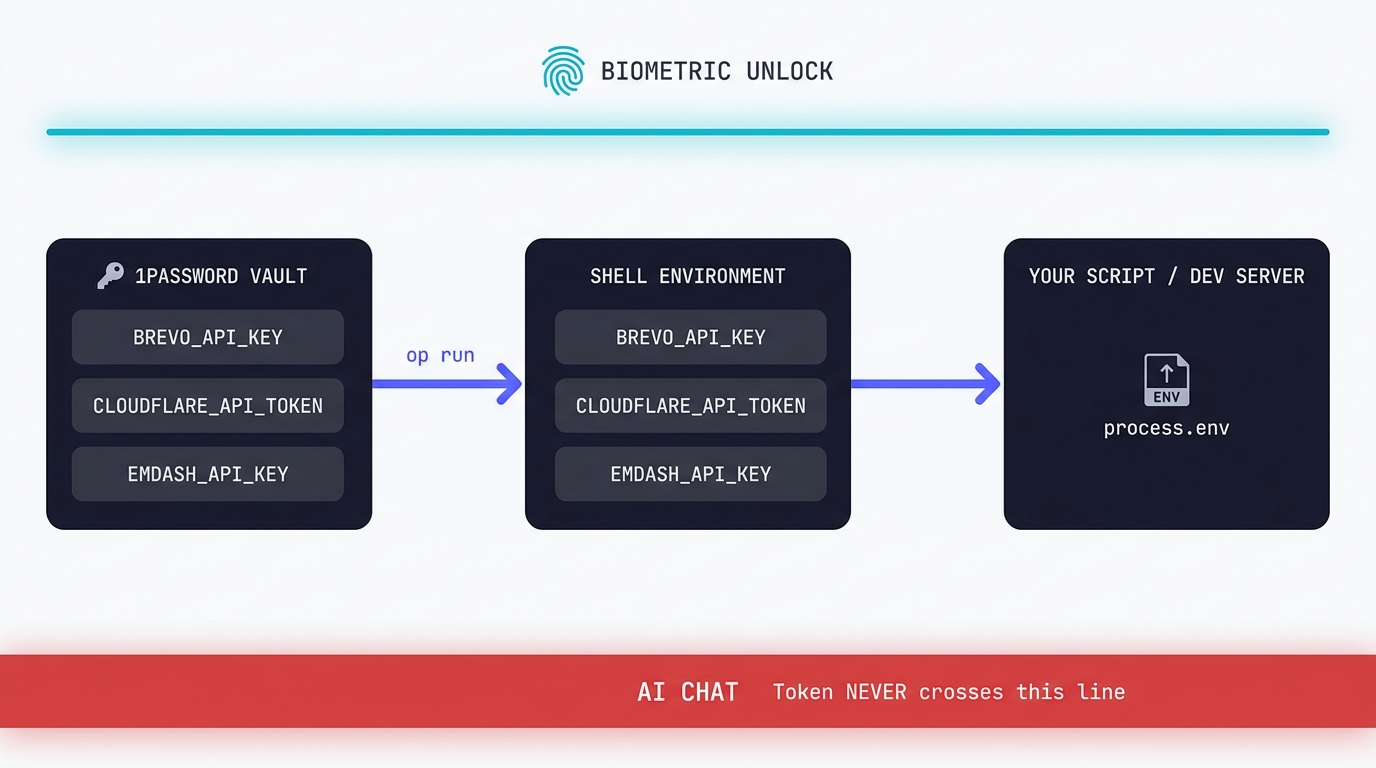
As an AI user, you have a security problem you may not have thought about. You're typing into a chat window that, by the way it's built, sees everything you paste, logs it, and (in most products) retains it for at least 30 days for “safety” review and probably training. That includes the part you didn't mean to paste: the Cloudflare token in the dev.vars file, the OpenAI key in the script, the database connection string with the password embedded.
This is a Claude Code workflow, so it assumes you're already set up. New to Claude Code? New accounts get a free week of Claude Code to start with.
This is how I deal with production key management on my Windows dev machine, with Claude Code without inventing a custom secrets-management layer. So it's sort of the bootstrap version of a more enterprise production key management system you’d expect in a proper development team.
While there are far more rigorous setups for teams running serious production services (GitHub deploy secrets, Cloud Run secrets manager, Vault, AWS KMS), today’s post isn’t for those people. This is for the solo developer or small consultancy whose AI assistant has access to too much, by accident, because the secrets are sitting in plain dotfiles in a readable local repo.
Why this matters so, so much
In April this year a Sydney developer, Jesse Davies of Agentic Labs, woke up to an Anthropic API bill of $25,672.86 AUD (approximately $18,391.78 USD). His Claude API key had leaked onto GitHub, someone found it, and burned through years of normal usage in a weekend. Anthropic eventually credited the spend back, but only after a tense exchange and a lot of public scrutiny. (Tom's Hardware covered the story.)
Davies' story isn't all that unusual. It's just becoming more visible as more people turn to Claude Code for their own development projects. GitGuardian's 2026 State of Secrets Sprawl report counted 28.6 million credentials leaked across public GitHub repositories in 2025, and 1.27 million of those were AI-related keys specifically (OpenAI, Anthropic, Hugging Face, the rest). AI-key leaks grew faster than any other secret category last year. ( GitGuardian's full report. )
Most of those keys leaked the same way: somebody had a .env file with live keys, somebody had an AI assistant with a wide read radius, and the assistant either committed the file by accident or referenced its contents in a way that ended up logged.
There's a Medium article doing the rounds titled We Told Claude Code to Deny Access to Our Secrets. It Read Them Anyway. The tl;dr: a deny rule in .claude/settings.json for Read(./*.env) did not stop the agent from grepping the file's contents into a tool call result. The deny rule worked at the literal file-read level, but the agent had several other ways to see the file's text and took one of them.
Don't rely on the agent's good behaviour to keep secrets safe. Don't put the secrets where the agent can see them in the first place.
That's the principle that today’s article is built around and uses my procedure as the example.
What this guidance is for:
For:
- A working setup for keeping API tokens out of your AI chat window on a Windows or macOS development machine.
- The specific tools I tested with: 1Password CLI,
op run, a Node script for verification, and myastro devintegration.
It’s not:
- A multi-developer team setup. If you have a team with shared production access you want GitHub OIDC + cloud secrets managers, not 1Password. I am familiar with Cloud Run secrets manager and Github secrets (that I use for deploy on some projects).
- A guide to enterprise secrets hygiene. GitHub deploy secrets, Cloud Run secrets manager, AWS Secrets Manager, Doppler, Infisical, Vault all sit further along this curve.
- A replacement for proper key rotation discipline. This setup makes rotation easier; it doesn't do it for you. I roll my keys on a regular basis during the deployment phases of a project and especially as a precaution if I’m having a long weekend or a few days on a different project.
For now, the bar is: when I run pnpm dev on a repo, the secrets are present in the worker's env, but never in any file on my disk that an AI agent could grep into a tool call.
You’ll note that this particular flow uses my Cloudflare environment as the basis - if you’re using another platform that’s fine - it’s the discipline that counts.
Here’s what to do:
Step 0. Sign up for 1Password
I picked 1Password because I’ve used it before and the CLI works very well for this purpose. Bitwarden has an equivalent CLI and the principles in this article apply to either.
Go to 1password.com and sign up. The plan tier you want is Individual (£3.99/month at the time of writing). 1Password renamed it from "Personal" recently, so older guides showing a "Personal" button are out of date. Click Individual.
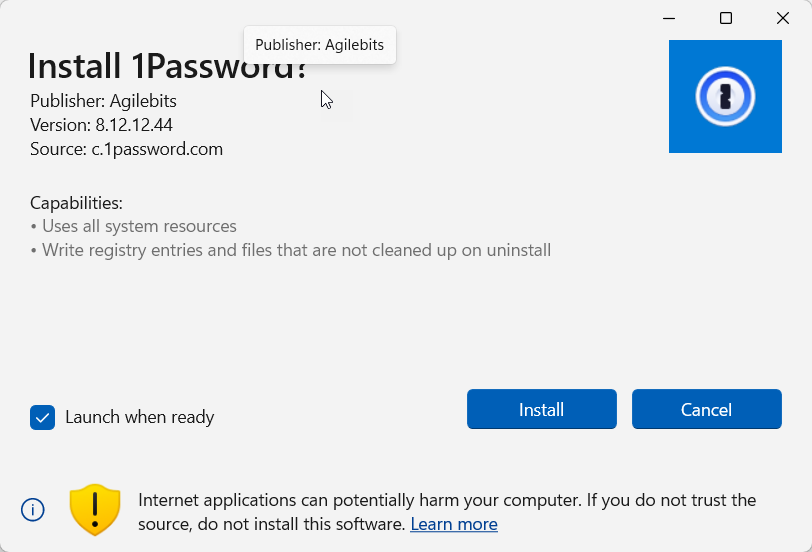
When the registration completes 1Password issues you a Secret Key. This is not the same thing as your master password. It's the cryptographic component that decrypts your vault on a new device, and without it your master password alone won't get you in. 1Password offers an Emergency Kit PDF that bundles the Secret Key with your account email; the recommended practice is to print the PDF and store the print-out in a physical safe.
Be warned:
Don't put the Emergency Kit in another password manager. That creates a circular dependency on the master password you're trying to back up.
Save the file or store it like any other cryptographic key to your whole world: carefully.
Step 1. Install the desktop app
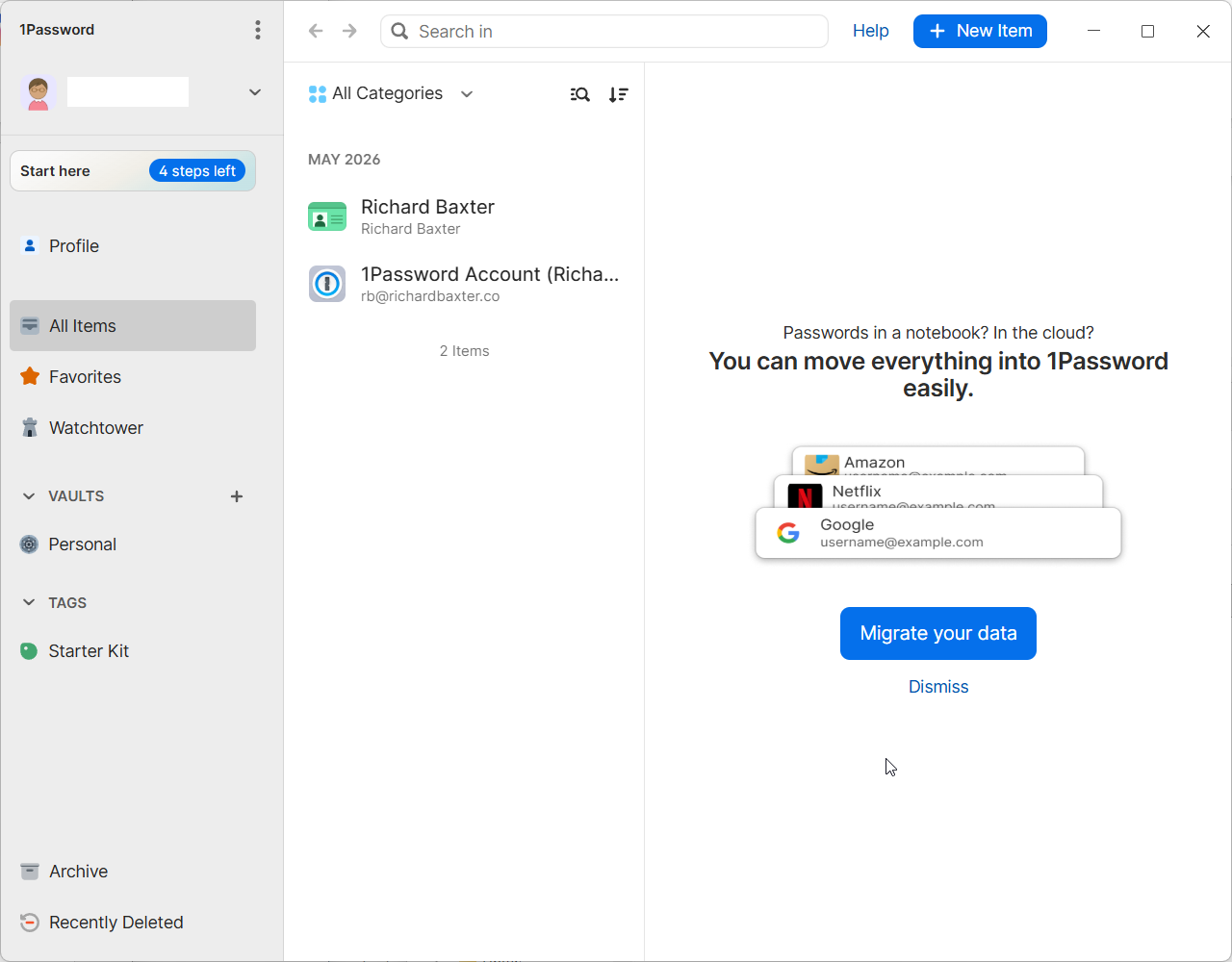
When you have an account, download the app from 1password.com/downloads . On first launch the app asks for your account email, master password, and Secret Key. You'll need the Secret Key from the Emergency Kit PDF.
Once you're signed in you'll see your default Personal vault.
Step 2. Install the CLI
On Windows:
winget install AgileBits.1Password.CLI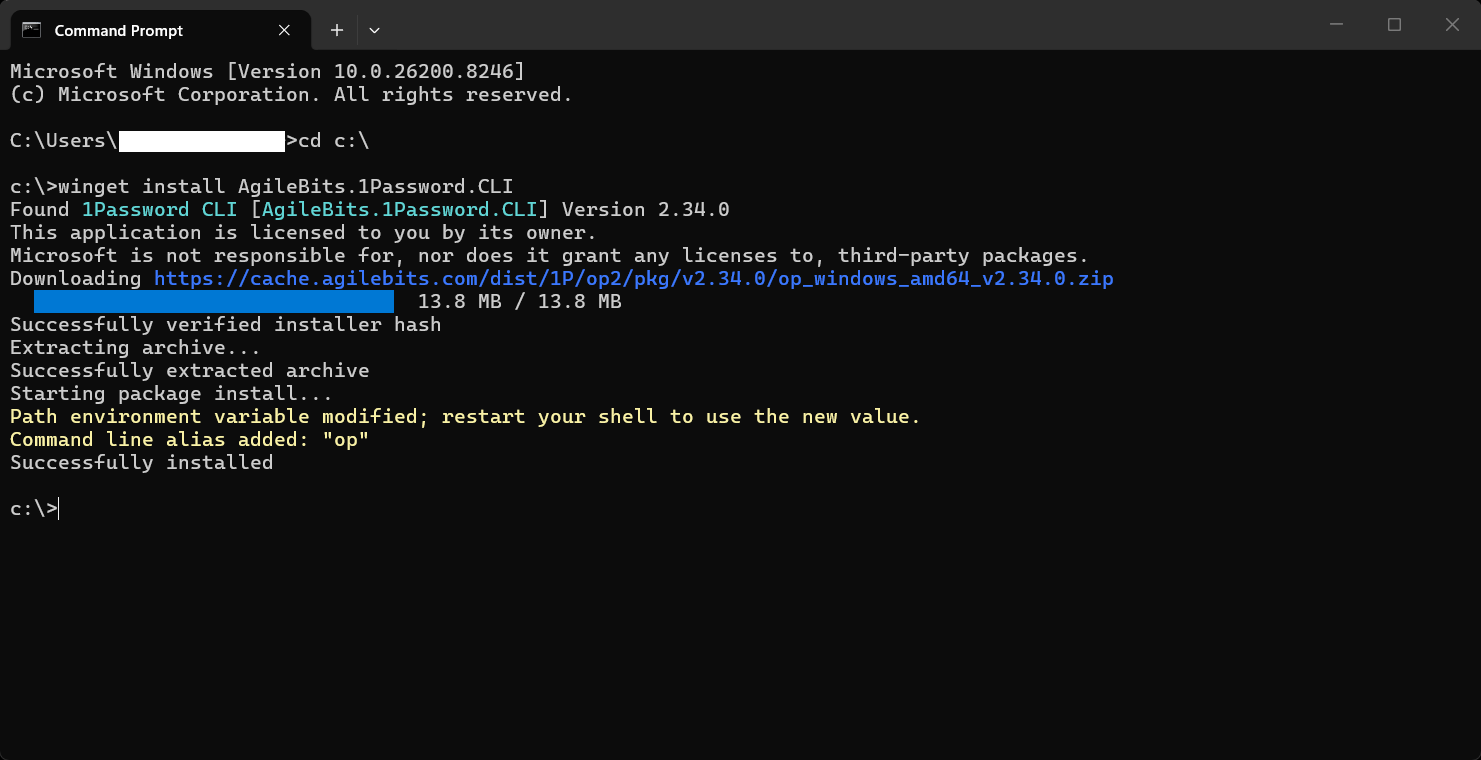
This is a simple, single command, there’s no manual download and it’s version-pinned to whatever 1Password ships through the Microsoft store. On macOS the equivalent is brew install --cask 1password-cli.
Close and reopen your terminal after install. winget adds 1Password's CLI to your PATH, but the change doesn't propagate to terminal windows that were already open. If op --version returns "command not found" in the same window you ran the install in, that's why.If you're on a corporate machine with winget locked down, the manual installer works fine; it's just more clicks.
Step 3. Enable CLI integration in the desktop app
Open the 1Password desktop app, hit Settings (the cog, or Ctrl+,) and choose Developer in the sidebar. Toggle "Integrate with 1Password CLI" on. Then quit the app entirely from the system tray and reopen it.
The integration only activates on a fresh app start, not on a settings save.
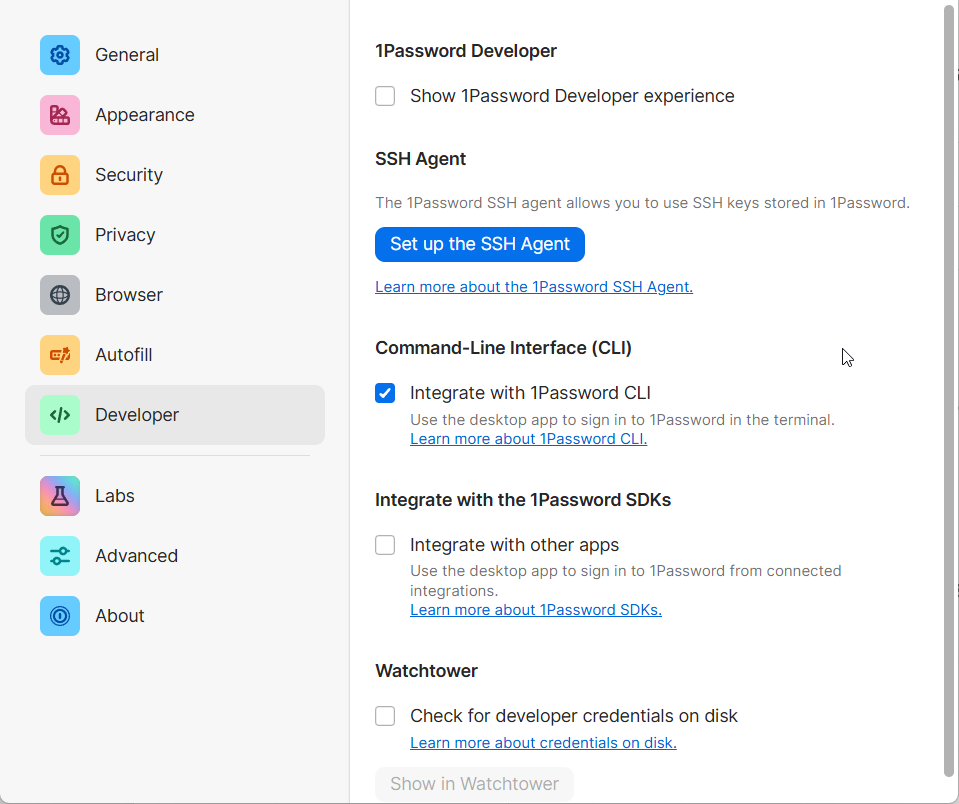
The Developer panel has a few other toggles. "Use the SSH agent" is for using 1Password as your SSH key store, which is a different workflow, so leave that off for now.
Step 4. First CLI auth
Open a fresh terminal (so the post-integration env is picked up). Run:
op vault listThe first time this runs you should see a Windows Hello prompt (or Touch ID on macOS).
Authenticate with whatever you've already configured for the OS biometric layer. Subsequent commands within the same unlock window will run without you needing to re-authenticate.
If you see a table of vaults, you're done with the install.
Step 5. Create a dedicated dev vault
op vault create houtini-dev(Replace houtini-dev with whatever name you want. I name mine after the project so I can tell at a glance which credentials this vault holds.)
I would ringfence this app to be dev only rather than letting it consume your personal credentials too; just in case you bring another developer into the team.
Step 6. Add your first secret
This is the bit where the discipline kicks in - you’re looking to add an API credential by clicking “add new” (the blue button in the top right hand corner of the 1Password app. Here’s what to do:
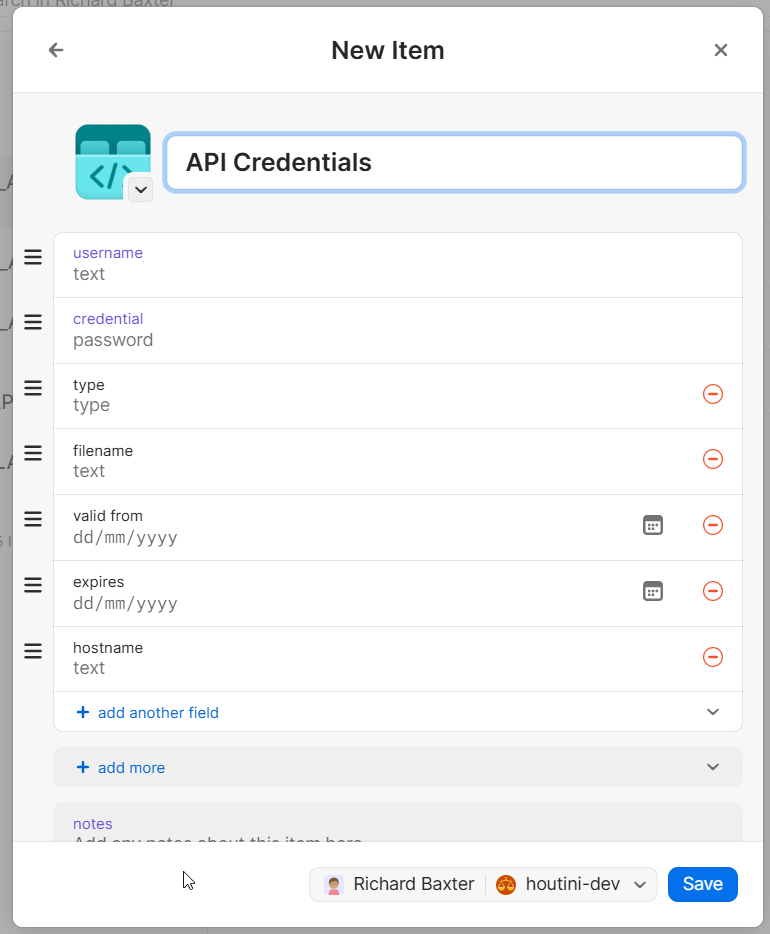
- Open the desktop app. Click your dedicated vault. Click "+ New Item" and choose API Credential.
- Title: the exact env var name. For example:
CLOUDFLARE_API_TOKEN. The title matters because the reference syntax (op://vault/title/credential) resolves against it. - Credential: the secret value. Paste it here, in the desktop app, not via `op item create` from the command line.
- Username: leave blank for Bearer tokens. The Username field is a holdover from 1Password's older Login-item template, where every credential had a "user" identity. Modern API tokens don't. (For two-part credentials like AWS access key + secret, then you put the access key ID in Username.)
- Type: I leave this blank when in doubt. The dropdown choices (Bearer, API Key, Basic, OAuth) are metadata for your future self, not anything
op runreads.
Save. Run op item list --vault=houtini-dev to confirm it landed.
Don't pre-populate the vault. Add secrets when you have a script that needs to consume them. A vault stuffed with speculative entries is harder to audit, increases the chance of pointing the wrong key at the wrong endpoint, and gives a false sense of completeness. It’s also a bit of a waste of time.
Step 7. Wire it into your project
Fiddling with API keys is a drag but the work does pay off.
Create a file in your repo called .dev.vars.template. Inside it, make the API title references only, add no secret material:
CLOUDFLARE_API_TOKEN=op://houtini-dev/CLOUDFLARE_API_TOKEN/credential
EMDASH_AUTH_SECRET=op://houtini-dev/EMDASH_AUTH_SECRET/credential
YUBHUB_API_KEY=op://houtini-dev/YUBHUB_API_KEY/credential
BREVO_NEWSLETTER_LIST_ID=2
CONTACT_FROM_EMAIL=hello@houtini.com
This file is safe to commit. It contains no secrets, just pointers into your local 1Password vault. Anyone reading the repo can see which credentials the project needs without seeing any of yours.
(If you previously had a .dev.vars file with real values in it, delete that file now. It's the file the agent has been able to grep this whole time. Gitignore shouldn’t be your only defence here.
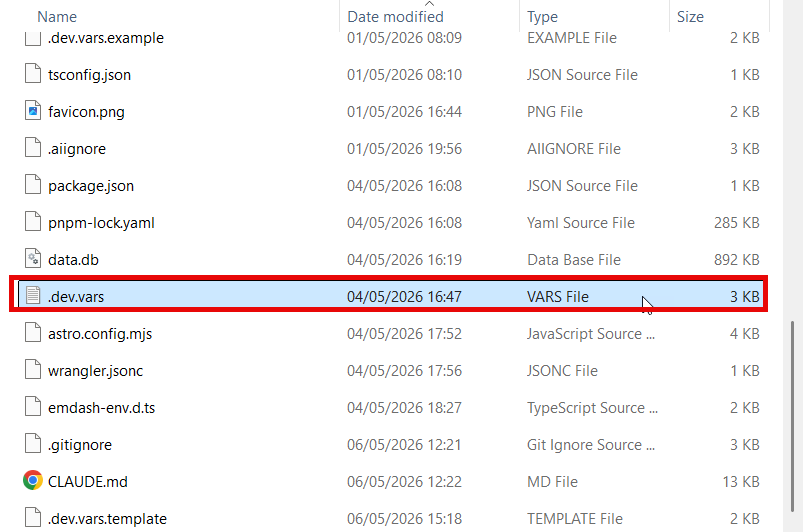
Then, update package.json:
"scripts": {
  "dev": "op run --env-file=.dev.vars.template -- astro dev",
  "dev:no-vault": "astro dev"
}
The dev:no-vault is an escape hatch for when 1Password is unreachable or if you need to bypass the injection. I keep it because it's there when I want it, but I’m delighted to report I haven't reached for it yet.
Run pnpm dev. If everything's wired correctly you'll see a Windows Hello prompt, then a normal dev server start. The secrets are present in process.env for the duration of the astro dev process, then they're gone when the process exits. They never touched the filesystem.
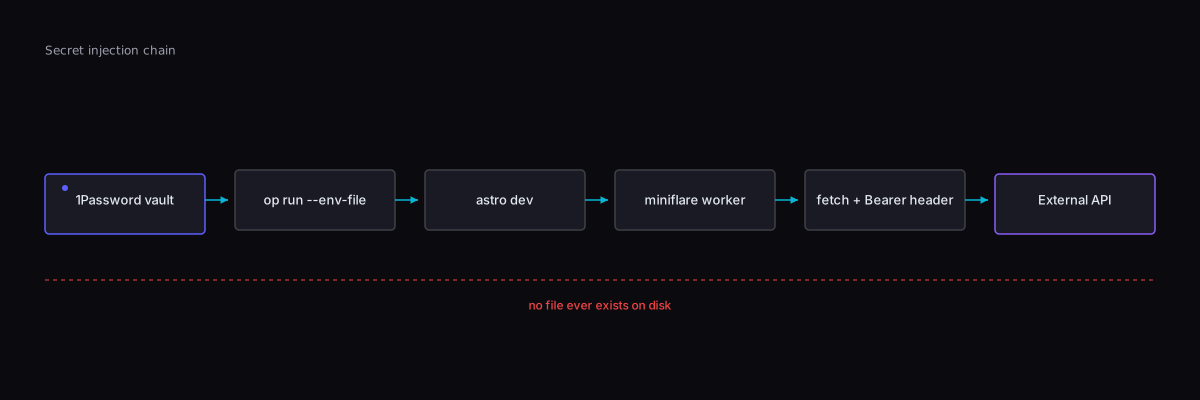
In my case, the test that confirmed a successful end-to-end test was watching /jobs server-side-fetch from the YubHub API using my YUBHUB_API_KEY. The full chain reached the worker, the secrets were where they needed to be, and nothing was committed.
Step 8. Different scopes need different templates
Once the dev injection is working you'll want to run scripts that target production: backups, content publishes and smoke tests against your production environment. Those scripts need different secrets than the dev server does, of course.
The temptation, which I gave into for about five minutes before learning otherwise, is to add inline overrides to op run:
# This does not work.
op run --env-file=.dev.vars.template --env CLOUDFLARE_API_TOKEN=op://... -- node script.mjs
op run does not have an --env flag. I assumed it did by analogy with Docker and kubectl, both of which do. 1Password's op run only accepts --env-file paths. Several other secret-CLI tools (Doppler, Infisical) do support inline --env, which is part of why the gap is confusing.
The portable answer is one template per scope. Make a second file:
# .prod-ops.vars.template - references for production-targeting scripts
CLOUDFLARE_API_TOKEN=op://houtini-dev/CLOUDFLARE_API_TOKEN/credential
EMDASH_API_KEY=op://houtini-dev/EMDASH_API_KEY_PROD/credential
And add per-purpose scripts that pick the right template:
"scripts": {
  "dev": "op run --env-file=.dev.vars.template -- astro dev",
  "backup": "op run --env-file=.prod-ops.vars.template -- node scripts/backup-production.mjs",
  "verify:prod": "op run --env-file=.prod-ops.vars.template -- node scripts/verify-prod-access.mjs"
}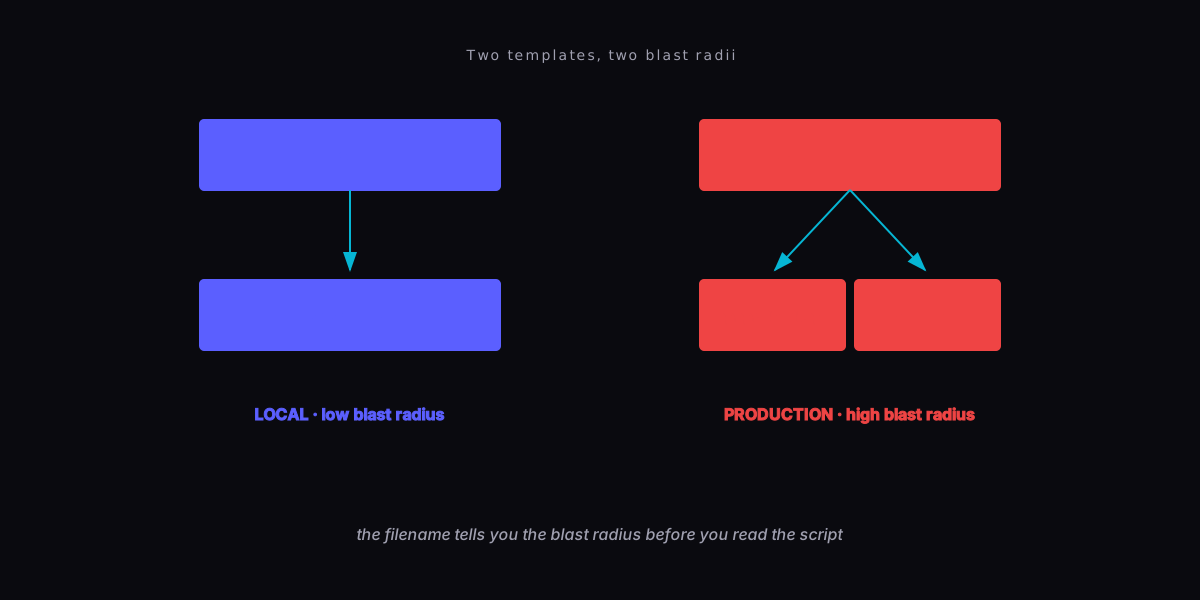
The naming matters here more than it might look. --env-file=.prod-ops.vars.template reads, at a glance, as this command runs against production. You don't have to dig into the script body to see the blast radius.
Future-you, six weeks from now, glances at the package.json and immediately knows which scripts will move real production state.
The conversational discipline (the bit nobody writes about)
Here's the part I've been working out by trial and error.
The tooling above keeps the secrets off your filesystem. It does not stop you, the human, from typing them into the chat window by hand. Read this discipline borrowed from production ops:
The script is the contract. What it prints is, by construction, safe to paste. Anything not printed by the script is not in the output to begin with.
When you run pnpm verify:prod, the script prints status output that's, by design, non-secret. It prints OK · 200 · 12 buckets, it doesn't print the token. That output is safe to do whatever you like with. When the AI assistant asks "what was the result?" the answer is what the script printed.
If the answer would require pasting a value the script didn't print, the answer is "I'll write a new script that prints the thing we need to see, then paste that output." Never the raw value.
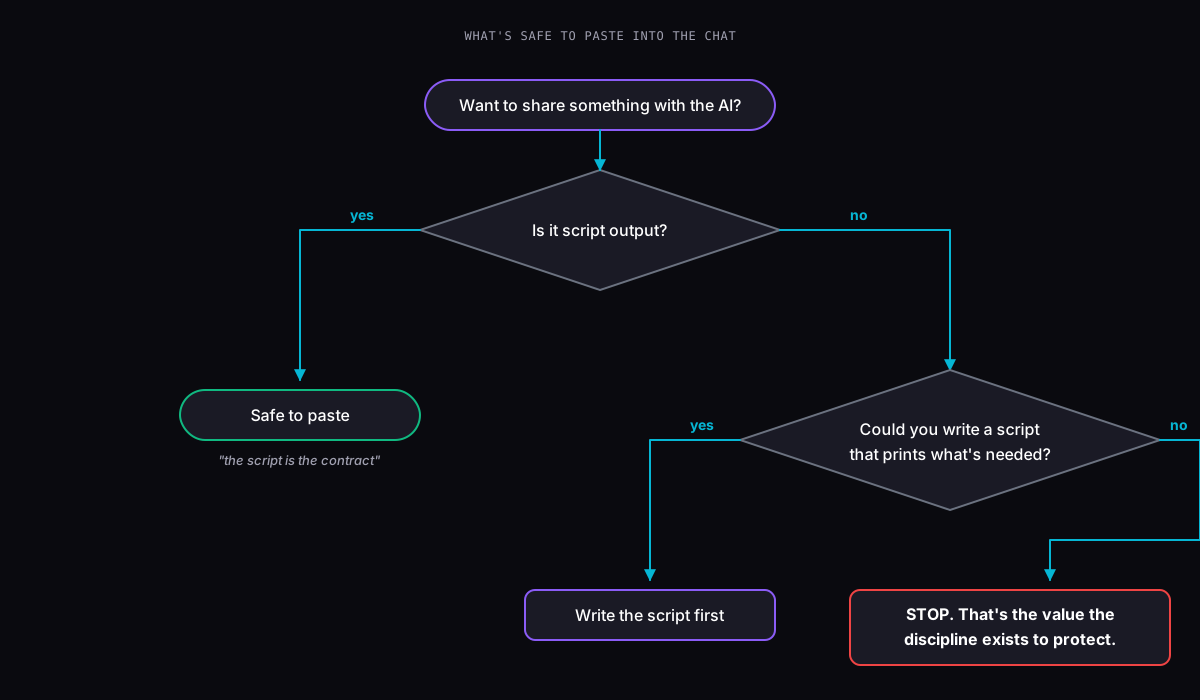
This is why the pnpm verify:prod script in this article exists in the form it does. It's not a debugging script that I write afresh each time. It's a contract. It always prints the same shape of output (status code, count, length-only token confirmation). The tokens it tests against are loaded from 1Password, used to make API calls and then garbage collected. They never appear on the screen. They never appear in the chat, they never get sent to Anthropic in the hope that this is all fine.
The same discipline applies one level up:
- Pasting "the output of
pnpm dev" is fine. The dev server prints route listings and request logs, not env values. - Pasting "the contents of my
.dev.varsfile" is not fine, but also: there shouldn't be a.dev.varsfile. There's.dev.vars.template, which is references only. - Pasting "the result of
op item get CLOUDFLARE_API_TOKEN" is very much not fine. That command returns the secret. There is no version of this where you should run it inside a chat session.
The tooling makes the right thing easy. The discipline makes the wrong thing impossible to do by accident.
What's still missing from this setup
My setup gets me to "no live secrets in dotfiles, AI agent has nothing to grep, conversation pasting goes through scripts." Things it does not do:
Deny rules in `.claude/settings.json`.
The Medium article I cited shows that Read(./*.env) deny rules don't fully work in Claude Code as of late 2025. It’s still worth setting because they catch the easy mistakes; not a substitute for the agent not seeing the file at all. I must say I’ve noticed Claude is more cautious on the subject of API keys lately and it may be respecting the settings.json - but “may” is hardly a certainty.
Pre-commit secret scanning.
Gitleaks as a pre-commit hook will catch the case where you (or your AI assistant) write a file with what looks like a token in it and try to commit. A few lines of pre-commit config and saves you from the most embarrassing leak modes.
Rotation discipline.
This setup makes rotation easier (op item edit updates the value, every script picks it up next run) but doesn't enforce it. Some tokens have cascading rotation costs (rotating an EmDash auth secret invalidates all stored WebAuthn passkeys; you'll lock yourself out of your own admin if you don't have a magic-link recovery procedure documented first). This is a risk, for example, with emdash - the very cms you’re looking at now.
Team setups.
Multi-developer access wants 1Password's shared vaults plus, more importantly, the org-level move from "developers have production credentials on their laptops" to "developers don't have production credentials at all, they push code through a CI pipeline with OIDC-issued credentials." That's a separate thing and a lot more relevant for large developer teams.
The one minute closer
If you read this and do nothing else: delete your .dev.vars, your .env, whatever you've been keeping live tokens in. The agent has had read access to that file for as long as it's existed in your repo. Even if you set up 1Password tomorrow, every minute that file exists is another minute it might be in some tool call's response somewhere. Get into the habit of rolling tokens often enough and you’ll start to get fed up and learn how to do it better.
Don't be the developer opening an inbox to a A$25,672 bill, or another line in GitGuardian's stats. The setup is a one-time cost in time only - leaking your API credentials on the internet is not.
Continue reading.
- How-to GuidesHow to Stop MCP Servers Eating Your PC: One Docker Gateway for Every Claude Client15 Aug 2026
- How-to GuidesHow to Use the Gemini API (and Why I Run It Next to Claude)15 Aug 2026
- AI ToolsHow to Do a Technical SEO Audit with Claude20 Jul 2026
- ExplainerWhat is a Marketing Engineer (and do you need one)?31 Aug 2026
- AI WorkflowsDynamically updating infographics and content (so you don't have to)28 Aug 2026
- Case StudiesThe parts Shopify Plus B2B doesn't do (and how we built them)28 Aug 2026