How to set up an MCP gateway with Docker
A lot of MCP servers get pulled straight off npm and run with your permissions, which makes them a supply-chain risk. In today's post we're taking a closer look at why I run mine in Docker containers, how to set up Docker's MCP gateway for Claude Code and Claude Desktop, and what a container won't stop.
 Richard Baxter AI Ops & Marketing Engineer
 On this page
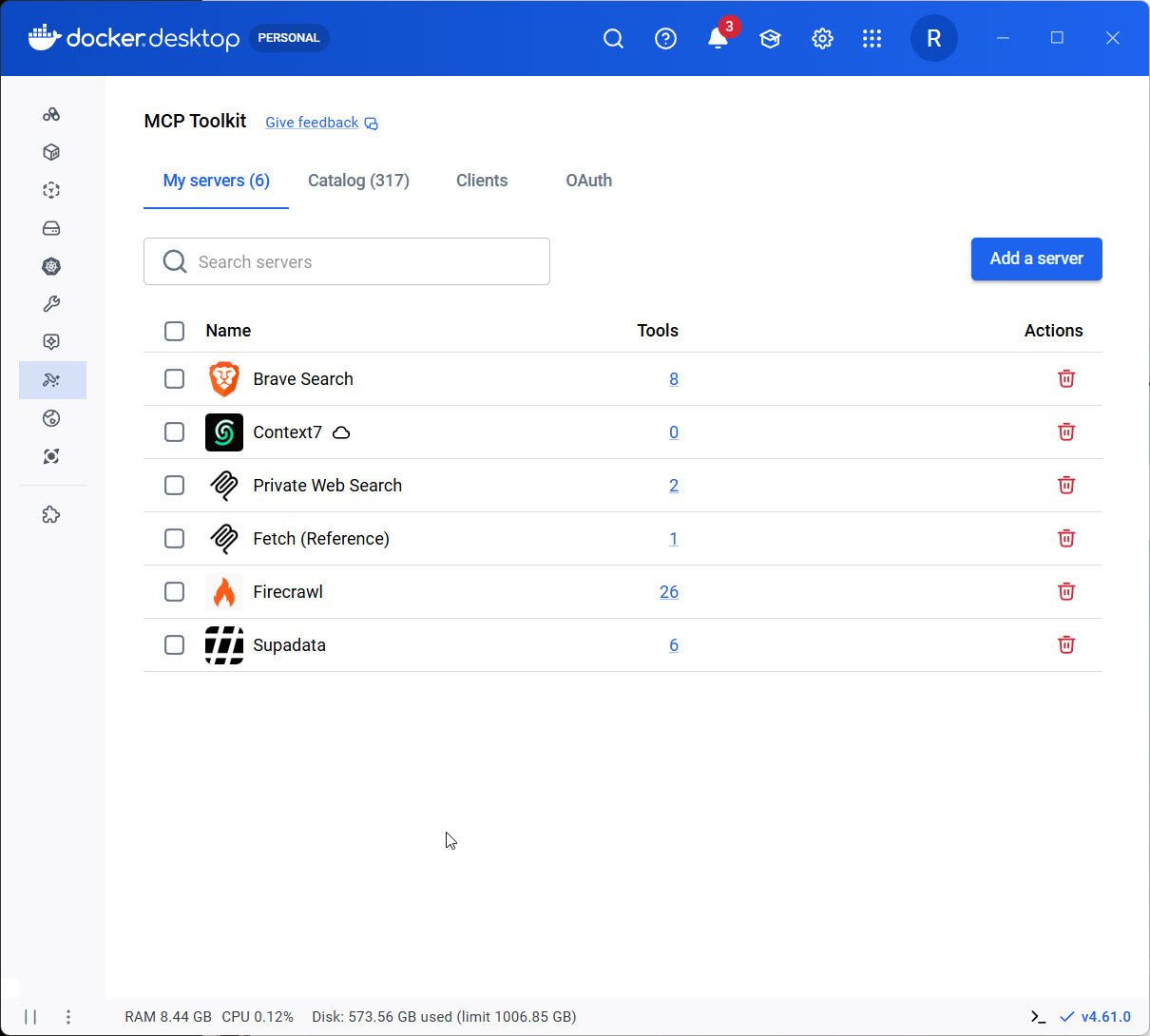
My view on where MCP servers come from has developed since I first wrote about the Docker MCP gateway. A lot of MCP servers (the small programs that give Claude its tools) are being pulled straight off npm, which is the public registry where Node packages live. That means you're blindly pulling a software package from the internet and running it on your machine, and blindly updating it too. That comes with extreme risk. The majority of Node libraries are completely benign and very helpful, but npm is an attack vector, and a real cybersecurity risk.
So the reason I put servers like these in a Docker container is that it's a more secure way to handle software that gets updated blindly. A Docker container is inherently a containment unit for the software. If there's a malicious bit of code, or a malicious actor trying to compromise your machine in some way, they're going to have a difficult time if it's contained.
Docker's MCP gateway runs each server in its own container and keeps your keys in one place. Here's how to set it up for Claude Code and Claude Desktop, and what I'd watch for once it's running.
Quick Navigation
Why containers |
What a container won't stop |
Set up the gateway |
Your own server |
What to watch out for |
What I run now |
Where to start
Why run MCP servers in containers
The usual way to add an MCP server, and the way the official MCP docs show it, is a config line that runs npx -y and a package name. npx is npm's command for fetching a package and running it in one go, and the -y answers yes to the install prompt. With no version pinned, that line runs whatever version npm hands it, with no review. As the official MCP docs put it: "The server runs with your user account permissions." So it can open any file you can open.
A supply-chain attack is when someone compromises a package you already trust, or publishes a look-alike, so the malware arrives through your normal install. In February 2026 Socket disclosed SANDWORM_MODE, a worm that spread through fake packages with names like claud-code. It installed a hidden MCP server into Claude Code, Claude Desktop and Cursor configs, and went after SSH keys, AWS keys, .npmrc tokens and API keys for nine AI providers. In July 2026 Socket reported that someone used a stolen npm login to publish bad `jscrambler` versions. They dropped an infostealer that reads claudedesktopconfig.json and other MCP config files, which is where a lot of us paste our keys. And in September 2025 Shai-Hulud, the first self-spreading npm worm, dumped the environment of the machines it landed on, GitHub tokens and AWS keys included. GitHub removed more than 500 packages.
A container runs a program in its own walled-off space, with its own filesystem. According to Docker's docs, each server gets none of your host environment and none of your files unless you grant them. A shared folder is read-only by default and has to sit under an allow-listed path. Each server is capped at 1 CPU and 2GB of memory and can't escalate its privileges. Docker's own catalogue images are signed and checked by default. And the keys you add as secrets live in the keychain, handed only to the server that declares them.
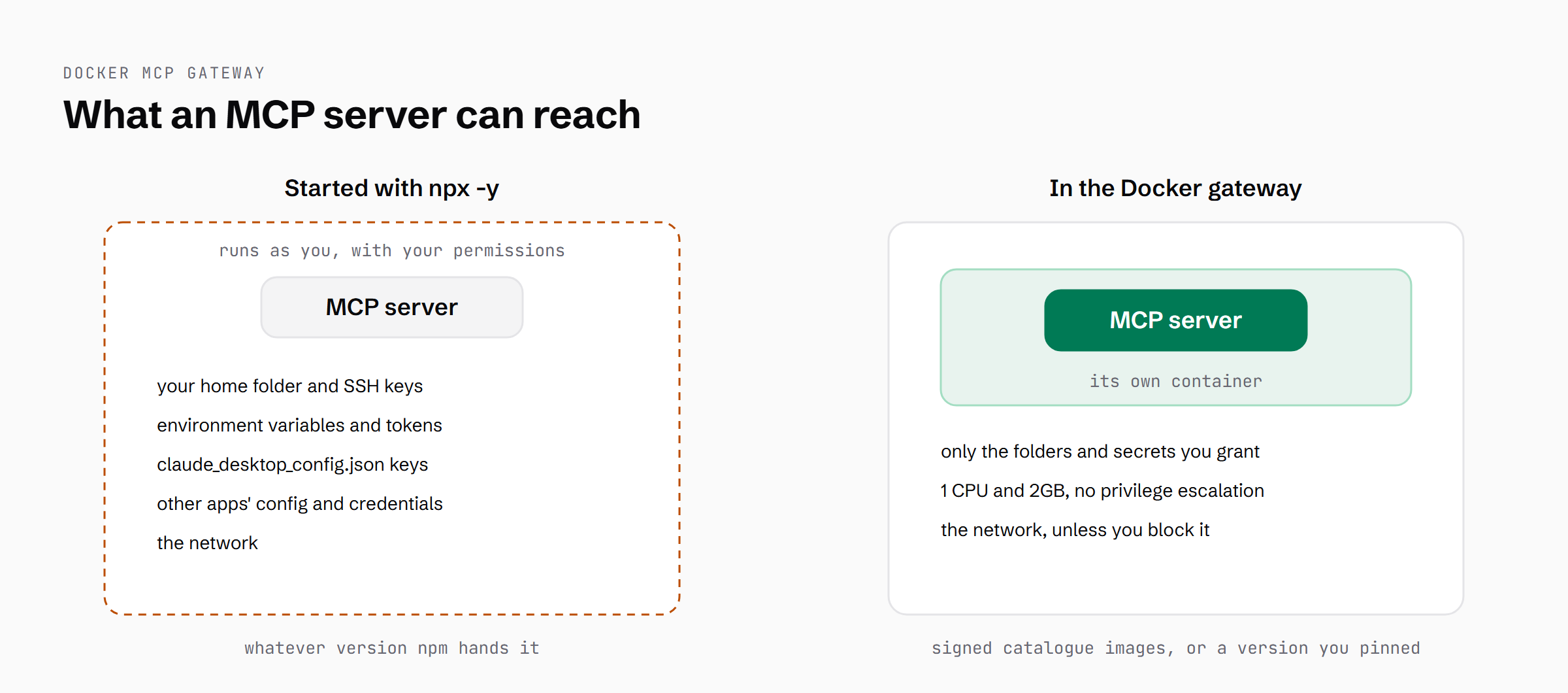
The same MCP server run two ways: with npx it reaches what you can, and in a container it only sees what you hand it, though the network stays open unless you block it.
What a container won't stop
None of that would have stopped postmark-mcp. In September 2025 Koi Security found a fake copy of Postmark's MCP server on npm. Postmark had never put its own server on npm, so someone else took the name. The first 15 versions were clean copies. Version 1.0.16 added one line that BCC'd every email sent through the tool to the attacker. It was doing its job with the key and the network access it had been given.
Outbound network is open by default. You can run the gateway with --block-network, and a server's definition can limit it to named hosts, but neither is on unless someone switches it on. Anything you mount or pass in is reachable, so a mounted folder can be read and a secret you hand a server is that server's to use. Prompt injection (text written to talk the model into doing something it shouldn't) sits outside Docker's security model altogether, because it works on the model, not the container. The gateway itself drives Docker through the Docker socket (the connection that controls Docker), and Docker's own security docs say only trusted users should control it, because whatever controls Docker can reach the whole host. So the gateway is the one piece you trust completely. And containers share the host's kernel, so a kernel bug can reach past them.
A gateway also only contains the MCP servers it runs. Shai-Hulud and the jscrambler infostealer came in through an ordinary npm install in a project, and nothing about the gateway stops that. What it changes is what a malicious MCP server can reach once it's running: no SSH keys, no shell environment, no Claude configs to rewrite. So a container gives a malicious server a difficult time, and raises the bar a long way. It doesn't make a server trustworthy.
Set up the gateway
Turn on the MCP Toolkit
These steps follow Docker's docs, which assume Docker Desktop 4.62 or later (Docker Desktop is the desktop app for running Docker, and it's how most Windows and Mac users have it). Earlier versions have a different UI, and my own machine is on an older version that predates profiles, so I haven't run this flow on it yet. Head to Settings > Beta features, tick Enable Docker MCP Toolkit and click Apply. If you run Docker Engine without Desktop, download the docker-mcp CLI plugin from the gateway's GitHub releases page into ~/.docker/cli-plugins, and the README has you switch on profiles as well.
docker mcp feature enable profiles # Docker Engine without Desktop onlyMake a profile and add servers
A profile is a named set of servers, and it's what each client connects to. Create one first. Then browse the catalogue, which is Docker's list of more than 200 packaged tools and services, to find the IDs of the servers you want. Add them to the profile by ID.
docker mcp profile create --name dev
docker mcp catalog server ls mcp/docker-mcp-catalog
docker mcp profile server add dev --server catalog://mcp/docker-mcp-catalog/<server-id>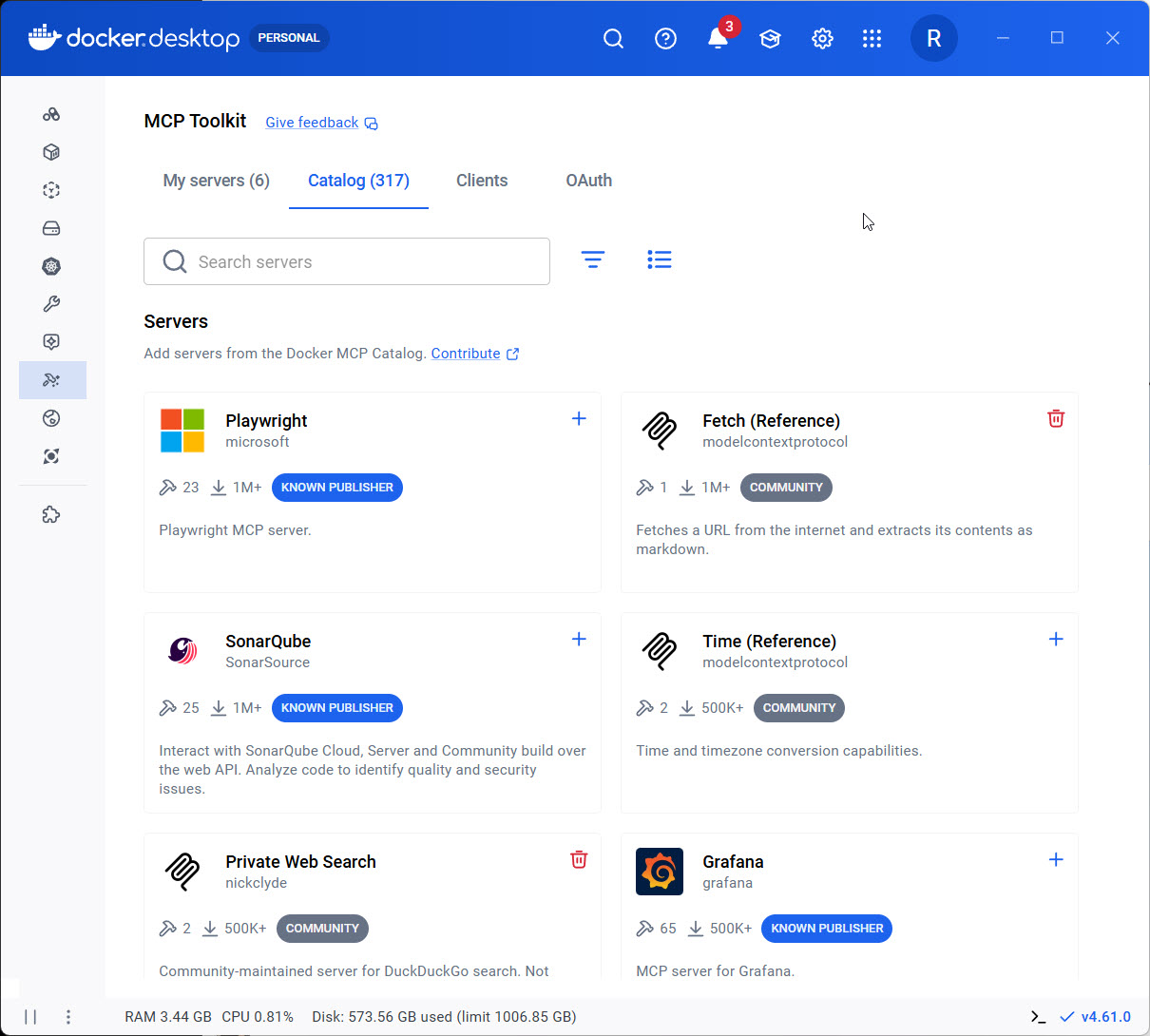
The catalogue in my Docker Desktop in August. From 4.62 the Toolkit arranges it under Profiles, Catalog and Clients.
Add your keys as secrets
Keys go in as secrets, which Docker stores in your operating system's keychain rather than in a JSON config. The gateway injects each secret into the server that declares it. If the keychain gives you trouble, docker mcp gateway run takes a --secrets flag that also accepts the path to a .env file. That puts your keys back in a plain-text file, so keep it out of any repo and out of the usual config folders. On my Windows machine Docker Desktop's secret store failed on an older version of the gateway, so I used a .env file.
docker mcp secret set <name>=<value>
docker mcp secret ls
Connect Claude Code and Claude Desktop
docker mcp client connect writes the client config for you. For Claude Code, add --global if you want the gateway in every project. Both clients connect over stdio, which means the client starts docker mcp gateway run itself and talks to it through standard input and output. There's no npm bridge in the middle, which older setups (mine included) used for Claude Desktop, and an npx -y bridge is the same unpinned pull you're trying to get away from. To check Claude Code, run claude mcp list and look for MCPDOCKER marked Connected. For Claude Desktop, restart it and look for MCPDOCKER in the Search and tools menu.
docker mcp client connect claude-code --profile dev --global
docker mcp client connect claude-desktop --profile dev
claude mcp list
Optional: one HTTP gateway for several clients
If you want several clients to share one gateway, you can run it over HTTP with the streaming transport on a port. Docker requires a Bearer token (a shared secret the client sends with every request) on the HTTP transports by default, and its gateway docs cover setting it up. Leave it on. --allow-unauthenticated is an explicit opt-out, and Docker's security notes treat it as unsafe.
docker mcp gateway run --profile dev --port 8080 --transport streamingRunning your own server through the gateway
Your own servers can go through the gateway too. Build a small image with the package installed at a pinned version, because @latest plus a cached layer is how you end up not knowing what's running. Build it with --no-cache, then check which version landed with npm ls -g. Docker doesn't signature-check images you build yourself, so the pin is your main check there, though it pins the package itself and not everything it depends on. Then give the image a catalogue entry so the gateway knows how to run it, and add it to your profile like any other server.
FROM node:22-slim
RUN npm install -g @houtini/lm@3.3.0 && npm cache clean --force
docker build --no-cache -t houtini-lm:3.3.0 .
docker run --rm --entrypoint sh houtini-lm:3.3.0 -c 'npm ls -g @houtini/lm'If the server needs to reach something running on your machine, a local model server for example, point it at host.docker.internal and the port, never 127.0.0.1. houtini-lm's Docker guide builds exactly this kind of image for a server that talks to a model on the same machine. Inside a container, 127.0.0.1 is the container itself.
What to watch out for
Don't use --long-lived, or longLived: true in a catalogue entry. It keeps a worker container alive for each client session until the gateway stops, and on a gateway that never stops they pile up. Two days after I first wrote about the gateway I had 23 orphaned workers in about 18 hours, so I dropped the flag on 17 August. Then, writing this, I found longLived: true still set on two servers in my own catalogue, with twelve stale workers running. I took it out, restarted those two gateways, and the workers went with them.
Some catalogue images write their logs to stdout, which is the same channel the MCP connection runs over, so the log lines corrupt it. Supadata's did, and the error read invalid character 'M'. I rebuilt that image. If a server connects and then dies with a JSON error, check its logging first.
Through the gateway, long tool calls time out at about 60 seconds at the client, because the gateway build I run doesn't pass progress notifications through (the messages a server sends to say it's still working). I measured that on 23 September, and a newer gateway build may fix it. Servers with long jobs are better run outside the gateway but still in a container: houtini-lm's guide starts one with docker run -i over stdio, which keeps progress working.
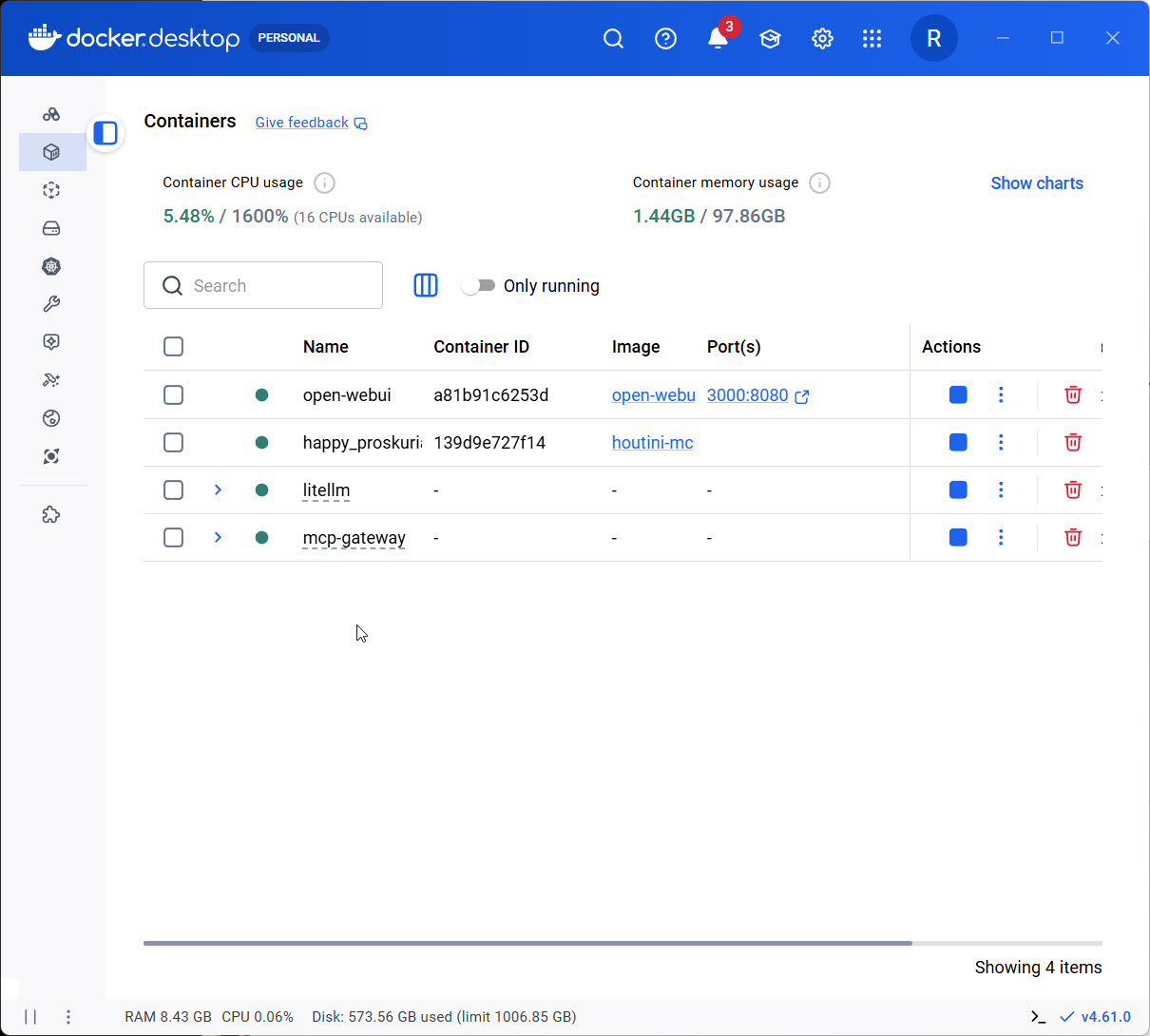
My Containers view in August: the gateway, and each MCP server in its own container.
Servers that read or write your own files don't fit in a container. A Linux container can't see C:\ paths, and Gemini's image tools and Gmail's attachment downloads both need them. I moved Gemini back to running directly on 18 August, and Gmail on 22 August.
In Claude Code, one gateway puts every tool under one name, mcp__MCP_DOCKER__<tool>, which breaks any prompt that calls a tool by its server's name. I run one small gateway per named server instead, which keeps the names intact.
What I run now
Ten servers have run through the gateway on my machine since 17 August. Before that, a reaper script was killing orphaned Node processes for me (MCP servers left running after a Claude window closed), and it killed 64, 93 and 53 a day between 7 and 9 August. From 17 August, once the gateway had settled down, it's killed one or none a day.
So Gemini and Gmail still run as ordinary processes on the host, with my permissions, and the container argument doesn't cover them. The reaper is public as node-session-reaper, and it's what I use to clear up the orphaned processes from whatever I can't move into a container yet.
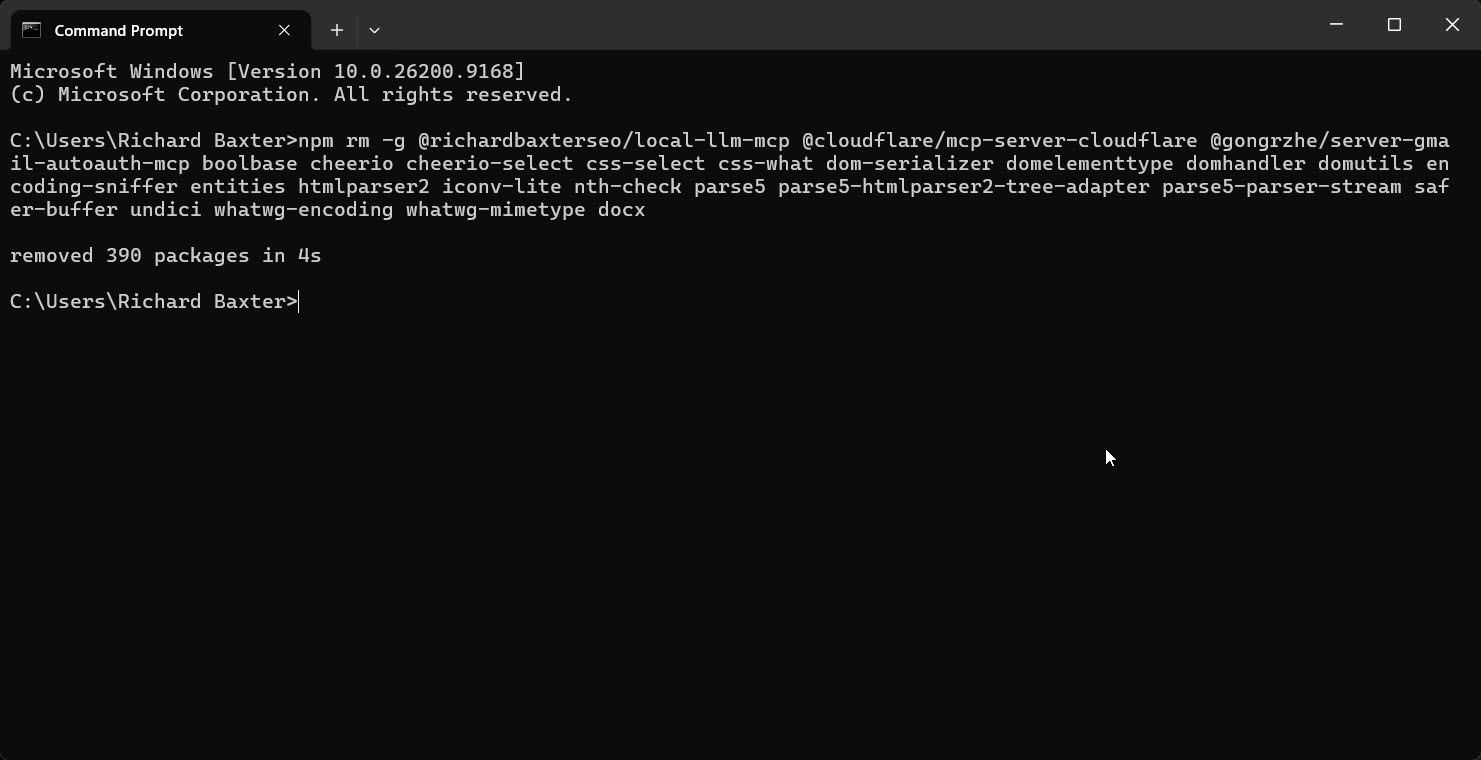
Clearing out the old global npm installs once the servers ran in containers: 390 packages removed in 4 seconds.
Where to start
If you're starting from a config full of npx -y lines, begin with a profile of servers that only talk to APIs. Those are the easiest to move, and they're the ones holding your keys. Keep the servers that need your files outside for now, and know what each of them can reach. Anything you build yourself, pin the version, and rebuild it on purpose when you want the update. Then open claudedesktopconfig.json and count how many keys are still pasted in there.
Continue reading.
- How-to GuidesHow to Connect Google Trends to Claude Code
- How-to GuidesCLAUDE.md: How to Write One That Stays Lean
- How-to GuidesHow to Make a PDF Report with Claude
- How-to GuidesHow to Make a Presentation with Claude
- How-to GuidesHow to Benchmark vLLM: Find the Best Model, Quant and Settings for Your GPU
- How-to GuidesClaude Code Memory: How to Keep It Useful