Claude Desktop System Requirements (2026): Minimum & Recommended Specs
Claude Desktop was my introduction to AI and it's still the best on-ramp to useful AI at work, so in today's guide I'm taking the system-requirements question the way I'd answer it for a client: the official minimums, the September change that moved Cowork into the cloud, what still runs on your machine, and why the laptop you own is probably fine.
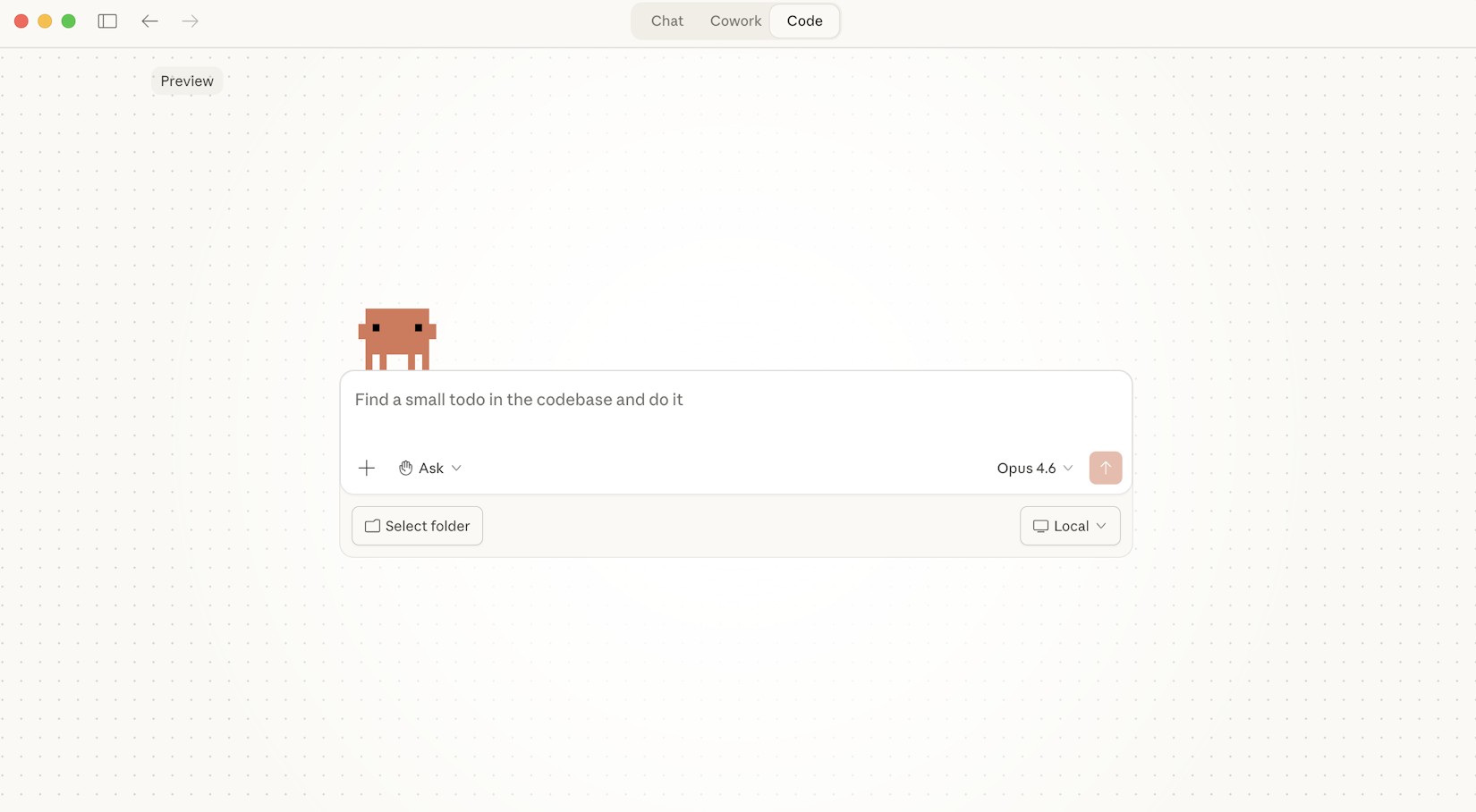
Claude Desktop was my introduction to AI, and I still think it's the best introduction to useful AI at work that exists. I wrote whole applications in it before Claude Code was a thing. I moved to Claude Code the week it appeared, and these days I run Claude Code inside the Desktop app, which is the version of it I prefer - but the app I started in has everything the others have, packaged a little differently, and it asks nothing of you to begin. So this is a system-requirements guide with a slightly unusual thesis: the machine has never mattered less. What you need is the on-ramp - a plan, the app, a folder for your project documents, one connector - and a straight account of the hardware floor underneath it, which is what we're going to be taking a look at today.
One recent change matters more than any spec, so it goes first. Claude Cowork , the agentic layer, now runs its sessions in Anthropic's cloud by default; your computer is the thing it reaches back into for files, not the thing doing the work. The local virtual machine that made Cowork the heaviest part of the app a few months ago is now the exception, kept for existing desktop set-ups. I run Claude Desktop daily on Windows 11 alongside Claude Code and the MCP servers I publish under @houtini , so what follows is what I'd tell anyone speccing a machine for the same workflow: what's official, what's published and what isn't, where the install trips, and what you need to make it work.
Quick Navigation
What you get |
Official requirements |
Does any of it run on your machine? |
Cowork |
Connectors |
What you need |
Linux beta |
Where to go from here
What do you get for your money?
Claude Desktop is the Electron-based app you download from claude.com/download . Inside it, three modes share the same shell, with Projects underneath all of them:
- Chat - the familiar conversational interface. What most people opened the app to use a year ago. Still here, still the default tab.
- Cowork - the agentic mode. You point it at a folder, give it a goal, and it works through the task using local files and connected tools. Released on Mac in research preview January 12, 2026 , generally available on macOS and Windows on April 9, 2026 .
- Claude Code - the dev tool, which now runs directly in the desktop app (the terminal CLI remains available separately, and
/desktophands a CLI conversation over to the app). See the dedicated Claude Code system requirements article for the developer side.
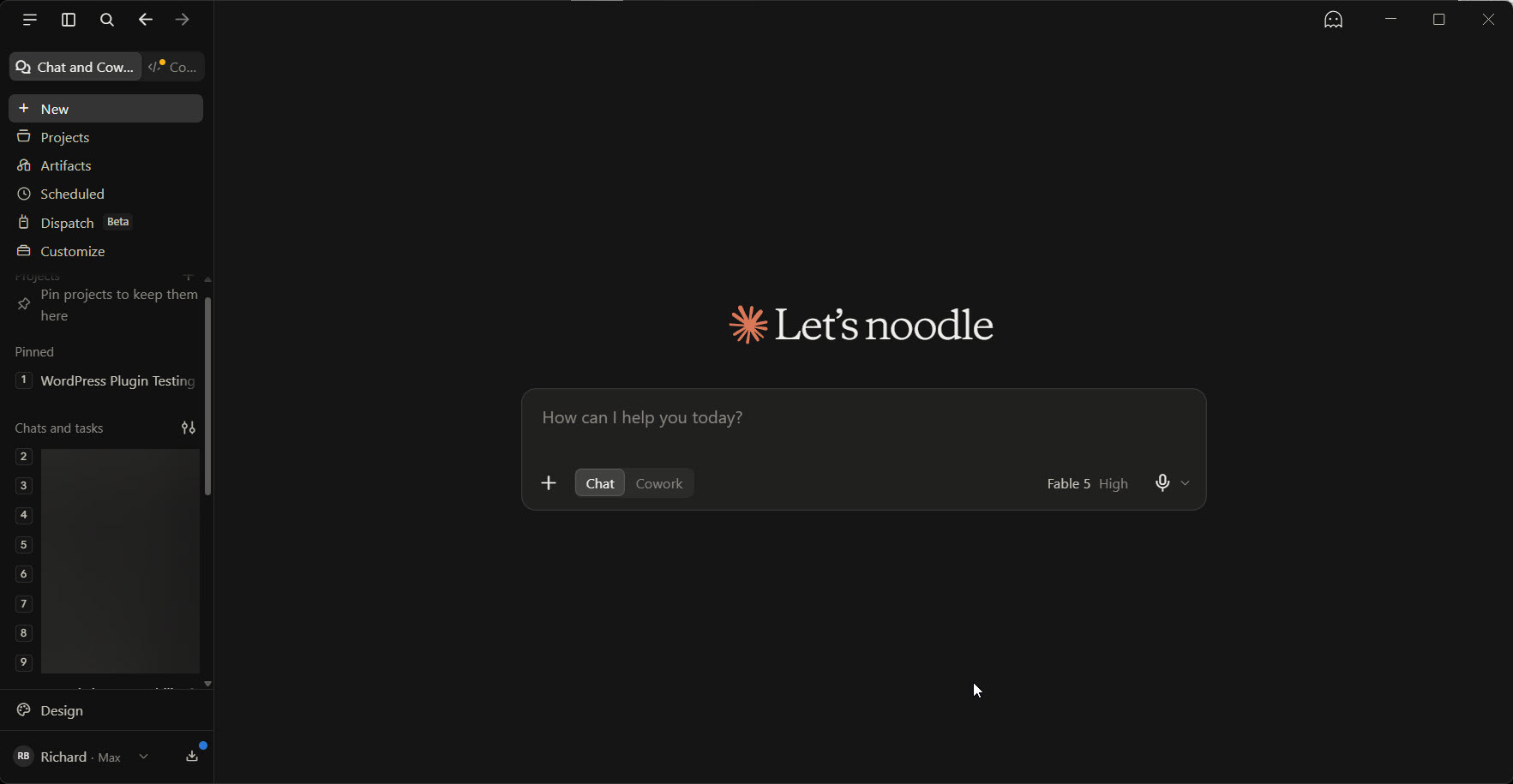
- Projects - a place to keep the documents a piece of work needs, which the chat and Cowork both read as context. This is the feature I'd point a newcomer at first: it's how you manage a document corpus as a thread progresses, and it's the difference between an assistant that starts from zero every morning and one that knows the brief.
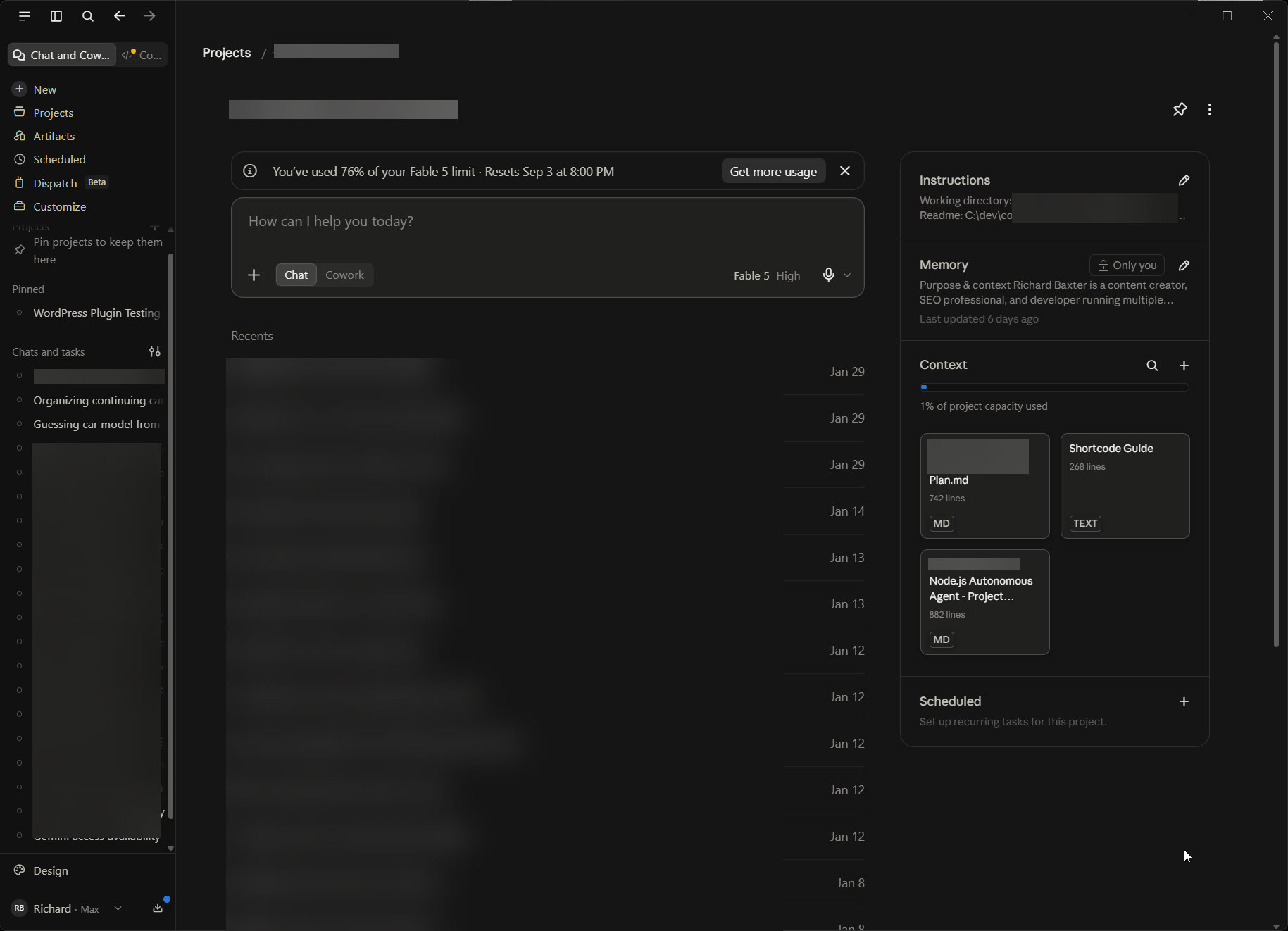
Three modes, one binary, one set of system requirements to think about. The base requirement is set by Chat. Cowork used to raise the bar with a local VM; in September 2026 it mostly runs in the cloud, so on a fresh install it barely raises it at all. Claude Code is roughly Chat-tier for the app itself, with the dev tools it drives adding the real load.
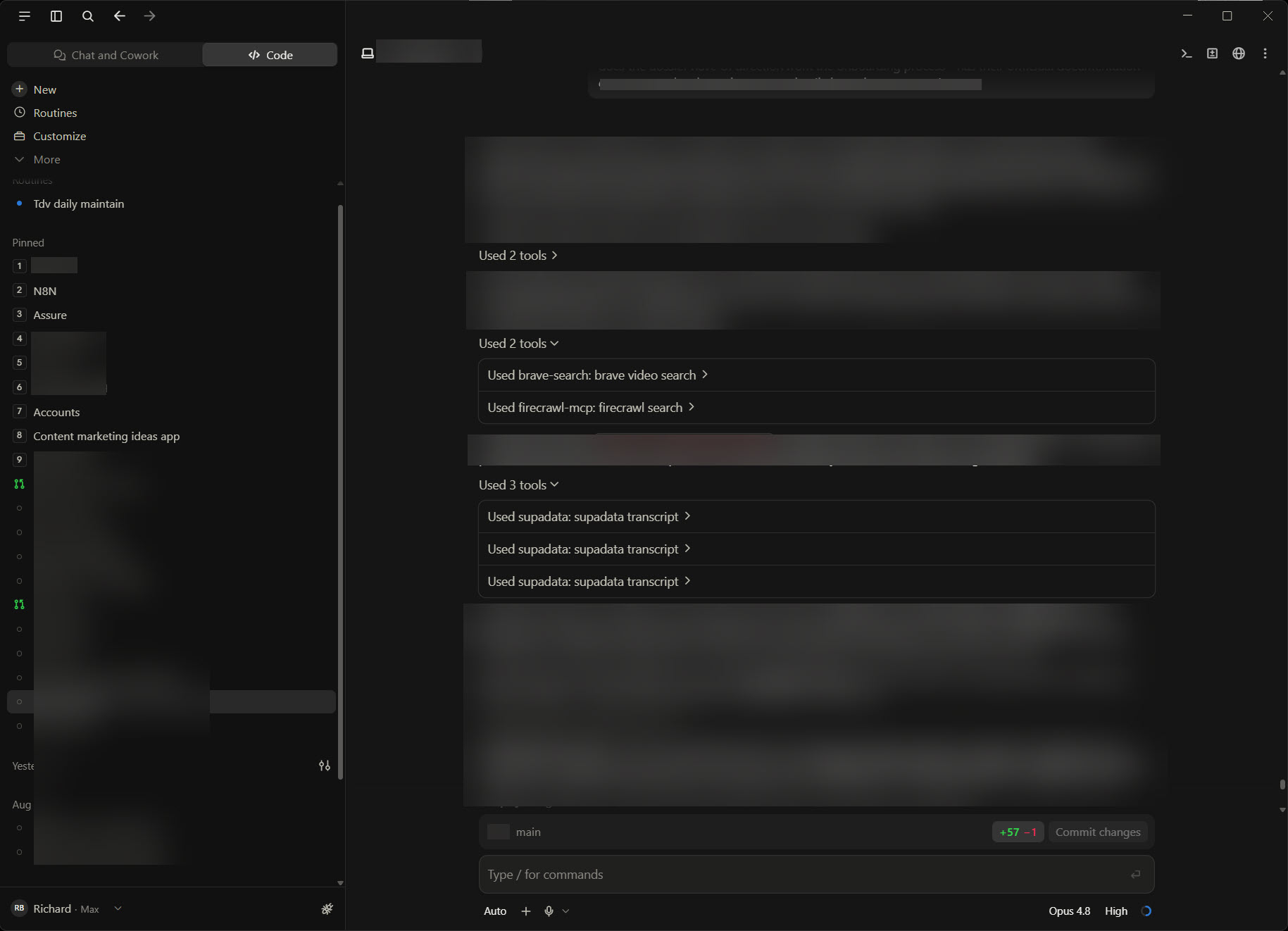
If you came looking for Claude Code (the terminal CLI), the dedicated guide is linked here . The browser-based Claude.ai is over at claude.ai . Both work great for what they are - this one is for the desktop app.
Official requirements
Anthropic publishes the minimums on the Install Claude Desktop support page and the download page . The short version:
| OS | Minimum | Notes |
|---|---|---|
| macOS | 11 Big Sur or newer | Apple Silicon or Intel; a local Cowork VM uses Apple's Virtualization framework |
| Windows | Windows 10 or newer, x64 or arm64 | Cowork on the desktop needs the Virtual Machine Platform feature and an admin install; a non-admin install runs, but without Cowork |
| Linux (beta) | Ubuntu 22.04+ or Debian 12+, x64 or arm64 | Chat on every plan; Code and Cowork on paid plans; Cowork needs KVM and QEMU |
| ChromeOS | Android app via the Play Store | Chat; the Linux container route can't run Cowork's VM |
| Resource | Chat-only | Cowork, cloud session (the default) | Cowork, local session |
|---|---|---|---|
| RAM | 8GB is enough | 8GB is enough - the work happens on Anthropic's servers | 8GB minimum; 4GB in use by the workspace while it runs (published for Linux); 16GB if you keep your other tools open |
| Disk | The app itself, a few hundred MB | Nothing extra | About 25GB free for the workspace image (published for Linux; Mac and Windows figures aren't published) |
| CPU / GPU | Any modern CPU; no GPU | Any modern CPU; no GPU | Hardware virtualisation on; no GPU |
| Network | Always - the models are in the cloud | Always, and the app must be open for a session to reach your files | Always - inference is still remote |
This is where the machine does start to matter a bit, and the reason, mostly, is Node. If you're running MCP servers, you'll find Claude Desktop isn't particularly good at killing the node process once it's finished with it, so a long session ends up with a population of node.exe that depends on the size of your MCP library and how many threads or projects you've got on the go. I've opened Task Manager wondering why the machine had bogged down and found ten or twenty of them, easily. For a minimal set-up - Claude Desktop with a few connectors from the official library - you've probably got no performance concerns at all. As you get more advanced you may start wishing for a faster CPU to deal with all the threads, more RAM of course, and at some point you might quite like to start thinking about local LLMs, in which case you're going to need a decent GPU. We've got articles about all of those: the MCPs worth installing , what a local-AI PC looks like , and the GPUs that run local models .
Two install notes for Windows. Claude Desktop ships as an MSIX package, and some organisations block MSIX installation by policy - the installer just refuses to run, with no useful error; ask IT to whitelist the Anthropic publisher certificate (MSIX on Windows and PKG on Mac are the enterprise deployment paths Anthropic supports). And Cowork on the desktop needs two things a standard user can't grant: the Virtual Machine Platform Windows feature, and an installation run with admin rights. Anthropic's deployment page is blunt about it - install without admin and Claude appears fine, but the Cowork tab never shows up. If you already run WSL2 or Docker Desktop you have the feature on already; if not, it's one PowerShell line and a restart (a restart, not a shut-down - Fast Startup can leave the virtualisation services uninitialised, which is the kind of thing you only learn after an hour of head-scratching).
Does any of it run on your machine?
It's the question underneath every requirements search, so here it is in one place, from Anthropic's own architecture page rather than from folklore.
- The models: never. Sonnet 5, Opus 5 and Fable 5 run in Anthropic's cloud whichever surface you use. There is no download that puts a model on your disk, and no GPU you can buy that makes the app faster. If you want a model on your own hardware, that's a different product category and I've written it up separately.
- Cowork: in the cloud by default, as of this summer. The agent loop and any code it runs live in a temporary sandbox on Anthropic's servers, created for the session and destroyed after it; your sessions and files are saved to your account, which is why the same task now shows up on desktop, web and phone, and why a scheduled task runs with your laptop shut.
- Cowork, local sessions: still there for existing desktop set-ups. The agent loop runs natively on your machine and the code runs in an isolated Linux VM, under Apple's Virtualization framework on a Mac and Hyper-V on Windows. This is the configuration the disk and RAM numbers above are about.
- Your files: on your machine, reached through the desktop app. A cloud session can read and write the folders you've connected only while the desktop app is open on that computer and only for those folders; close the app and the session keeps running but can't see your disk. Anthropic is candid that files opened this way are processed on their servers, not on yours.
- Local MCP servers, desktop extensions, the built-in browser and computer use: on your machine, through the desktop app, and only there.
So the Windows note above is the exception that proves the rule. The app you download is, in September 2026, mostly a very good window onto work that happens elsewhere.
Cowork: the new agentic layer
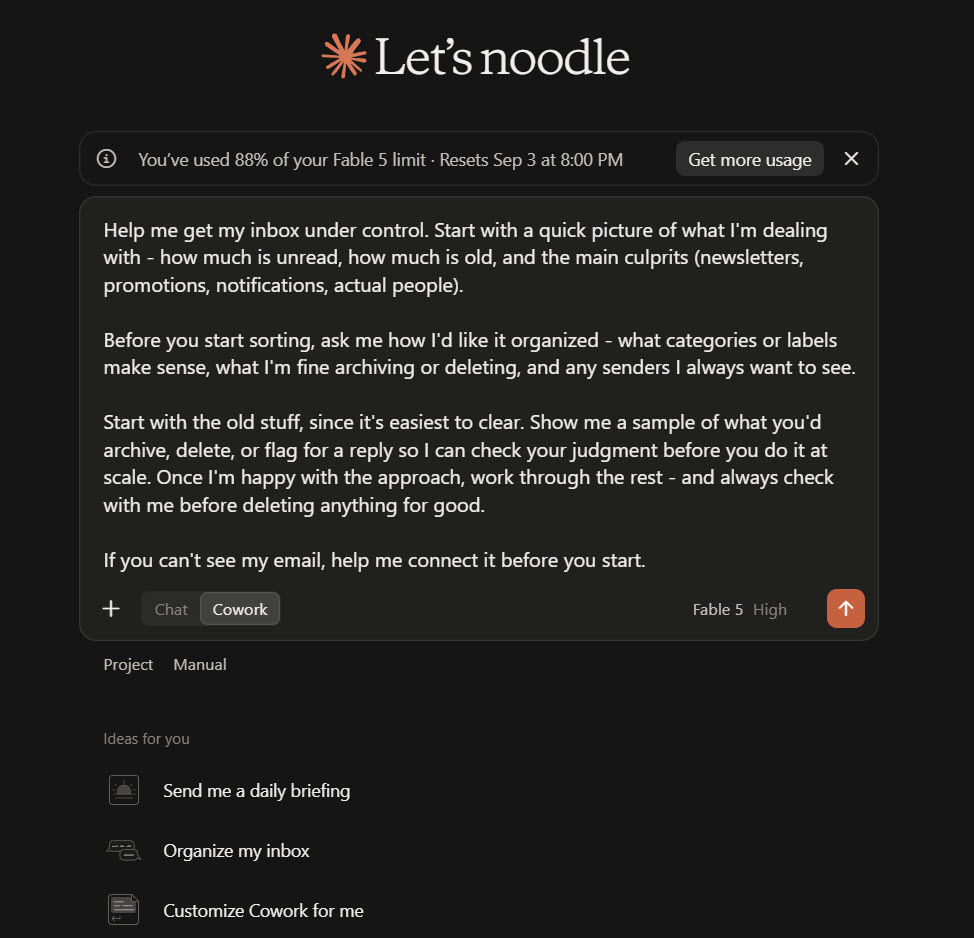
Cowork is the single biggest shift to Claude Desktop in the last year, and until July it was the part of the app that decided what machine you needed. Now it's the part that decides whether your machine needs to be on.
A scope note before I dig in: my own agentic work lives in Claude Code on the CLI side, not in Cowork. I've spun up Cowork sessions to confirm the install path works and to watch the VM behaviour, but I haven't put it through heavy sustained client work the way I have with Claude Code. The architecture below comes from Anthropic's published documentation and release notes, cross-checked against the practitioner reports I trust; my own contribution is interpreting what those numbers mean for a machine you're about to spec.
What Cowork is
A mode that takes a goal and works through it. You point it at a folder, describe the outcome, and Cowork plans the steps, edits files, runs tools, and returns a finished deliverable. Anthropic's framing is precise: this is not a chat assistant. It is an agentic system that executes multi-step knowledge work on your behalf.
How it runs
Two ways, and which one you get depends on how you arrived. Sessions run in the cloud by default: Anthropic's architecture page puts the agent loop and the code execution in an isolated, temporary sandbox on their own infrastructure, with your sessions and files saved to your Claude account. Existing desktop deployments keep local execution - the agent loop native on your device, the code in a dedicated Linux VM isolated from the host by the platform's hypervisor. Either way, the model inference is remote; the difference is where the agent's hands are. The release-note line that used to define Cowork - "it runs locally on your computer in an isolated VM" - is now the description of the local mode, not of the product.
What plans get it
Pro, Max, Team, and Enterprise. Free is excluded. The expansion happened in stages:
- 12 January 2026 - research preview, macOS only, Max plan only
- 16 January 2026 - expanded to Pro plan, still macOS only
- 24 February 2026 - plugin marketplace for Team and Enterprise
- 25 February 2026 - scheduled recurring tasks and a new Customize section grouping skills, plugins, and connectors
- 17 March 2026 - Dispatch from your phone (Pro/Max research preview)
- 23 March 2026 - computer use in Cowork and Claude Code
- 9 April 2026 - general availability on macOS and Windows for all paid plans
- 7 July 2026 - Cowork on web and mobile : sessions run in the cloud (in beta for Pro, Max and Team, and Enterprise where an admin enables it), saved to your account rather than your machine
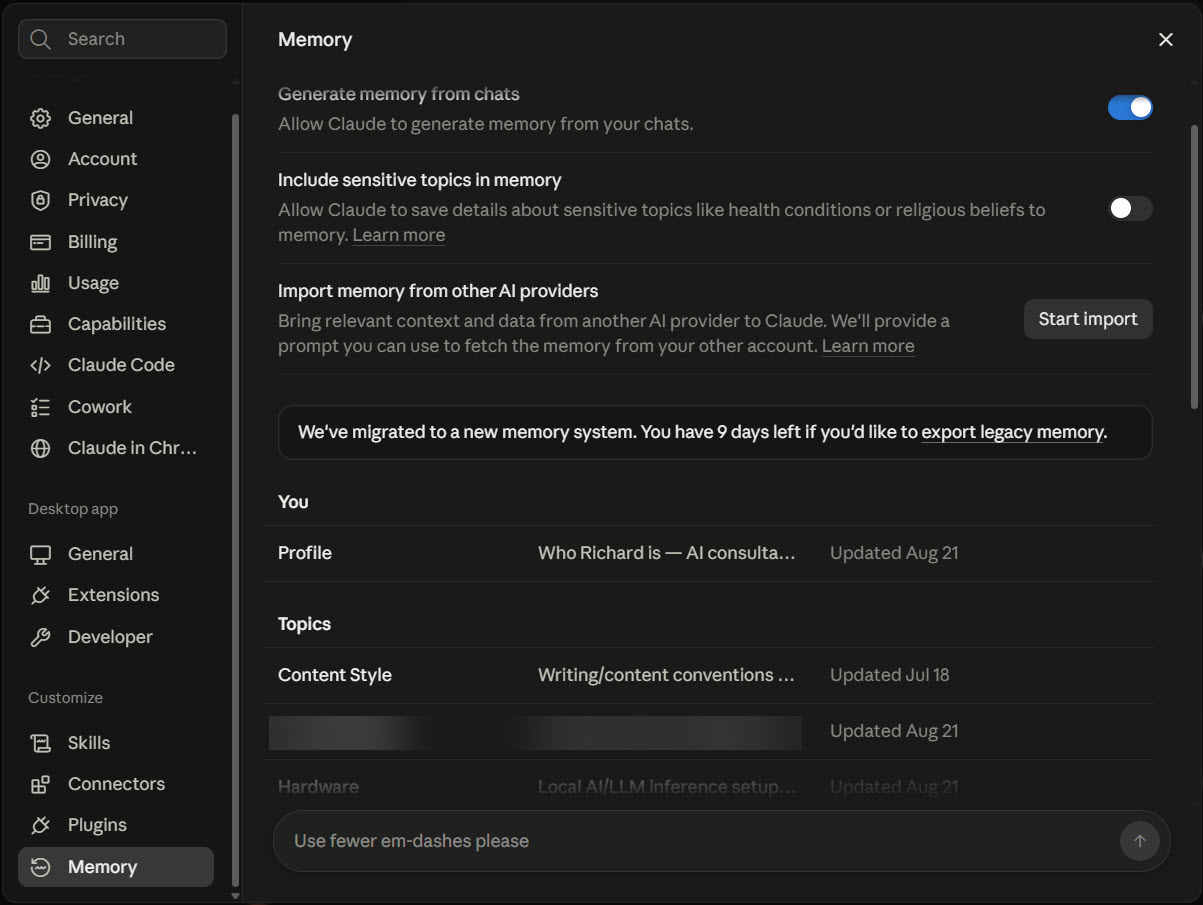
- 25 August 2026 - memory across chat and Cowork , with editable topics in Settings
What Cowork demands of your machine
For a cloud session, almost nothing: a network connection, and the desktop app open if the task needs your local files or your browser. Close the laptop and the work carries on; scheduled tasks run with no device online at all. The surfaces page has the plain table of what still needs the app: local files, local connectors and plugins, the browser, computer use.
For a local session - the existing desktop deployments - the numbers are real, and the only published ones come from Anthropic's Linux setup notes:
- At least 8GB of RAM, with the workspace using 4GB while it runs; 16GB is the comfortable floor if the browser, an editor and Slack are open beside it
- About 25GB of free disk for the workspace image, plus your project work-trees (Anthropic doesn't publish the Mac or Windows figure; budget the same order of magnitude)
- Hardware virtualisation turned on in firmware (VT-x on Intel, AMD-V on AMD, KVM on Linux) - without it the Cowork tab tells you so and stops
- On Windows, the Virtual Machine Platform feature and an admin install, per the deployment notes above; virtual machines and VDI hosts without nested virtualisation aren't supported at all
One more thing to watch out for on Windows, and it's reported rather than something I've measured on my own box: a bug report on Anthropic's repository describes the app spinning up its Hyper-V VM at launch - a 1.8GB Vmmem process in Task Manager - even when you only open it to chat, and the thread got enough attention that the Windows press picked it up. On a 16GB laptop that's over a tenth of your memory gone to infrastructure you didn't ask for. If Vmmem is sitting there after a chat-only session, that's what it is.
What Cowork is NOT
Three boundaries the marketing tends to blur:
- Not a local LLM. All inference happens in Anthropic's cloud, and since July so does most of the agent loop. The local VM, where you still have one, runs code and file operations, never the model.
- Not fully autonomous. Cowork proposes a plan and waits for your approval before taking action. The phrase Anthropic uses is "you're delegating the work, not the judgment." Approval gates are first-class.
- Not for free-tier users. The download page works for everyone; the Cowork tab is gated to paid plans.
Connectors: how you add MCP servers now
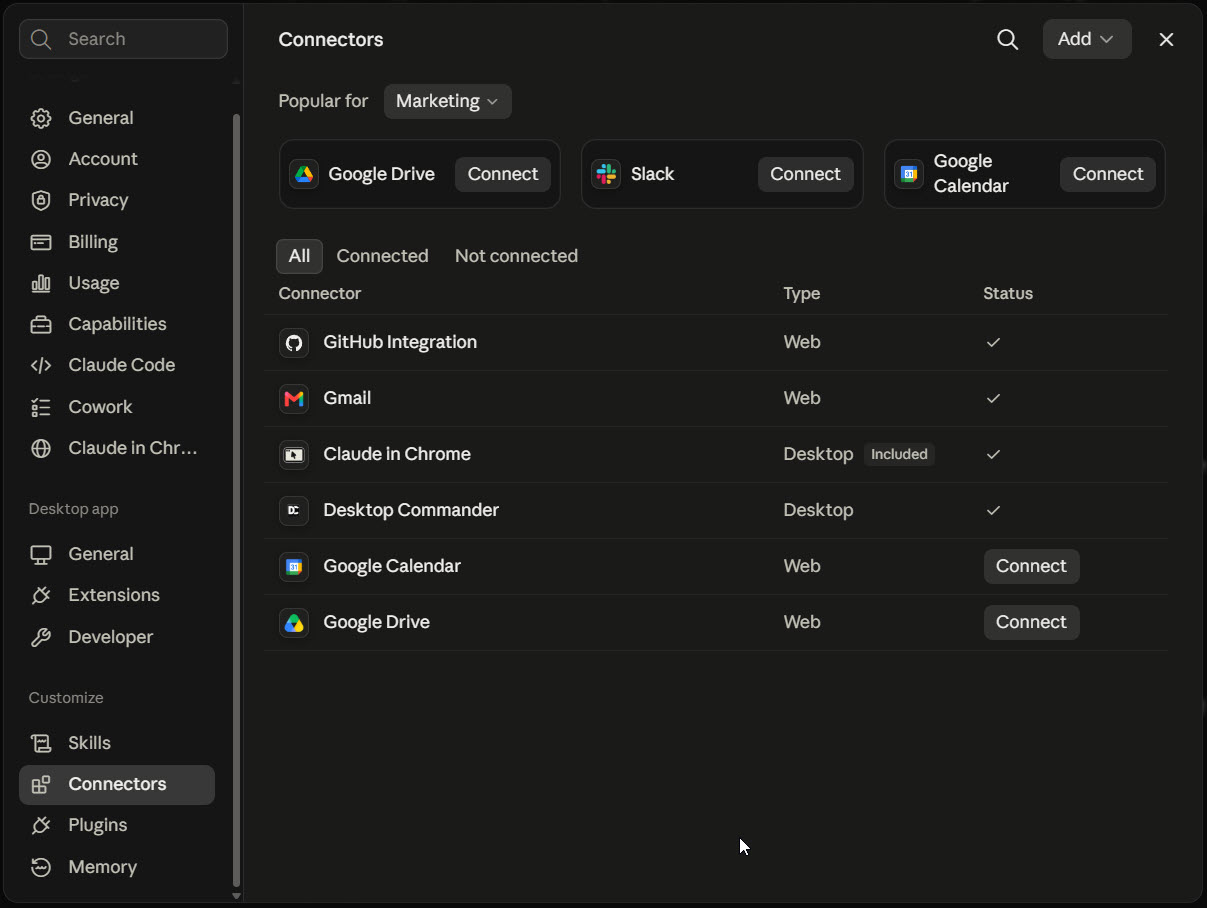
The hardest part of running Claude Desktop a year ago was wiring up MCP servers. You installed Node.js, you edited claude_desktop_config.json by hand, you wrestled with dependencies, you restarted the app, you hoped. That whole flow has been replaced.
I publish a suite of MCP servers under @houtini on npm, so I've watched this whole install-friction story from the developer side. When the only install path was a JSON config dance, adoption capped out at the developers willing to wrestle Node and read changelog notes. The marketplace shift changes the addressable audience for MCPs entirely - non-developers can now install one in two clicks, and that's the bit nobody flagged at the time as the real story of 2026.
There are now three install paths, in increasing complexity:
- The Connectors directory (the default path). Browse the catalogue , click Connect on a remote service like Notion or Canva or Stripe, complete the OAuth flow, done. No terminal, no config files, no dependency conflicts. The directory launched on 14 July 2025 and has grown steadily since.
- Desktop Extensions (
.mcpbfiles). Anthropic's own packaging format for local MCP servers - file system access, database queries, custom local tools. Download a.mcpbfile, double-click to open with Claude Desktop, click Install. Built-in Node.js runtime ships with the app so the historic dependency dance is gone. Secrets land in your OS keychain. Updates happen automatically.
Anthropic's own framing of the shift, verbatim :
Before: install Node.js first, npm install -g the server, hand-edit claude_desktop_config.json, restart Claude Desktop, hope. After: download a .mcpb file, double-click to open with Claude Desktop, click Install.
- Manual config editing (the escape hatch). Editing
claude_desktop_config.jsonby hand still works. Still required for arbitrary GitHub-published MCP servers that haven't been packaged as.mcpbfiles. Useful for development, internal tools, or anything experimental. The marketplace is the front door; manual configuration is the back door. Both stay open.
System-requirements implications:
- Remote connectors (Notion, Stripe, Google Drive, anything OAuth) - negligible local resource cost. The connector calls run in Anthropic's cloud, not on your machine. Network policy matters; processing power doesn't.
- Local desktop extensions (file system, database, local tools) - small. The bundled runtime handles dependencies. Some extensions may spawn helper processes; budget RAM for those if you install many.
- Custom self-hosted MCPs via JSON config - depends on what the MCP does. If it spawns a Python process per call, it consumes whatever that process needs.
The Connectors marketplace makes adding tools a click. The system-requirements implication is small for most users; the bigger shift is that the JSON-editing skill is no longer required for participation. If you ever skipped MCPs because the install was too painful, the install is no longer painful. And if you wired up an MCP server through the JSON config months ago and it's since appeared in the directory or as a .mcpb extension, it's worth migrating when convenient - the old install still works, but it's missing the marketplace's automatic updates, secret management and uninstall hygiene.
What you need
When someone asks me what machine they need for this, the answer that helps them is rarely a spec. It's an on-ramp: a paid plan if they want Cowork or Claude Code, the app from the download page, one Project with the documents that matter, and one connector they'll use tomorrow - Google Drive or Notion are the gentlest. Anthropic's published minimums are conservative, they describe the bottom of what works for Chat, and with cloud sessions they are now close to the whole story. The hardware tiers below are for the people who run the local mode, or who run everything at once.
A realistic picture for the three usage patterns:
Chat-only (Free / Pro / Max / Team / Enterprise - same hardware story).
- 8GB RAM is enough
- macOS 11+ or Windows 10 is enough
- Any modern CPU
- No Cowork, no Connectors-as-OS-control, no agent loops
Cowork-active (Pro / Max / Team / Enterprise) - the local-session numbers; a cloud session needs none of this beyond the app being open.
- 16GB RAM is the floor for comfortable use alongside other dev tools
- 32GB if you run Cowork against large monorepos with parallel sub-agents
- Hardware virtualisation enabled in firmware, and on Windows the Virtual Machine Platform feature plus an admin install
- About 25GB free disk for the workspace image (the published Linux figure)
- Apple Silicon Mac (M1 or newer) gives the smoothest macOS experience; Intel Macs may struggle with the VM workload depending on age
Power user (Cowork + Claude Code + Connectors + Skills).
- 32GB RAM is the new normal
- SSD with at least 50GB free if you run Cowork against your full development workspace
- Recent CPU (8th-gen Intel or M1+ Apple Silicon equivalent)
- The bottleneck is rarely the CLI itself; it is the dev tools Claude Code runs in parallel during agentic workflows
GPU: still not needed for any of this. All model inference happens in Anthropic's cloud. The "do I need a 3090" question that comes up sometimes is usually mixing Claude Desktop up with running a local LLM - that is a different category of product, and we cover the local-LLM GPU question in Best GPUs for Running Local LLMs .
Linux: now in beta
Claude Desktop on Linux went from "officially unsupported" to a real beta this summer, and it's a proper build rather than a chat wrapper: Chat, Claude Code and Cowork are all in it. The beta covers Ubuntu and Debian on x64 and arm64, installed via Anthropic's Linux docs , with more distributions promised. Plan gating matches everywhere else - Chat on every plan including Free, Code and Cowork with Pro, Max, Team and Enterprise.
Cowork on Linux has its own setup list, and the Linux docs are clear about it: hardware virtualisation (KVM) on in firmware, your user in the kvm group (Cowork also needs /dev/vhost-vsock, which only group members can open, so join the group even if /dev/kvm already works), and QEMU with its UEFI firmware, which the apt install pulls in as recommended packages. Fedora and RHEL aren't supported yet; container-based Linux and ChromeOS kernels can't run the VM at all. Two feature gaps before you switch: Computer Use hasn't reached Linux (Anthropic says it's coming), and dictation is missing from this release. One desktop-environment wrinkle, too: the Quick Entry global hotkey works on X11, but on native Wayland it needs your desktop's GlobalShortcuts portal.
If you're on a distribution outside Ubuntu and Debian, the old advice still covers you: Claude Code runs natively anywhere, and Chat works in the browser. The community ports that filled this gap for years are now the fallback rather than the front door.
Where to go from here
Download from claude.com/download . On first run, sign in, choose a plan, and the app drops you in the Chat tab. From there:
- For chat-only use, you are done. Your hardware floor is the lowest of all the tiers, and it's where I'd start anyone: a week of ordinary work in the chat tab teaches you more about what the tool is for than any guide.
- For Cowork, make a Project first and put the documents that matter in it, then switch to the Cowork tab, connect a working folder, and start with a small task. On a fresh install the session runs in the cloud, and you will notice that your machine barely stirs.
- For MCP servers, open the Connectors directory at claude.ai/directory , pick a remote service to start with (Google Drive or Notion are the gentlest on-ramps), authenticate, done.
- For Linux, grab the beta if you're on Ubuntu or Debian - and Claude Code plus the browser still covers everything if you're not.
The model in this app is very good at holding context - a chat's, a repository's, a Project's - and it is faithful to what you ask for provided you set it out properly, which is a prompting habit rather than a hardware one. That's the article I'll write next. For this one, the answer to the question in the title is the one I'd give a client across a desk: the laptop you already own is almost certainly fine, so spend the afternoon on the on-ramp rather than the spec sheet.
Continue reading.
- Beginner's GuidesClaude Code System Requirements (2026): Specs, Setup, Gotchas6 Jun 2026
- Beginner's GuidesA beginner's guide to Claude hooks31 May 2026
- ExplainerWhat is a Marketing Engineer (and do you need one)?31 Aug 2026
- AI WorkflowsDynamically updating infographics and content (so you don't have to)28 Aug 2026
- Case StudiesThe parts Shopify Plus B2B doesn't do (and how we built them)28 Aug 2026
- Local AIvLLM settings for a pair of RTX 4090s: the flags I run for twelve local models, and why26 Aug 2026