
SVG is having a moment. Over 63% of websites use it, developers are obsessed with keeping files lean and human-readable, and the community has turned against bloated AI-generated “node soup” that looks fine but falls apart the moment you try to edit it. The @houtini/gemini-mcp generate_svg tool takes a different approach – Gemini writes the raw XML, not a rasterised trace.
It works quite well; take a look:
Quick Navigation
Jump directly to what you’re looking for:
What Makes AI SVG Good |
What You Need |
The Preview |
Animated UI Components |
Data Visualisation |
Icon Sets |
Technical Diagrams |
Generative Art |
Embedding SVGs |
Tips
What Makes AI SVG Good
Most “AI SVG generators” generate a raster image and run an auto-tracer over it. The result looks plausible until you open it in Figma or VS Code and find thousands of unstructured path nodes, no semantic grouping, and a file size that would embarrass a JPEG. The developer community has a word for this: node soup.
What developers (and Me) want SVG treated as code. Lightweight files (1-3KB), human-readable XML, logical <g> groupings, proper viewBox attributes, and output that a developer can open and edit without wincing too hard. CSS custom properties in SVG (fill="var(--primary-color)") are now considered table stakes for anything going into a design system. A single icon that responds to dark mode is infinitely more useful than a hardcoded one.
Gemini’s generate_svg tool via the MCP writes raw XML. Actual structured vector code with named groups, proper accessibility attributes, and CSS animations where you ask for them. It’s a different category of output to what most AI SVG tools produce.
What You Need
Just use your setup the same as the rest of the Gemini MCP suite. You need Claude Code or Claude Desktop, the @houtini/gemini-mcp server, and a Gemini API key from Google AI Studio (free tier is plenty for SVG generation).
Add to Claude Code in one command:
claude mcp add gemini-mcp -s user -- npx -y @houtini/gemini-mcpOr add to Claude Desktop’s claude_desktop_config.json:
{
  "mcpServers": {
    "gemini": {
      "command": "npx",
      "args": ["@houtini/gemini-mcp"],
      "env": { "GEMINI_API_KEY": "your-key-here" }
    }
  }
}
Never set up an MCP before? There’s a full step-by-step guide for Claude Desktop here.
What the Preview Looks Like
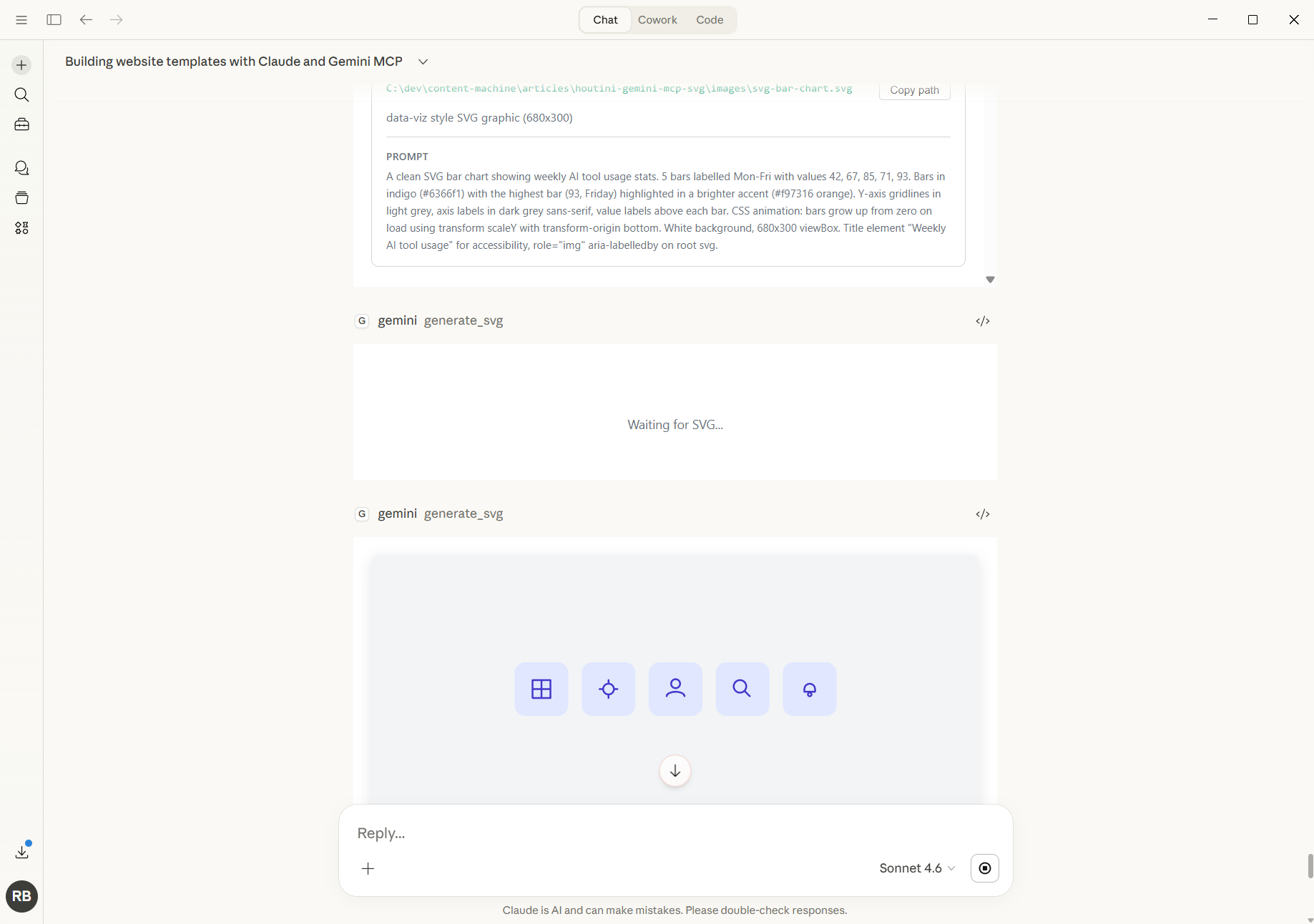
When you run generate_svg the output renders inline in Claude Desktop inside the MCP app preview panel – not as a code block, as a live rendered vector. The panel includes zoom controls, the saved file path, and the prompt that created it. Here’s the icon set rendering in the chat:
And here’s the generative art output with the full panel visible – zoom controls, file path, and the prompt used to generate it:
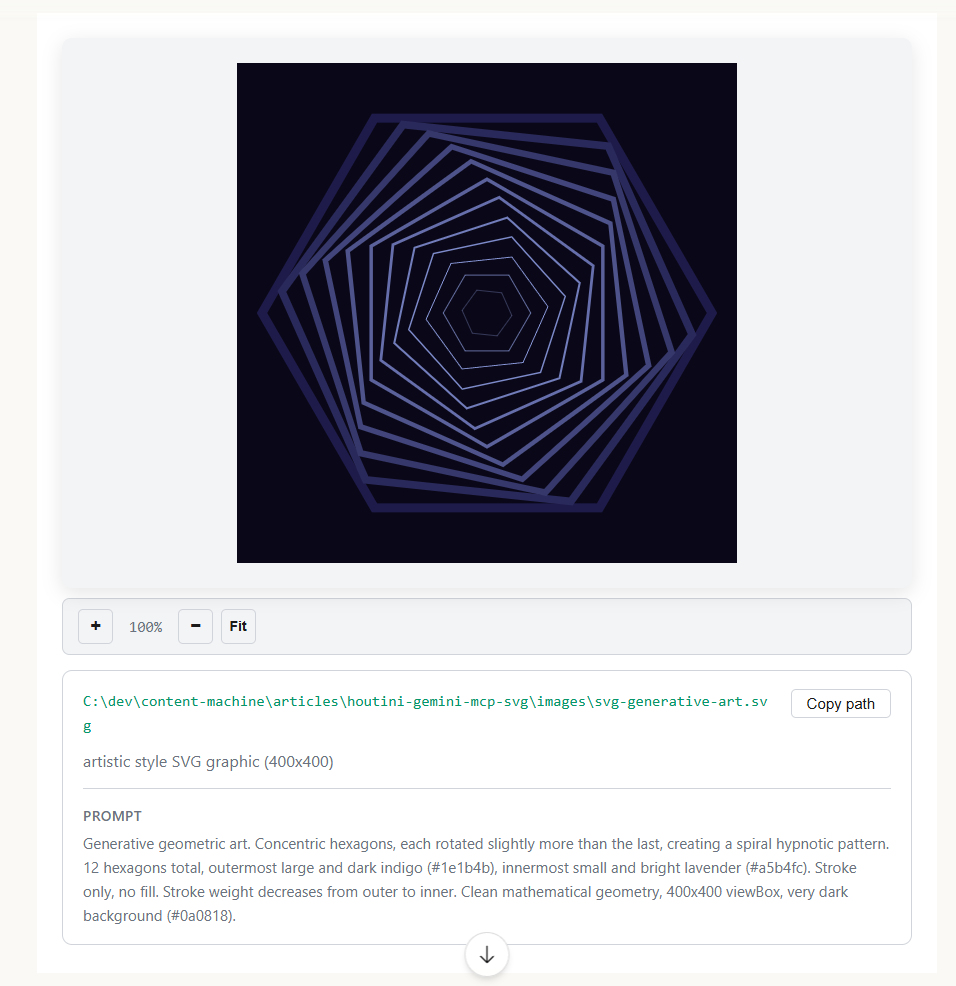
The full SVG is saved to disk at the path you specify. The inline preview is for evaluation – composition, proportions, whether the animation is running. The file is production-ready.
Animated UI Components
The most impressive category is SVGs with working CSS animations. Loading spinners, progress indicators, animated icons – things that would normally require pinching stuff off the Internet or a JS library or a hand-crafted CSS file. You just describe the motion and Gemini handles the keyframe math.
Here’s a three-arc loading spinner:
1.3KB live vector running in your browser. Teams that previously reached for Lottie or CSS-in-JS animation libraries for simple loading states might be reconsidering when a 1KB SVG does the same job.
Data Visualisation
SVG data visualisation without a JS library is an underused pattern. For static or mildly dynamic charts – bar charts, line graphs, progress rings – there’s no reason to pull in D3 or Chart.js if the data isn’t changing at runtime.
A well-structured SVG with CSS animations is 2KB, loads instantly, and works anywhere including email and static site generators.
Here’s a bar chart with CSS grow animations – bars scale up from the baseline on load, value labels fade in after. Accessible title and description, orange highlight on the peak value:
2KB. Accessible. Animated. No dependencies. Hurrah. The bars grow on page load and the values fade in – all CSS keyframes inside the SVG, nothing in the page’s JS context.
Icon Sets
Consistency across icon sets is a very nice to have. Applying the same geometric rules, same stroke weight, same visual centre – five icons that were clearly drawn with the same hand. This is exactly the kind of spatial constraint that benefits from a model that can reason about coordinates rather than trying to generate an image.
I asked for five UI icons on a consistent 24×24 grid with 2px strokes, all sharing the same indigo colour, each in a matching card:
The output is a single SVG with all five icons sharing the same CSS class rules. Change stroke: #4F46E5 to stroke: var(--icon-color) and the whole set responds to your design system’s theme variables – that’s a 30-second edit on clean, readable XML.
Technical Diagrams
Architecture diagrams, data flow charts, boxes and arrows are easily done and easily styled. SVG handles this well because you can specify exact coordinates, and Gemini’s spatial reasoning is strong enough to place nodes and route arrows without them crossing in the wrong places – which is the thing that goes wrong when you describe a diagram in words to a model that can’t do geometry.
Here’s the Gemini MCP’s own data flow, generated in a single call:
Arrows routed correctly, labels placed without collision. For article diagrams this is the workflow I use most – describe the nodes and relationships in plain English, get clean SVG back in seconds.
Generative Art
Less practical, more “because you can.” Generative geometric art requires exact coordinate calculations and consistent mathematical progressions. I asked for 12 concentric hexagons, each rotated 15 degrees more than the last, with stroke colours stepping from deep indigo to lavender (I didn’s that was what Claude used to test the svg generation.
1.6KB. Looks cool.
Embedding SVGs Directly
All the SVGs on this page are embedded inline – not images, not external files, actual SVG XML in the HTML. That’s the right approach for anything with CSS animations (external SVGs can’t be controlled by the page’s styles) and for anything you want accessible to screen readers.
In WordPress, a wp:html block wrapping the SVG is all you need. The SVG renders in place, animations run, and it scales to the container width. An <img> tag referencing an SVG will render the static shapes but strip the CSS animations – inline embedding is the only approach that works for animated SVGs.
For informative SVGs – a diagram explaining something – include <title> and <desc> as the first children of the <svg> element, with role="img" and aria-labelledby pointing at both. For decorative SVGs – spinners, generative art – add aria-hidden="true". Gemini includes these attributes correctly when you describe the SVG’s purpose in your prompt.
Tips for Better SVGs
Describe the style explicitly by applying “Clean flat technical style”, “minimal icon style”, “artistic generative” – use the style parameter in the tool. technical for diagrams and charts, minimal for icons, artistic for generative work. Gemini MCP has some design patterns in the tool description, too.
Set the viewBox dimensions in your prompt, for example: “680×300 viewBox” tells Gemini exactly how to structure the coordinates. Without this you get something functional that may need resizing.
On CSS custom colour properties: If the SVG is going into a design system, add “use a CSS custom property for colour, defaulting to #6366f1” to your prompt. You get fill: var(--icon-color, #6366f1) which is vastly more useful than a hardcoded hex.
Specify the accessibility intent. “This is a decorative SVG” gets you aria-hidden="true". “This diagram explains X” gets you <title>, <desc>, and aria-labelledby.
For animations, be precise about timing. “Rotate clockwise completing one full rotation every 3 seconds” produces better output than “rotate clockwise.” The keyframe math scales with the specificity of your description.
Save to a temp path. Specify an outputPath in your prompt or the file ends up in the MCP’s default output directory with a timestamp filename.
The full Gemini MCP overview covers everything else the server can do – that’s here. The image generation guide is a good companion to this one – same workflow, different output.
Related Posts
How to Make SVGs with Claude and Gemini MCP
SVG is having a moment. Over 63% of websites use it, developers are obsessed with keeping files lean and human-readable, and the community has turned against bloated AI-generated “node soup” that looks fine but falls apart the moment you try to edit it. The @houtini/gemini-mcp generate_svg tool takes a different approach – Gemini writes the … <a title="How to Make SVGs with Claude and Gemini MCP" class="read-more" href="https://houtini.com/how-to-make-svgs-with-claude-and-gemini-mcp/" aria-label="Read more about How to Make SVGs with Claude and Gemini MCP">Read more</a>

How to Make Images with Claude and (our) Gemini MCP
My latest version of @houtini/gemini-mcp (Gemini MCP) now generates images, video, SVG and html mockups in the Claude Desktop UI with the latest version of MCP apps. But – in case you missed, you can generate images, svgs and video from claude. Just with a Google AI studio API key. Here’s how: Quick Navigation Jump … <a title="How to Make SVGs with Claude and Gemini MCP" class="read-more" href="https://houtini.com/how-to-make-svgs-with-claude-and-gemini-mcp/" aria-label="Read more about How to Make SVGs with Claude and Gemini MCP">Read more</a>

Yet Another Memory MCP? That’s Not the Memory You’re Looking For
I was considering building my own memory system for Claude Code after some early, failed affairs with memory MCPs. In therapy we’re encouraged to think about how we think. A discussion about metacognition in a completely unrelated world sparked an idea in my working one. The Claude Code ecosystem is flooded with memory solutions. Claude-Mem, … <a title="How to Make SVGs with Claude and Gemini MCP" class="read-more" href="https://houtini.com/how-to-make-svgs-with-claude-and-gemini-mcp/" aria-label="Read more about How to Make SVGs with Claude and Gemini MCP">Read more</a>

The Best MCPs for Content Marketing (Research, Publish, Measure)
Most front line content marketing workflow follows the same loop. Find something worth writing about, dig into what’s already ranking on your site, update or write it, run it through SEO checks, shove it into WordPress, then wait to see if anyone reads it. Just six months ago that loop was tedious tab-switching and copy-pasting. … <a title="How to Make SVGs with Claude and Gemini MCP" class="read-more" href="https://houtini.com/how-to-make-svgs-with-claude-and-gemini-mcp/" aria-label="Read more about How to Make SVGs with Claude and Gemini MCP">Read more</a>

How to Set Up LM Studio: Running AI Models on Your Own Hardware
How does anyone end up running their own AI models locally? For me, it started because of a deep interest in GPUs and powerful computers. I’ve got a machine on my network called “hopper” with six NVIDIA GPUs and 256GB of RAM, and I’d been using it for various tasks already, so the idea of … <a title="How to Make SVGs with Claude and Gemini MCP" class="read-more" href="https://houtini.com/how-to-make-svgs-with-claude-and-gemini-mcp/" aria-label="Read more about How to Make SVGs with Claude and Gemini MCP">Read more</a>
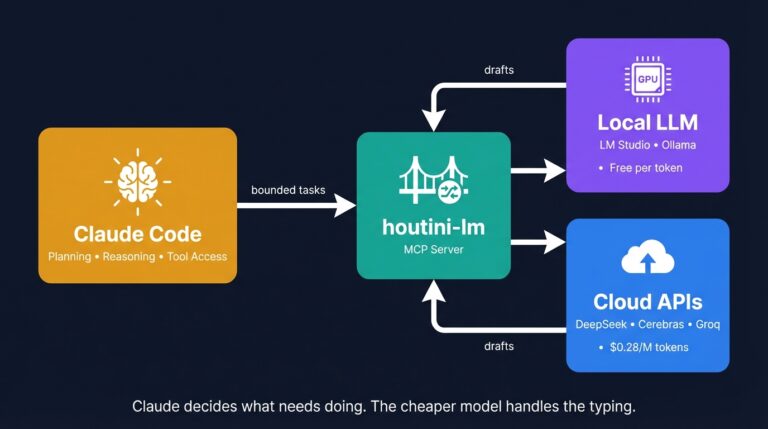
Cut Your Claude Code Token Use by Offloading Work to Cheaper Models with Houtini-LM
I built houtini-lm for people worried that their Anthropic bill might be getting out of hand. I’d leave Claude Code running overnight on big refactors, wake up, and wince at the token count. A huge chunk of that spend was going on tasks any decent coding model handles fine – boilerplate generation, code review, commit … <a title="How to Make SVGs with Claude and Gemini MCP" class="read-more" href="https://houtini.com/how-to-make-svgs-with-claude-and-gemini-mcp/" aria-label="Read more about How to Make SVGs with Claude and Gemini MCP">Read more</a>