How to make SVGs and images in Claude with Gemini MCP
Gemini MCP gives Claude Google's Nano Banana Pro image model, Veo video and SVG generation, with the results shown in the chat. In today's guide we're taking a closer look at where it came from, how to set it up in Claude Desktop and Claude Code, and what it made: a photoreal desk, a printed label that came back letter for letter, and the three showcase pieces from Paper's Quiver launch, traced to SVG from Nano Banana Pro images.
 Richard Baxter AI Ops & Marketing Engineer
 On this page
- What Gemini MCP does
- Set it up in Claude Desktop and Claude Code
- Results you see in the chat
- Photorealistic images with Nano Banana Pro
- Editing an image with a sentence
- SVG diagrams and charts with generate_svg
- From image to SVG: illustrations, engravings and icon sets
- How to embed an SVG on a web page
- What it costs
- Questions people ask
- Where to start
I had a random idea quite some time ago now. I was getting to understand how working with AI can so often create hallucinations and factual errors, and I wanted some sort of third-party data that could give me a grounded opinion on the code I was writing. That's how Gemini MCP was born. The first version really was just chat to chat. Claude could form a query, send it to Gemini MCP and get a text response back. Eventually grounding (Gemini backing its answer with a Google Search before it replies) was added to Gemini MCP's output, so it became a really useful additional research channel, alongside Tavily, Brave Search and, of course, houtini-lm.
Then MCP Apps became a thing (the part of MCP that lets a server show its own interface inside the chat). Suddenly we were able to build some fundamental UI features into the chat window of Claude Desktop, and now the Claude app. So the idea became, well, hang on a minute. We can lean on Gemini's image and video models to produce images and video. We can get Gemini to work with Claude on a design language. We could get Gemini to work with Claude on generating SVG files.
So, can Claude make images and SVGs? Claude can write SVG code on its own. With Gemini MCP installed, it can also call Google's image and video models, and have Gemini write SVGs for it, with the results right there in the chat.
Quick Navigation
What it does |
Setup |
Results in the chat |
Photorealistic images |
Editing |
SVG diagrams and charts |
Image to SVG |
Embedding an SVG |
Cost |
Questions
What Gemini MCP does
My stack features Gemini MCP very heavily. For example, in a prompt where I'm asking for a code review, I'll instruct Claude to first check Context7 (a lookup for current library documentation) for the latest libraries and dependencies, then run the code architecture or the particular challenge past Gemini for a second opinion.
It remains a maintained Houtini repo. It started in July 2025 as a Python server with two tools. That September I rewrote it in TypeScript on the official MCP software development kit (SDK), because I wanted to take advantage of its full feature suite. Images and the in-chat viewers arrived in February 2026, and the current version, 2.8.2, came out on 27 September 2026.
Gemini MCP is an MCP server, a small program that hands Claude a set of tools it can call when it needs them, and this one connects Claude to Google's Gemini models. There are thirteen tools you can call, plus one the viewers use behind the scenes. Chat sends a question to Gemini 3.1 Pro with Google Search grounding on by default, and deep research runs several grounded searches and writes them up as one report. The image tools generate, edit and analyse pictures. Video goes to Veo 3.1, Google's video model. Then there's SVG, and there are landing pages, which come back as one self-contained HTML file.
| Tool | What it does | Model | Viewer in the chat |
|---|---|---|---|
| gemini_chat | Ask Gemini a question, with Google Search grounding on by default | Gemini 3.1 Pro | No |
| gemini_deep_research | Grounded search passes written up as one report | Gemini 3.8 Flash, then 3.1 Pro | No |
| generate_image | Make an image from a prompt, optionally grounded in search | Nano Banana Pro | Yes |
| edit_image | Change one or more images from a plain instruction | Nano Banana Pro | Yes |
| generate_video | 4 to 8 second clips up to 4K, with sound | Veo 3.1 | Yes |
| generate_svg | SVG markup for diagrams, charts, icons and illustrations | Gemini | Yes |
| generate_landing_page | One self-contained HTML landing page from a brief | Gemini 3.1 Pro | Yes |
| describe_image | A quick description of an image | Gemini 3.8 Flash | No |
| analyze_image | Structured extraction from an image | Gemini 3.1 Pro | No |
| load_image_from_path | Reads a local image file for the other image tools | - | No |
| gemini_prompt_assistant | Prompt guidance for images and charts, with nine chart design systems | - | No |
| gemini_list_models | Lists the models your key can use | - | No |
| gemini_help | The documentation, inside Claude | - | No |
Deep research takes longer: it runs its search passes on Gemini 3.8 Flash and writes the report on Gemini 3.1 Pro, two passes by default, and the run measured for the release took 61 seconds end to end.
Set it up in Claude Desktop and Claude Code
First you need a Gemini API key from Google AI Studio. The key is the password your software uses to talk to Google's service.
For Claude Desktop, open claude_desktop_config.json. On Windows it's in %APPDATA%\Claude\, and on a Mac it's in ~/Library/Application Support/Claude/. Add the gemini block below, paste your key in place of your-api-key-here, then restart Claude Desktop. If you're new to Claude, signing up through claude.ai gets you a free week of Claude Code.
{
  "mcpServers": {
    "gemini": {
      "command": "npx",
      "args": ["@houtini/gemini-mcp"],
      "env": {
        "GEMINI_API_KEY": "your-api-key-here"
      }
    }
  }
}
For Claude Code it's one command, which adds the server for your user so it's there in every project:
claude mcp add -e GEMINI_API_KEY=your-api-key-here -s user gemini -- npx -y @houtini/gemini-mcpThen run claude mcp get gemini and look for Status: Connected. If you want images and videos to land in a particular folder, set GEMINI_IMAGE_OUTPUT_DIR to that path.
Chat's default model, Gemini 3.1 Pro, has no free tier, so on a free key chat only works if you point it at a free model such as gemini-3-flash-preview (set GEMINI_DEFAULT_MODEL). Image and video generation don't have a free tier either, so they need billing turned on for your Google account.
Results you see in the chat
Five of Gemini MCP's tools use MCP Apps, with four viewers between them: image generation and editing share the image viewer, and SVG, video and landing pages each have their own. When one of them finishes, a viewer opens in the chat window with the result in it.
The image viewer shows the result with zoom controls (plus, minus and Fit), the path where the file was saved with a Copy path button, and the prompt that made it. The full-resolution file always goes to disk, and what you see in the chat is a resized copy. Video plays in place, with its duration, resolution, aspect ratio and format listed underneath.
In Claude Code's terminal there's no viewer, so you get the saved file path.
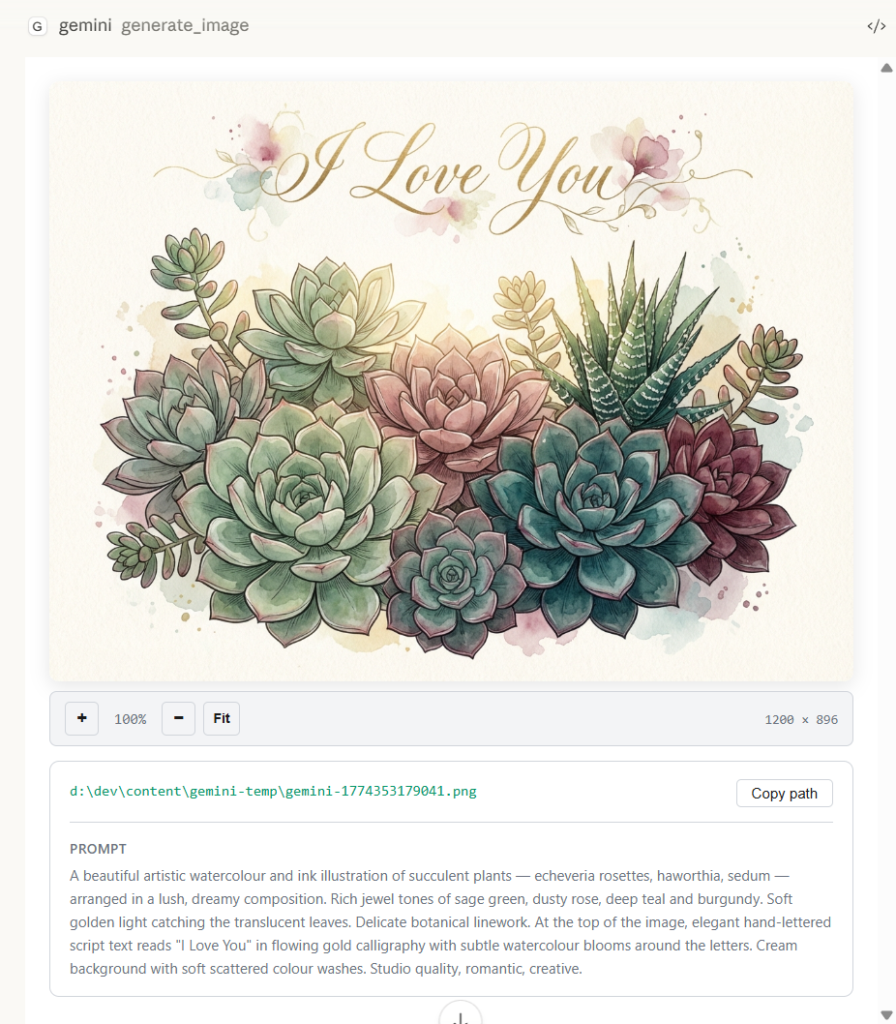
Gemini MCP's image viewer in Claude Desktop, with a watercolour from generate_image.
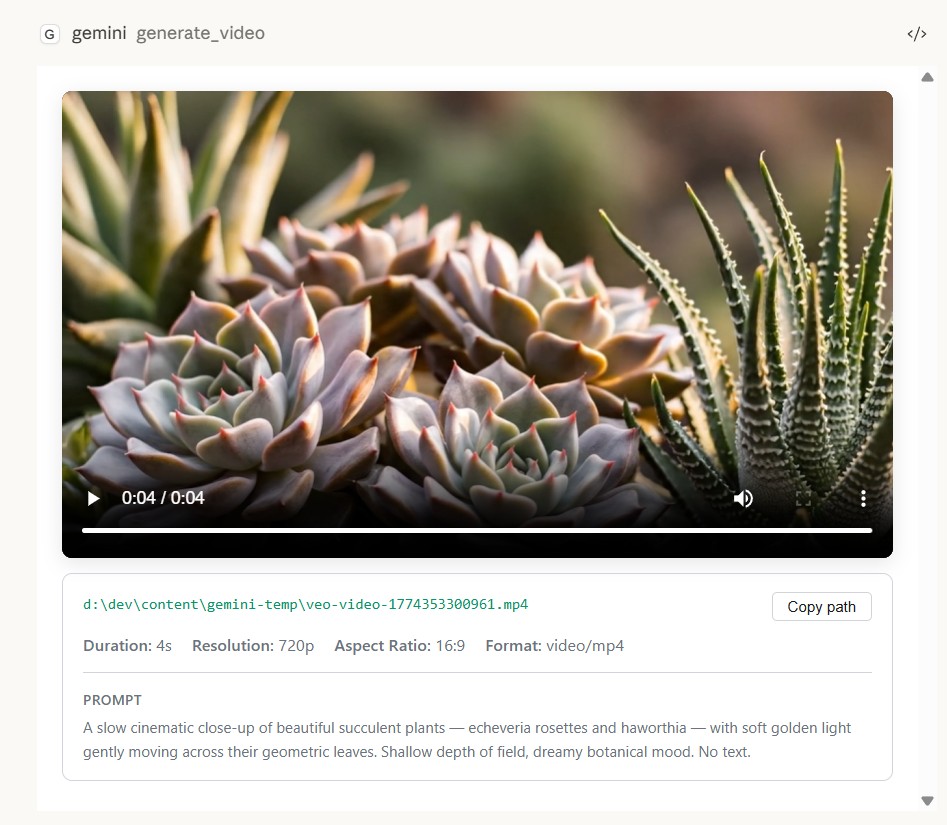
A four-second Veo clip at 720p, 16:9, playing in the video viewer.
Photorealistic images with Nano Banana Pro
Nano Banana Pro is Gemini MCP's default image model. It handles legible text and goes up to 4K.
I asked it for a home-office AI workstation: a black tower with a glass side panel and two graphics cards, a monitor, a keyboard, a mug and a plant, all lit from a window.
The prompt read like a photographer's notes. Name the lens and aperture, 35mm at f/2.8 here, and the light, which was soft window light from the left. Ask for true-to-life colour, and rule out people, logos and any visible readable text.
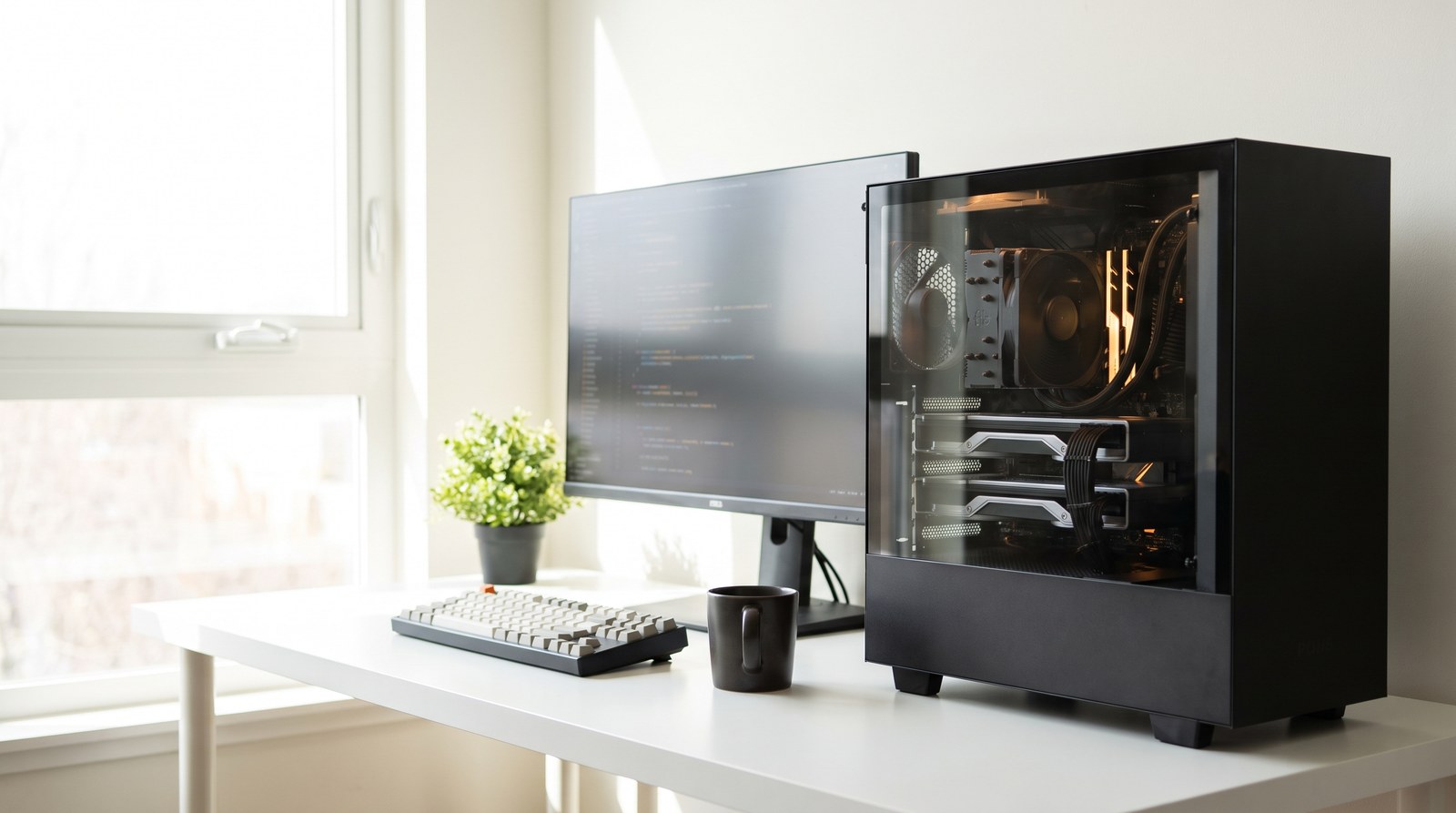
Nano Banana Pro through generate_image at 2K, 16:9.
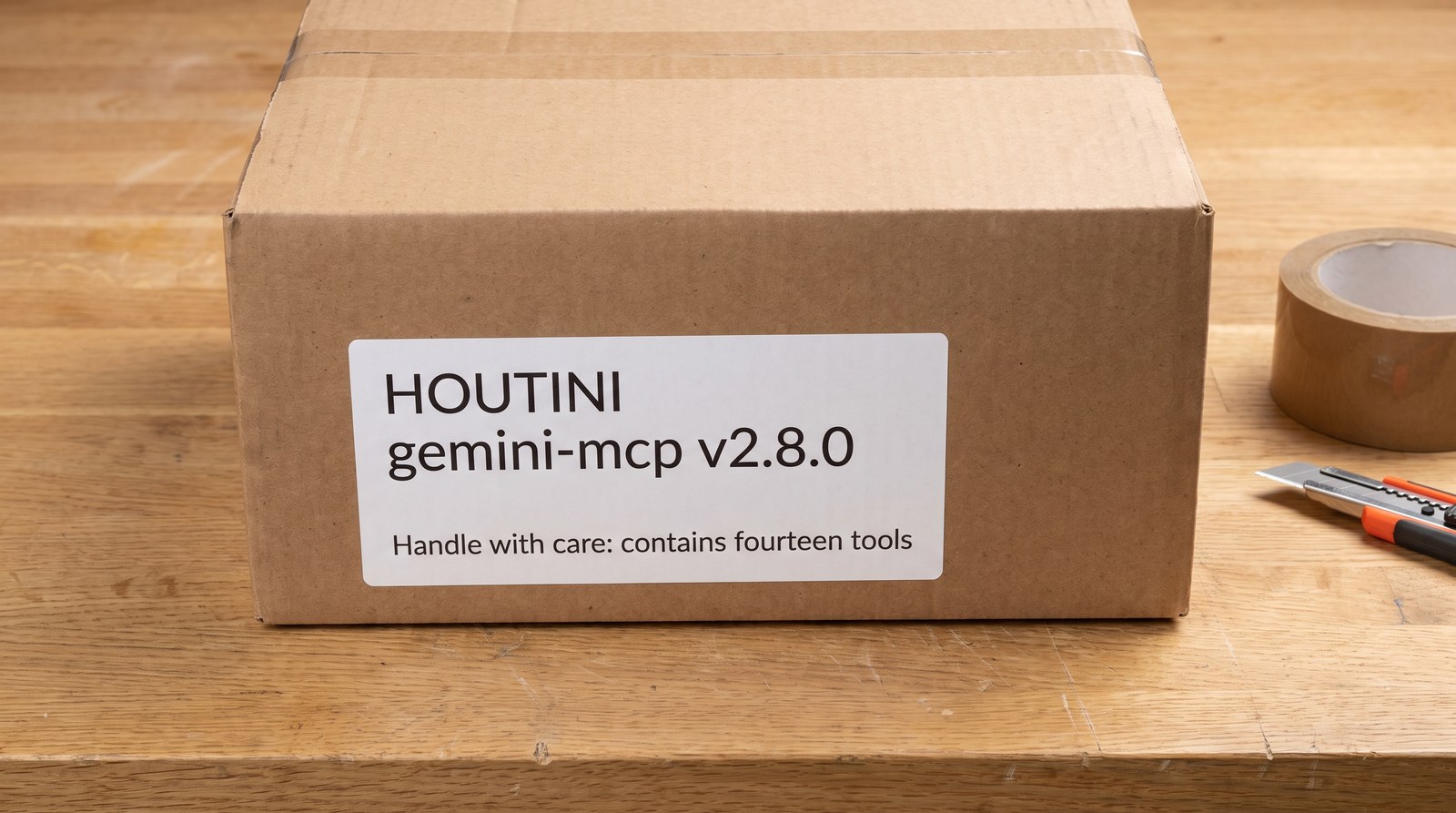
Nano Banana Pro gets printed text right as well. I asked for a cardboard shipping box on an oak workbench with a label reading "HOUTINI / gemini-mcp v2.8.0 / Handle with care: contains fourteen tools", and the label came back letter for letter. It's the photo at the top.
If you'd rather have speed, Nano Banana 2 is the faster model, at about ten seconds an image by the README's count.
Editing an image with a sentence
edit_image changes images you already have: you pass it one or more by file path and describe the change in a sentence.
I passed it the workstation photo and asked it to change the scene to late evening and add a warm desk lamp, keeping the same desk, PC and monitor and the same camera angle. It came back with the same desk from the same angle, lit for the evening by the lamp on the left and the glow from the graphics cards.
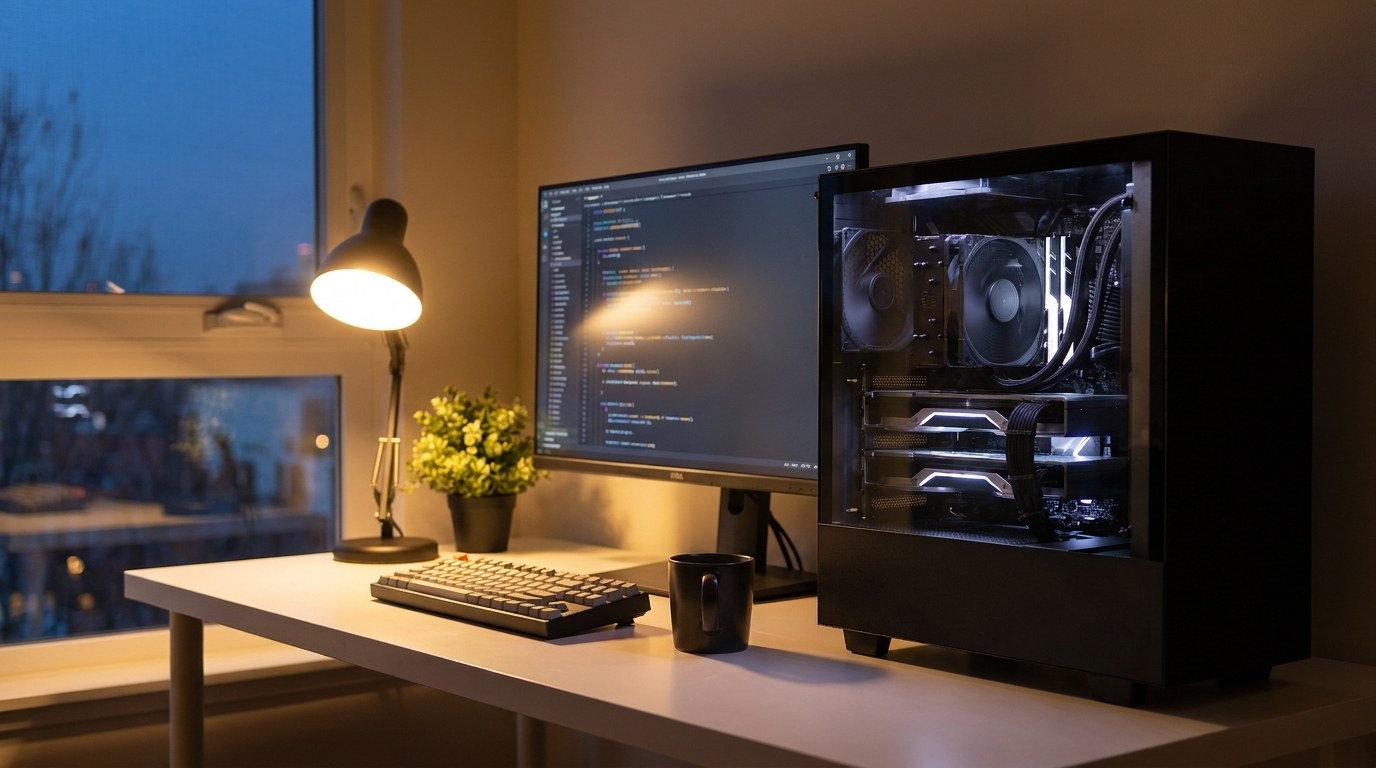
The workstation photo after one edit_image instruction, moved to late evening with a desk lamp added.
SVG diagrams and charts with generate_svg
SVG (Scalable Vector Graphics) is an image format made of shapes rather than pixels. A raster image, like a photo, is a grid of coloured dots, and it goes soft when you enlarge it. A vector image stores its lines, curves and text as instructions, which means it scales to any size and stays sharp. It's also plain text, so you can open the file and edit it.
generate_svg writes SVG markup from a text prompt. There are four styles: technical for architecture diagrams and flowcharts, artistic for illustrations and icons, minimal for clean, simple charts, and data-viz for charts and dashboards. The default canvas is 800 by 600, and you can set the width and height yourself. The file is saved to disk and opens in the SVG viewer.
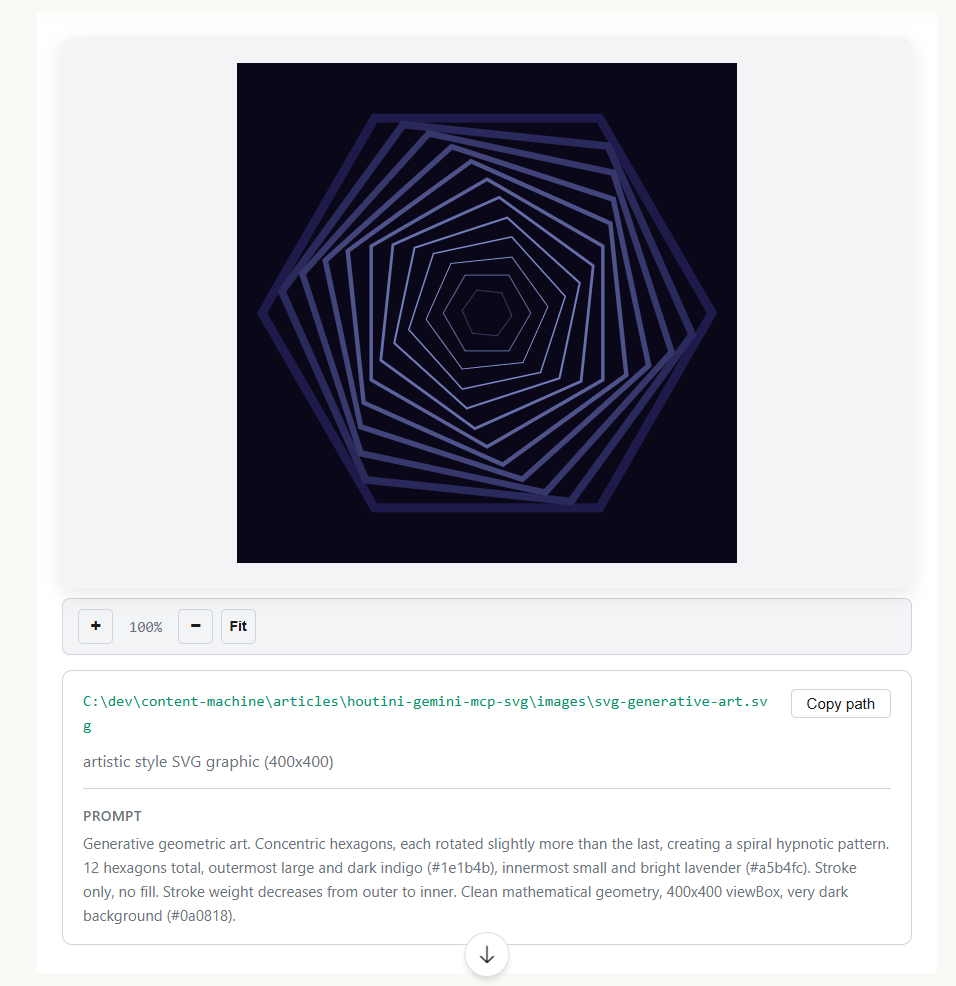
Concentric hexagons from generate_svg's artistic style, in the SVG viewer.
The flow diagram below came from the technical style; it shows what happens when Claude calls generate_image. Claude then worked on the markup, adding an arrowhead to each connector and wrapping the labels to fit their boxes. That's what I mean by getting Gemini to work with Claude on SVG files.
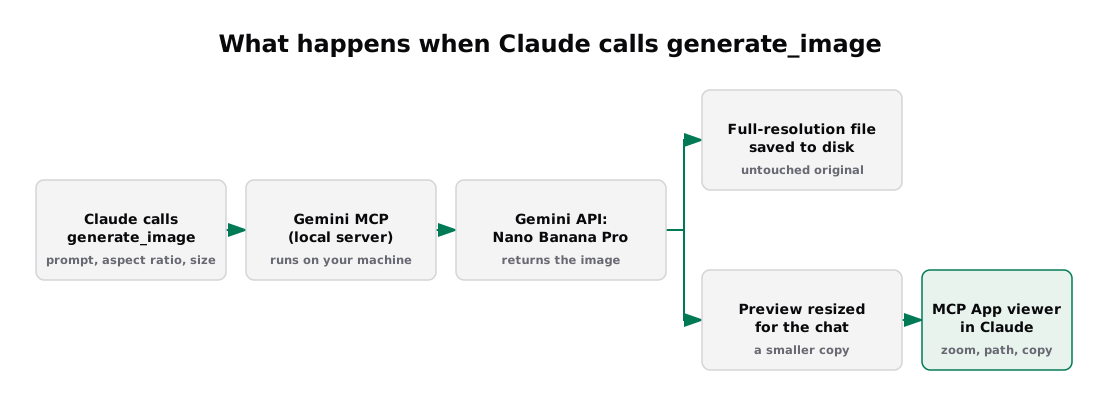
What happens when Claude calls generate_image, drawn with generate_svg in the technical style.
The chart after it came from the data-viz style, drawn to scale in the site's colours, which Claude handed to Gemini as part of the prompt. That's the design-language side of it: Claude brings the house style and Gemini draws in it. The chart shows how many tokens an image costs when you send it to Gemini at each media_resolution setting, which comes up again under cost.
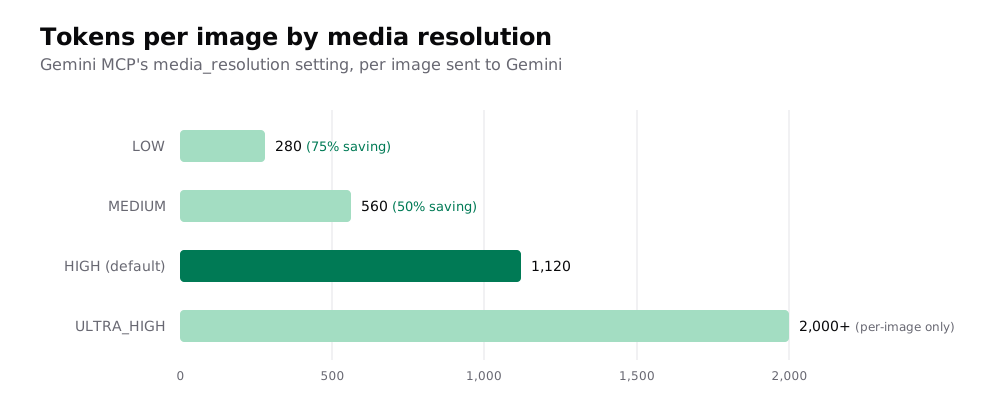
Tokens per image sent to Gemini at each media_resolution setting.
From image to SVG: illustrations, engravings and icon sets
For a detailed illustration, like a labelled botanical plate or an engraving, draw it with Nano Banana Pro and trace it. Tracing, or vectorising, turns a raster image into vector paths. The tracer I use is vtracer, a free, open-source raster-to-vector tool that isn't part of Gemini MCP. You install it with pip install vtracer, and it's one Python call per image: colour mode for flat-colour art, and binary (black-and-white) mode for line art.
Paper, a design tool, shipped Quiver Arrow 2.0 on 22 September 2026, and I took its launch post as the bar. Stephen Haney's post announcing it called it "the best SVG generation possible" and showed three things: a labelled hibiscus botanical plate, photos redrawn as engraving line art, and a set of isometric icons. I made all three with Gemini MCP and one tracing step.
Nano Banana Pro drew the hibiscus as a flat, vector-style botanical plate with 11 labels, from Complete Flower through to Ovules, every one spelled correctly.
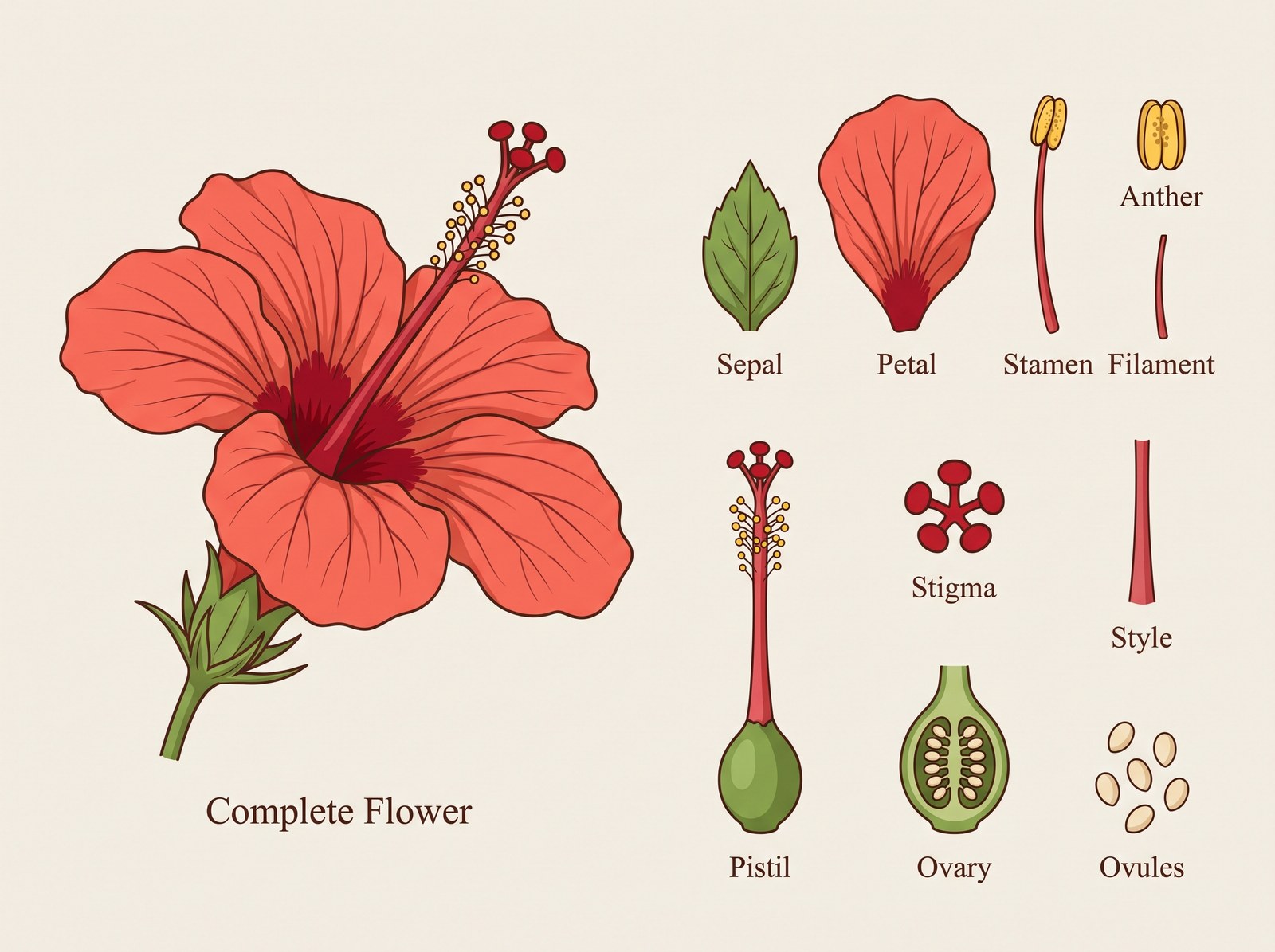
The hibiscus plate as Nano Banana Pro drew it.
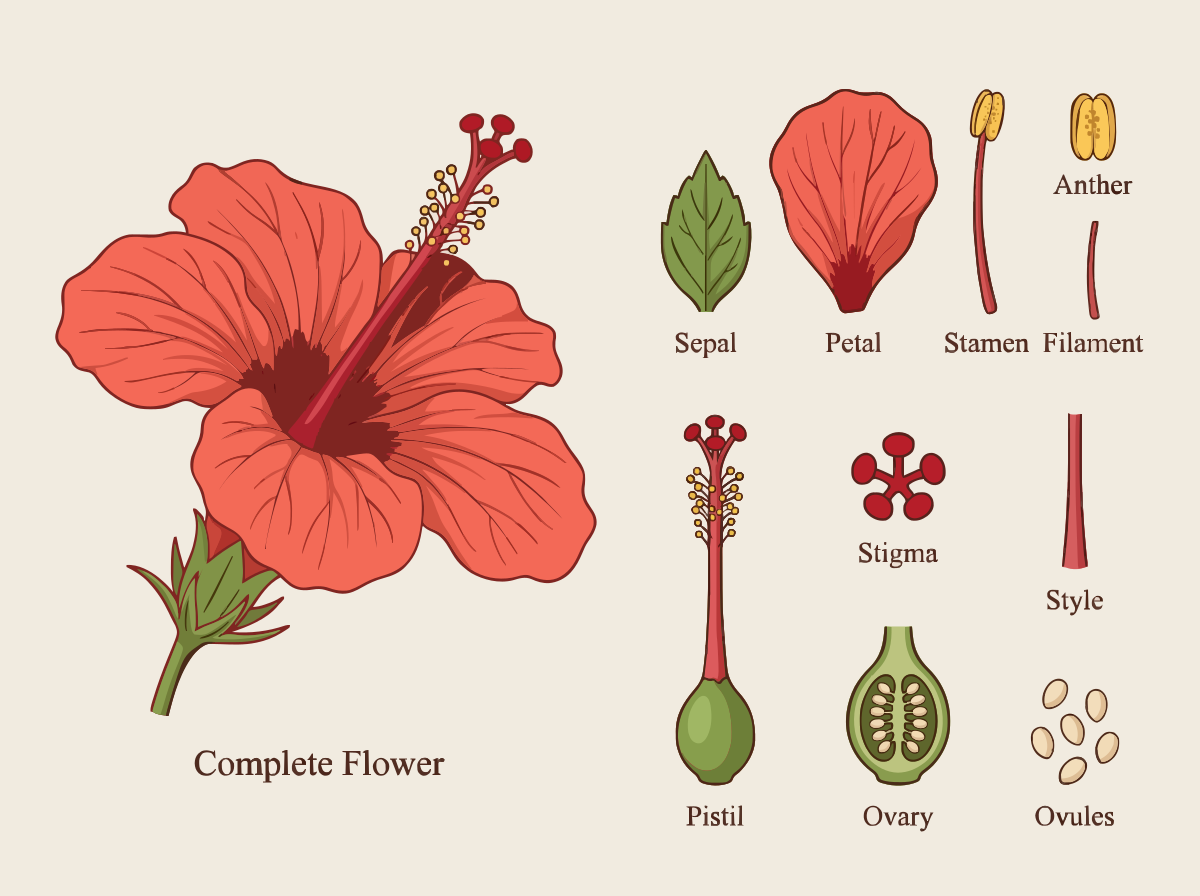
The same plate traced to SVG with vtracer: 848 paths, 417 KB.
The engraving started from the workstation photo, which edit_image redrew as dark-blue lines with hatching on white.

The workstation photo redrawn as an engraving by edit_image.
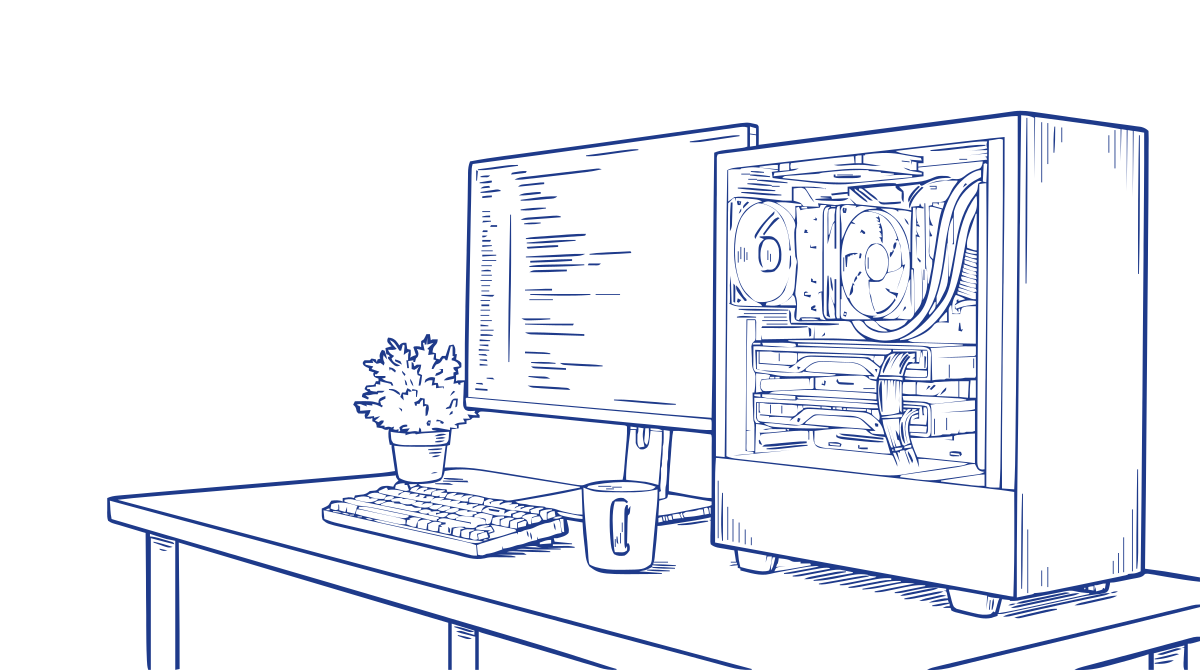
Traced in binary mode to a single-colour SVG: 279 paths, 226 KB.
The icons were six isometric objects in one monochrome-blue style: a graphics card, a mechanical keyboard, a coffee mug, a floppy disk, headphones and a server rack.

Six isometric icons from one generate_image call.

The icon set traced to one SVG file, 49 KB for all six.
How to embed an SVG on a web page
Mozilla's MDN docs list three ways to put an SVG on a web page. You can point an img tag at the file, paste the svg markup straight into the page, or use an object tag.
With the img tag, animations written inside the file in CSS or SMIL (SVG's own animation markup) still play. Scripts don't run, external resources don't load, and the page's CSS can't reach inside to style it. Inline SVG can be styled by the page's CSS, which means it can follow dark mode or your theme colours, and it can be made interactive.
Many content management systems sanitise HTML and strip inline svg out, so the file route is the safe default on a CMS page. Houtini's CMS is one of them, so I serve every SVG as a file.
What it costs
Google charges for image and video generation. When I checked Google's Gemini API pricing page in September 2026, the free tier was listed as not available for Nano Banana Pro, Nano Banana 2, Nano Banana 2 Lite and Veo 3.1. Chat only has a free tier if you switch it to a free model such as gemini-3-flash-preview; the default, Gemini 3.1 Pro, has none.
Nano Banana Pro costs $0.134 an image at 1K or 2K, and $0.24 at 4K. Nano Banana 2 is $0.067 at 1K, $0.101 at 2K and $0.151 at 4K, and Nano Banana 2 Lite is $0.0336 at 1K. Veo 3.1 is $0.40 a second at 720p or 1080p and $0.60 a second at 4K, which puts an 8-second 1080p clip at $3.20. generate_svg is a text call, billed as text tokens.
Images you send to Gemini cost tokens as well. The media_resolution setting controls how many: LOW uses 280 tokens an image, a 75% saving on the HIGH default of 1,120.
Questions people ask
Can Claude create SVG files?
Yes. SVG is text, so Claude can write the markup itself. With Gemini MCP, generate_svg writes diagrams and charts in four styles and saves the file to disk. For a detailed illustration, draw it with Nano Banana Pro and trace the result with vtracer.
Can Claude read SVG files?
Yes. An SVG file is XML, so Claude reads it like any other text file. It can explain what the markup does and change it directly, the way it added arrowheads and wrapped the labels on the flow diagram above.
Can Claude generate images like Gemini?
With Gemini MCP, yes. The server gives Claude Google's image models: Nano Banana Pro by default, with Nano Banana 2 for speed and Nano Banana 2 Lite as the cheapest. In Claude Desktop the results open in a viewer in the chat. Image generation needs billing on your Google account.
Can Gemini create SVG files?
Yes. Gemini writes SVG markup from a text prompt, which is what generate_svg uses. It's a text call, so it's billed as text tokens.
Does Gemini MCP work in Claude Code?
Yes. Add it with one claude mcp add command, then check it with claude mcp get gemini. In Claude Code's terminal you get the saved file path instead of the in-chat viewer.
Where to start
Once it's in, ask Claude for one image of something real on your desk, with the lens and the light named in the prompt. Then ask generate_svg for a diagram of a process you explain every week, and when that process changes, ask Claude to edit the diagram.
Continue reading.
- How-to GuidesHow to Connect Claude to Shopify with MCP (Dev MCP and Storefront Catalog)
- How-to GuidesHow to Use AI for Market Research with Claude
- How-to Guidesn8n MCP: How to Connect Claude Code to n8n and Use Its API Safely
- How-to GuidesHow to Run Qwen3-Coder-Next Locally: My vLLM Settings for Two 48GB RTX 4090s
- How-to GuidesHow to Build a Competitor Price Monitoring Pipeline with n8n
- How-to GuidesOpenCode vs Claude Code: Setting Up OpenCode Desktop on Windows