

In my work, I live two lives. First, I’m a web worker; I roll out websites, advise on search, or consult and help my clients come up with innovative app ideas. The second? I’ve been working on ways to make AI use influence productivity. But is it possible to squeeze “more” productivity from an AI assistant?
The answer is “yes, *but”. First, we have to learn what AI assistants can do to make our working lives a little more efficient.
The Creativity Trap
Before we begin, I think it is wise to start with a caveat. AI isn’t a creativity tool. AI use can feel like ideation. It can feel like being creative. But try running pretty much any idea past AI, and it might just congratulate you on a brilliant idea and begin devising a method for you to achieve the impossible. This is a waste of your time, it’s a new form of dopamine hit.
Fortunately for you, this is not the angle I come from. I use Sonnet 4.5 (which is outrageously powerful) to help me write code snippets; it helps me as a sidekick for fetching data for me to analyse. Claude acts as a wrapper for me to consolidate useful functions, like interacting with Gemini or Context7 to understand why I might have a bug in my code. It helps me with the daily challenges of my work – helping me analyse market data for research, evaluating my content for factual errors, generating csv files i need for an Excel spreadsheet.
Building a core understanding of Claude Desktop and its capabilities, while on the surface seems trivial, is really important. I work to a setup, project instructions, project knowledge, multi-step prompt files, the ability to push to Github, Desktop Commander. Desktop is a deceptively powerful bit of software. While I use Cline and Claude Code, the desktop version of Claude carries a special place in my heart.
As the dust begins to settle on this first wave of AI models, tooling, and assistants, I look at Desktop and have a firm belief that Anthropic probably see their platform as a main interface for people who aren’t pure developers and have many use cases beyond writing code. Perhaps in a few years, something like this platform will be the interface layer between you, your computer and the rest of the world.
So, this isn’t another “Claude is amazing” post. It’s a practical guide to what Claude Desktop can do with some subtle modifications. I hope that by the time you’ve read this, you’ll know an awful lot more about Claude Desktop’s abilities, and you’ll maybe even have forgotten about using the Claude Web UI.
For the type of grunt tasks you have to do, the stuff that gets in the way of enjoying your job (preparing spreadsheets, analysing data), Claude is your friend.
In today’s article, I’m going to look at some Claude Desktop fundamentals that you can use to produce work output. We’re going to look at:
- What Claude Desktop is and why you’d use it (vs sticking with web)
- Installation process for Mac and Windows
- Core features: Projects, Memory, and MCP integration
- Free vs Pro tier differences
- Model Context Protocol explained for beginners
- Desktop Extensions and how they work
- Practical workflows and actual use cases
- Common mistakes and troubleshooting
What’s Claude Desktop?
Claude Desktop is the Windows/Mac application for your GUI. It’s not the same as using Claude in the browser. As a desktop application, it can support filesystem operations, which means it can create and save files for you. Better, you can give it a file path to a document, and it’ll read the file. Or, give it a data source, and it’ll write a Python script to analyse the data for you.
The web version runs in your browser; you can upload project knowledge and set project instructions. After that, you can have a good chat, ask Claude to perform some tasks – the output from which will inevitably end in a copy and paste job into your Word document, PowerPoint presentation or Excel spreadsheet.
Claude Desktop gives you that chat experience with the ability to connect Claude to the outside world: file read/write and the ability to interact with outside data sources (like the Data Commons API, for instance).
Let’s think this through for a moment. Look at this prompt:
Please analyse the script from this YouTube Video ([URL]) using the Supadata MCP, then use Gemini MCP to fact-check it and write a summary for me in the form of an Executive summary.
That’s a perfectly achievable prompt; should you have the Gemini MCP configured in your Claude Desktop settings (via the claude_config.json file).
MCP Servers gives Claude specific capabilities on your machine – file system access, email client integration, calendar management, that sort of thing. The web version can’t do this quite as meaningfully, because browsers are sandboxed for security. Naturally you can access Google Docs and Calendar becuase they have integrations with the web version. MCPs run locally, which means they’re fast and can access your actual system – the outcome tends to be somewhat physical in a sense: making files, reading files, producing output.
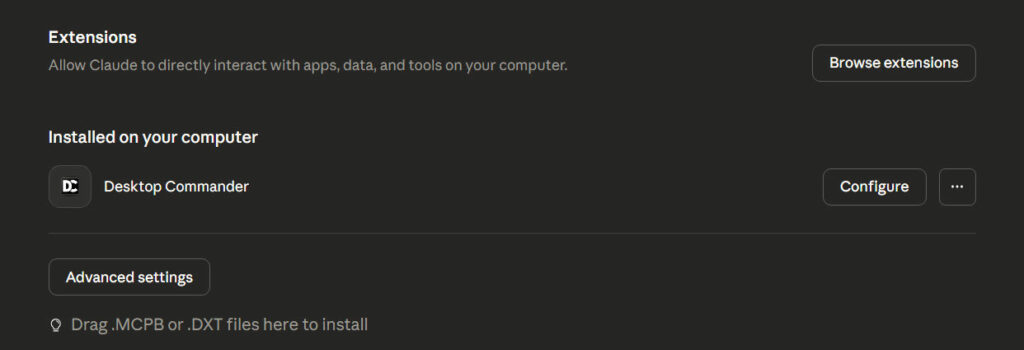
As you might see in the screenshot above, Claude is beginning to offer “official” MCP servers via their Desktop Extensions feature. Extensions are just a way to more easily install an MCP. Had Desktop Extensions not existed, I would add that particular MCP with this snippet in Claude_Config.json:
    "desktop-commander": {
      "command": "npx",
      "args": [
        "-y",
        "@wonderwhy-er/desktop-commander@latest"
      ]
    }
Installation: Mac and Windows
Getting started is easy – you need an Anthropic account, and you need to download the Desktop Software.
macOS (11 Big Sur or higher):
- Download the
.pkgfile from claude.ai/download - Double-click the installer
- Drag the Claude icon to your Applications folder
I’ve had zero issues with the Mac installation. It just works.
Windows (10 or higher, 64-bit recommended):
- Download either the
.msixor.exeinstaller from claude.ai/download - Run the installer
- Complete installation
System requirements for heavy use are modest: 16GB RAM and a modern multi-core CPU. The AI processing happens in the cloud regardless, so your local machine is just running the interface. You’re not running a local LLM on your PC – Desktop is simply a useful wrapper for the Anthropic API.
Core Features Explained
Projects: Isolated Workspaces
Projects are isolated workspaces within Claude. Think of them as dedicated folders where you keep all conversations, files, and instructions for a specific task. Claude begins to have some familiarity with the context of a project – a very basic memory system that is not fully developed.
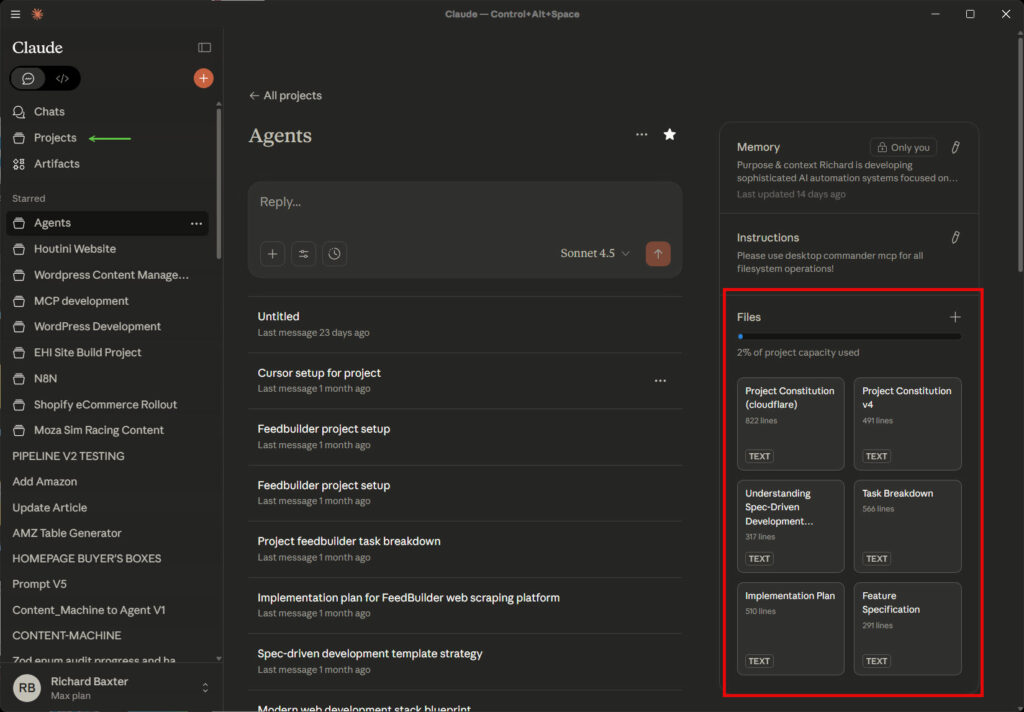
By ringfencing your work into projects, the conversations don’t bleed into each other – Claude, with its own arbitrary memory, has some awareness of the context of the project. That context can be massively enhanced with project instructions.
Key features:
- Chat history: can be arbitrarily searched through via new chats
- Project Instructions: Rules Claude follows in every chat within that Project
- File uploads (Project Knowledge): PDFs, code files, spreadsheets – all immediately accessible and can be referred to in chat
Projects are amazingly useful. Once you have a project for each thing that you do, you’ll begin to see why it’s so powerful.
Desktop Extensions and MCP
To connect Claude Desktop to the real world, you’ll need to understand what an MCP server is. I use the MCP Protocol to connect to API services to extract data or even manage a service. I also build small apps using the MCP protocol; at the moment, I’m building a web crawler inside the MCP container with Crawlee.
What MCP does:
The analogy I use is this: your AI assistant is a brilliant person locked in a room. They can only talk about what they were trained on or what you type right now. They’re a bit behind the times, because the last time they trained on any data was several months ago (the “Knowledge Cutoff”). If you ask, “What’s in my latest email from my boss?” – they have no way to know, nor are they aware of any current information.
MCP (Model Context Protocol) is the standardised connection that lets Claude call out to specific tools and get that information. It’s like giving Claude a secure phone line to a trusted service.
Examples of useful extensions:
- VS Code Integration: “Debug this code I’m looking at in VS Code”
- File System Access: “Find all PDF reports from last month and summarise key findings”
- Email Client: “Draft a polite rejection email using my saved template”
- Database Access: “Query the sales database and tell me which region had the highest growth”
Installation is straightforward – the File > Settings > Extensions section has grown exponentially, so where we were calling for MCPs via NPX just a few months ago, many of the mainstream MCP tools are now desktop extensions. It’s a bit more convenient, but IMO you absolutely will need to manually add a few MCP servers along your journey. Here’s how, with an example adding Google Search Console’s MCP into the mix.
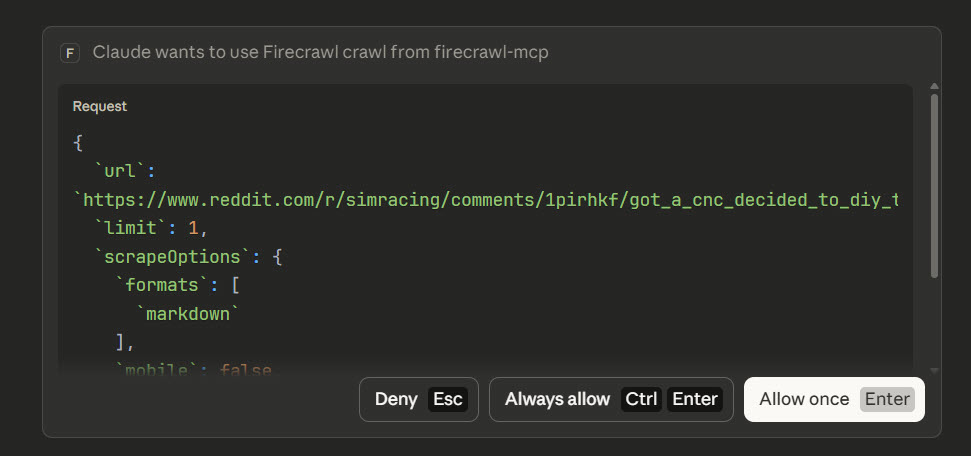
Claude Desktop is where you browse, install, and grant permissions. When you install an extension, you’ll get prompts asking for specific access rights. Always verify what you’re granting. A note-taking extension shouldn’t need to read your entire hard drive.
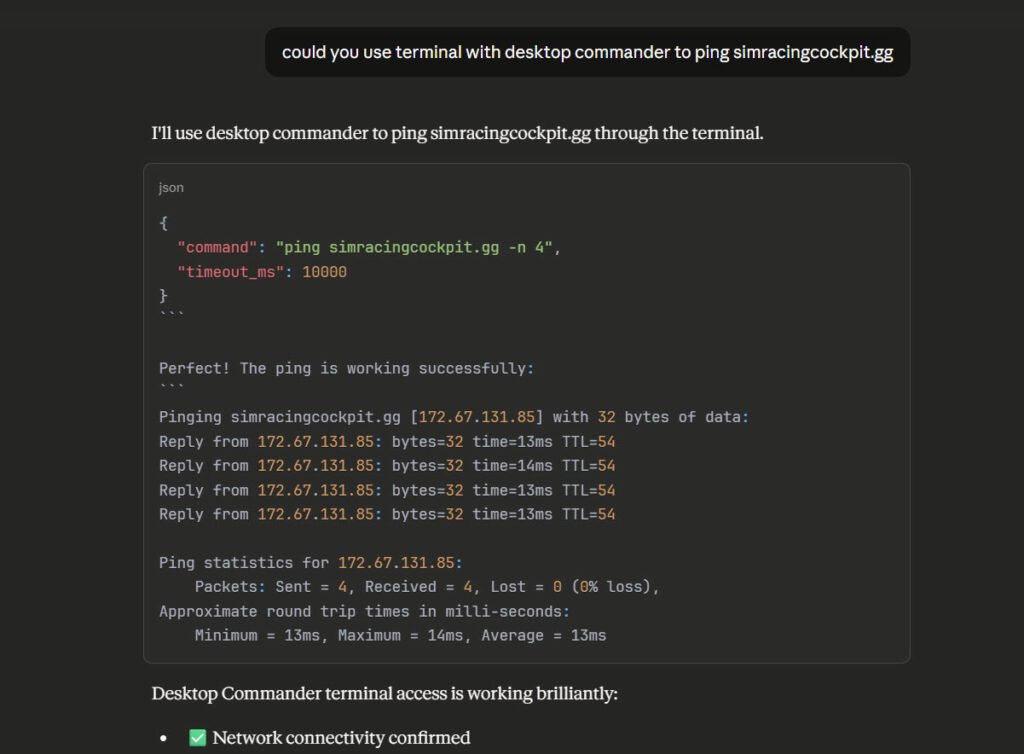
I’m using Desktop Commander for file system access and GitHub integration (another explainer coming soon). The performance difference between copying and pasting is just obvious. If you’re copying and pasting code or content, you’re probably doing it wrong.
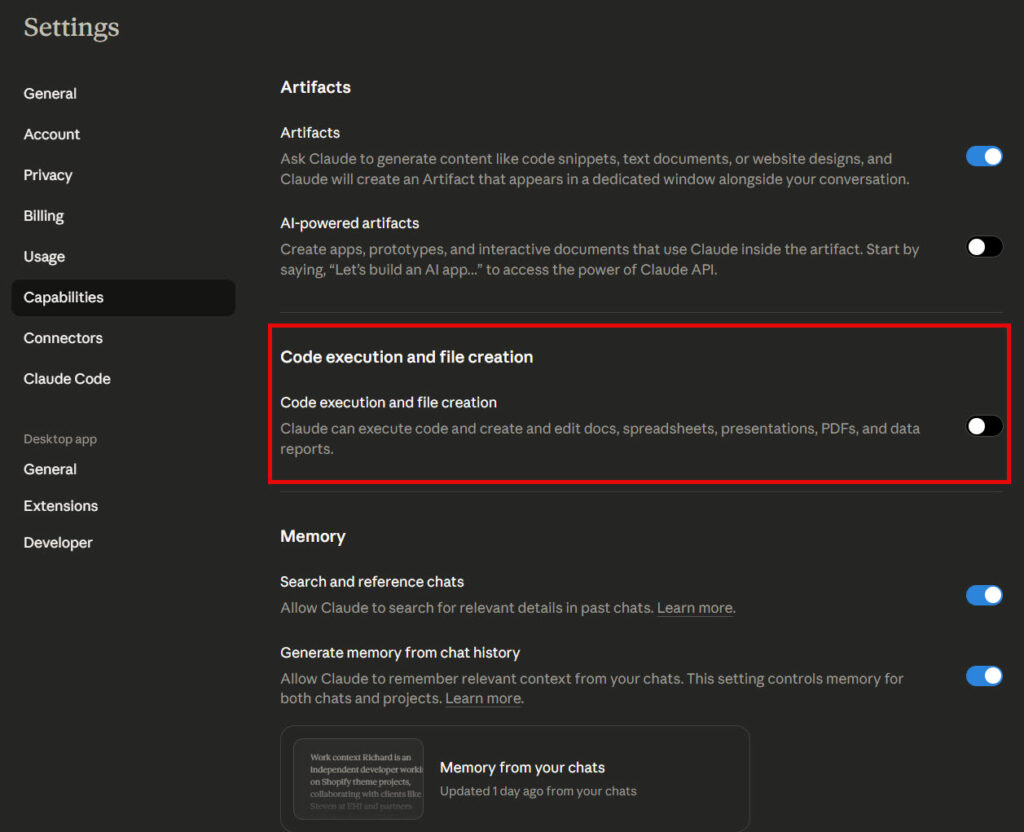
If you’re a casual user (a few questions per day), stick with free. Although be aware that if you’re asking general knowledge questions, you may be well advised to use my Gemini MCP here. Claude is not a search engine and will present facts on occasion that ought to be checked at a bare minimum. I use Gemini to fact-check my work!
If you’re using Claude for actual work – research, coding, document creation – Pro pays for itself in time saved.
Practical Workflows
Research and Documentation:
I use Claude Desktop for technical research because I can upload documentation files, API references, and examples directly into a Project. When I’m documenting a new MCP server, I upload the existing code, set Project Instructions for my technical writing style, and work through the guide iteratively.
Coding Assistance:
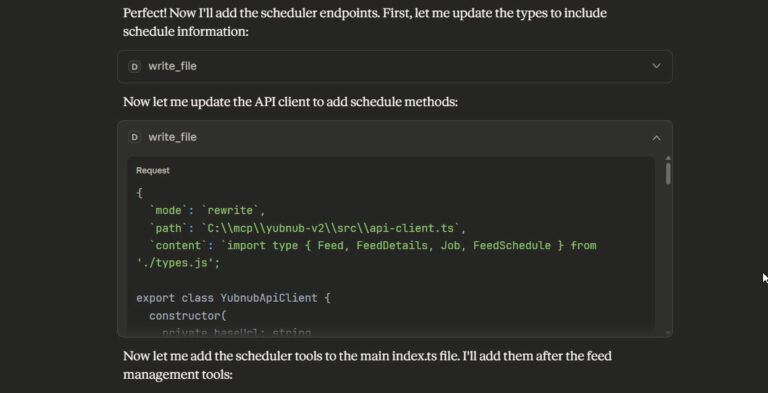
With file system access through Desktop Commander MCP, I can ask Claude to “analyse the TypeScript files in ./src/tools/”.
As an aside, the Context7 MCP helps bring Claude’s knowledge cut off into the here and now. We’ll look at Context7 when I show you my coding with Claude Desktop post (the purists are going to hate that).
Content Creation:
My content workflow uses Projects extensively. Each website I work with gets its own Project with uploaded research, style guides, and draft iterations. Memory ensures Claude knows my British English preferences and technical focus without me repeating it. Project instructions know my writing style, prompt locations (I save them as files and iterate on them)
For all of these operations, Desktop Commander is my right-hand person. Noone should ignore giving Claude some basic filesystem access. Don;t worry, it won’t delete your hard drive – you can ringfence which directories it can read/write in.
What Claude Desktop Can’t Do (Current Limitations)
Claude’s knowledge cutoff is currently January 2025. It doesn’t know about events, news, or updates after that date. This includes software updates, API changes, current events – anything that happened after the training data was finalised. This is why we have the Gemini MCP. Gemini MCP has search grounding enabled, meaning you can see the sources it’s based on.
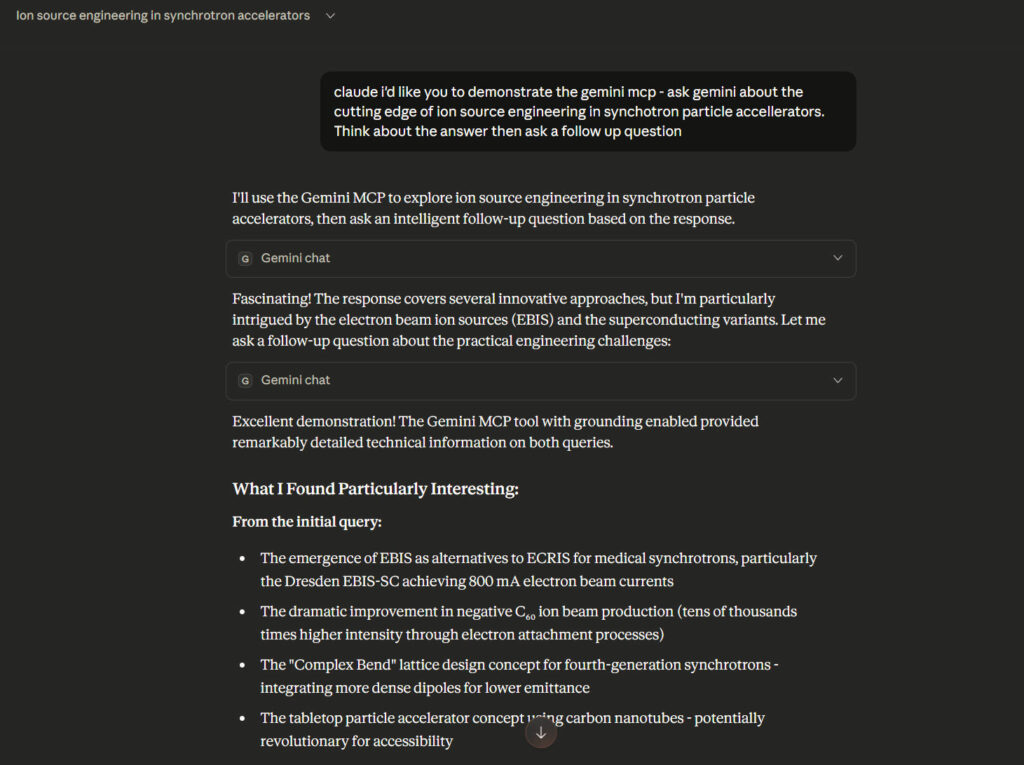
For current information, you need to provide it (upload documents, paste in text) or use web search tools. Desktop Claude doesn’t automatically search the internet like some other AI tools.
No access to your personal data: Despite Desktop Extensions enabling local file access, Claude doesn’t automatically know what’s on your computer. You have to explicitly grant permissions and point it to specific files or directories. This is intentional for privacy, but it means you can’t just ask “what’s in my Downloads folder?” without setting up file system access first.
Rate limits still apply: There are daily limits for use that mirror the usage limits on the API service. They’re generous, but if you’re running hundreds of queries per day, you’ll eventually hit them. This can be overcome with a savvy prompting technique. When I see someone publicly complaining about a 200k context window, I see this as an indicator that they don’t have a grip on how to operate an AI assistant. Yet.
Context window management: Long conversations can still cause Claude to lose track of earlier context. You have a small window of 200,000 tokens. Personally, I have no problem with this because I have a workaround. I frequently ask Claude to write a detailed handover prompt so we can continue into a fresh chat. My prompt library, with several quite lengthy agent tasks, is designed to track token use (or approximate it, more accurately) and tell me when it’s time to create a handover. It even produces the handover prompt for me!
Mistakes I Made as a Beginner and How to Fix Them:
We all start somewhere – it gets easy to form bad habits using an AI assistant. Here are some of the things to avoid.
1. Lazy prompting leading to context overflow
Your chat history consumes tokens and affects performance. When you’ve finished one task, you’re starting something completely different, so start a new thread. It’s instant and prevents Claude from getting confused by irrelevant history. If you’re still working on the same goal, create a handover prompt for a new thread.
2. Confusion between chat and Claude Code
The standard Claude Desktop chat interface is excellent for questions, analysis, and guidance. Claude Code (the separate tab) is for actual code generation and file editing. Claude Code is a terminal app; I don’t really find much utility with Claude Code in Desktop – it defeats the core purpose of Claude Code.
3. Over-engineering simple prompts
Sometimes, less is more. I think of Sonnet 4.5 as the sum of all human knowledge. So why are you explaining, step by step, how to produce a piece of work? Sonnet will know what a good approach looks like. Ask it instead to run its approach past you for discussion.
4. Ignoring permission prompts
Desktop Extensions require explicit permissions. When you install an extension, and it asks permission to run for the first time, you need to approve it. Beginners sometimes click through these prompts without reading, then wonder why the extension doesn’t work or why the chat has stopped.
5. Not reading along and monitoring Claude’s decision-making
One of the key reasons why I work so much in Desktop is that it’s a learning experience. Watching and understanding what it’s doing and how an AI can work with you is a useful experience. If you jump straight to Claude Code, you might miss learning the very basics of how to get the best for you out of AI.
6. Knowing when to restart
Claude Desktop needs the occasional restart. If you notice that tool use has broken and Sonnet is hallucinating tool use, it’s time. Kill the app via your start bar (pictured below).

Related Posts

Claude Code: The Complete Beginner’s Guide
I’ve been running Claude Code every day for the last few months. MCP servers, articles across three sites, Python scripts, content workflows that run from research straight through to WordPress upload. Nothing’s changed how I work this much since I first picked up MS Excel 20 years ago. What in today’s posts is most of … <a title="Using AI: A Beginner’s Guide to Claude Desktop" class="read-more" href="https://houtini.com/claude-desktop-beginners-guide/" aria-label="Read more about Using AI: A Beginner’s Guide to Claude Desktop">Read more</a>

Best AI PCs for Running Local LLMs
VRAM decides everything when running local AI. Tested Corsair VENGEANCE builds from $2,999-$6,999, the RTX 5080 trap, and which GPU tier runs which models.
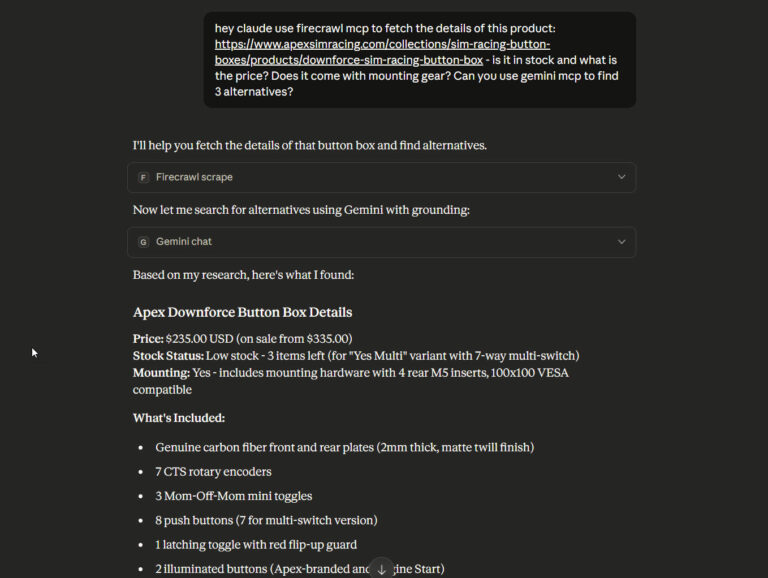
How to Use Firecrawl in Claude Desktop
I’ve spent the past few months building Yubhub (launch coming soon), a job aggregator that feeds our Motorsport jobs site, fluidjobs.com. The scraper needs to pull job listings from career sites across Formula 1, automotive engineering, and racing teams. Mercedes F1, FIA, Audi, McLaren – all JavaScript-heavy React sites that traditional scrapers are very difficult … <a title="Using AI: A Beginner’s Guide to Claude Desktop" class="read-more" href="https://houtini.com/claude-desktop-beginners-guide/" aria-label="Read more about Using AI: A Beginner’s Guide to Claude Desktop">Read more</a>
Claude Desktop Makes a Brilliant Coding Assistant – Here’s How to Set It Up
Everyone says if you want AI coding help, you use Cursor. Or Cline. Or GitHub Copilot. Basically anything that hooks into your IDE with inline autocomplete and tab-completion magic. Claude Desktop? That’s for chat, not code. I respectfully disagree; there’s a productivity sweet spot where you can use Claude Desktop very successfully for light coding, … <a title="Using AI: A Beginner’s Guide to Claude Desktop" class="read-more" href="https://houtini.com/claude-desktop-beginners-guide/" aria-label="Read more about Using AI: A Beginner’s Guide to Claude Desktop">Read more</a>