

I’ve been running Claude Code every day for the last few months. MCP servers, articles across three sites, Python scripts, content workflows that run from research straight through to WordPress upload. Nothing’s changed how I work this much since I first picked up MS Excel 20 years ago.
What in today’s posts is most of what I know that would be helpful for getting started after all my daily use – the bits that work, the bits I (we?) got spectacularly wrong, and a few things I wish someone had told me on day one.
It’s Not a Chatbot
I kept calling it that for the first week, actually, and I was wrong. Claude Code isn’t a chatbot that happens to see your files. It reads your codebase on its own, edits across multiple files, runs whatever terminal commands it needs, handles git, talks to external tools through MCP. All without anyone showing it how, and I still shake my head at that sometimes. Took me a solid week to stop opening files for it – old habits die hard, apparently. Point it at a problem and off it goes – which files to open, what needs changing, which commands to run, all of that figured out on its own. No hand-holding required, and that took some getting used to.
Sounds like I’m splitting hairs, I know, but the difference hits you the first time you watch it work. Normal AI coding is a copy-paste affair: paste some code into the chat window, get a suggestion back, paste it into your editor, see if it breaks, try again. Gave that up months ago, me – copy-pasting between a chat window and your editor always means something gets lost in translation.
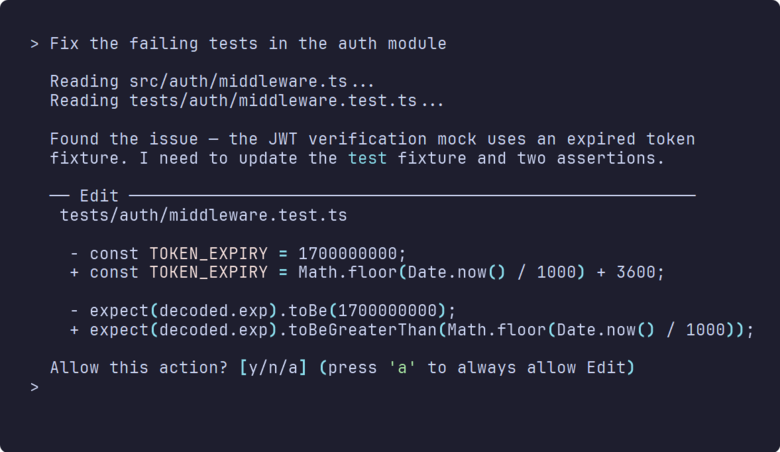
Claude Code skips all of that. I told it to sort out the failing tests in my auth module last Tuesday and it read the project structure, opened six files, made edits across all of them, ran the test suite to check its own work, and fixed the two tests it had initially got wrong. It’s got disk access you see; so off it goes. And these days (Opus 4.6 / Sonnet 4.6), mistakes are quite rare. Context loss, sure that’s still a problem in long compressed threads but we’ll live.
Coding a simple html/css app – takes maybe four minutes, start to finish. I get now why Anthropic’s team reportedly cut new dev onboarding from weeks to days – once you’ve seen it work through a problem end to end, going back to copy-paste feels painful. But it’s so intuitive!
Already using Claude Desktop for non-coding work? Same brain underneath, but the interface is very different. Noticeably sharper when there’s actual code involved, mind. You can absolutely code on Claude Desktop, though – the mindset just needs to be different. I don’t, any more – but it is how I started. You learn a lot about the limitations of getting AI to code properly that way, so I don’t rue the experience at all.
And anyway; Claude Code in the Desktop GUI is very good and a nice step between terminal and desktop. Worth a look if the terminal feels like a step too far right now.
So What Is It, Then?
It’s Anthropic’s coding agent, and it runs in your terminal, VS Code, JetBrains, the Claude desktop app, through the web, or even Slack if that’s your thing (I don’t recommend Slack). I mostly live in the terminal but I plan with Desktop. Create the repo, write the specs, design the API, make some technical choices about the architecture, bring in Gemini MCP and Context7 for an opinion and some recent library data. When we’re good and ready I create the repo with Desktop Commander in Claude Desktop, arrange it properly with a CHANGELOG.md and so on – save the md spec files and then ask Claude to run an execution plan.
Then, I migrate to Claude Code with the brand new repo ready to go. Switching from Desktop is completely painless. File reading, editing, bash, grep, glob searching – it picks whichever tools it needs and chains them together without waiting for instructions. Tell it “fix the failing tests in auth” and it’ll find the test files, read the source code, work out what’s broken, fix it, re-run the suite. It’ll execute the whole chain, start to finish, no hand-holding. Every tool call gets a permission prompt by default. Which does get old fast – I mean really fast, like fifteen prompts in two minutes – but there are auto-approve rules you can dial in once you’ve watched it work enough to trust the pattern. I still approve anything that touches git, such is my unwavering trust in my tools.
Can I just say though that “file reading, editing, bash, grep, glob searching” etc is all possible with Desktop Commander in Claude Desktop. Neither approach is wrong, honestly – pick whichever suits. Unless you plan an overnight Claude session to write your next billion dollar idea. Then it gets technical.
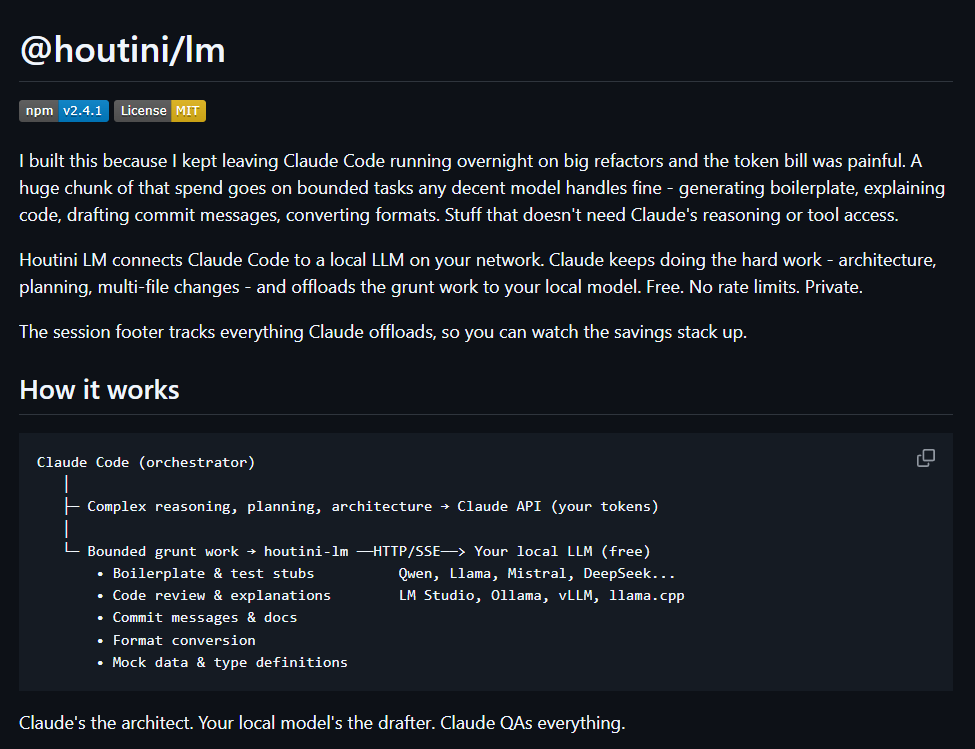
Obviously; you’ll need an Anthropic API key or a Claude subscription to run it. Token usage swings wildly – a quick question might use 10K tokens, a major refactoring can burn through 500K. I’ve written separately about cutting your Claude Code bill with Houtini LM if cost is on your mind, and frankly it probably should be.
Getting Started: Installation
Grab a coffee — this genuinely takes about two minutes, and I’m including the time I spent faffing about with my terminal theme in that estimate. You’ll need either a Claude Pro subscription ($20/month) or an Anthropic API key — won’t let you past the login screen without one of those.
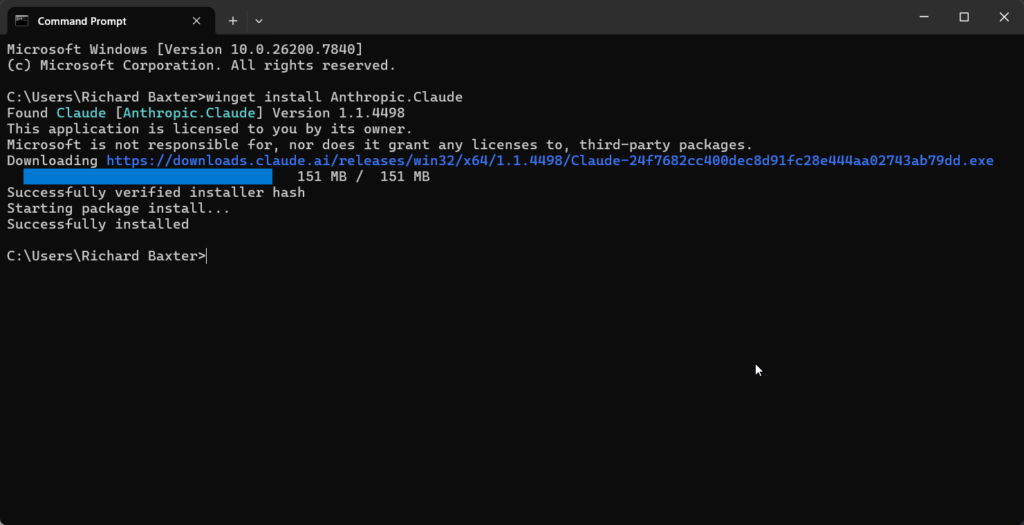
Step 1: Install Claude Code
macOS and Linux get a one-liner:
curl -fsSL https://claude.ai/install.sh | shWindows goes through winget:
winget install Anthropic.ClaudeIf you’ve already got Node.js, npm works on any platform too:
npm install -g @anthropic-ai/claude-codeStep 2: Launch and Connect Your Account
Open a terminal in whatever project directory you want to work in, and type:
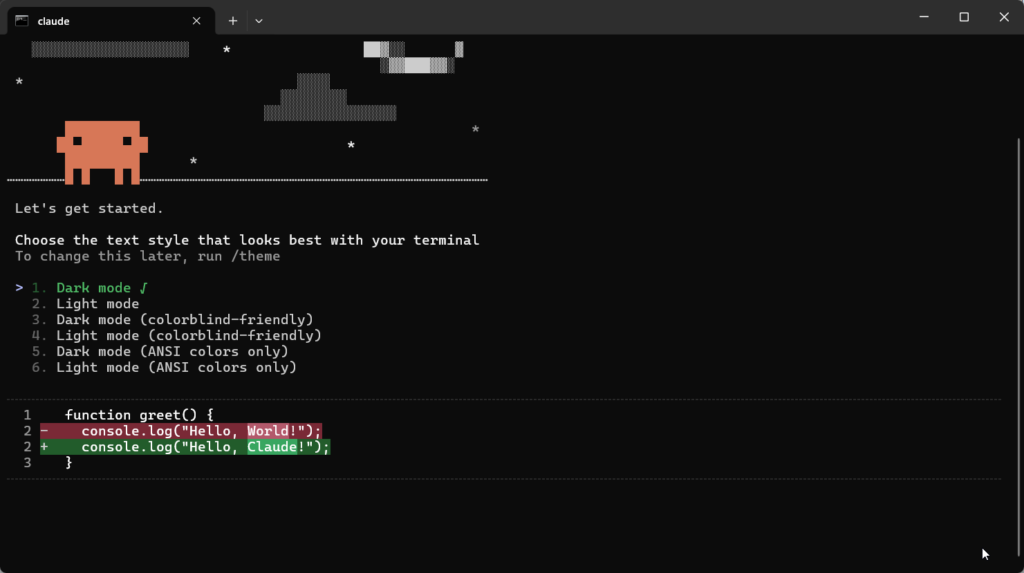
claudeFirst time round, it asks you to pick a colour theme (dark mode, obviously), sign in with your Anthropic account, and trust whatever directory you’re in. Setup takes 30 seconds, tops.
Step 3: Verify It’s Working
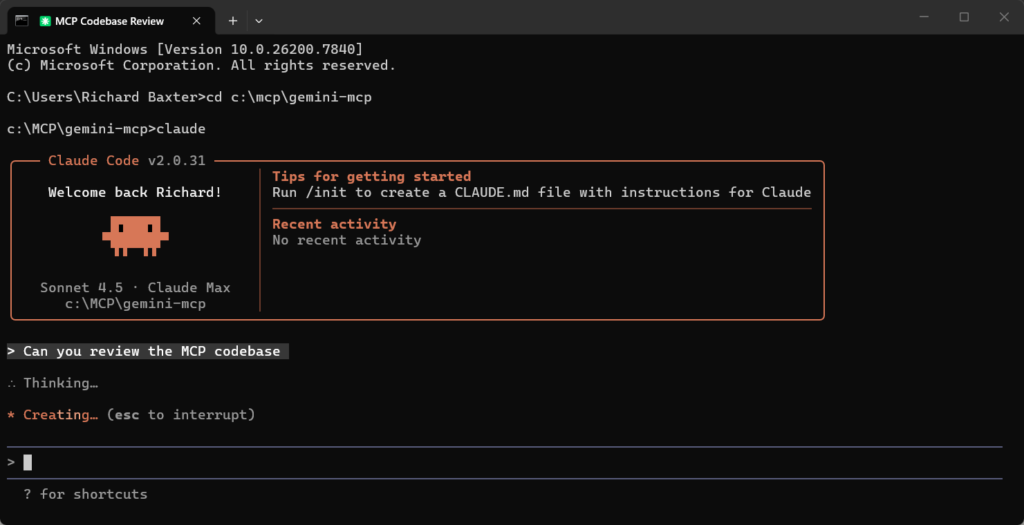
This is the bit that made me swear out loud the first time. Claude Code scans the directory, figures out what you’ve got, and suddenly you’re talking to something that already knows your project. Nothing like a blank chat window – more like someone who’s already had a nose through your source files and decided, correctly or otherwise, how your project hangs together.
Try a quick sanity check:
claude -p "What files are in this directory and what do they do?"If you get a sensible answer listing your project files, you’re sorted. Authentication errors? Check your subscription status at claude.ai/settings – usually it’s just an expired session.
First Session Tip: Ask Questions Before You Edit
Here’s the first thing I wish I’d done differently: I pointed Claude Code at my content-machine repo on day one and immediately asked it to rewrite a WordPress upload module. It made assumptions about the directory structure, got the template path wrong, and I spent forty minutes unpicking the mess. Ten minutes of asking it questions about the codebase would have surfaced that wrong assumption before anything got rewritten, but of course I was too impatient for that.
Boris Cherny from Anthropic hammers this point in his talks – don’t start by editing code, ask questions first. “What does this middleware do?” or “Walk me through the routing.” You’ll know within about thirty seconds whether it actually understands your project or whether it’s about to confidently rewrite something based on a wrong assumption. Forty minutes I could’ve avoided with a two-minute conversation, and I’ve made the same mistake probably a dozen times since then.
A common prompt I make “familiarise yourself with this codebase and await a task”.
Nobody told me about claude init and I wasted a week writing my CLAUDE.md from scratch. You run it and it asks about your project, scans the codebase, and generates a starter CLAUDE.md (more on that in a moment). Not essential, but beats staring at a blank file trying to remember what your conventions are.
Your First Five Minutes
So I showed this to a mate last week and his exact words were “that can’t be real.” Pick any empty folder and run this:
claude -p "Create a colour palette generator as a single HTML file
  with inline CSS and JS. Dark UI. Save to colour-palette.html"
That -p flag stands for “print mode” – it reads the prompt, does the work, and quits. No interactive session, no back-and-forth – just does the thing and quits. I use it probably ten times a day for quick jobs like this.
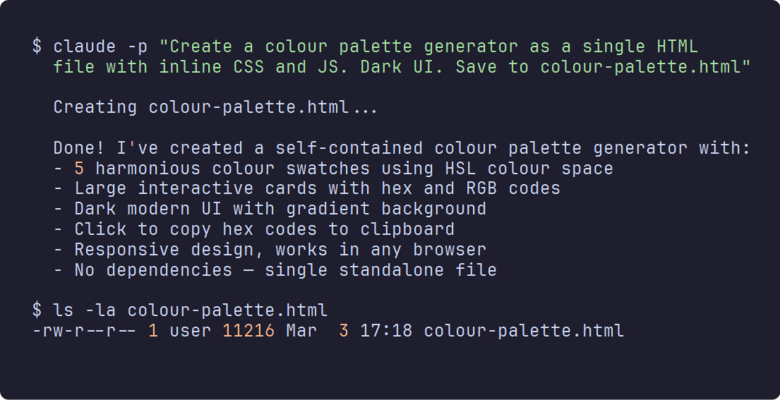
About thirty seconds later there’s a working HTML file sitting in the directory, which still catches me off guard every single time. Pull it up in your browser:
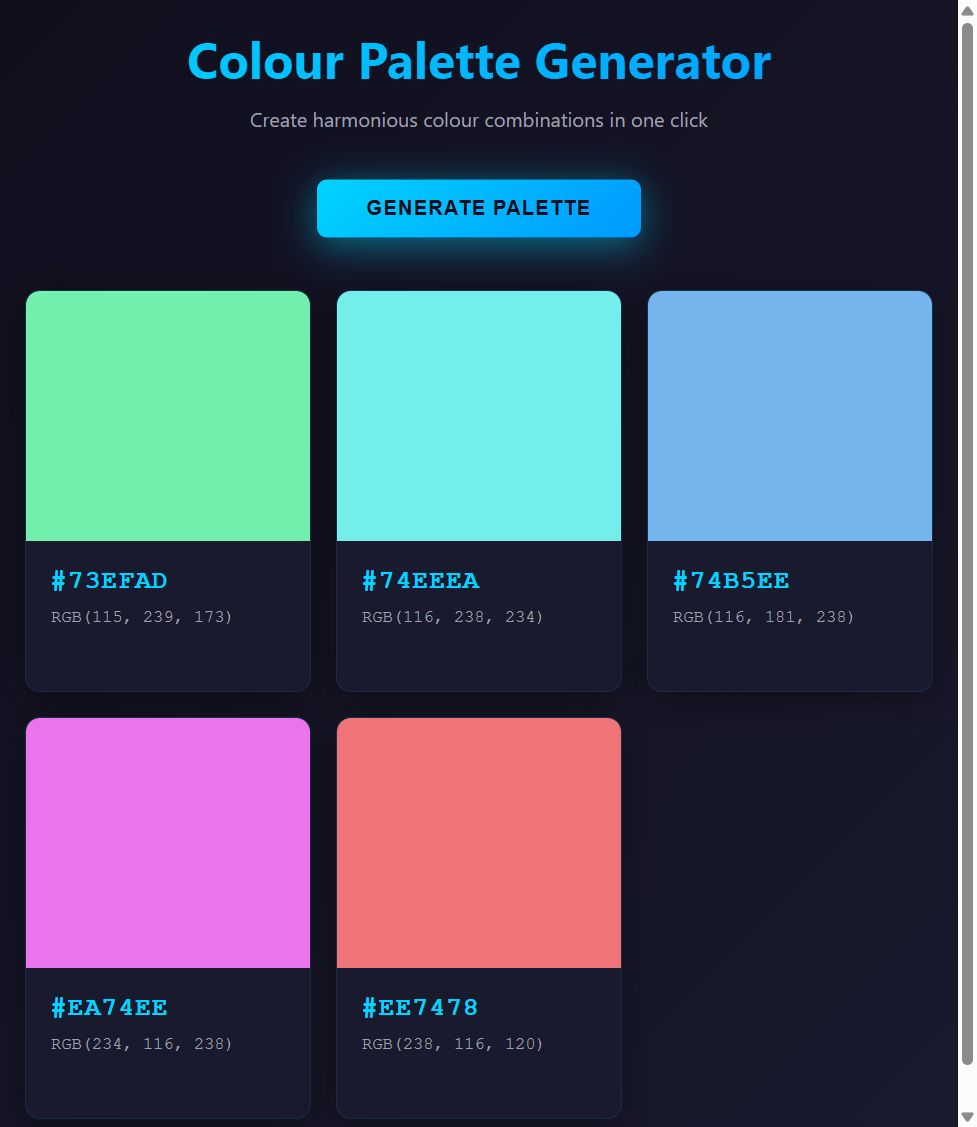
Dark theme, HSL colour harmony, click-to-copy hex codes, responsive layout – 369 lines of working code that I didn’t write a single character of. No scaffolding, no npm install, no webpack config, nothing. One prompt and a browser tab, and I still find that slightly mad.
The penny dropped for me somewhere around the third or fourth time I did this. I stopped thinking of it as a chat tool round about then. You describe what you want, and a working file appears on disk. Sounds like a minor distinction – “generate code” versus “build the thing” – but it rewired how I think about what’s worth bothering to automate.
Give it a go with whatever takes your fancy – a markdown previewer, a simple dashboard, a CSS animation playground. Anything self-contained in a single HTML file works brilliantly as a first test, and you’ll have something running in your browser before you’ve finished making tea.
The Features I’ve Come to Rely On
I haven’t mapped out every single feature by a long shot – I doubt anyone has, including the team that built it – but these are the ones that account for about 90% of the value I get from this thing day to day.
CLAUDE.md – Your Project’s Memory
A CLAUDE.md file in your project root gives Claude persistent context that survives between sessions – your conventions, project structure, deployment rules, preferred tools. And I spent three weeks – three full weeks, like a stuck record – giving the same speech every single session: “this repo handles three sites, credentials live in .secrets/wp-sites.json, always use British English.” Same thing, every morning, first message. The penny kind of dropped one Friday morning when I finally wrote a CLAUDE.md covering all of it, maybe twenty minutes of actual work, and never gave that speech again. Not ideal, having wasted all that time, but at least the fix was trivial.
Four levels if you care about the hierarchy – global in your home directory, per-project, per-subdirectory, and enterprise – though I only bother with the first two myself. The per-project one does most of the work in my setup, and the global one’s just a handful of things that apply everywhere — British English, never auto-commit, that sort of thing.
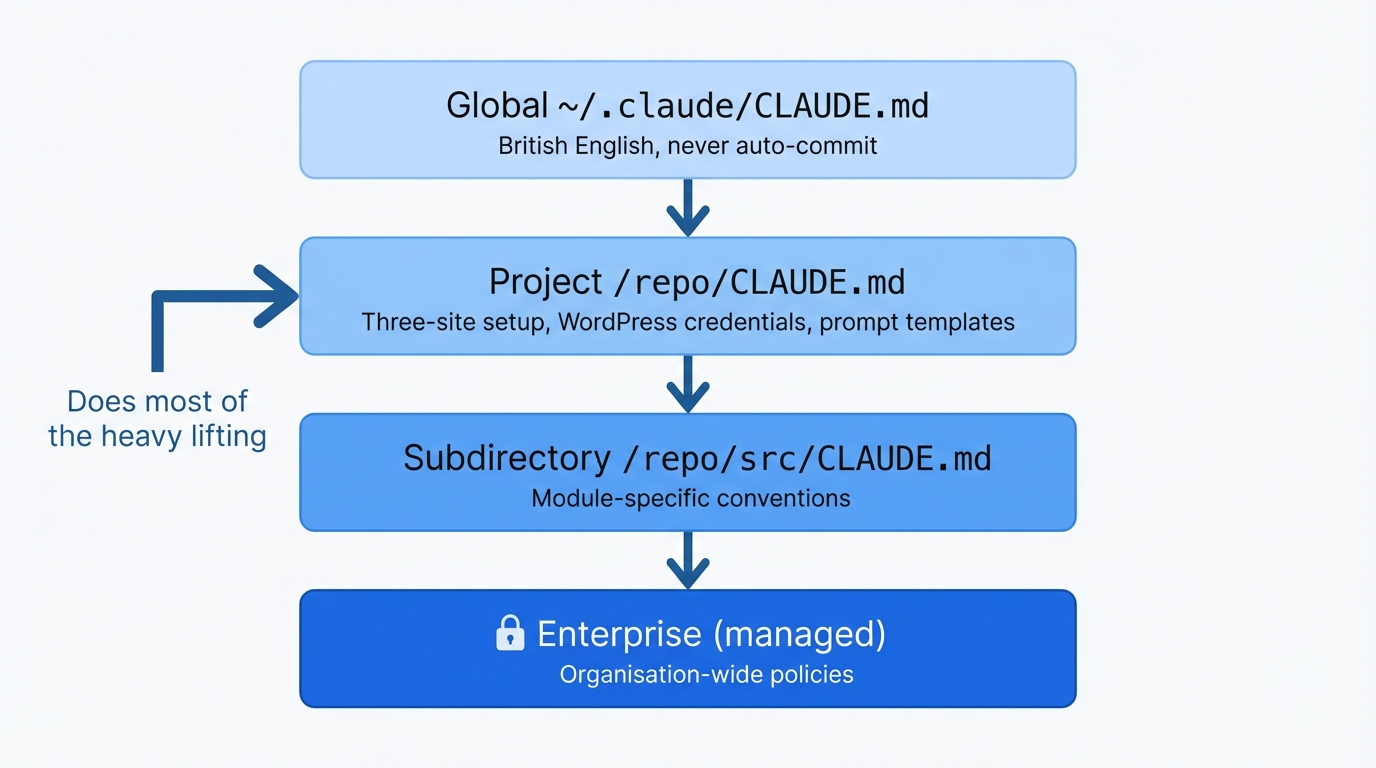
My content-machine repo, for instance — that CLAUDE.md explains the three-site publishing setup, maps out which prompt templates go with which site, and tells it where to find the WordPress credentials. Took me maybe twenty minutes to write, and it’s probably saved me five or six hours of re-explaining the same context every time I open a new session.
I found auto-memory completely by accident. I mentioned “always use bun in this project” during one session, completely offhand – no instructions, no ceremony – and it just kept doing it from then on. Opened a fresh session the next morning and there it was, bun everywhere, without me ever touching the CLAUDE.md for that project. Apparently Claude Code maintains its own memory files that pick up on these sorts of statements and persist them. Once I realised that was happening I started being more deliberate about it, dropping in preferences conversationally and letting the auto-memory catch them.
Plan Mode
I wish someone had shown me this on day one. You get there with Shift + Tab — couple of taps and “Plan” pops up in the corner, dead simple. It can still read files, search code, ask you clarifying questions – but it physically can’t write, edit, or execute anything until you switch back. Basically a forced thinking step before it acts, which sounds obvious but apparently I needed a button for that.
Took me a full month to even try it, which looking back was just silly. I’d throw vague prompts like “refactor the upload module” and Claude would charge ahead, restructure three files based on assumptions I hadn’t confirmed, and I’d spend an hour unpicking the mess. Plan Mode prevents that. Describe what you want, let Claude ask clarifying questions about approach and scope, review the plan, and only then let it execute.
Any time I’m touching more than two files now, or poking around code I haven’t written, or honestly just when I’m not sure what I want yet – Plan Mode goes on first. Skip it for quick one-file jobs – -p flag is better for those, and we’ve covered that already.
Sub-agents
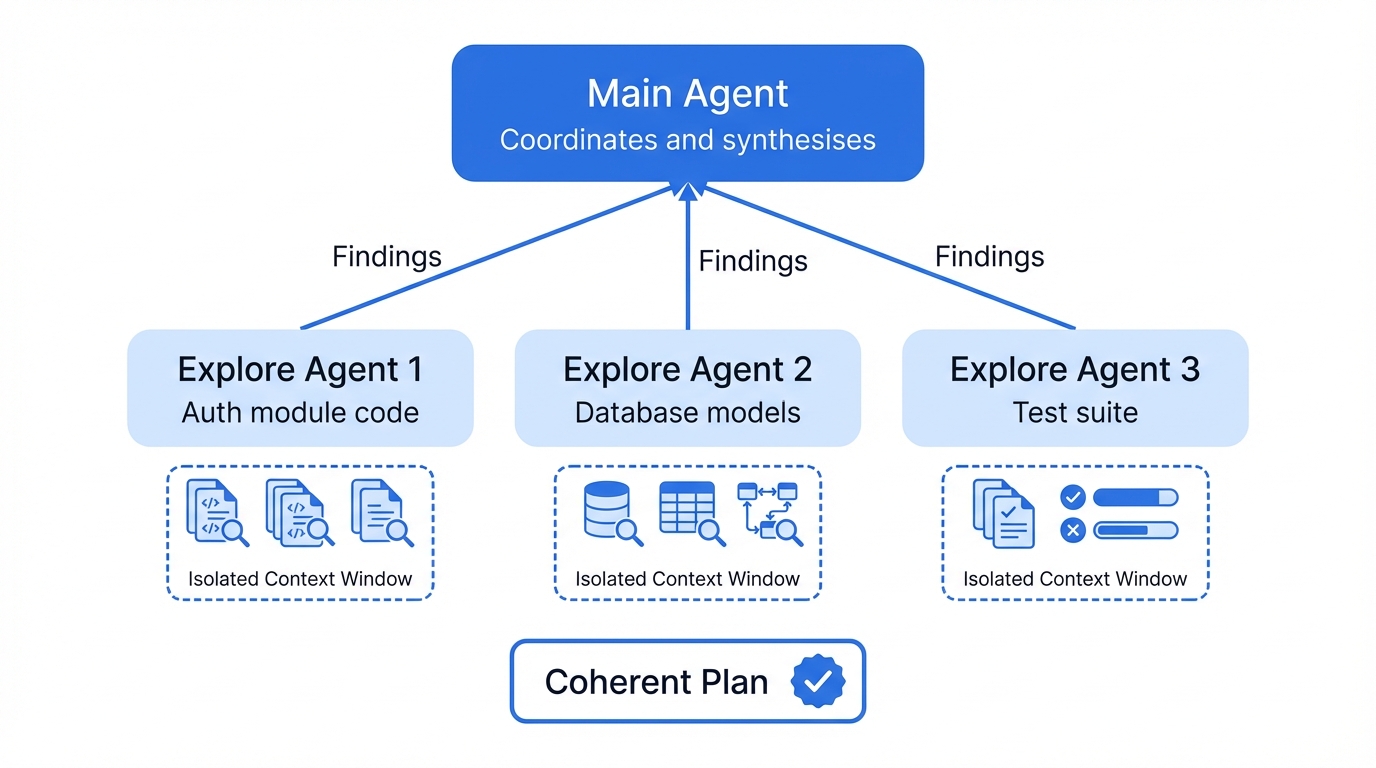
I wrote these off as a gimmick before I’d tried them, and that lasted about five minutes. Give Claude Code something properly complex and it’ll spawn sub-agents – separate Claude instances, each one working a different angle of the same problem at the same time. Last Tuesday — and I remember because I’d just spilled coffee on my keyboard — I watched one reading my auth code while another pulled apart the database models and a third ran the test suite. The main agent keeps tabs on all of them, pulls the findings together, and the coordination is better than I’ve seen from some actual dev teams.
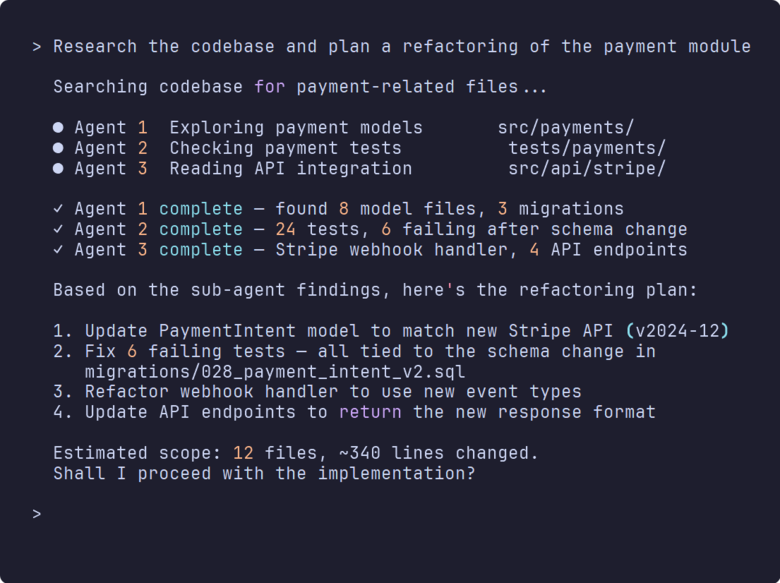
Ask it to “research the codebase and plan a refactoring of the payment module” and it’ll launch explore agents to search different parts of the code, then pull their findings into a coherent plan. Each sub-agent gets its own isolated context window, so thousands of lines of searched code never clutter your main conversation – and that isolation matters more than you’d think.
I watched it handle “update all the product templates to use the new schema” by spinning up one agent per template type, all running at once, and it merged the results cleanly. Would have taken me an entire afternoon; took it about four minutes.
Something I’ve learned the hard way about context windows, though: every file Claude reads, every tool result that comes back – it all eats into a finite context window. Early on I was letting it read entire 2,000-line files, top to bottom, when nine times out of ten it only needed a single function buried around line 800. These days I tell it exactly which line range to read, and for anything research-heavy I use sub-agents precisely so their output stays in their own context window rather than eating into mine. The context window fills up, Claude compresses your earlier conversation to stay within limits, and suddenly it’s forgotten things you discussed ten minutes ago. Absolutely maddening when you’re three hours into a refactoring and it needs you to re-explain something you went over in the first ten minutes.
Hooks
Shell commands that fire before or after Claude does anything. Configured in JSON, tied to events like PreToolUse or PostToolUse. I’ve got Prettier running after every file edit, a lint check before any git commit, and one that flat-out blocks deletions in my production config directory. That last one’s bailed me out at least twice, possibly three times.
A simple example – automatically formatting with Prettier after any file edit:
{
  "hooks": {
    "PostToolUse": [
      {
        "matcher": "Edit|Write",
        "command": "npx prettier --write $FILE_PATH"
      }
    ]
  }
}
The clever bit is the exit codes. Return 0 and things proceed as normal, but a return code of 2 blocks the action completely, dead stop, and Claude gets whatever error message you’ve written. And they stack – my content-machine repo runs two hooks on every edit, a fast one that just checks the file path isn’t nonsense and a slower one that pipes the diff back through Claude with the prompt “does this edit make sense given what’s around it?” That second hook has blocked at least three rewrites that would have broken things I hadn’t thought about.
Bit embarrassing, this one: I went weeks without giving Claude any way to check its own output. My MCP server kept failing builds after Claude’s edits and I was manually running npm run build, copying the TypeScript error, pasting it back into the chat, doing that same tedious dance over and over. Eventually the penny dropped – I set up a hook that runs the build automatically after edits. Claude spots the error, fixes it, builds again. Transformed that whole workflow, honestly – went from dreading the build step to barely thinking about it. Linters, test runners, type checkers – same principle. Give it a way to hear back when it’s wrong and you’d be surprised how quickly it sorts itself out.
MCP Integration
MCP (Model Context Protocol) is how Claude Code connects to external tools: databases, APIs, web scrapers, search engines, whatever you wire up. If you’ve used MCP servers with Claude Desktop you know the concept. The difference here is autonomy – in Claude Desktop you’re orchestrating each MCP call yourself, but Claude Code handles all of that on its own, picking the right tool, calling it, reading the result, chaining the next call without waiting for you to tell it what to do next.
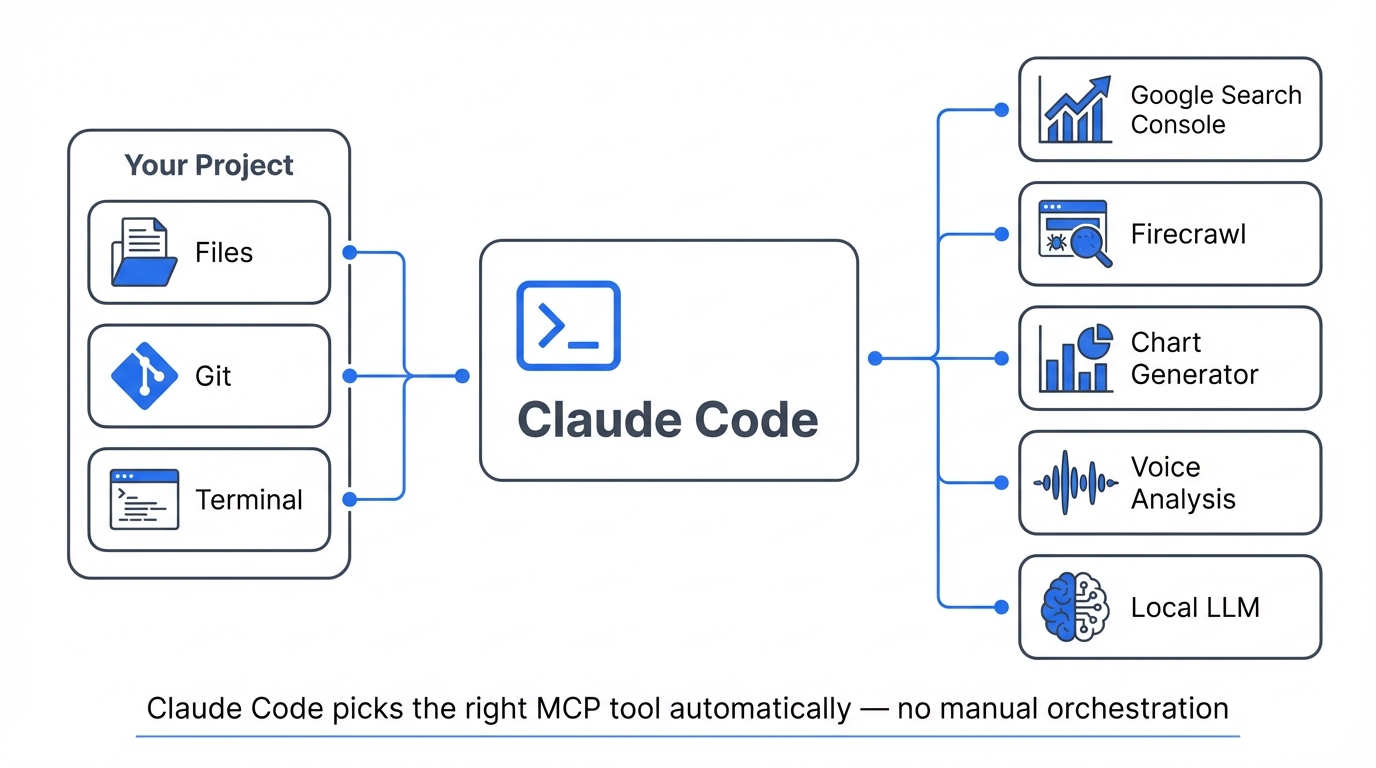
My setup: Google Search Console, Firecrawl for web scraping, chart generation, voice analysis, and a local LLM running on a second machine. Claude Code picks whichever MCP tools it needs for the task. The recently added MCP Tool Search feature cut my context usage from around 77K tokens to 8.7K by only loading relevant tool definitions. Massive difference when you’ve got six MCP servers loaded up with dozens of tools between them, which I do.
I listed every MCP server I actually use in my best MCPs for Claude Desktop piece.
One warning I wish I’d heeded sooner: if you’re running slightly flaky MCP servers – and some of them are, frankly – be very careful with parallel tool calls. One MCP tool times out in a parallel batch and every other call in that batch dies with it. I lost the best part of a Thursday afternoon to this before I spotted what was going on. Slightly unreliable MCP server? Run it sequentially, because one timeout isn’t worth losing the entire batch.
Custom Commands and Skills
Nobody talks about these and I genuinely don’t understand why. Custom commands are workflows you put together yourself. Write a markdown file with frontmatter – what tools are allowed, what the command does – drop it in .claude/commands/, and it becomes a slash command. I’ve built a /review-pr that pulls the diff, runs my test suite, checks for security issues, and writes a summary I can paste straight into the PR. Built another one for staging deployments that handles the build, tests, and push in sequence. About ten minutes to set each one up and I use them most days.
They’re version-controlled, which means everyone on the team gets the same workflows without anyone configuring anything. Hardly anyone uses these yet. Shame, really – they’re one of the quieter features that compound once you’ve built three or four of them.
Skills are a newer addition that take this further. Bundles of instructions and tools that Claude Code loads when it needs them – plugins, basically, that extend what it can do for specific tasks. Still early days for these, and half the documentation is placeholder text last time I checked.
CLI Composability
Proper Unix philosophy: pipe stuff in, get structured stuff out. Feed it your error logs (cat error.log | claude -p "what's causing these failures?"), run it headless in CI/CD, chain it into shell scripts. The -p flag is what makes it work – suddenly Claude Code isn’t a chat anymore, it’s a command-line tool that eats stdin and spits out JSON you can pipe into the next thing.
I pipe article drafts through it with voice-validation and fact-checking prompts, grab the JSON output, turn it into quality reports. Built the whole pipeline in an afternoon and it’s probably caught more errors than I’d care to admit.
Putting It to Practical Use: How I Use This Every Day
I’m leaving loads out — the SDK, GitHub integration, probably a dozen things I haven’t even tried yet. But the three workflows below eat up about 80% of my time with this thing, so they’re what I’d actually tell you about over a pint.
Content production – this article is actually the output of that workflow. Three sites, one repo. Claude Code reads my CLAUDE.md, picks the right prompt template for houtini.com, runs research via MCP tools (Firecrawl for scraping, Search Console data, SERP analysis), produces a draft, and I run voice checks and AI detection on the output. Research to WordPress upload in one session, though “one session” sometimes means three hours of back-and-forth when the AI detection score won’t come down. The full pipeline’s in my content marketing with AI piece if you want the gory details.
Building MCP servers. My voice analysis tool is a TypeScript MCP server, roughly 1,500 lines across a dozen files. When I’m updating it I describe what I want changed and Claude Code handles the rest: reads the existing types, updates the handlers and analysers, edits the index file to match, runs the build. If the build fails – and it usually does on the first try, something about my tsconfig that trips it up – it reads the TypeScript error, fixes the offending line, and rebuilds. All of that before my kettle’s boiled, which still amazes me.
Codebase Q&A – honestly my favourite use case, and I don’t think enough people know about it. Picked up a contract project in February with zero documentation — not a single README, nothing — and asked Claude Code to walk me through the auth flow. Had it mapped out in about two minutes, including a middleware I’d have missed entirely on my own. Boris Cherny from Anthropic bangs on about starting with Q&A in his talks and he’s spot on – it’s probably the single best way to get comfortable with how Claude Code approaches a problem.
Real Example: Reviewing an MCP Server
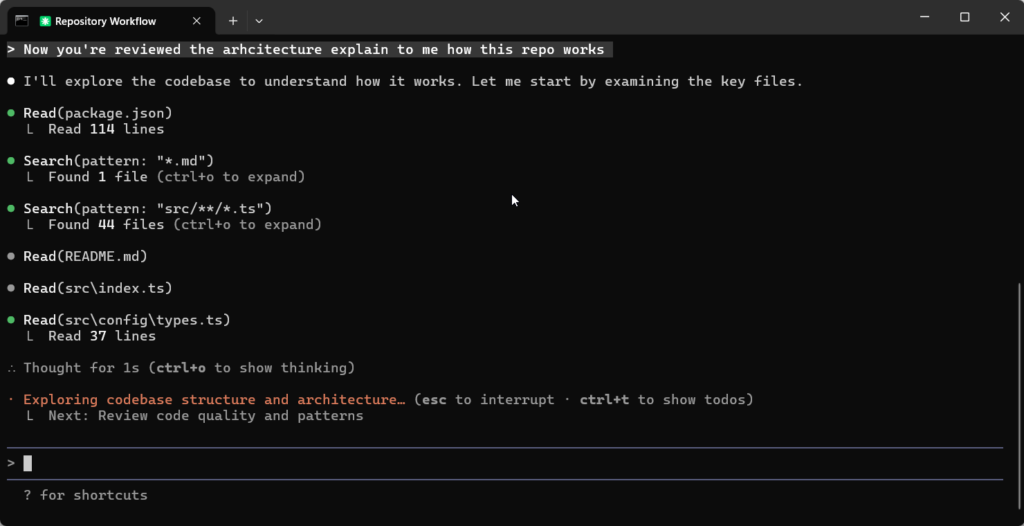
To show you what codebase Q&A actually looks like in practice, I pointed Claude Code at one of my MCP servers – the Gemini integration, roughly 5,000 lines of TypeScript across thirteen tools – and asked it for an architecture review. One command:
cd gemini-mcp
claude -p "Review the architecture of this MCP server. What patterns
  does it use, what's done well, and what could be improved? Focus on
  src/index.ts, the tool registration, and error handling."
No setup, no context, no “here’s how the project is structured.” Claude Code figured all of that out on its own.
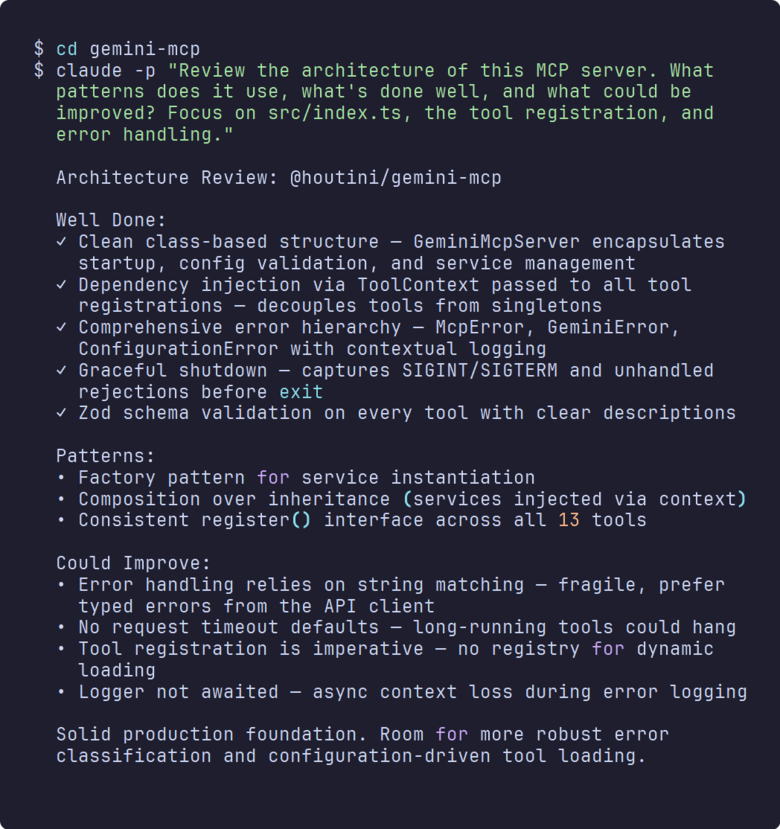
Not a toy example, that – this is the MCP server I ship and maintain, the one powering my Gemini integration. It found the dependency injection pattern via ToolContext, the Zod schema validation on every tool, the factory pattern for services, and the custom error hierarchy. More usefully, it flagged four concrete problems: string-based error matching instead of typed errors, no request timeouts, imperative tool registration with no dynamic loading, and async context loss in the logger.
Naturally I didn’t just take its word for it — pulled up every source file it mentioned and checked line by line. The string matching issue? I’d known about that one for weeks – had it on a sticky note on my monitor, in fact, and just kept ignoring it. The timeout thing was a proper production risk I’d missed completely.
This is what I mean when I say “ask questions before you edit.” Thirty seconds of review surfaced problems that would have taken me an hour of reading source code to catalogue manually. And because I ran it with -p and no write permissions, it couldn’t change a thing – purely read-only analysis. If you’re inheriting a codebase, onboarding onto a new project, or just haven’t looked at your own code in a while, this is the single fastest way to get oriented.
Where It Falls Short
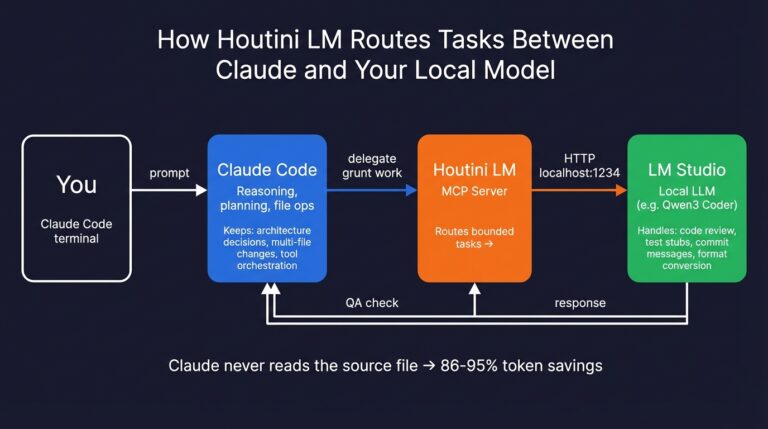
Token burn. Oh, the token burn. Last month I ran a refactoring session on my WordPress upload module that somehow ate nine dollars in a single conversation, which I only noticed because I’d started checking the usage dashboard after a previous scare. Running a local LLM on a second machine and delegating the grunt work to it has halved what I spend.
Permission fatigue. Default mode means Claude asks before nearly every action – read this file, edit that one, run this command – and after the fifteenth prompt in two minutes you start wondering if there’s a better way. Auto-allow rules exist, but dialling in the right balance takes genuine trial and error. Too permissive and you’ll rubber-stamp something destructive, too restrictive and you’re hammering “allow” every three seconds.
Confident mistakes. It gets things wrong, and the bit that really grinds is how certain it stays while doing it. I’ve watched it refactor code that broke a subtle edge case, suggest approaches that work for the happy path but collapse under load. You still have to review everything it produces – best mental model I’ve found is a very capable junior developer, brilliant at following instructions, hopeless at knowing when to stop.
Flaky MCP servers. Some are rock solid. Others time out, throw errors, or cascade failures when called in parallel. Not Claude Code’s fault, granted, but it’s your headache when a timeout murders an entire batch of tool calls.
Stuff I Wish I’d Known from the Start
CLAUDE.md on day one – or run claude init and let it generate one. I wasted three weeks re-explaining my project setup every single morning before I finally did this. Three weeks. Of the same speech. Every morning.
Ask questions before you edit anything – “Walk me through the auth flow” costs nothing and catches wrong assumptions before they snowball into a mess. I’ve learned this lesson probably a dozen times and I’ll probably learn it again next Tuesday.
Plan Mode for multi-file changes – five minutes of planning saves an hour of unpicking, and I say that as someone who learned this the hard way over about four weeks of unnecessary cleanup.
Wire up your test runner as a hook – I went weeks letting Claude break builds because I hadn’t given it a way to check its own work. Embarrassing in hindsight, trivial to fix.
Commit before every Claude edit – regressions happen more than you’d think. Three seconds for a git commit buys you a rollback point, and you’ll thank yourself when something subtle breaks at line 847.
Watch your context window – tell Claude which line ranges to read instead of letting it hoover up entire files. Sub-agents help here too – their findings stay in their own context, not yours.
Use -p for quick jobs – honestly this is how I use Claude Code more than half the time now. One prompt, one result, no session overhead, back to whatever I was doing.
Fifteen-odd years writing code, and I’ve abandoned more productivity tools than I can count. Most of them lasted about a week before I quietly went back to doing things the old way. Claude Code stuck. If you’re just getting started, the installation takes two minutes, the CLAUDE.md takes twenty, and the first time you watch it chain six tool calls together to fix a bug you’ve been staring at for an hour, you’ll understand why I keep banging on about it.
Related Posts
How to Set Up LM Studio: Running AI Models on Your Own Hardware
How does anyone end up running their own AI models locally? For me, it started because of a deep interest in GPUs and powerful computers. I’ve got a machine on my network called “hopper” with six NVIDIA GPUs and 256GB of RAM, and I’d been using it for various tasks already, so the idea of … <a title="Claude Code: The Complete Beginner’s Guide" class="read-more" href="https://houtini.com/claude-code-the-complete-beginners-guide/" aria-label="Read more about Claude Code: The Complete Beginner’s Guide">Read more</a>
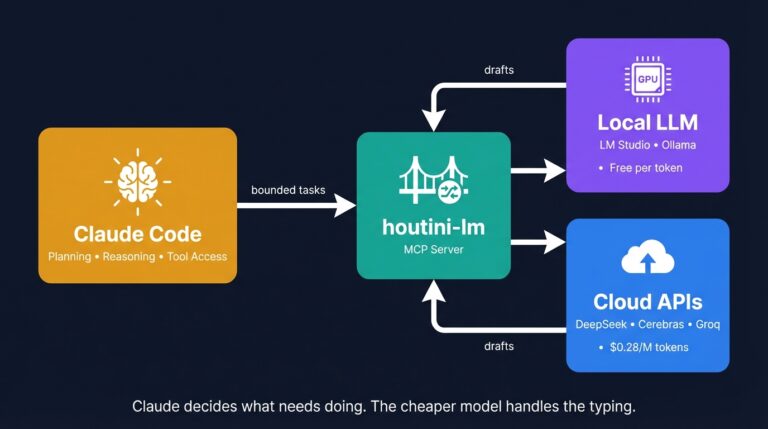
Cut Your Claude Code Token Use by Offloading Work to Cheaper Models with Houtini-LM
I built houtini-lm for people worried that their Anthropic bill might be getting out of hand. I’d leave Claude Code running overnight on big refactors, wake up, and wince at the token count. A huge chunk of that spend was going on tasks any decent coding model handles fine – boilerplate generation, code review, commit … <a title="Claude Code: The Complete Beginner’s Guide" class="read-more" href="https://houtini.com/claude-code-the-complete-beginners-guide/" aria-label="Read more about Claude Code: The Complete Beginner’s Guide">Read more</a>
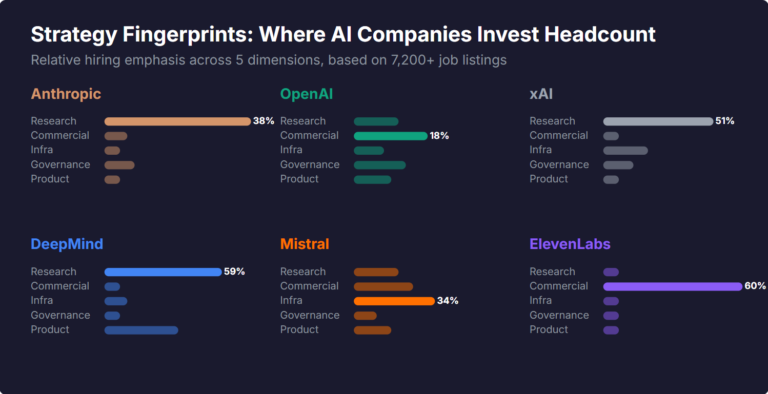
What Skills Are AI Companies Hiring For, and What Do the Jobs Tell Us About Their Strategy?
I pointed YubHub at 7,200+ job listings across the major AI labs and the hiring patterns reveal six completely different strategic bets. Anthropic is all-in on research. OpenAI reads like an enterprise SaaS company. xAI is hiring domain experts to teach Grok finance. Here's what the data shows.
How to Create LinkedIn Carousel Slides with Gemini and Claude
A developer workflow for turning blog posts into LinkedIn carousel slides using Gemini SVG generation, Puppeteer PDF conversion, and a four-line Python merge script. No Canva, no SaaS tools.
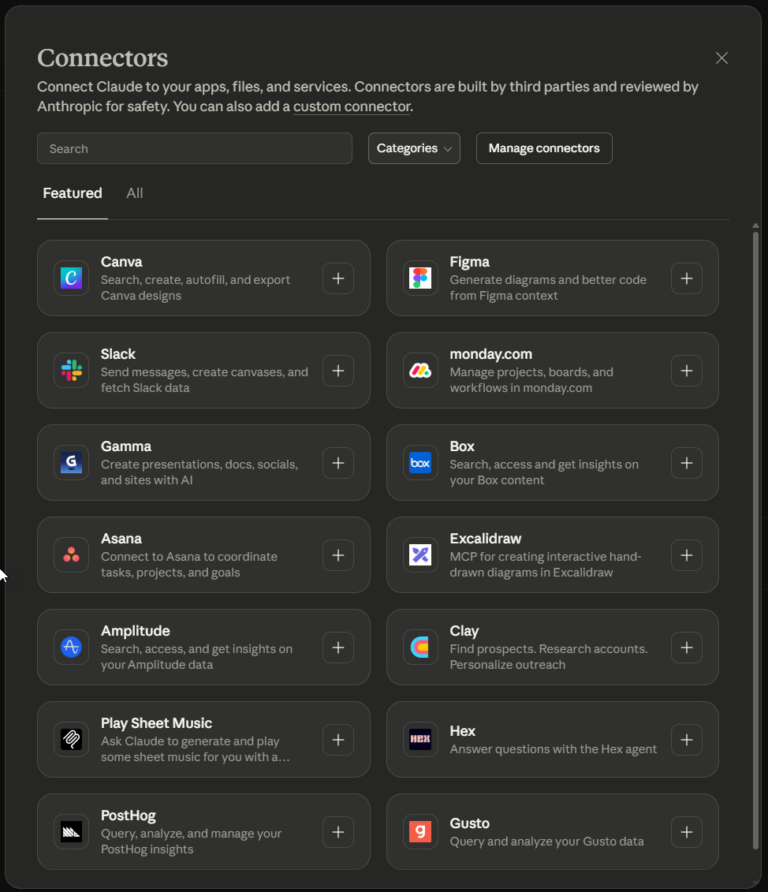
What Is an MCP Server? And, Why It Matters for AI Tool Use
My daily work literally depends on the existence of MCP servers now, spread between Claude Desktop and Claude Code. Database queries, image generation, web scraping, file management, search console data, email. Much of my daily working world lives in a conversation window. I am convinced we are at the beginning of a radical shift in … <a title="Claude Code: The Complete Beginner’s Guide" class="read-more" href="https://houtini.com/claude-code-the-complete-beginners-guide/" aria-label="Read more about Claude Code: The Complete Beginner’s Guide">Read more</a>
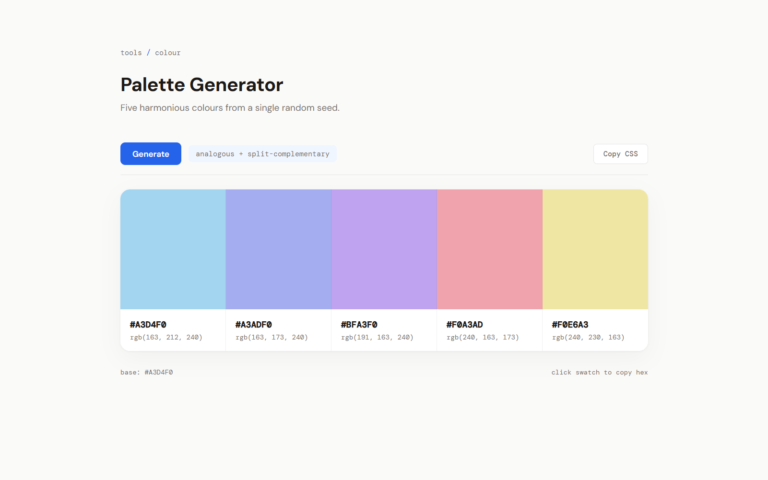
How to Improve Your AI Prototype Designs with Skills, Prompts and Gemini
I build a lot of single-file HTML prototypes with Claude Code. They work, but they all end up looking the same. I tested three approaches to fix this – Claude Skills, manual prompt engineering, and Gemini MCP feedback.