

Claude Desktop’s ability to support access to API services using Model Context Protocol (MCP) is impressive stuff. And yes, that means you can get Claude connected to the Search Console API and query it to answer your questions. Better still, with Better Search Console, your data syncs to a local SQLite database – so you’re not limited to the API’s 1,000-row cap and you can run proper SQL queries (or Claude can run SQL queries – you just describe what you want) against your own data. This MCP is something I’m particularly delighted with and I hope you’ll agree too.
https://github.com/houtini-ai/better-search-console
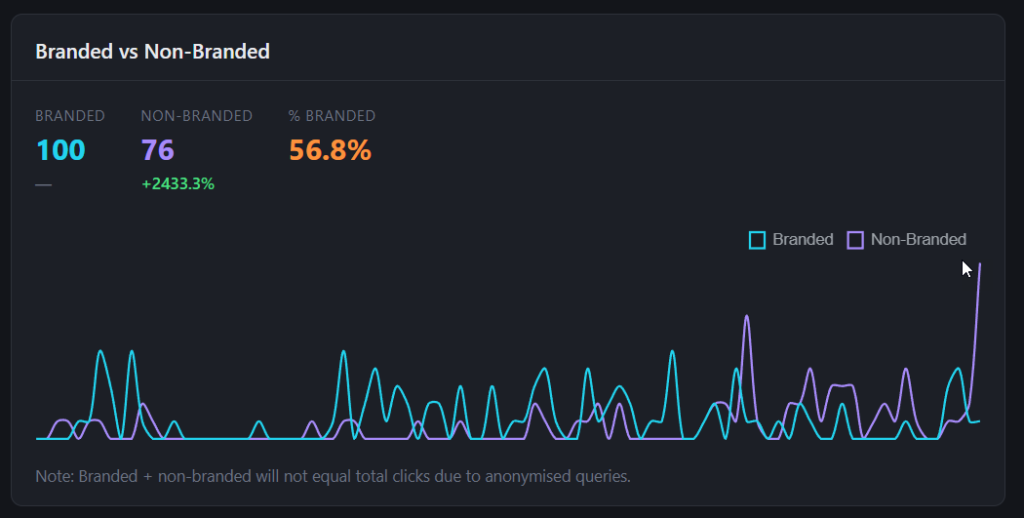
In this guide, I’ll walk you through how you setup Claude Desktop with Google Search Console integration, allowing Claude to access your website’s search performance data and provide SEO insights from simple prompts.
The outcome, you can ask cool questions like:
"Show me the top 10 queries for houtini.com that rank in the top 20 positions and have more than 50 impressions. Sort by impressions, highest first."Or even run SQL directly against your synced data:
Run this query against houtini.com: SELECT query, SUM(clicks) as clicks, SUM(impressions) as impressions FROM search_analytics WHERE position < 20 AND impressions > 50 GROUP BY query ORDER BY impressions DESC LIMIT 10And
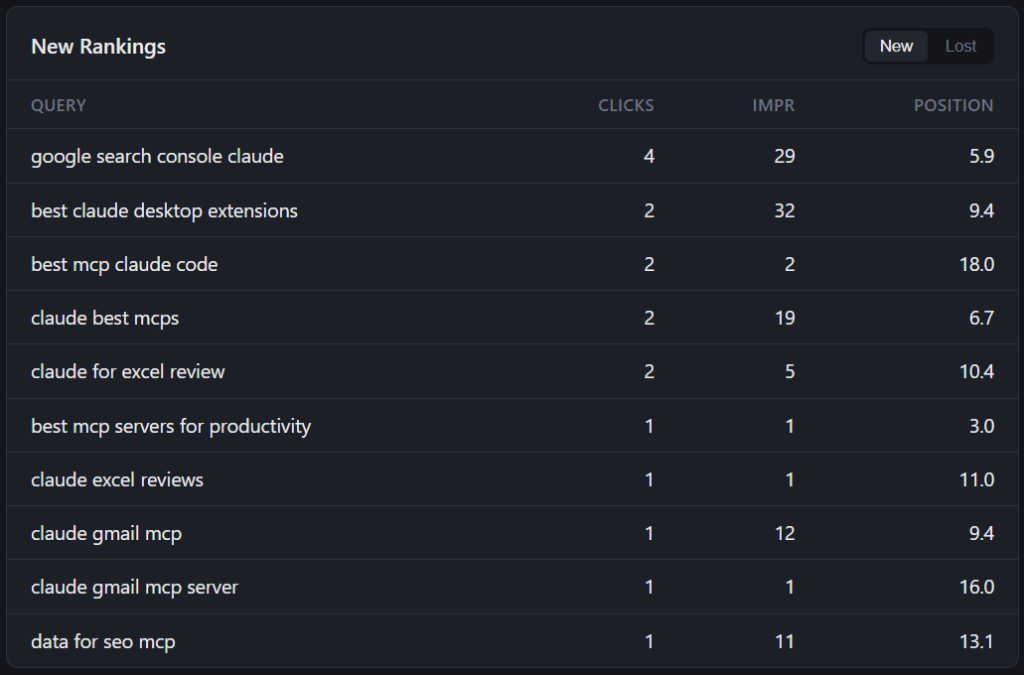
Show me new search rankings for houtini.comWhich will generate you a table like this in Claude Desktop:
What is MCP and Why Should You Care?
Model Context Protocol ( MCP) is a framework that allows AI models like Claude to interact with external tools and data sources. By connecting Claude to Google Search Console, you can ask questions about your site’s search performance.
Prerequisites
Before we begin, make sure you have:
- The latest version of Claude Desktop installed
- A Google Search Console account with at least one verified property
- Access to Google Cloud Platform
- Windows (though the process is similar for Mac/Linux)
Step 1: Install Node.js on Windows
To get this working, we’re going to need to install the MCP package with NPM (Node Package Manager), which means installing Node. If you haven’t installed it already:
- Visit nodejs.org
- Download the LTS (Long Term Support) version
- Run the installer and follow the prompts
- Accept the default options if you’re unsure
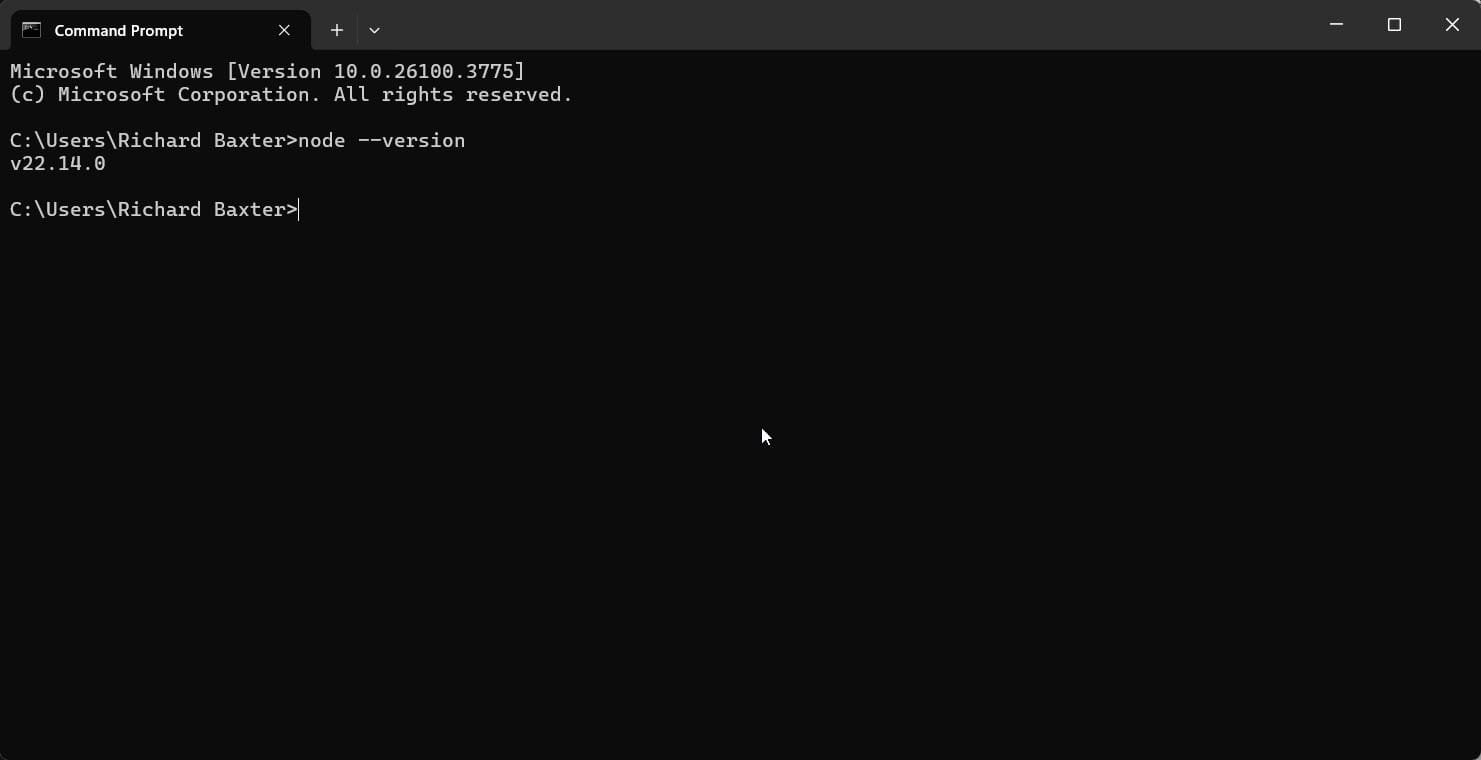
Once installed, verify by opening Command Prompt and typing:
node --version
You should see the version number displayed.
Node.js automatically includes npm (Node Package Manager), which we’ll use to install the Search Console integration. Verify npm is installed by typing:
npm --version
Step 2: Enable the Search Console API in Google Cloud
- Go to Google Cloud Console
- Create a new project or select an existing one
- In the navigation menu, go to “APIs & Services” > “Library”
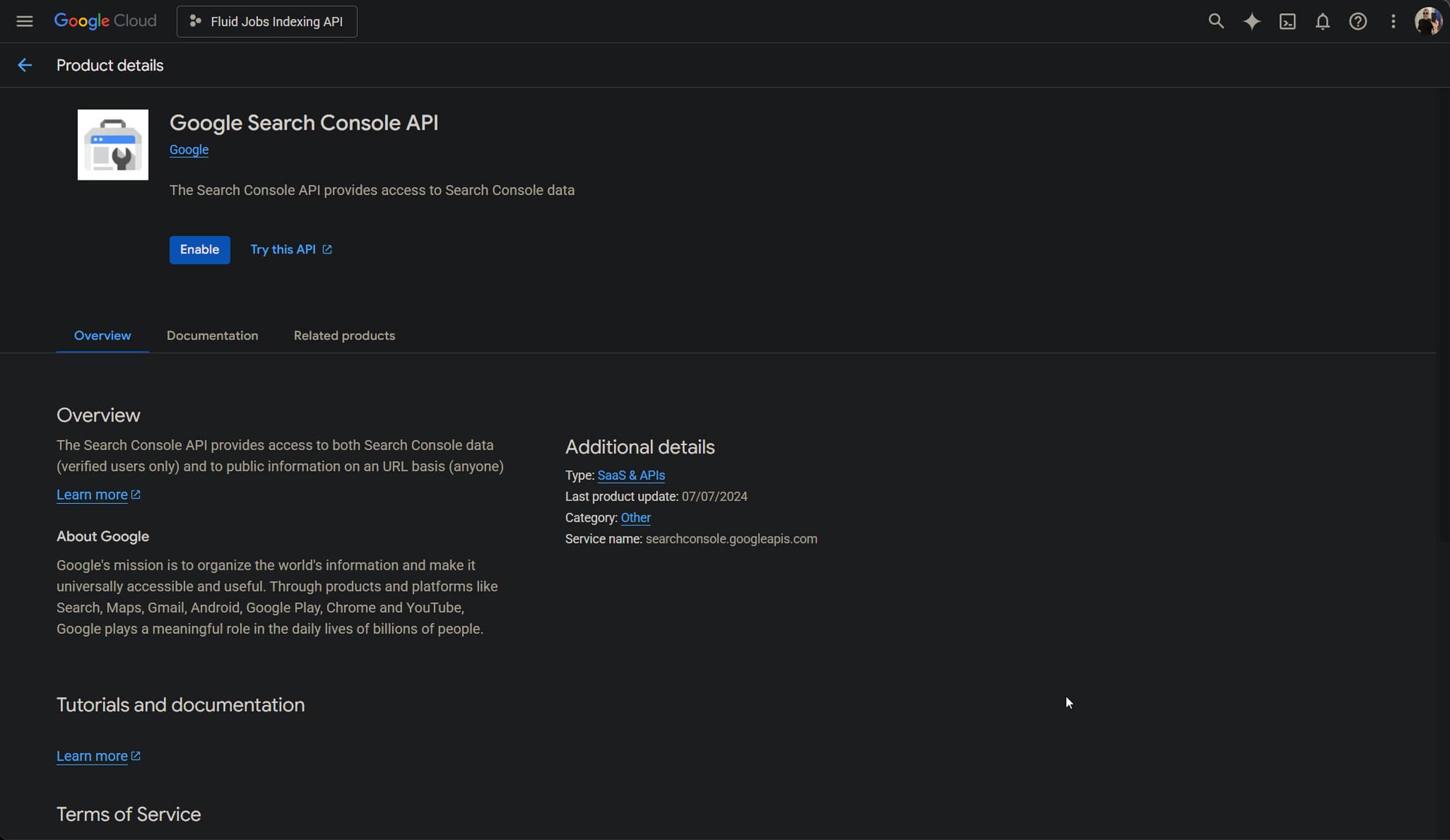
- Search for “Search Console API” and select it
- Click “Enable” to activate the API for your project
Step 3: Create a Service Account
- In Google Cloud Console, navigate to “IAM & Admin” > “Service Accounts”
- Click “Create Service Account”
- Enter a name and description for your service account
- Click “Create and Continue”
- You can skip assigning roles for now (we’ll grant access directly in Search Console)
- Click “Done”
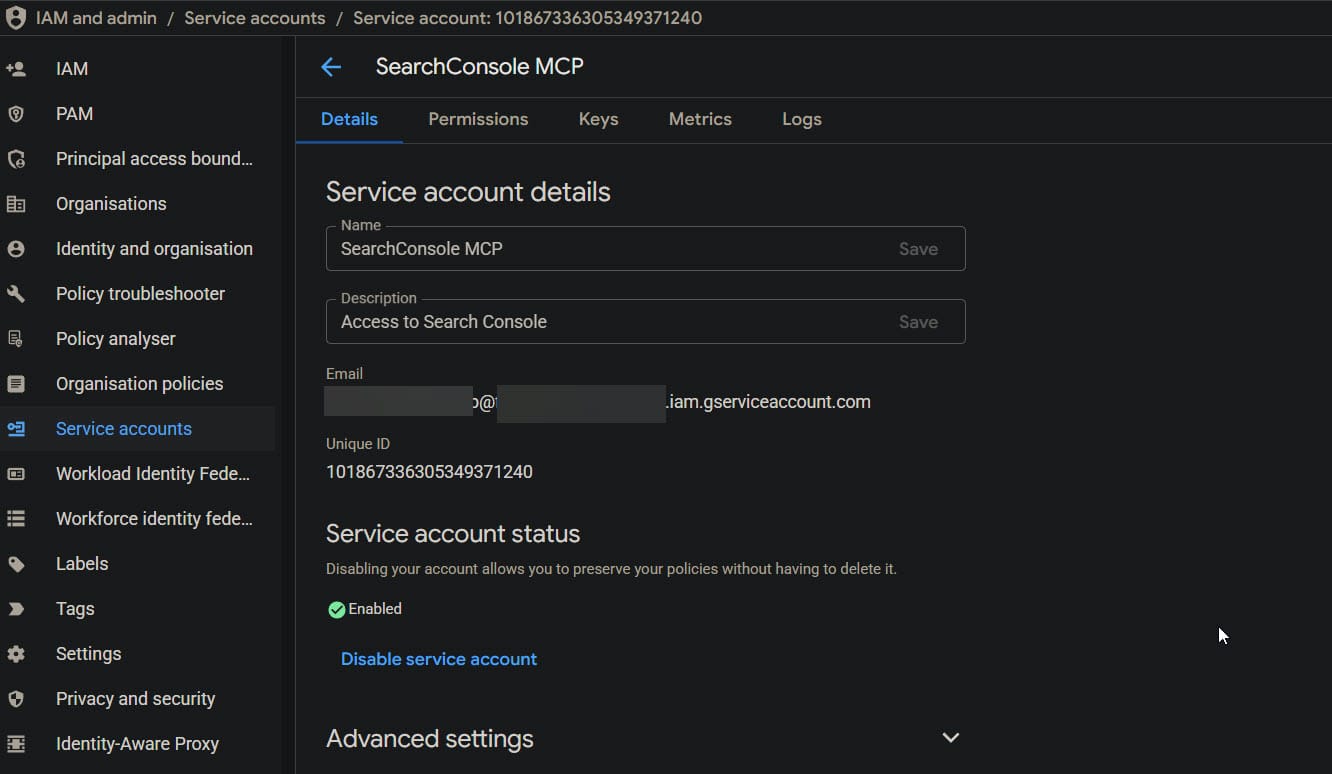
Note the “Service accounts” navigation link in the left-hand nav.
Step 4: Generate Service Account Credentials
- From the Service Accounts list, find your newly created account
- Click the three dots (⋮) menu and select “Manage keys”
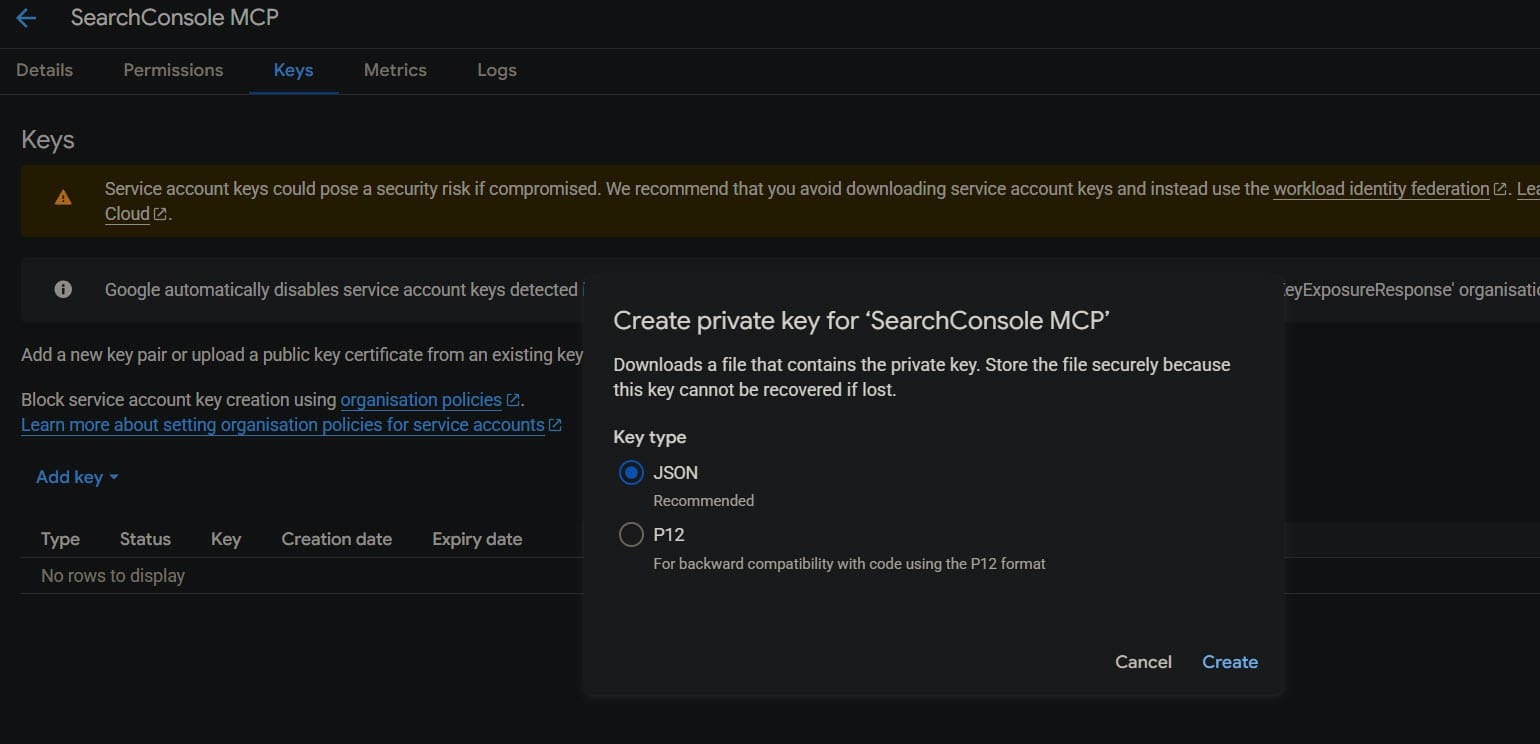
- Click “Add Key” > “Create new key”
- Select “JSON” as the key type
- Click “Create” to download the JSON file
- Store this file very securely – it contains sensitive credentials
Step 5: Grant Access in Google Search Console
- Open Google Search Console
- Select the property you want Claude to access
- Click on “Settings” (gear icon) > “Users and permissions”
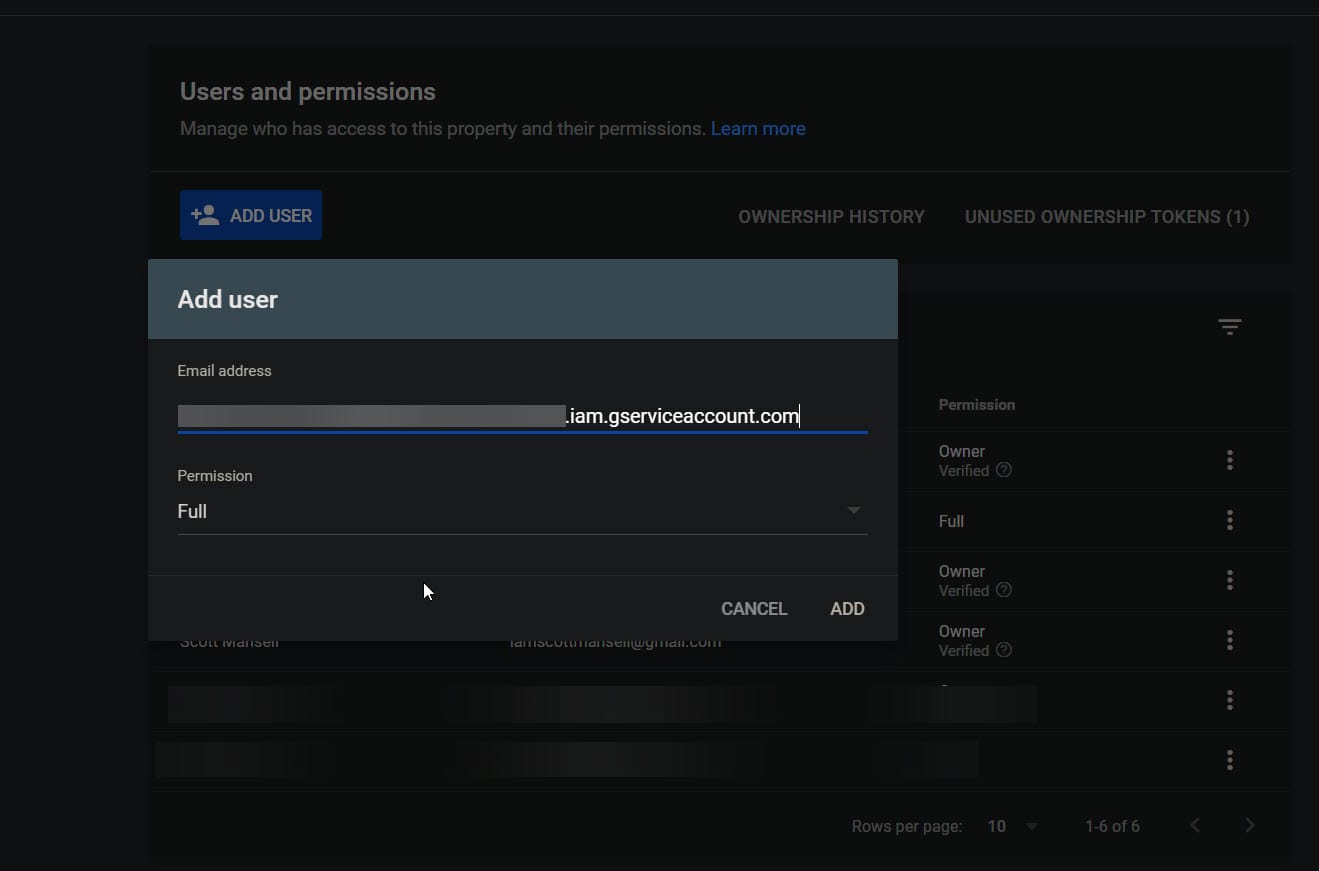
- Click “Add User”
- Enter the service account email address (it looks like
name@project-id.iam.gserviceaccount.com) - Set permission level to “Owner” or “Full User” (depending on what access you want Claude to have)
- Click “Add”
Step 6: Configure Claude Desktop
Better Search Console runs via npx, so there’s no separate install step. You configure it directly in Claude Desktop:
- Open Claude Desktop
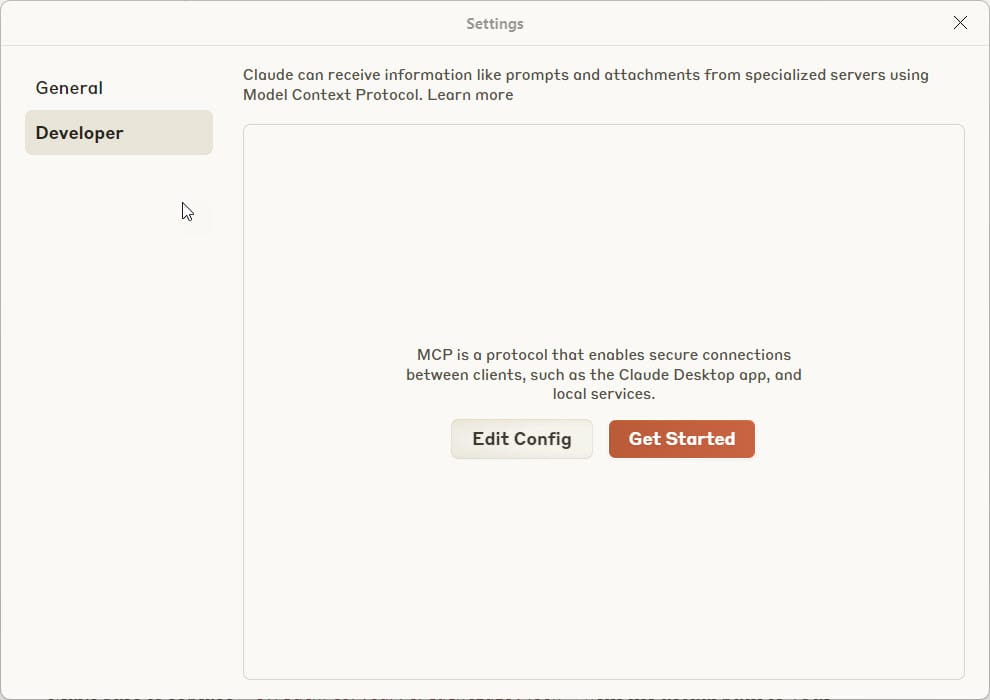
- Go File > Settings
- Select the Developer tab in the pop-up dialogue
- Click “Edit Config”
- Open the claude_desktop_config.json file with your text editor of choice
- Important: Use forward slashes in the path, even on Windows!
- Save the changes
- Restart Claude Desktop completely
Here’s the JSON for Better Search Console – note you’ll need the full file path to the JSON access key for the Search Console API:
{
  "mcpServers": {
    "better-search-console": {
      "command": "npx",
      "args": ["-y", "@houtini/better-search-console"],
      "env": {
        "GOOGLE_APPLICATION_CREDENTIALS": "C:/path/to/your/credentials.json"
      }
    }
  }
}
That’s it! Don’t forget to restart Claude Desktop. It seems to take a tiny bit longer to start when it’s loading an MCP config.
Step 7: Test your Integration
The first thing to do is run the setup. Ask Claude:
Run the Better Search Console setup to sync my properties.
This fetches up to 3 months of data from the Search Console API and stores it in a local SQLite database. It takes a few minutes depending on how many properties you have, but you only need to do it once. After that, syncs are incremental.
Once that’s finished, verify everything worked:
Show me all my Search Console properties.
Claude should return a list of your properties with sync status and row counts. If you see your sites listed with data, you’re good to go.
What Makes Better Search Console Different
The original mcp-server-gsc package was a straightforward API wrapper. You’d pass raw JSON parameters and get raw results back. It worked, but you were limited to 1,000 rows per query and couldn’t do much analysis without copying data elsewhere.
Better Search Console takes a different approach. It syncs your Search Console data into a local SQLite database per property, which means you can:
- Query all your data – no 1,000-row API limit
- Run SQL directly –
SELECT query, clicks FROM search_analytics WHERE position BETWEEN 5 AND 20 ORDER BY impressions DESC - Use 16 pre-built insights – opportunities, growing/declining queries, new/lost keywords, branded splits, and more
- Get interactive dashboards – visual overviews with sparklines, hero metrics, and trend charts
- Compare periods – last 28 days vs previous 28 days, year-over-year, whatever you need
The data persists locally. Close Claude, reopen it, and your data’s still there. No re-fetching.
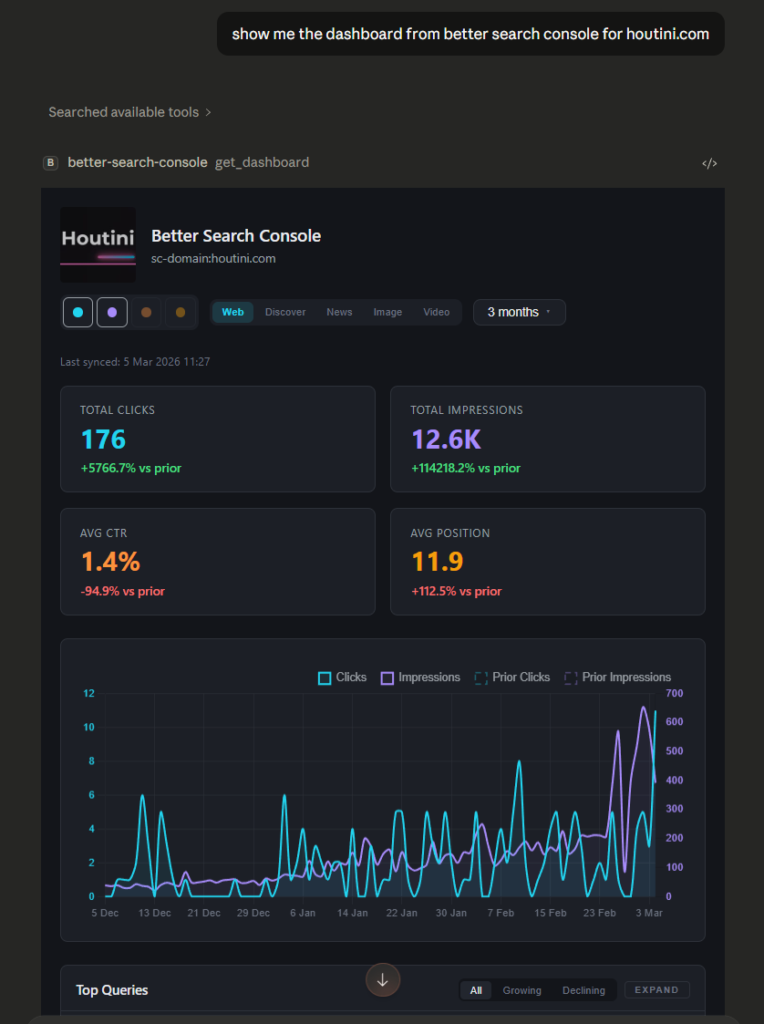
Oh and, we use MCPapps so you get an interactive visiualisation in Claude Desktop:
Useful Prompts for Better Search Console
If you can describe what you want, you can write a prompt, so I’m not sure I need to go particularly far with this section.
The big difference from the basic, and undermaintained version of GSC MCP is that you don’t need to pass raw JSON parameters anymore. Just ask for what you want in plain English.
1. Quick Health Check Across All Properties
Show me the overview of all my Search Console properties for the last 28 days, sorted by clicks.
This returns an interactive grid showing clicks, impressions, CTR, average position, and percentage changes for every synced property. Useful for a Monday morning check across all your sites.
2. Find Ranking Opportunities
Show me ranking opportunities for my site - queries ranking between position 5 and 20 with high impressions.
These are keywords where you’re visible but not yet getting clicks. A small ranking improvement could mean a big traffic increase.
3. Compare Performance Across Periods
Compare performance for houtini.com: last 28 days versus the previous 28 days. Break it down by query.
Shows you what’s growing, what’s declining, and the percentage change for each query. Much more useful than eyeballing the GSC interface.
4. Custom SQL Queries
Run this SQL against houtini.com:

SELECT page, SUM(clicks) as total_clicks, SUM(impressions) as total_impressions,
       ROUND(AVG(position), 1) as avg_position
FROM search_analytics
WHERE date >= date('now', '-28 days')
GROUP BY page
ORDER BY total_clicks DESC
LIMIT 15
This is where it gets properly powerful. Any question you can express as SQL, you can ask. Find cannibalising pages, spot device-specific issues, or slice data any way you want.
5. Full Property Dashboard
Show me the full dashboard for houtini.com with the last 3 months of data.
Returns hero metrics, trend charts, top queries, top pages, country breakdown, ranking distribution, and new/lost queries – all in one view.
And that’s about it! In my opinion, this is a very small step towards something much bigger. I’ve been working heavily with automation for stuff like this, reporting, and site monitoring. Working with API services via MCP or on platforms like N8N is the future of where we’re headed. But, don’t think of it as particularly special – think of this stuff as a prerequisite, much like Excel. That’s my opinion at least.
Enjoy!
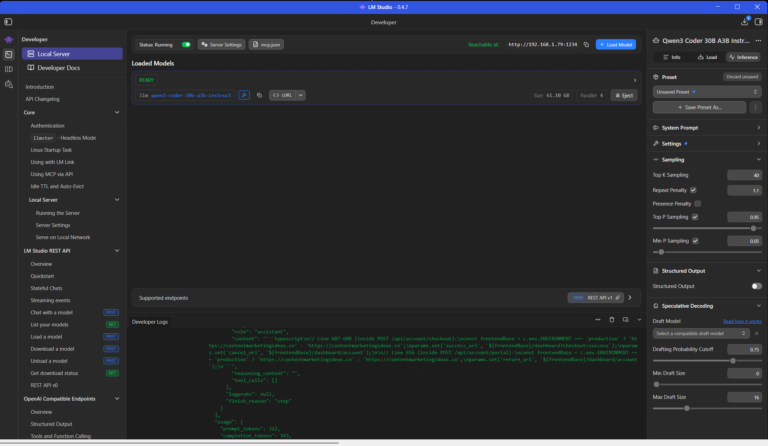
Using a Local LLM to Audit Your Codebase – What Qwen3 Coder Next Catches (and Misses)
I run a local copy of Qwen3 Coder Next on a machine under my desk. It pinned down a race condition in my production code that I’d missed. It also told me, with complete confidence, that crypto.randomUUID() doesn’t work in Cloudflare Workers. It does. That tension – real bugs mixed with confident nonsense – is … <a title="How to Set Up Claude Desktop with Google Search Console MCP" class="read-more" href="https://houtini.com/how-to-set-up-claude-desktop-with-google-search-console-mcp/" aria-label="Read more about How to Set Up Claude Desktop with Google Search Console MCP">Read more</a>
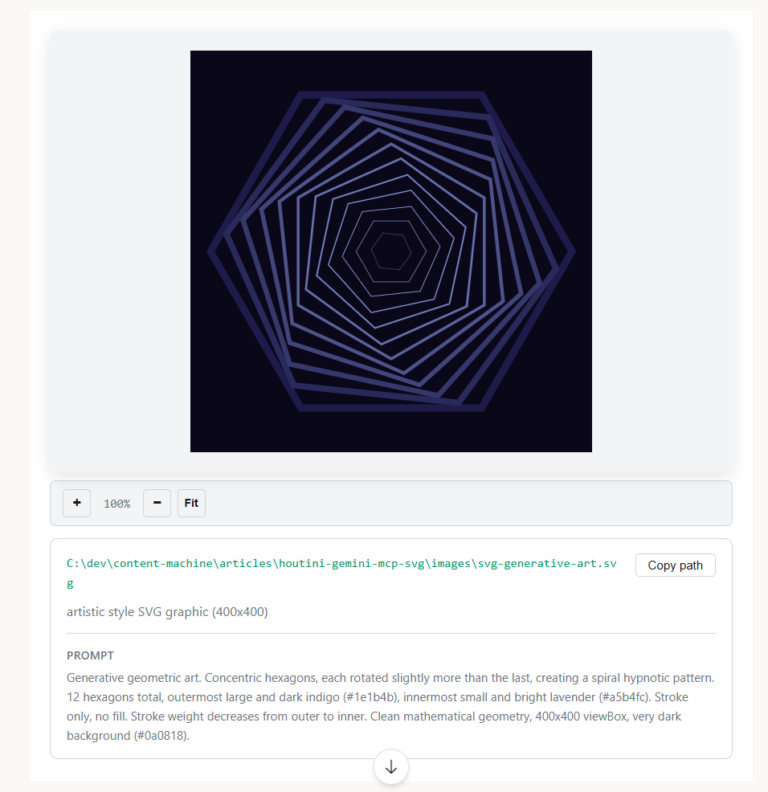
How to Make SVGs with Claude and Gemini MCP
SVG is having a moment. Over 63% of websites use it, developers are obsessed with keeping files lean and human-readable, and the community has turned against bloated AI-generated “node soup” that looks fine but falls apart the moment you try to edit it. The @houtini/gemini-mcp generate_svg tool takes a different approach – Gemini writes the … <a title="How to Set Up Claude Desktop with Google Search Console MCP" class="read-more" href="https://houtini.com/how-to-set-up-claude-desktop-with-google-search-console-mcp/" aria-label="Read more about How to Set Up Claude Desktop with Google Search Console MCP">Read more</a>

How to Make Images with Claude and (our) Gemini MCP
My latest version of @houtini/gemini-mcp (Gemini MCP) now generates images, video, SVG and html mockups in the Claude Desktop UI with the latest version of MCP apps. But – in case you missed, you can generate images, svgs and video from claude. Just with a Google AI studio API key. Here’s how: Quick Navigation Jump … <a title="How to Set Up Claude Desktop with Google Search Console MCP" class="read-more" href="https://houtini.com/how-to-set-up-claude-desktop-with-google-search-console-mcp/" aria-label="Read more about How to Set Up Claude Desktop with Google Search Console MCP">Read more</a>

Yet Another Memory MCP? That’s Not the Memory You’re Looking For
I was considering building my own memory system for Claude Code after some early, failed affairs with memory MCPs. In therapy we’re encouraged to think about how we think. A discussion about metacognition in a completely unrelated world sparked an idea in my working one. The Claude Code ecosystem is flooded with memory solutions. Claude-Mem, … <a title="How to Set Up Claude Desktop with Google Search Console MCP" class="read-more" href="https://houtini.com/how-to-set-up-claude-desktop-with-google-search-console-mcp/" aria-label="Read more about How to Set Up Claude Desktop with Google Search Console MCP">Read more</a>

The Best MCPs for Content Marketing (Research, Publish, Measure)
Most front line content marketing workflow follows the same loop. Find something worth writing about, dig into what’s already ranking on your site, update or write it, run it through SEO checks, shove it into WordPress, then wait to see if anyone reads it. Just six months ago that loop was tedious tab-switching and copy-pasting. … <a title="How to Set Up Claude Desktop with Google Search Console MCP" class="read-more" href="https://houtini.com/how-to-set-up-claude-desktop-with-google-search-console-mcp/" aria-label="Read more about How to Set Up Claude Desktop with Google Search Console MCP">Read more</a>
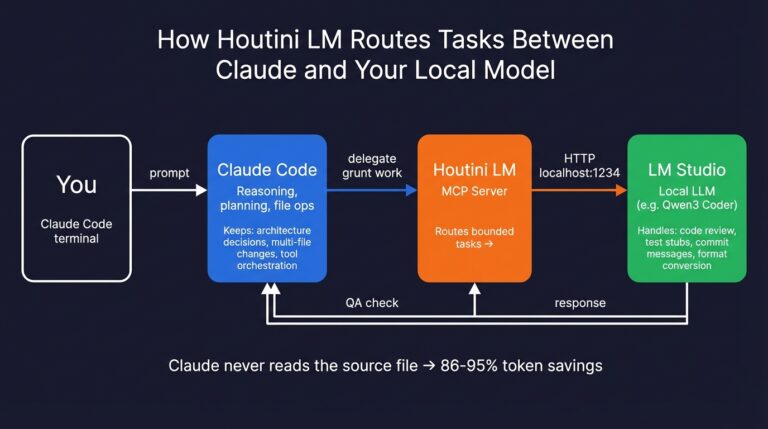
How to Set Up LM Studio: Running AI Models on Your Own Hardware
How does anyone end up running their own AI models locally? For me, it started because of a deep interest in GPUs and powerful computers. I’ve got a machine on my network called “hopper” with six NVIDIA GPUs and 256GB of RAM, and I’d been using it for various tasks already, so the idea of … <a title="How to Set Up Claude Desktop with Google Search Console MCP" class="read-more" href="https://houtini.com/how-to-set-up-claude-desktop-with-google-search-console-mcp/" aria-label="Read more about How to Set Up Claude Desktop with Google Search Console MCP">Read more</a>