How to Set Up a Claude Code Project in 2026 (And What Goes Where)
In today's guide we're walking through the anatomy of a proper Claude Code project - CLAUDE.md, rules, skills, agents, hooks, MCP servers and plugins - and the five-step setup I use for every new repo.
 Richard Baxter AI Ops & Marketing Engineer
 On this page
- The Problem with Freestyle Prompting
- What's in the .claude/ Folder?
- CLAUDE.md - The Brain File
- Rules - For When CLAUDE.md Gets Crowded
- Skills - Reusable Workflows
- Agents - Specialist Subagents
- settings.json - Permissions
- Hooks - Automating the Boring Bits
- MCP Servers - .mcp.json
- Plugins - Packaging the Whole Setup
- Project vs Global
- The Five-Step Setup
It's easy just to freestyle-prompt Claude Code because it's so great at understanding context, you can bluff your way to a "working" project and then just walk away. But you've got to build a proper Claude repo if you want to easily pick up from where you left off. Today, we're looking at a proper Claude Code project backbone, including the well known CLAUDE.md file.
Everything here assumes Claude Code is already installed. New to it? New accounts get a free week of Claude Code before you commit to a plan.
Quick Navigation
The Problem | What's in .claude/ | CLAUDE.md | Rules | Skills | Agents | Settings | Hooks | MCP | Plugins | Project vs Global | 5-Step Setup
The Problem with Freestyle Prompting
Most people use Claude Code the way I used to - open the terminal, start typing, hope for the best. That's fine for throwaway scripts and one-off questions. But the moment you're building something genuine you'll come back to tomorrow, in some format, you find yourself re-explaining your entire project every single session. Your architecture, your test runner, why that one folder is generated and shouldn't be edited, all of it, from scratch, every time. This is less of a problem today than it was a few months ago, nevertheless, hygiene is a really key component of learning how to make the most of Claude Code.
Claude Code doesn't carry anything over from your last conversation by default. It has no idea your project uses TypeScript strict mode, that your tests live in __tests__/ folders, that you've got a monorepo where each package needs a different build command. It'll figure some of this out by reading your code, but that burns context tokens (which aren't free, and I've got the bills to prove it) and sometimes it guesses wrong.
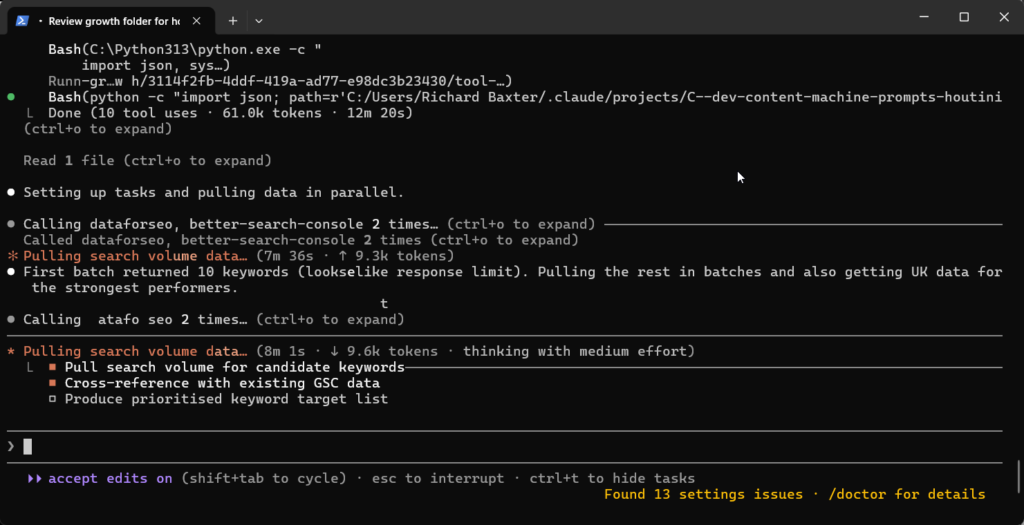
The .claude/ folder and CLAUDE.md file solve this. They're Claude's project memory - a set of files that load automatically at the start of every session, giving Claude the rules, permissions, and architectural context it needs without you repeating yourself.
If you've used Cursor, you'll recognise the concept - they've got .cursor/rules/, Windsurf has .windsurf/rules/, same general idea. Claude Code's version goes further than either of those (skills that trigger automatically, subagents with restricted tool access, a proper permissions model) but the underlying principle is identical: you describe your project once and the AI remembers it every session.
What's in the .claude/ Folder?
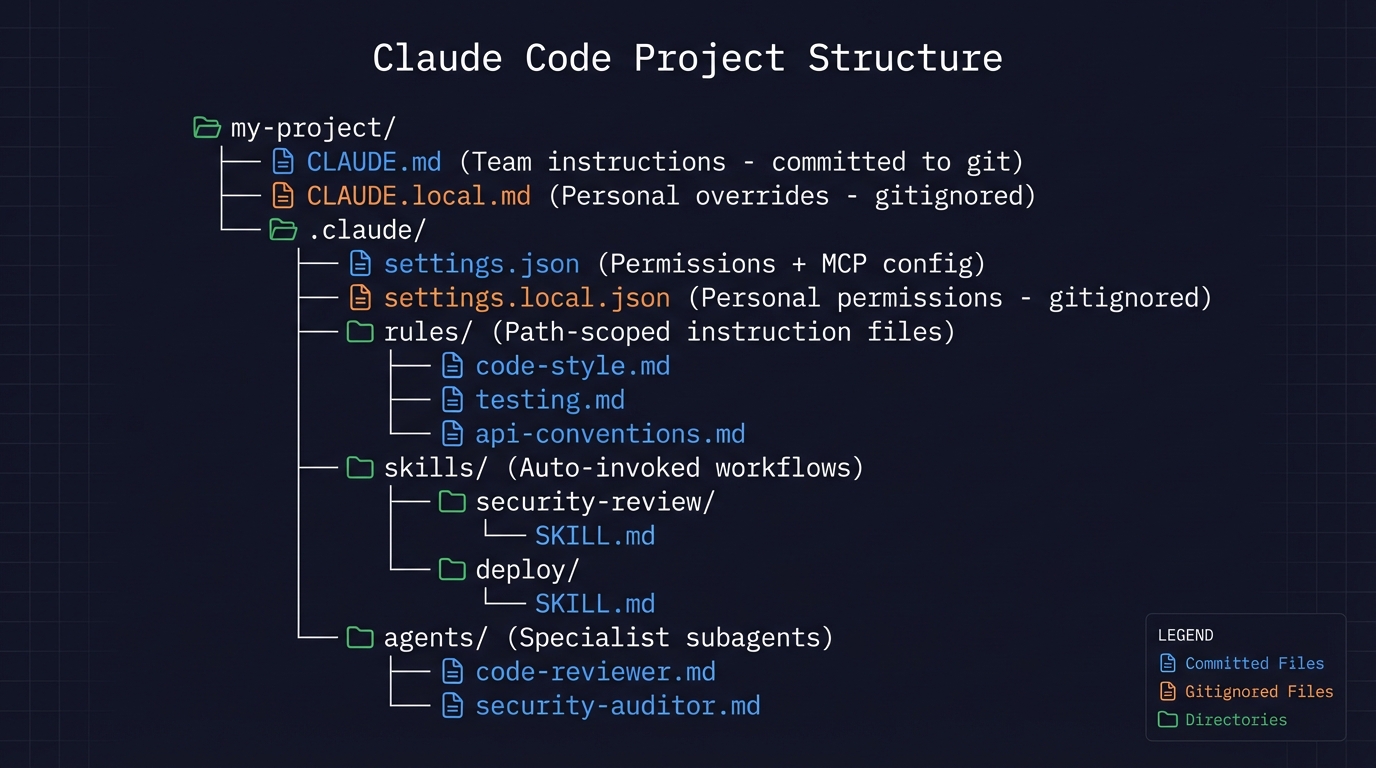
Here's what a mature Claude Code project looks like (this is roughly what my own repos have evolved into over about six months):
my-project/
├── CLAUDE.md                  # Team instructions (committed to git)
├── CLAUDE.local.md            # Personal overrides (add it to .gitignore)
├── .mcp.json                  # Project MCP servers (committed)
│
└── .claude/
    ├── settings.json          # Permissions + hooks (committed)
    ├── settings.local.json    # Personal overrides (gitignored)
    │
    ├── rules/                 # Modular, path-scoped instruction files
    │   ├── code-style.md
    │   ├── testing.md
    │   └── api-conventions.md
    │
    ├── skills/                # Auto-invoked workflows (and /slash commands)
    │   ├── security-review/
    │   │   └── SKILL.md
    │   └── deploy/
    │       └── SKILL.md
    │
    └── agents/                # Specialised subagent personas
        ├── code-reviewer.md
        └── security-auditor.md
Not every project needs all of this, and mine certainly didn't start this way. My smaller repos still have just a CLAUDE.md and a settings.json. The bigger ones - like my content production system - grew into the full setup with rules, skills, and custom agents over time.
CLAUDE.md - The Brain File
Everything in the .claude/ folder builds on this one file. Claude reads it when you start a session and keeps it loaded for the entire conversation, so whatever you write in here shapes every response you get back. You tell it to always write tests before implementation, it will. You tell it never to use console.log for error handling, it won't.
The fastest way to get started is running /init - Claude scans your codebase, reads your package.json, inspects the folder structure, checks for test frameworks, and generates a starter CLAUDE.md. It's very good at spotting your stack (it correctly identified Vitest in one of my repos where even I'd forgotten I'd switched from Jest).
But treat /init output as a first draft. It can't guess your business logic or the architectural decisions you made six months ago that aren't obvious from the code. I always prune the generated file down to maybe half its original length and then add the stuff that matters - the conventions, the gotchas, the "don't touch this folder" warnings.
Here's roughly what belongs in there:
## Commands
npm run dev          # Start dev server
npm run test         # Run tests (Vitest)
npm run lint         # ESLint check
npm run build        # Production build

## Architecture
- Express REST API, Node 20, TypeScript strict
- PostgreSQL via Prisma ORM
- Handlers in src/handlers/, shared types in src/types/

## Conventions
- Use zod for request validation in every handler
- Return shape is always { data, error }
- Never expose stack traces to the client
- Use the logger module, not console.log

## Watch out for
- Tests use a real local DB, not mocks. Run npm run db:test:reset first
- Strict TypeScript: no unused imports, ever
That's maybe 20 lines, and it gives Claude everything it needs to work productively in this particular codebase. Notice what's not in there - no full API docs, no style guide, no database schema. Only the things Claude would potentially get wrong if you didn't tell it.
The official docs have a good heuristic for this: "For each line, ask: would removing this cause Claude to make mistakes? If not, cut it." I'd go further than that - keep the whole file under 200 lines. Files longer than that start eating too much context, and Claude's instruction adherence drops (the needle-in-a-haystack problem, which I've written about in the context of managing costs).
What NOT to put in CLAUDE.md
Don't dump your entire documentation in here. I see it constantly - someone creates a 500-line CLAUDE.md with their full API reference, their entire style guide, three paragraphs explaining their database schema. Claude ignores half of it. The important rules get buried under 400 lines of context it didn't need.
- Linter and formatter config - let your tools handle that via hooks instead
- Full documentation - link to it, don't inline it
- Information that changes frequently - it'll go stale
- Things Claude already knows from reading code - standard language conventions, obvious patterns
You can use @ imports to organise other files without inlining them: @docs/git-workflow.md or @README.md. Imported files are expanded and loaded into context at launch, so they help organisation but don't reduce context cost.
CLAUDE.local.md - Your Personal Overrides
Sometimes you've got preferences that are just yours - not the whole team's. Maybe your local Postgres runs on port 5433, or you use podman instead of Docker, or you're halfway through a refactor and want Claude to ignore certain failing tests for now.
That's what CLAUDE.local.md is for - drop it in your project root and Claude reads it alongside the main CLAUDE.md, but you need to add it to .gitignore yourself so your personal tweaks never land in the shared repo. The split matters in both directions: team rules belong in the committed files, personal quirks in the .local ones - mixing them up is how a teammate ends up debugging your Postgres port.
Rules - For When CLAUDE.md Gets Crowded
Once your project grows and your CLAUDE.md starts pushing past 200 lines, split it. Every markdown file inside .claude/rules/ loads alongside CLAUDE.md automatically.
.claude/rules/
├── code-style.md
├── testing.md
├── api-conventions.md
└── security.md
Each file stays focused on one concern, which also means the person who owns API conventions edits api-conventions.md, the testing lead edits testing.md, and nobody tramples on each other's rules.
But the real payoff here is path-scoped rules - you add YAML frontmatter and the rule only activates when Claude touches matching files:
---
description: Standards for API route handlers
paths:
  - "src/api/**/*.ts"
  - "src/handlers/**/*.ts"
---
# API Design Rules

- All handlers return { data, error } shape
- Use zod for request body validation
- Never expose internal error details to clients
Claude won't load this rule when it's editing a React component - it only fires when working inside src/api/ or src/handlers/, which keeps your context clean and focused. Rules without a paths field load unconditionally every session, so use path scoping wherever it makes sense.
Skills - Reusable Workflows
Skills are workflows that Claude can invoke automatically when the task matches, without you typing a slash command. Each skill lives in its own subdirectory with a SKILL.md:
.claude/skills/
├── security-review/
│   ├── SKILL.md
│   └── DETAILED_GUIDE.md
└── deploy/
    ├── SKILL.md
    └── templates/
        └── release-notes.md
The SKILL.md uses YAML frontmatter to describe when to activate:
---
name: security-review
description: Security audit. Use when reviewing code for vulnerabilities
  or before deployments.
---
Analyse the codebase for security vulnerabilities:

1. SQL injection and XSS risks
2. Exposed credentials or secrets
3. Insecure configurations

Report findings with severity ratings and remediation steps.
Reference @DETAILED_GUIDE.md for our security standards.
When you say "review this PR for security issues," Claude recognises the match and invokes the skill. Or you can call it explicitly with /security-review if you want to be deliberate about it.
One thing I wish the blog posts mentioned more clearly: commands have been merged into skills. The .claude/commands/ folder still works for backwards compatibility, but skills are where Anthropic is putting the development effort going forward. Skills can bundle supporting files alongside them (like that DETAILED_GUIDE.md reference above), accept $ARGUMENTS, and trigger automatically based on task context - commands were always single files with none of that flexibility. Bottom line: if you're setting up a new project today, don't bother with the commands folder at all - go straight to skills.
I use skills heavily in my MCP server development workflow - I've got a TDD skill that enforces test-first development, a code review skill, and a deployment checklist. The TDD one alone probably saved me from shipping broken code a dozen times. (I'm the kind of person who writes the implementation first and "plans to add tests later." The skill doesn't let me get away with that.)
Agents - Specialist Subagents
For tasks that need focused attention without cluttering your main conversation, define subagent personas in .claude/agents/:
---
name: code-reviewer
description: Reviews code for bugs and maintainability issues
model: sonnet
tools: Read, Grep, Glob
---
You are a senior code reviewer. Focus on:
- Bugs, not style issues
- Specific fixes, not vague improvements
- Edge cases and error handling gaps
The tools field restricts what the agent can do, and you should think carefully about this. A security auditor needs Read, Grep, and Glob - it shouldn't be able to write files, so don't give it Write access. The model field lets you pick a cheaper, faster model for focused tasks (Sonnet handles read-only exploration well enough; save Opus for the reasoning-heavy work where you need it).
What makes agents worth the setup, though, is that they get their own context window entirely separate from yours. They'll explore your codebase, read dozens of files, compress everything they find, and hand back a summary - and your main session stays clean because you haven't burned context on all that intermediate exploration.
settings.json - Permissions
The .claude/settings.json file controls what Claude is and isn't allowed to do:
{
  "permissions": {
    "allow": [
      "Bash(npm run *)",
      "Bash(git status)",
      "Bash(git diff *)",
      "Read",
      "Write",
      "Edit"
    ],
    "deny": [
      "Bash(rm -rf *)",
      "Bash(curl *)",
      "Read(./.env)",
      "Read(./.env.*)"
    ]
  }
}
Commands in the allow list run without asking. Denied commands are blocked entirely. Everything else triggers a permission prompt.
Without this file, you'll get what I call "approval fatigue" - Claude asks permission for npm run test forty times a day, and eventually you stop reading the prompts and just click yes on everything. At which point the entire safety model is theatre. I learned this the hard way when I almost let Claude run a destructive database command because I was on autopilot. Set up your allow list on day one, before that habit sets in.
You can also have a settings.local.json for personal permission overrides, same idea as CLAUDE.local.md. Automatically gitignored.
Hooks - Automating the Boring Bits
Permissions decide what Claude is allowed to do. Hooks decide what happens automatically around what it does. A hook is a shell command that fires on a lifecycle event - before a tool runs, after it runs, when a session starts, when you submit a prompt - and it runs deterministically, every time, without Claude deciding anything.
They live in the same settings.json, under a hooks key:
{
  "hooks": {
    "PostToolUse": [
      {
        "matcher": "Edit|Write",
        "hooks": [
          { "type": "command", "command": "npm run format" }
        ]
      }
    ]
  }
}
That one runs your formatter on every file Claude edits, so formatting is never something you or Claude has to think about. The events you'll reach for most: PreToolUse (gate or log something before it happens), PostToolUse (react after - format, lint, run a test), UserPromptSubmit (inject context into every prompt), SessionStart (set things up when a session opens), and Stop (do something when Claude finishes). There's a longer list - subagent events, compaction events, notifications - but those five cover most real setups.
Where hooks earn their place is enforcing something you don't trust yourself to do by hand. I run one that intercepts the first write of any substantial new file and asks a routing question before it lets the write through - a deterministic gate that a line in CLAUDE.md would quietly skip on a long session. That's the pattern: if a rule really matters, a hook enforces it; a line in CLAUDE.md only suggests it.
MCP Servers - .mcp.json
The settings.json comment above mentioned MCP config, and it's worth its own file. Model Context Protocol servers are how Claude Code reaches things outside your codebase - a database, a browser, a search API, your own tools. Project-scoped servers live in a .mcp.json at the repo root, committed to git so everyone on the team gets the same connections:
{
  "mcpServers": {
    "playwright": {
      "command": "npx",
      "args": ["@playwright/mcp@latest"]
    },
    "my-api": {
      "command": "node",
      "args": ["./tools/mcp-server.js"],
      "env": { "API_KEY": "..." }
    }
  }
}
Each server is either a local command (Claude launches it and talks to it over stdio) or a remote endpoint (a url with a type of http or sse). Because .mcp.json is committed, a new team member clones the repo, opens Claude Code, and has the same tools you do - no per-person setup, no "works on my machine."
I run a stack of MCP servers across my projects - the ones I've built plus a handful of third-party ones - and putting them in .mcp.json rather than wiring them up by hand each time is the difference between a repo that's ready to work and one that needs an afternoon of setup first. Keep secrets out of the committed file: reference them from the environment, the same way you would the MCPs I maintain anywhere else.
Plugins - Packaging the Whole Setup
Once you've built a CLAUDE.md style, a few skills, an agent or two and a couple of hooks, you'll want to reuse them across projects, or share them with a team. That's what plugins are for. A plugin bundles skills, commands, agents, hooks and MCP servers into one installable unit, described by a plugin.json manifest:
{
  "name": "my-team-toolkit",
  "version": "1.0.0",
  "description": "Our house skills, agents and hooks",
  "author": { "name": "..." }
}
Plugins are distributed through marketplaces - a git repo that lists them - and installed with /plugin install. A plugin's skills are namespaced when you call them, so a skill from the security plugin is /security:review rather than colliding with your own /review.
This is the layer above the single project. If .claude/ is how you set up one repo, plugins are how you stop setting up the same thing in the tenth repo. I keep my most-reused skills and agents in a shared set rather than copy-pasting them between projects, and the maintenance saving alone is worth it once you're past a handful of repos.
Project vs Global
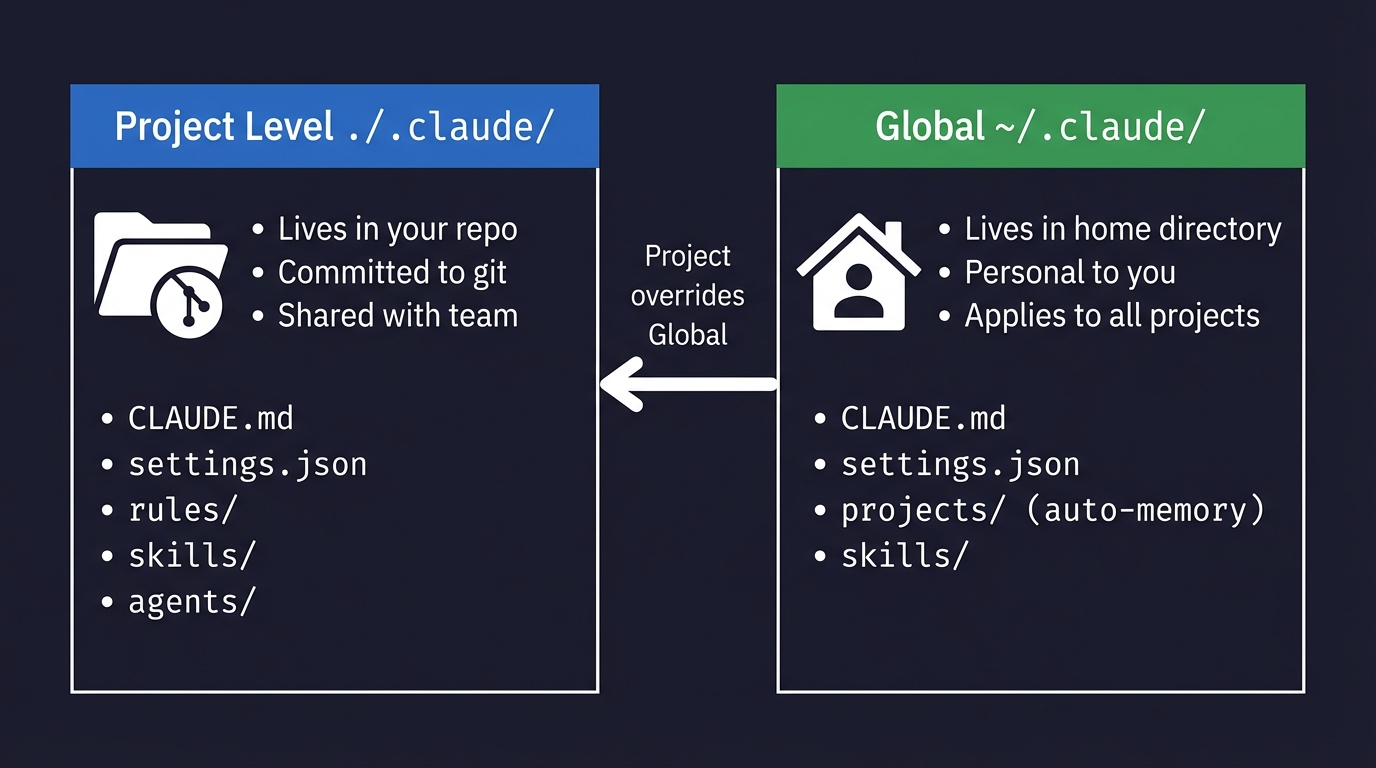
There are two .claude directories, which confused me for longer than I'd like to admit:
- Project-level (
./.claude/) lives in your repo, committed to git, so everyone on the team gets the same rules, skills, and permissions. All your project-specific config goes here. - Global (
~/.claude/) lives in your home directory and applies across every project you work on. It stores your personal preferences, session history, auto-memory per project, and any personal skills you've built.
Your global ~/.claude/CLAUDE.md loads into every session regardless of which project you're in - I put things like "I prefer concise answers" and "always use functional patterns" in mine. When project and global CLAUDE.md files conflict, Claude may follow either, so keep them consistent. They are concatenated, not overridden.
There's also an auto-memory system tucked away in ~/.claude/projects/ - Claude saves notes to itself as it works, things like commands it discovers, patterns it notices, architecture insights it picks up. These notes persist across sessions and you can browse them with /memory. I didn't expect to use these much, but they've turned out to be quite useful. Claude remembered that one of my repos had a quirky build step that I'd forgotten about myself.
The Five-Step Setup
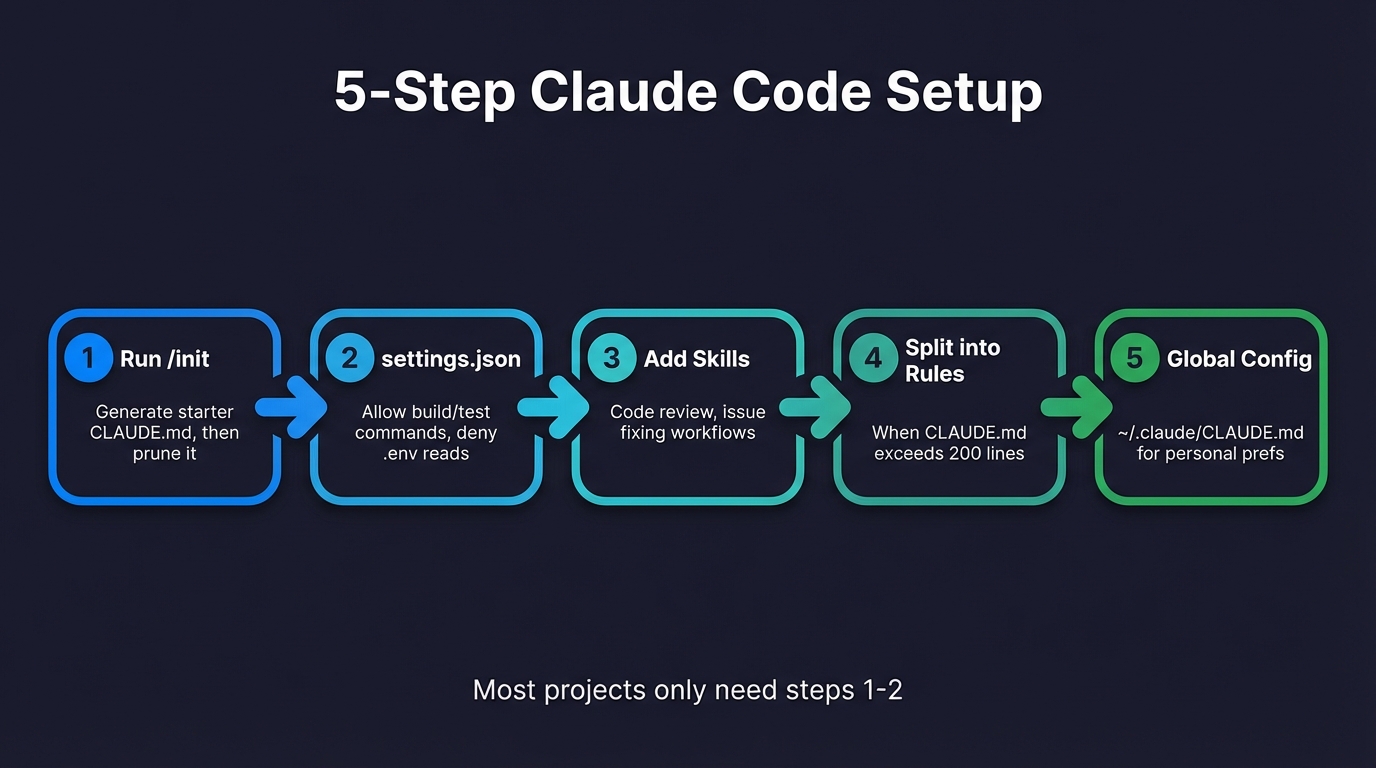
If you're starting from scratch, here's the progression I use:
- Run
/initand then immediately edit what it produces. The generated CLAUDE.md is a solid starting point but it'll be too long and too generic. Prune it down, add your team's conventions and the gotchas that aren't obvious from the code. - Create
.claude/settings.jsonwith your allow and deny lists. At minimum, allow your build and test commands and deny .env reads. This eliminates the approval fatigue problem from day one (I cannot overstate how much better the workflow gets once you're not clicking "allow" every thirty seconds). - Build one or two skills for the workflows you repeat most often. Code review and issue fixing are good first choices - put them in
.claude/skills/with aSKILL.mdthat describes when they should activate. - Split CLAUDE.md into rules/ once it gets crowded. When you're past 200 lines (and you will be, eventually), break instructions into
.claude/rules/files and scope them by path where it makes sense. - Set up
~/.claude/CLAUDE.mdfor your personal cross-project preferences. Things like "I prefer TypeScript strict mode" or "always use British English in comments" - the stuff you want in every project regardless of the team.
That's all you need for 95% of projects. Agents and hooks come later, when you've got recurring complex workflows that justify the setup cost. I didn't add my first custom agent until about four months into using Claude Code daily, and I wished I'd done it sooner.
Get your CLAUDE.md right before you touch anything else. I spent months without one and the difference once I added it was immediate - fewer mistakes, less repetition, less of me typing the same instructions into every session. Rules, skills, agents, hooks - all of that builds on the foundation of a good CLAUDE.md. Keep it under 200 lines, keep it honest, and update it when your project changes.
Related Posts
Continue reading.
- Beginner's GuidesWhat is n8n? A Beginner's Guide to Workflows, Pricing and Self-Hosting
- AI at WorkAI isn't taking the jobs, it's taking the boring bits
- How-to GuidesHow to Connect Claude to Shopify with MCP (Dev MCP and Storefront Catalog)
- How-to GuidesHow to Use AI for Market Research with Claude
- How-to Guidesn8n MCP: How to Connect Claude Code to n8n and Use Its API Safely
- How-to GuidesHow to Run Qwen3-Coder-Next Locally: My vLLM Settings for Two 48GB RTX 4090s