

Everyone says if you want AI coding help, you use Cursor. Or Cline. Or GitHub Copilot. Basically anything that hooks into your IDE with inline autocomplete and tab-completion magic. Claude Desktop? That’s for chat, not code. I respectfully disagree; there’s a productivity sweet spot where you can use Claude Desktop very successfully for light coding, productivity, data analysis and more. Providing you have the right setup, it’s a solid platform for the generalist.
On that note I’ve been using Claude Desktop as my primary coding assistant for months now, and I’m here to tell you the conventional wisdom is only half right. Yes, API-based tools win for inline autocomplete whilst you’re typing. But for actual problem-solving, codebase exploration, and anything involving multiple files or OS-level operations? Claude Desktop with MCP servers is really very impressive.
The trick: getting it set up properly. Which, to be fair, isn’t as straightforward as clicking “Install Cursor”. But once you’ve got Desktop Commander and Context7 running, you’ll understand why DC’s author; wonderwhy-er, reported a 5X increase in his Claude usage after gaining MCP access.
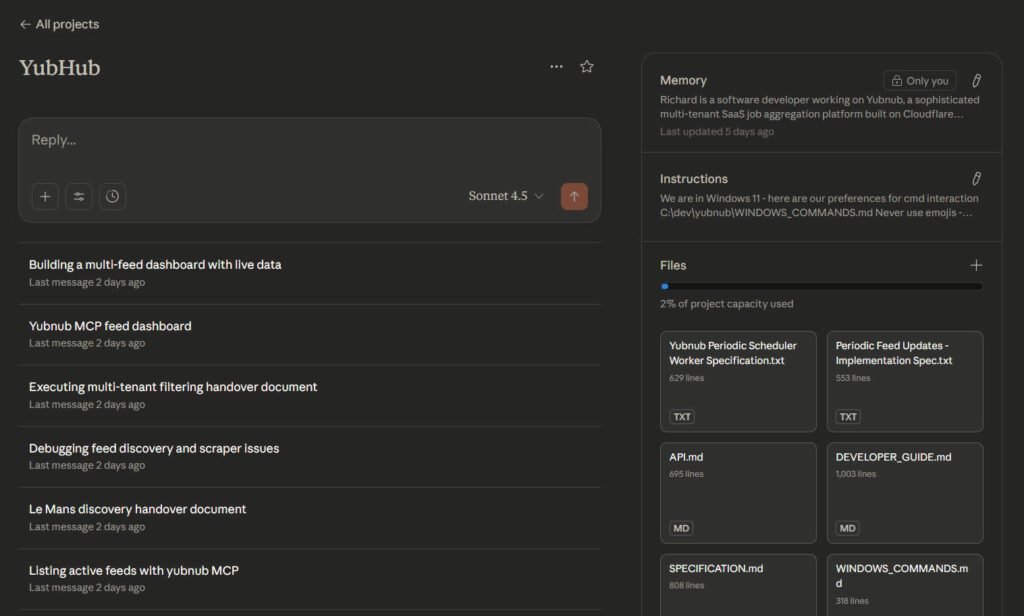
What Makes Claude Desktop Different?
The fundamental difference is this: API tools like Cline live inside your IDE. They see your current file, maybe your project structure, and that’s it. Claude Desktop with the right MCP servers has access to your entire machine.
Through Desktop Commander, Claude can:
- Execute terminal commands and see the output
- Read and write files anywhere on your system
- Navigate directory structures
- Start processes and monitor them
- Work across multiple repositories simultaneously
Through Context7, Claude gets:
- Real-time documentation for any library
- Up-to-date API references
- Code examples from current versions
When I’m working on a Node.js project and need to understand how a specific Express middleware works, Context7 pulls the latest docs instantly. When I need to refactor code across three different files in two repositories, Desktop Commander executes the changes whilst maintaining full context.
I just strongly believe that Claude Desktop makes for a solid productivity surface for generalist digital marketers like me and you don’t need to prove your prowess in a terminal environment if that’s not what you want.
Prerequisites
Right, before we get into the exciting MCP setup, you need these installed:
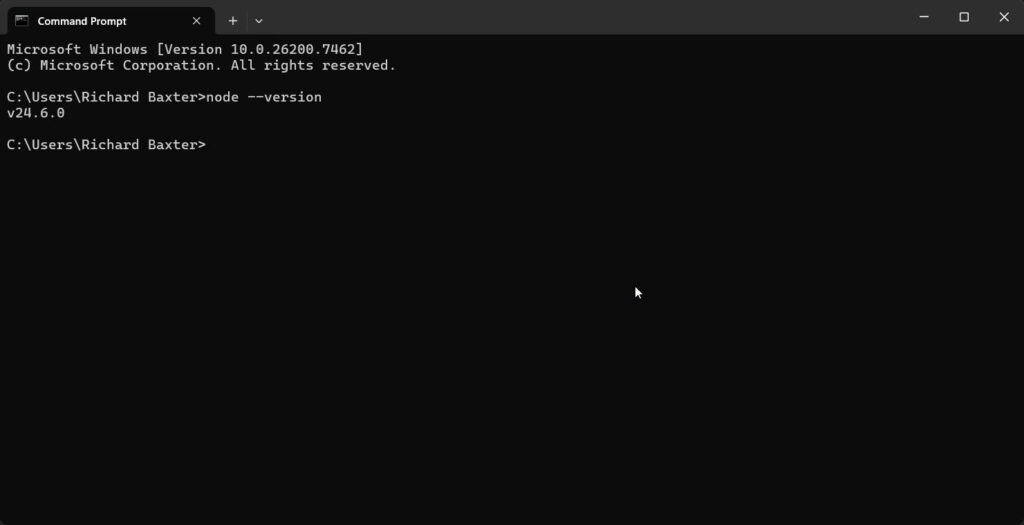
Node.js 18 or later:
# Check if you have it
node –version
If not, download from nodejs.org Windows: Use the .msi installer. I’m on v24.6.0, anything 18+ works fine but just from a security point of view use teh latest versions.
Python 3:
# Check version
python --version
Windows: Download from python.org Make sure “Add Python to PATH” is ticked during install
Git:
# Check if installed
git --version
Windows: Download Git for Windows. This Includes Git Bash which Desktop Commander uses for you in terminal.
Claude Desktop:
Obviously you need this installed. Download from claude.ai if you haven’t already. You’ll also need your Anthropic API key from console.anthropic.com.
Your config file location:
- Windows:
C:\Users\[YOUR_USERNAME]\AppData\Roaming\Claude\claude_desktop_config.json - Mac:
~/Library/Application Support/Claude/claude_desktop_config.json - Linux:
~/.config/Claude/claude_desktop_config.json
Setting Up Desktop Commander (The MCP Server That Changes Everything)
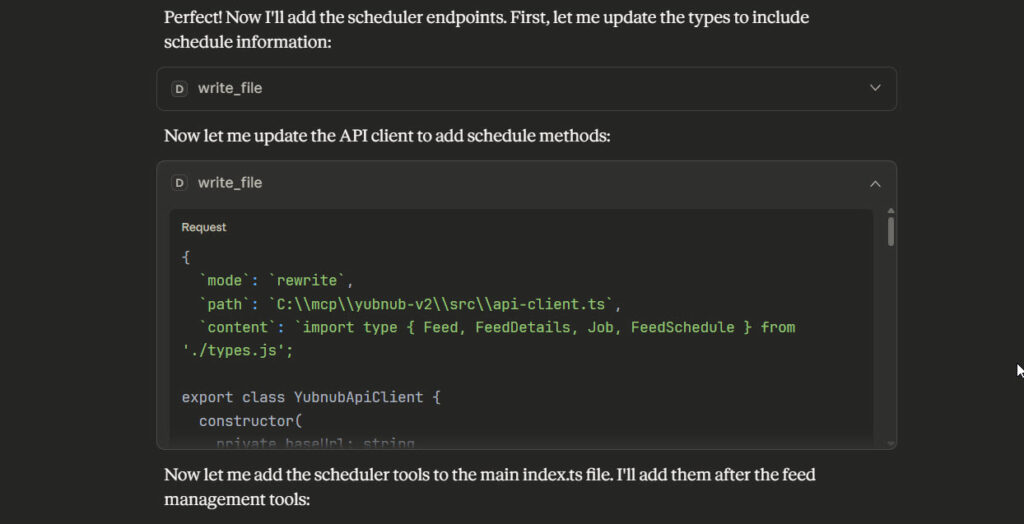
Desktop Commander is the MCP server that gives Claude terminal access, file operations, and process management. It’s developed by wonderwhy-er and it’s genuinely brilliant. Without it, I’d have spent the last year copying and pasting and wondering why everyone thinks AI assistants are so powerful. If yo udon’t use Desktop Commander, I’m sorry we can’;’t be friends.
Installation is one command:
npx @wonderwhy-er/desktop-commander@latest setup
This does three things:
- Installs the Desktop Commander package
- Updates your
claude_desktop_config.jsonautomatically - Configures the MCP connection
What gets added to your config:
{
  "mcpServers": {
    "desktop-commander": {
      "command": "node",
      "args": [
        "C:\\Users\\YOUR_USERNAME\\AppData\\Roaming\\npm\\node_modules\\@wonderwhy-er\\desktop-commander\\dist\\index.js"
      ]
    }
  }
}
The path will be different on Mac/Linux, but the setup command handles that automatically. I set my file permissions to a handful of folders I work in regulalarly:
Before it became a Claude Extension, I used to run it with NPX like so:
"desktop-commander": {
  "command": "npx",
  "args": [
    "-y",
    "@wonderwhy-er/desktop-commander@latest"
  ]
},
Whever you add or change settings related to MCP configuration, restart Claude Desktop. This is critical. MCP servers only load when Claude Desktop starts.
Adding Context7 (For Real-Time Documentation)
Context7 gives Claude access to up-to-date documentation for thousands of libraries. When you’re working with a framework and need to know the current API, Context7 fetches it live.
Install via npx:
npx -y @upthink/context7
Add to your config manually:
{
  "mcpServers": {
    "desktop-commander": {
      "command": "node",
      "args": ["C:\\Users\\YOUR_USERNAME\\AppData\\Roaming\\npm\\node_modules\\@wonderwhy-er\\desktop-commander\\dist\\index.js"]
    },
    "context7": {
      "command": "npx",
      "args": ["-y", "@upthink/context7"]
    }
  }
}
Restart Claude Desktop again.
Verifying It Works
After restarting, open a new conversation in Claude Desktop and type:
List available toolsYou should see tools from both servers:
desktop-commander:read_filedesktop-commander:write_filedesktop-commander:execute_commandcontext7:resolve-library-idcontext7:get-library-docs
If you don’t see these, check:
- Your config file syntax (JSON is picky about commas)
- The file paths (Windows paths need double backslashes)
- That you actually restarted Claude Desktop
Test Desktop Commander:
Read the package.json file in C:\dev\my-projectClaude should use desktop-commander:read_file and show you the contents.
Test Context7:
Show me the latest Express.js routing documentationClaude should use context7:resolve-library-id and context7:get-library-docs to fetch current Express docs.
If both work, you’re done. You now have a coding assistant that can actually manipulate your machine.
Real Workflow Examples (Why This Matters)
Scenario 1: Exploring an unfamiliar codebase
Me: “Analyse the structure of C:\dev\client-project and tell me how the authentication flow works”
Claude uses Desktop Commander to:
- List directory structure
- Read relevant files (auth.js, middleware, routes)
- Trace the flow across multiple files
- Explain it with code references
Scenario 2: Refactoring across multiple files
Me: “Rename the processPayment function to handlePaymentSubmission everywhere in the project”
Claude:
- Searches for all occurrences
- Shows me what it found
- Asks for confirmation
- Makes the changes across all files simultaneously
Cursor can do find-and-replace within a single file. Claude Desktop can coordinate changes across your entire codebase.
Scenario 3: Long-running process monitoring
Me: “Run npm run build:production and tell me if there are any warnings”
Claude:
- Executes the command
- Monitors output in real-time
- Reports back with any issues found
- Can investigate further if needed
With API tools, you’d run the command yourself, read the output, and manually report back to the AI. Claude Desktop just handles it.
Configuration Best Practices (Things I Learned the Hard Way)
1. Use absolute paths everywhere
Don’t:
"args": ["~/node_modules/@wonderwhy-er/desktop-commander/dist/index.js"]Do:
"args": ["C:\\Users\\Richard\\AppData\\Roaming\\npm\\node_modules\\@wonderwhy-er\\desktop-commander\\dist\\index.js"]Relative paths and tilde expansion don’t always work reliably. Or just use the node package with NPX.
3. Check your Node.js installation
Desktop Commander needs Node.js available in your PATH. Run node --version from Command Prompt (not just Git Bash) to verify.
4. Don’t edit config whilst Claude Desktop is running
Changes won’t take effect until you restart anyway, and you risk corrupting the file if Claude writes to it simultaneously.
5. Keep a backup of your config
Before adding MCP servers, copy claude_desktop_config.json somewhere safe. JSON syntax errors will break Claude Desktop entirely.
Claude Desktop is the All Rounder for Technically Minded non-Coders
Claude Desktop as a coding assistant isn’t conventional. It doesn’t give you inline autocomplete or tab-completion. But what it gives you instead is genuine machine access – the ability to explore, understand, and manipulate your entire development environment through conversation. I’d argue you learn more, reading explanations and responses, and Sonnet.4.5 does a very good job – provided you’ve written a good specification.
My setup takes 15 minutes. The workflow adjustment takes a day or two. But once you’ve experienced what it’s like to have an AI assistant that can actually read your files, execute your commands, and understand your project structure? You’ll understand why some of us prefer it over IDE-integrated tools.
Give it a try. The worst that happens is you spend 15 minutes on setup and decide it’s not for you. The best that happens is you discover a much easier way to work with AI coding assistance.
Related Posts
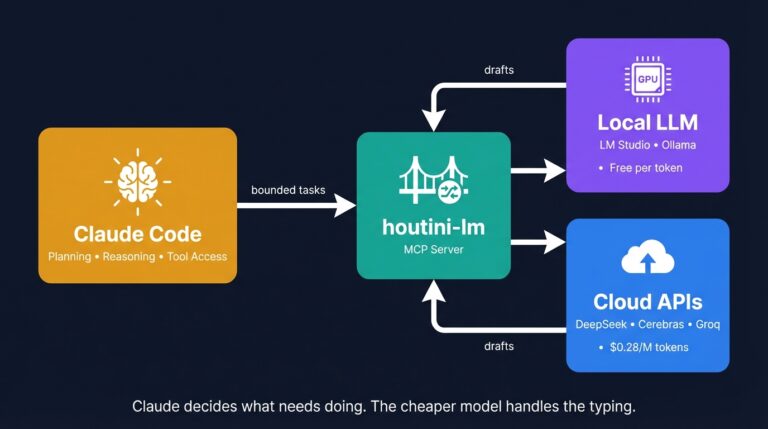
Cut Your Claude Code Token Use by Offloading Work to Cheaper Models with Houtini-LM
I built houtini-lm for people worried that their Anthropic bill might be getting out of hand. I’d leave Claude Code running overnight on big refactors, wake up, and wince at the token count. A huge chunk of that spend was going on tasks any decent coding model handles fine – boilerplate generation, code review, commit … <a title="Claude Desktop Makes a Brilliant Coding Assistant – Here’s How to Set It Up" class="read-more" href="https://houtini.com/claude-desktop-makes-a-brilliant-coding-assistant-heres-how-to-set-it-up/" aria-label="Read more about Claude Desktop Makes a Brilliant Coding Assistant – Here’s How to Set It Up">Read more</a>
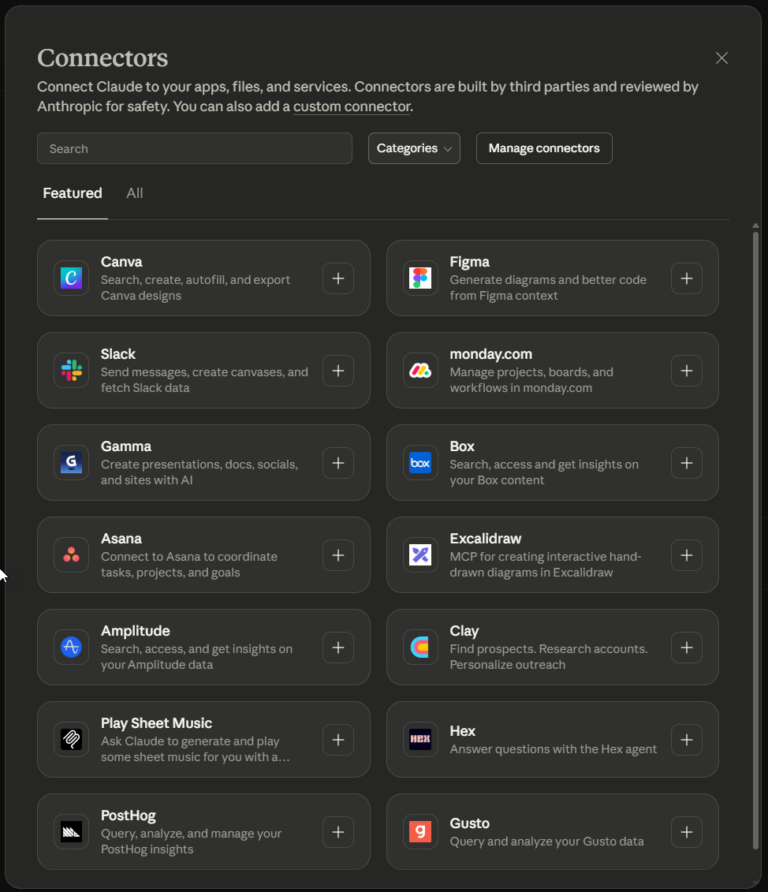
What Is an MCP Server? And, Why It Matters for AI Tool Use
My daily work literally depends on the existence of MCP servers now, spread between Claude Desktop and Claude Code. Database queries, image generation, web scraping, file management, search console data, email. Much of my daily working world lives in a conversation window. I am convinced we are at the beginning of a radical shift in … <a title="Claude Desktop Makes a Brilliant Coding Assistant – Here’s How to Set It Up" class="read-more" href="https://houtini.com/claude-desktop-makes-a-brilliant-coding-assistant-heres-how-to-set-it-up/" aria-label="Read more about Claude Desktop Makes a Brilliant Coding Assistant – Here’s How to Set It Up">Read more</a>
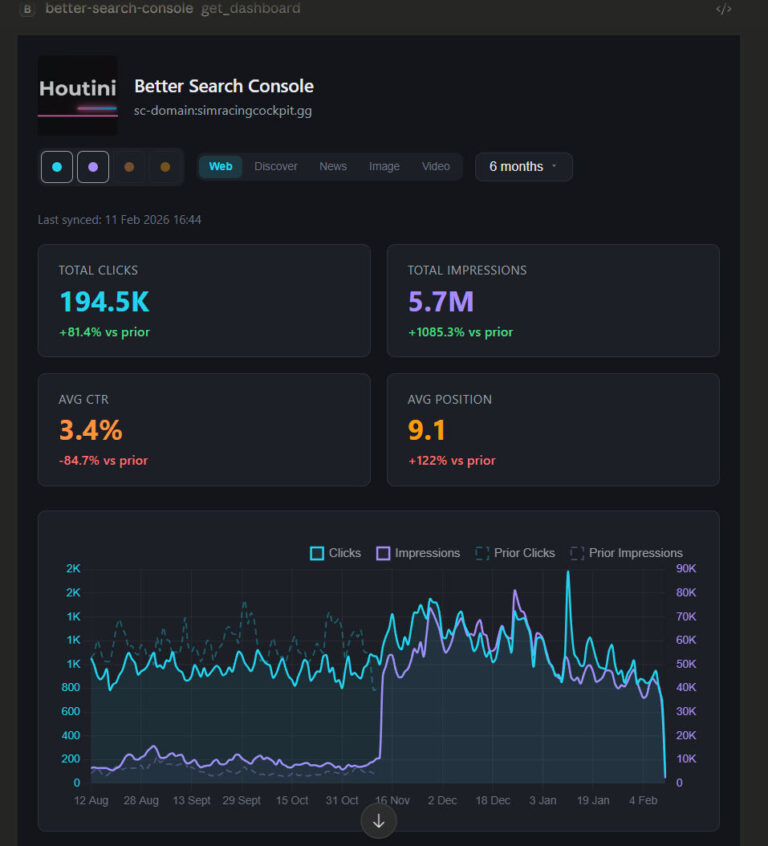
Better Search Console: Analyse Your Google Search Console Data with Interactive Dashboards
Every MCP server that connects to Google Search Console has the same fundamental limitation. The API returns a maximum of 1,000 rows per request. One or two requests in, and you’ve consumed your context window. This problem is quite universal with MCP tool use for Desktop users, so, I’ve been working on fixing it. Remember … <a title="Claude Desktop Makes a Brilliant Coding Assistant – Here’s How to Set It Up" class="read-more" href="https://houtini.com/claude-desktop-makes-a-brilliant-coding-assistant-heres-how-to-set-it-up/" aria-label="Read more about Claude Desktop Makes a Brilliant Coding Assistant – Here’s How to Set It Up">Read more</a>
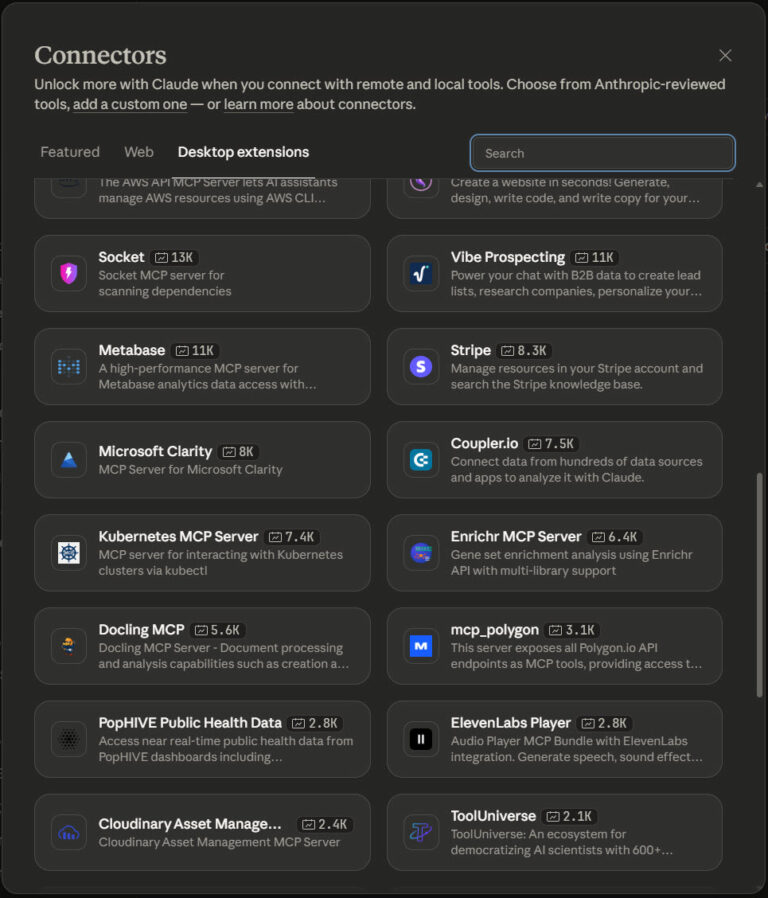
The Best MCPs for Claude Desktop (And How I Use Them)
Aside from using Claude to Code, I use Claude Desktop for various aspects of my working day. From research, data analysis and writing. It’s really powerful, reliable when used in the way it was intended, and, as a productivity tool, it’s astonishing. While Claude is brilliant, it’s the extensions, the MCP servers, that really make … <a title="Claude Desktop Makes a Brilliant Coding Assistant – Here’s How to Set It Up" class="read-more" href="https://houtini.com/claude-desktop-makes-a-brilliant-coding-assistant-heres-how-to-set-it-up/" aria-label="Read more about Claude Desktop Makes a Brilliant Coding Assistant – Here’s How to Set It Up">Read more</a>
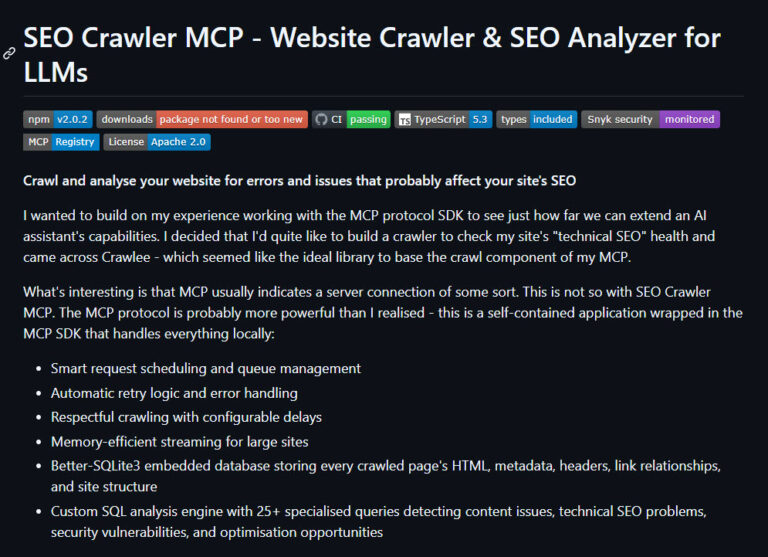
Building a Free, Open Source SEO Crawler for LLM Consumption
I wanted to build on my experience working with the MCP protocol SDK to see just how far we can extend an AI assistant’s capabilities. I decided that I’d quite like to build a crawler to check my site’s “technical SEO” health and came across Crawlee – which seemed like the ideal library to base … <a title="Claude Desktop Makes a Brilliant Coding Assistant – Here’s How to Set It Up" class="read-more" href="https://houtini.com/claude-desktop-makes-a-brilliant-coding-assistant-heres-how-to-set-it-up/" aria-label="Read more about Claude Desktop Makes a Brilliant Coding Assistant – Here’s How to Set It Up">Read more</a>
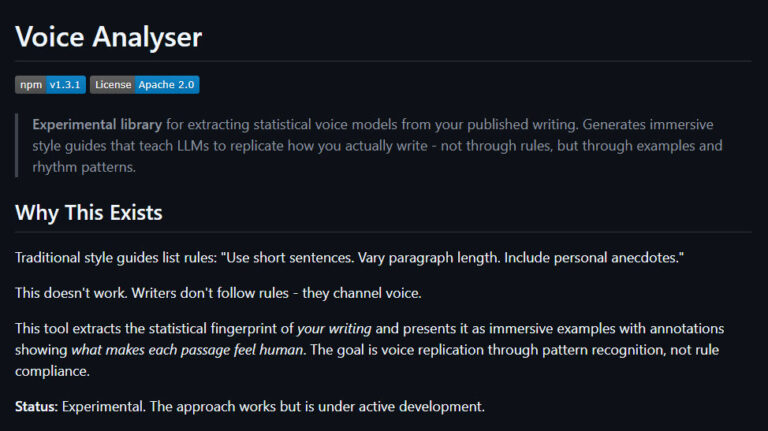
Generate a Tone of Voice Guide with Voice Analyser MCP
While AI will never replace human creativity, it can certainly help with productivity. Today I’m sharing my Voice Analyser MCP – an experimental tone of voice guideline generator that runs from a website’s XML sitemap. The point of this project was to understand how AI communicates and to learn more about the detectable patterns it … <a title="Claude Desktop Makes a Brilliant Coding Assistant – Here’s How to Set It Up" class="read-more" href="https://houtini.com/claude-desktop-makes-a-brilliant-coding-assistant-heres-how-to-set-it-up/" aria-label="Read more about Claude Desktop Makes a Brilliant Coding Assistant – Here’s How to Set It Up">Read more</a>