LM Studio Setup Guide 2026: Install, First Model & Settings
Install LM Studio on Windows or Mac in under 10 minutes, download your first model, and tune the hardware settings (developer mode, GPU offload, context length, multi-GPU tensor parallelism) for the rig you've got. Updated for LM Studio 0.4.16.
How does anyone end up running their own AI models locally? For me, it started because of a deep interest in GPUs and powerful computers. I've got a machine on my network called "hopper" with six NVIDIA GPUs and 256GB of RAM, and I'd been using it for various tasks already, so the idea of pointing some of that hardware at a local LLM made a lot of sense. LM Studio is what I ended up using - it took a bit of figuring out the first time (mostly because the defaults are wrong for coding use and nobody tells you that), but once I'd worked out which settings to change and which ones to leave alone, the whole setup came together in about an hour. So this is me documenting the process.
Quick Navigation
Jump directly to what you're looking for:
Why bother? | Download and install | Check your hardware | Pick the right runtime | Developer mode | Download a model | Quantisation explained | Load and configure | Start the local server | MCP servers | LM Link | Connect to Claude | The CLI | Troubleshooting
Why bother running models locally?
I came to this for three reasons, and I suspect at least one of them applies to you too.
The first is cost. I'm on the Claude Code Max plan right now but I don't think the current pricing is going to last - these companies are losing money on flagship models and at some point, their economics will have to change. Having a local model that handles the routine grunt work (code reviews, test stubs, commit messages, format conversions) means I'm not entirely dependent on how Anthropic decides to price things next year. I'm minimising my dependency on Cloud based services, while learning as efficiently as possible on my own equipment.
The second is privacy. Some client work mustn't leave the network. Proprietary codebases, internal tools, config files with credentials scattered through the source - I've had projects where sending code to any external API was off the table entirely, and a local model solves that problem without any additional compliance work.
And the third is just: no rate limits. I've hit usage caps "prompt too long" boundaries during long refactoring sessions more times than I'd like to admit, usually at the worst possible moment. My local Qwen3 Coder doesn't care how many requests I throw at it, as long as I only avoid huge concurrent requests.
If you're weighing up tools for AI assisted work, the short version is: LM Studio gives you a GUI, a built-in model catalogue, multi-GPU support, and an API server. Ollama is CLI-first and lighter. I ended up on LM Studio because I run multiple models across multiple GPUs and the interface for managing all of that is worth the slightly heavier install. But both work.
Download and install
Head to lmstudio.ai and grab the installer for your platform - Windows, Mac, and Linux are all covered. The install itself is dead simple, no dependencies to wrangle.
The LM Studio homepage - download for your platform and you're away.
As of version 0.4.16 (the most recent release as I'm updating this), LM Studio ships with something called llmster - a headless daemon - the same inference engine without the GUI. The recent 0.4.14, 0.4.15, and 0.4.16 releases have added MTP speculative decoding, tensor parallelism across multiple GPUs, a beta Engine Protocol that decouples the inference engine from the GUI, and a stack of fixes for the Anthropic-compatible /v1/messages endpoint (which matters if you're driving Claude Code from LM Studio - more on that later). I'll flag each of those in the section it belongs in.
I run llmster on hopper (my GPU server) since there's no monitor plugged into it. If that's your situation:
# Linux/Mac
curl -fsSL https://lmstudio.ai/install.sh | bash

# Windows (PowerShell)
irm https://lmstudio.ai/install.ps1 | iex
For this guide I'm using the full desktop app. The daemon is worth knowing about if you end up wanting to run a dedicated server down the line - I'll come back to it later in the article.
Check your hardware
First thing - open LM Studio, go to Settings > Hardware and see what you've got. LM Studio picks up your CPU, your system RAM, and every GPU it can find. The numbers you care about are VRAM (GPU memory) and total system RAM as a fallback.
I've put together a rough guide based on what I've tested on my own hardware and what I've seen others report in the community - your mileage will vary a bit depending on what else is running on the machine, but these numbers are in the right ballpark:
| VRAM | What fits | In practice |
|---|---|---|
| 8 GB | 7B models at Q4_K_M | Fine for simple tasks, don't expect miracles |
| 12 GB | 13B models at Q4_K_M | Good enough for code review |
| 16 GB | 14B at Q6_K, or 30B MoE at Q4 | Where it starts getting useful for coding |
| 24 GB | 30B models at Q6_K | The sweet spot |
| 48 GB+ | 70B models, multiple loaded | The full works |
If you've got more than one GPU, LM Studio can split a model across them. Under GPUs you can drag to reorder priority - put your fastest card with the most VRAM first. The Strategy dropdown should be set to "Priority order", which loads onto your best GPU first and overflows to the next, rather than spreading thin across all of them.
For loading the same model across several cards, the 0.4.15 release added proper tensor parallelism support, which shards the model's weights across the GPUs rather than overflowing one to the next. On hopper that cuts load time on a 70B model substantially, and inference throughput goes up too because both cards are doing work on every token. You access it from the same GPU settings panel; the Strategy dropdown gets a "Tensor parallel" option once it detects multiple compatible cards.
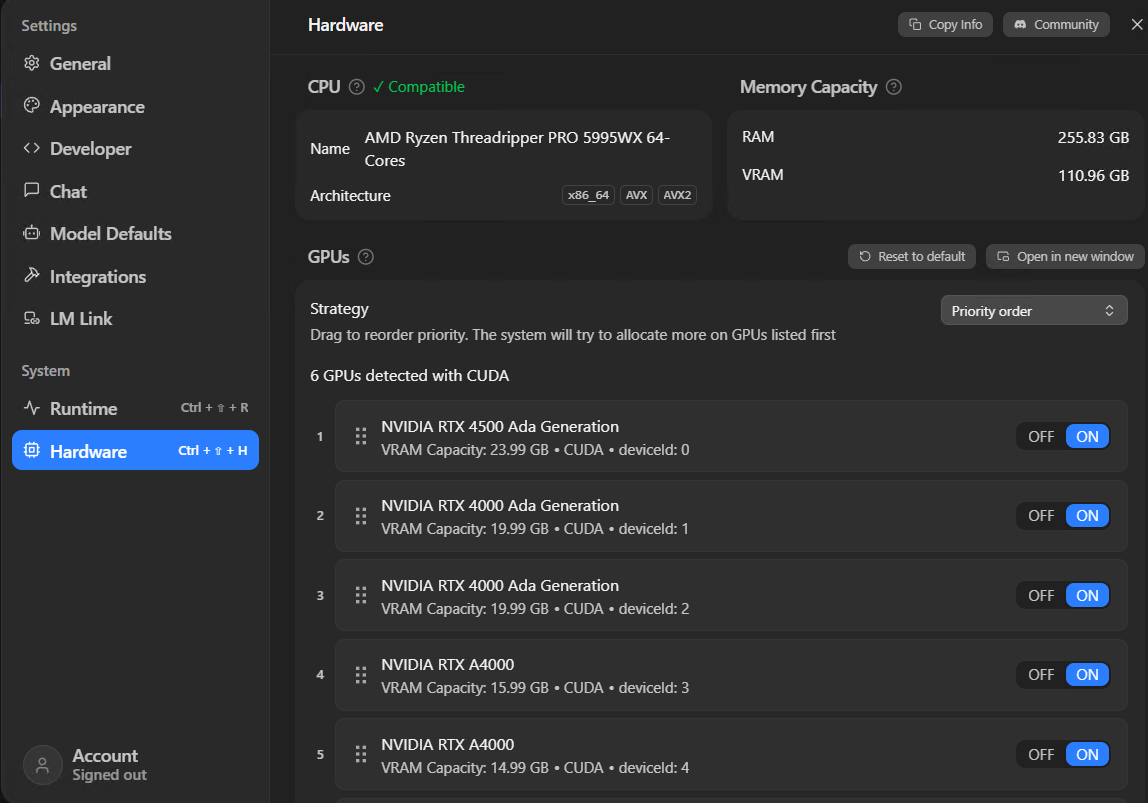
Hardware settings on hopper - six GPUs detected, RTX 4500 at the top of the priority order with the most VRAM. Drag to reorder.
For context, this is what hopper looks like in Device Manager - a Threadripper PRO 5995WX with a mix of RTX 4500, RTX 4000, and A4000 cards:
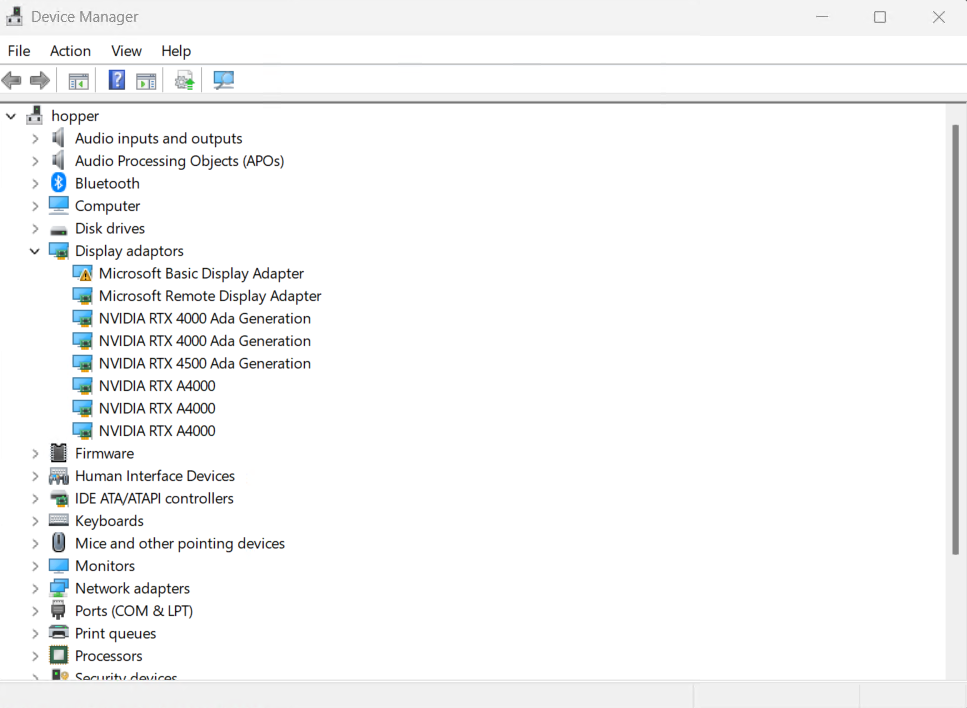
You don't need anything like this to get started (I bootstrapped mine from eBay parts). A single GPU with 16GB+ VRAM is more than enough.
One thing that catches people out: the VRAM numbers on this page show your total capacity, not what's free right now. If you've got a game running or a browser eating GPU memory, you'll have less headroom than the page suggests.
Pick the right runtime
Go to Settings > Runtime. This is where you tell LM Studio which inference engine to use, and getting this wrong is one of the reasons people end up with terrible performance without knowing why.
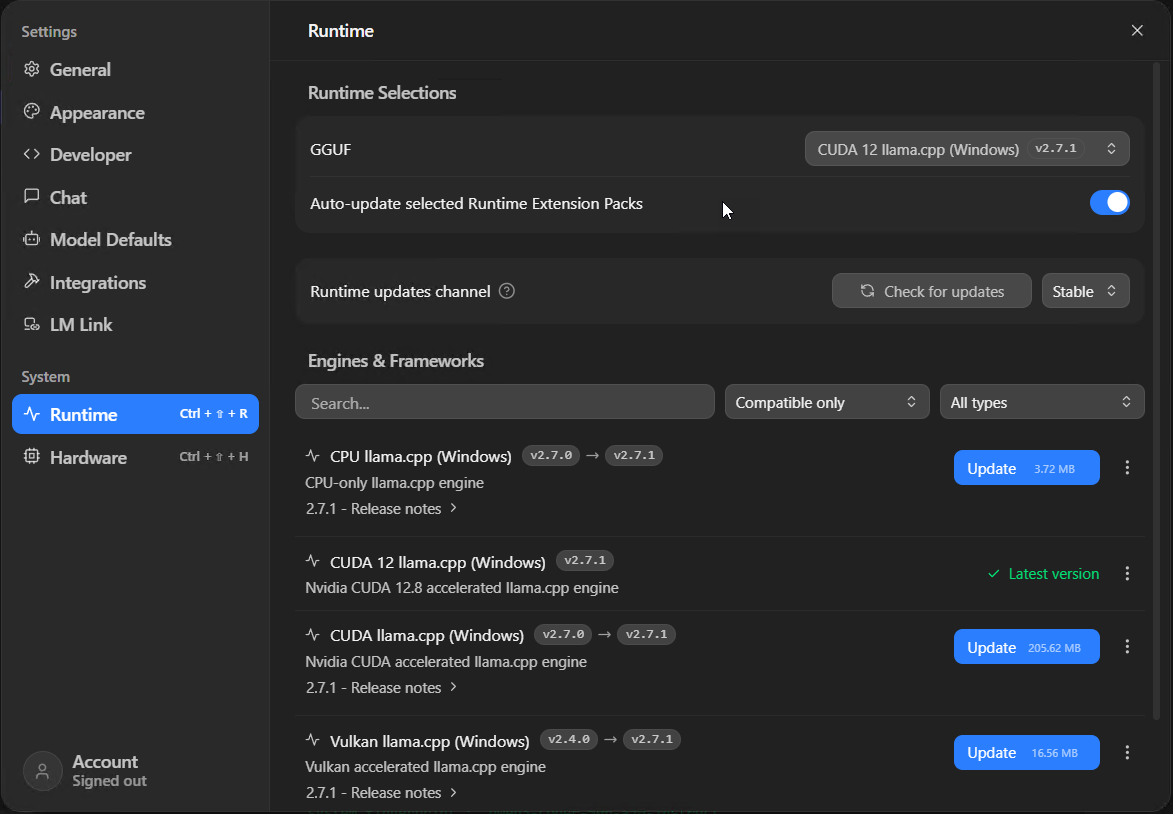
The Runtime page - CUDA 12 llama.cpp is what you want for NVIDIA GPUs. Hit update if one's available.
- NVIDIA GPU? You want "CUDA 12 llama.cpp". Make sure it says "Latest version" in green. If there's an update button, hit it - llama.cpp updates regularly and the speed improvements between versions can be significant.
- AMD or Intel GPU? "Vulkan llama.cpp" is your option, and on AMD specifically the "ROCm llama.cpp" runtime got substantial multi-GPU hardening in 0.4.16 - the priority-order bugs that used to make multi-card AMD rigs flaky have been ironed out. NVIDIA's CUDA support is still the most mature path and you'll find more community troubleshooting help if something goes sideways, but the AMD story is much better than it was even six months ago.
- No GPU? "CPU llama.cpp" will work but you're looking at single-digit tokens per second on anything larger than 7B. Painful.
- Apple Silicon? LM Studio defaults to MLX, which taps into unified memory. Leave it.
I'd keep the auto-update toggle switched on whilst you're at it.
Enable developer mode
Settings > Developer, toggle Developer Mode to ON. Do this before you load anything.
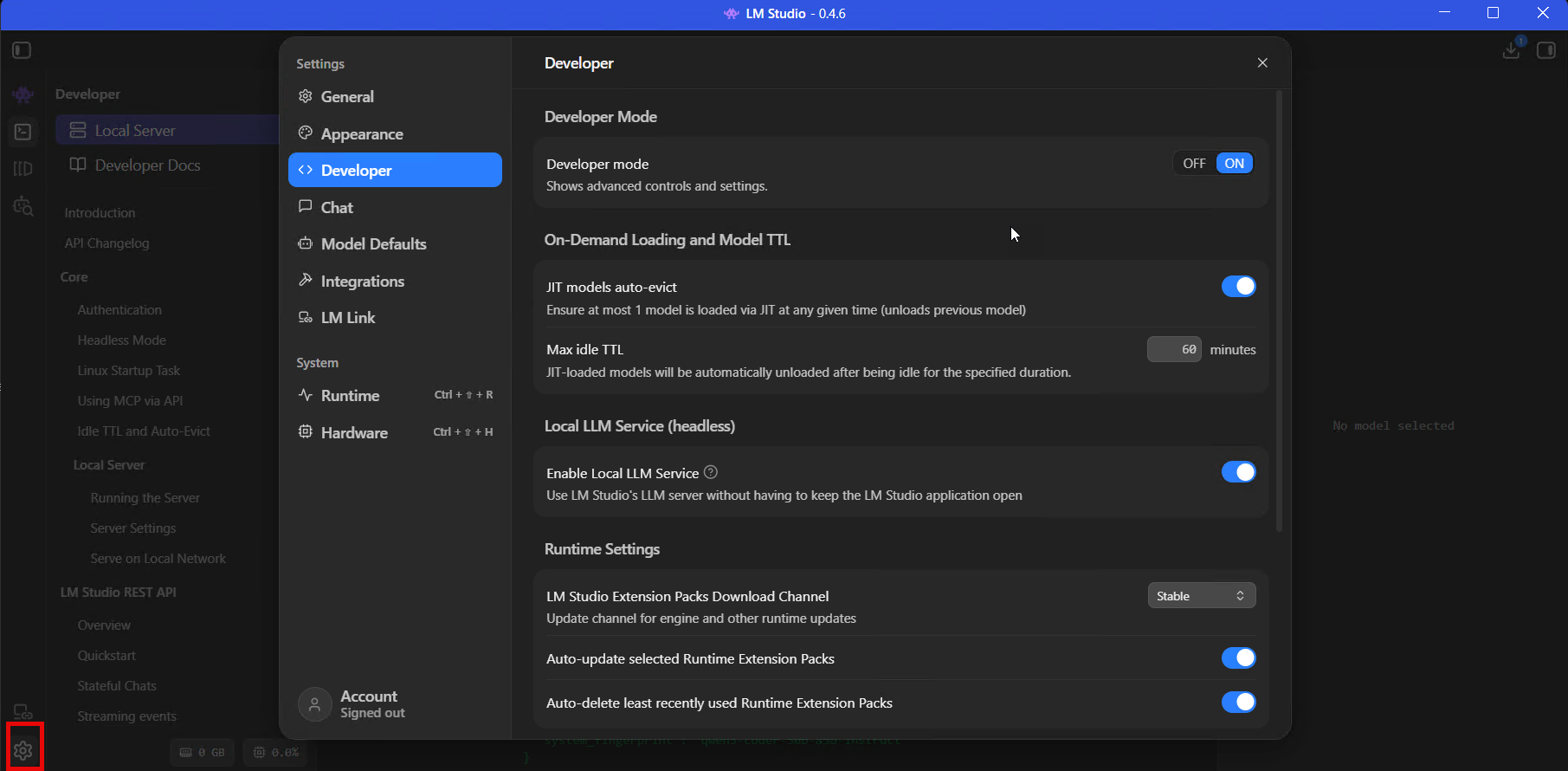
Developer Mode switched on - reveals advanced load parameters, MCP config, in-app docs, and server permission keys.
This landed in 0.4.0 and I think it should probably be on by default - it reveals the advanced model load parameters, the MCP JSON editor, in-app API docs, live processing stats, and server permission keys. Without it, LM Studio hides most of the settings you'll need for coding and API use behind a beginner-friendly wall.
I get why they do it. But if you're reading an article about connecting LM Studio to Claude Code, you're not the person who needs protecting from a context length slider.
Download a model
Press Ctrl + Shift + M to open the model search. You'll see "Staff Picks" at the top (models the LM Studio team have tested), and below that, community uploads from HuggingFace. There are a lot of them. Search for "Qwen Coder" and you'll get fifty results from different uploaders, different quantisations, different file formats, and if you don't know what you're looking for it's overwhelming.
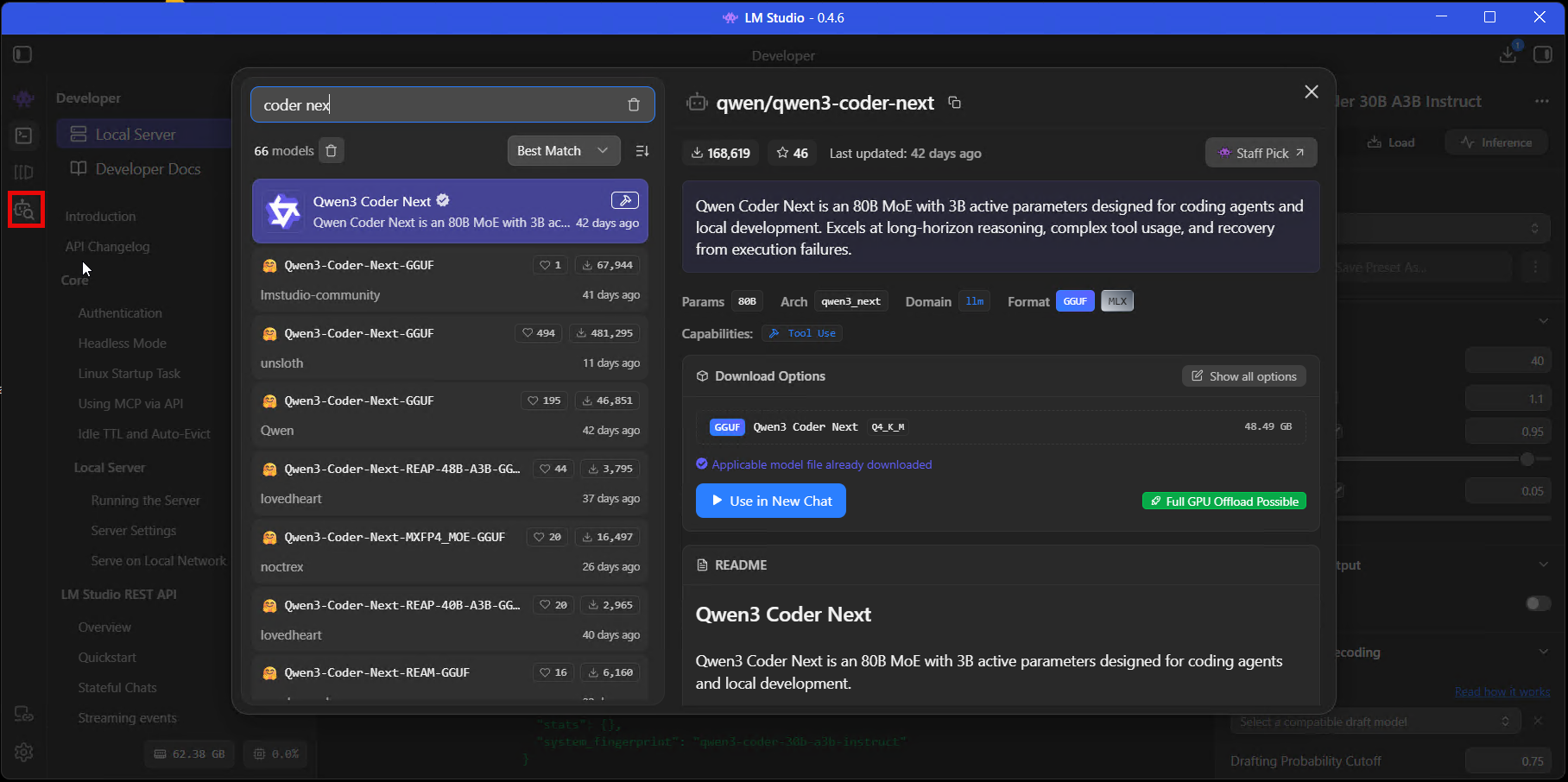
The model search - I've searched for "coder next" and Qwen3 Coder Next is at the top. The green "Full GPU Offload Possible" badge means it'll fit on my GPU.
For coding work, I'd start with one of these and ignore everything else until you've got your bearings:
- Qwen3 Coder 30B - what I'm running most of the time. It's a Mixture of Experts model so only a fraction of the 30B parameters are active on any given request, which means it fits on 16-24GB VRAM at Q4KM despite the headline number looking enormous. Excellent for code generation, review, and test stubs.
- GPT-OSS 20B - OpenAI's open-weight model. Solid all-rounder.
- Devstral Small 2 24B - Mistral's coding model. Good compromise if you're tight on VRAM.
Look for the green rocket icon next to the download options. That little rocket means the model will fit on your hardware. No rocket, no dice - save yourself the 40-minute download.
What's newer worth trying
A few more recent releases I've started swapping in for specific jobs, rather than as a daily driver replacement for Qwen3 Coder 30B:
- Qwen 3.6 27B - the new MoE generation from the Qwen team. LM Studio shipped native support in May 2026, including tool use and reasoning mode. Better at complex multi-step coding tasks than Qwen3 Coder 30B; about the same VRAM footprint at Q4KM.
- DeepSeek V4 Pro - currently topping the LiveBench coding leaderboards. Reasoning-class, so expect longer outputs but better answers on tricky refactors. Heavier on VRAM than the Qwen models.
- GLM 5.1 - good balance of speed and quality, particularly strong on Python.
- Kimi K2.6 Thinking - reasoning model with a long context window. Useful when the question needs the chain of thought.
For most day-to-day work Qwen3 Coder 30B is still the one I reach for - it's fast, it fits comfortably, and it's been stable for months. The newer models are worth trying when you've got the headroom and a job they're suited to.
Click through and you'll see different quantisation levels listed as download options - Q4KM, Q6K, Q80 and so on. This is the part where most guides lose people, and to be fair the naming convention is atrocious so I don't blame anyone for being confused by it.
Quantisation: what Q4KM means
Those labels - Q4KM, Q6K, Q80, BF16 - tell you how much the model's been compressed to fit on consumer hardware.
Full-precision models (BF16 or FP16) store every parameter at its original accuracy, and they're enormous - a 30B model at full precision needs roughly 60GB of memory. Quantisation shrinks the model by storing parameters at lower precision. The trade-off is some quality loss, but here's what I found when I tested this on my own codebase: the drop-off for coding tasks is remarkably small until you go below Q4. I ran the same code review tasks through Q6K and Q4K_M of Qwen3 Coder and the results were nearly identical. Drop to Q3 and it starts hallucinating import paths. The gap is noticeable.
| Format | Size (30B model) | Quality | Who it's for |
|---|---|---|---|
| BF16 | ~60 GB | Full | Multi-GPU setups, VRAM isn't a constraint |
| Q8_0 | ~30 GB | Near-original | 24GB+ cards, best quality that'll fit |
| Q6_K | ~23 GB | Very good | 24GB VRAM - my recommendation if it fits |
| Q4_K_M | ~17 GB | Good for code | 16GB VRAM, the practical choice |
| Q4_K_S | ~15 GB | Acceptable | 12GB, a compromise but it works |
| IQ4_XS | ~14 GB | Serviceable | Squeezing bigger models into tight VRAM |
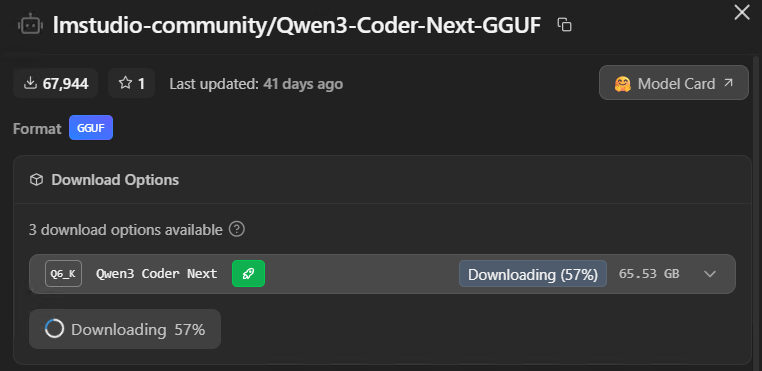
The green rocket next to a download option means it'll fit on your GPU. This one's downloading Qwen3 Coder Next at Q6K - 65GB, which needs serious VRAM._
The green rocket does the maths for you. If it shows up next to Q6K, go with that. If it only appears on Q4K_M, that's your ceiling - a model that fits comfortably at Q4 will always outperform one that's loaded at Q6 but constantly swapping to system RAM.
Load and configure
Click + Load Model on the Developer tab, or pick it from the model dropdown in Chat. The loader dialog opens, and this screen is where the difference between a setup that works well and one that drives you mad gets decided. Most of the defaults are wrong for coding use. LM Studio won't tell you that.
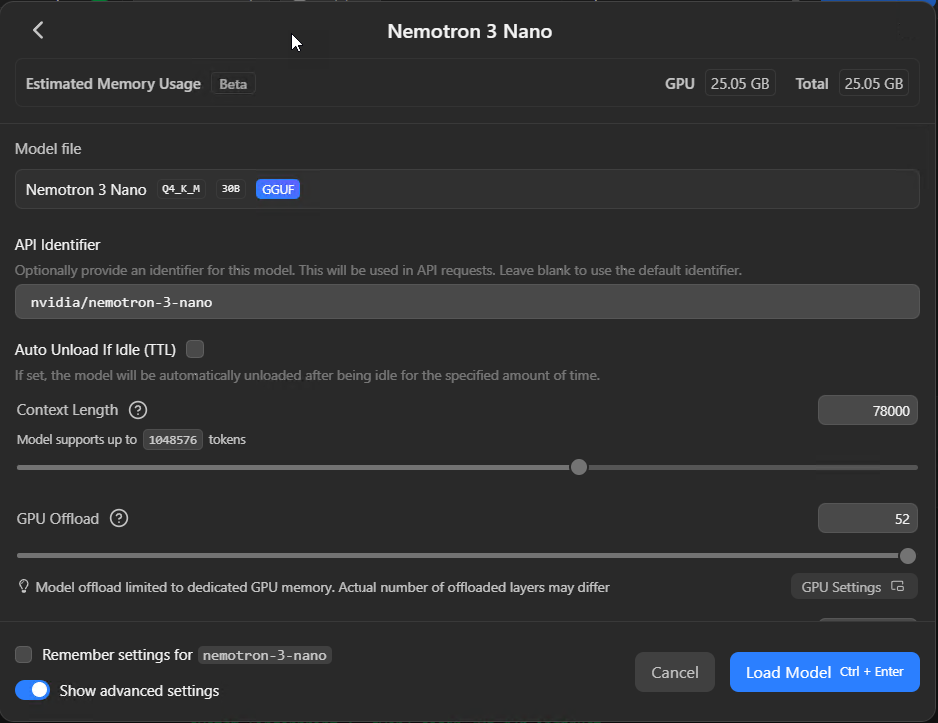
The model loader - context length, GPU offload, and estimated memory usage are all here. These are the settings that matter.
Context length
I'm putting this first because it's the most common reason setups don't work, and the failure mode is time consuming stuff.
The default is often 4,096 tokens. For quick chat, fine. For coding work? Not remotely enough. Claude Code's system prompt alone runs to several thousand tokens, and if you're connecting LM Studio to Claude Code or any tool that passes big prompts, a 4k context window will cause the model to hang indefinitely. No error message, just silence. I spent an embarrassing amount of time debugging this the first time, because there's nothing in the UI telling you what's gone wrong - it just sits there doing nothing.
Set this to at least 32,000 tokens. I run mine at 78,000 on Qwen3 Coder because I feed it entire source files and the larger context means it can hold the full file plus conversation history without truncating. But higher context eats VRAM - keep an eye on the Estimated Memory Usage indicator at the top of the dialog before you crank this up.
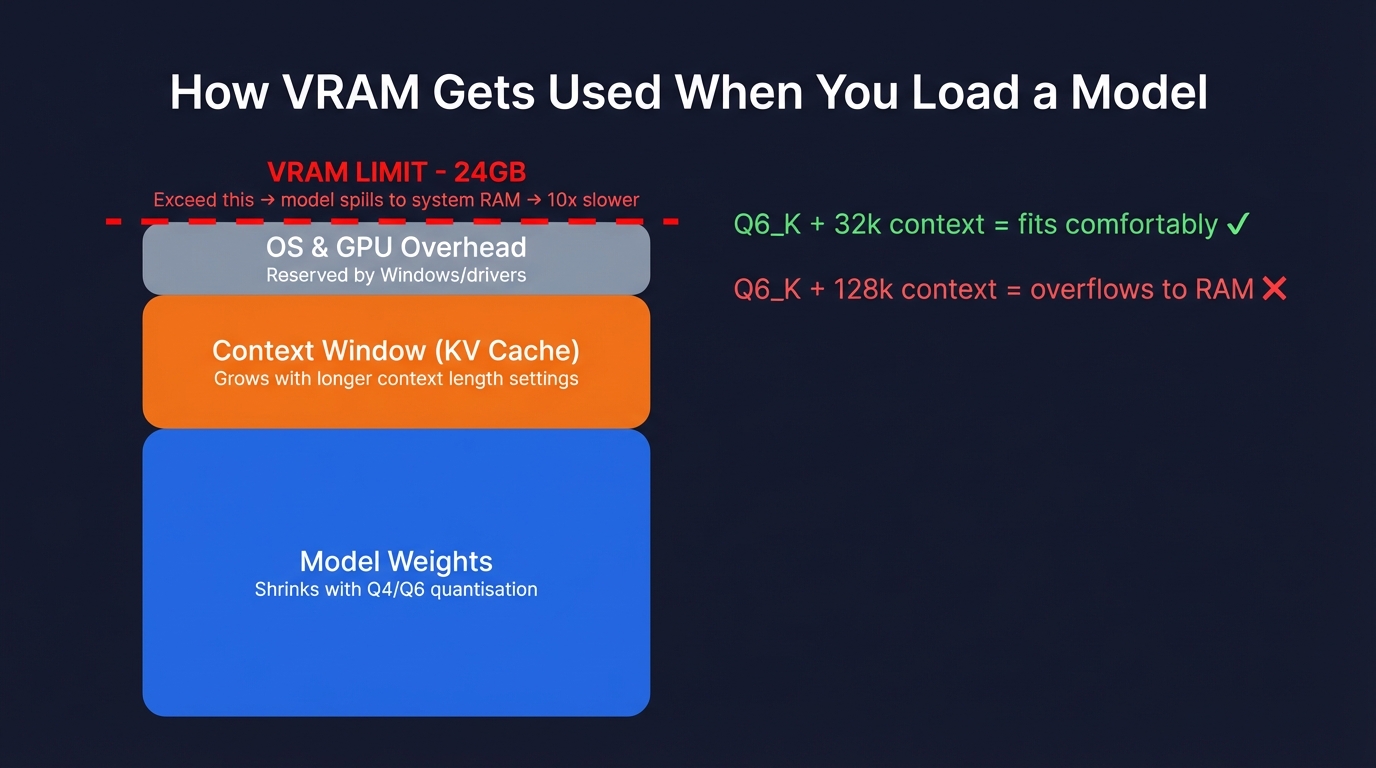
Your GPU VRAM is a fixed budget split three ways: model weights, context window (KV cache), and OS overhead. Crank the context length too high and the model spills into system RAM, which is roughly 10x slower. This is why a Q6K model with 32k context can fly on 24GB, but the same model at 128k context will crawl._
GPU offload
This slider controls how many of the model's layers get loaded onto your GPU versus sitting in system RAM. Max it out. The difference between full GPU offload and partial is the difference between 40+ tokens per second and maybe 2. I've seen people complain about local models being "unusably slow" when the only problem was this slider.
If it won't go to maximum, your model is too large for your VRAM at the context length you've set. Drop the context length or pick a smaller quantisation. Don't try to split the difference with partial GPU offload - the performance cliff is too steep.
Parallel requests
New in 0.4.0 - Max Concurrent Predictions defaults to 4. This lets LM Studio handle multiple requests simultaneously with continuous batching rather than queueing them. If you're the only person hitting the server, 4 is fine. If you've got a team connecting, bump it up. Keep Unified KV Cache switched on (it's the default) - it stops the parallel slots from hard-partitioning your VRAM.
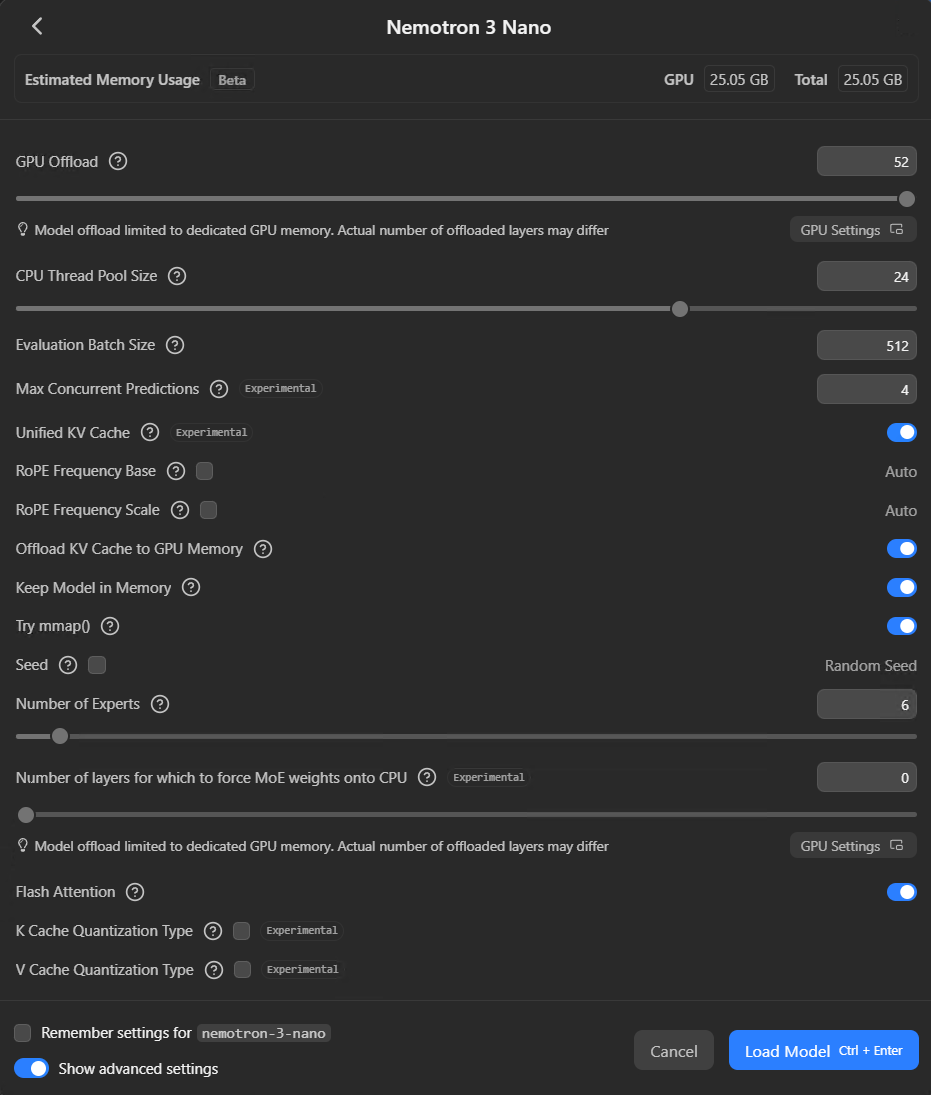
Scroll down in the loader for the advanced settings - GPU offload, batch size, KV cache, flash attention, and MoE expert count are all here. Toggle "Show advanced settings" at the bottom if you don't see them.
MoE settings
If you're loading a Mixture of Experts model like Qwen3 Coder 30B, there's a Number of Experts slider in the advanced options. Qwen3 Coder activates 8 of its 128 available experts per token by default. Unless you've got a specific reason to change that, leave it alone.
Speculative decoding
New in 0.4.14: LM Studio supports MTP (Multi-Token Prediction) speculative decoding natively for supported models, including the Qwen 3.6 family. It predicts a few tokens ahead each forward pass and verifies them in one go, which gets you a real throughput uplift without the VRAM overhead of running a separate draft model alongside the main one. If you're loading a model that supports it, the toggle shows up in the advanced settings - leave it on. The boost is most noticeable on the larger MoE models.
Start the local server
Go to the Developer tab. There's a Status toggle at the top - switch it to ON. Next to it you'll see the Reachable at URL, usually http://localhost:1234.
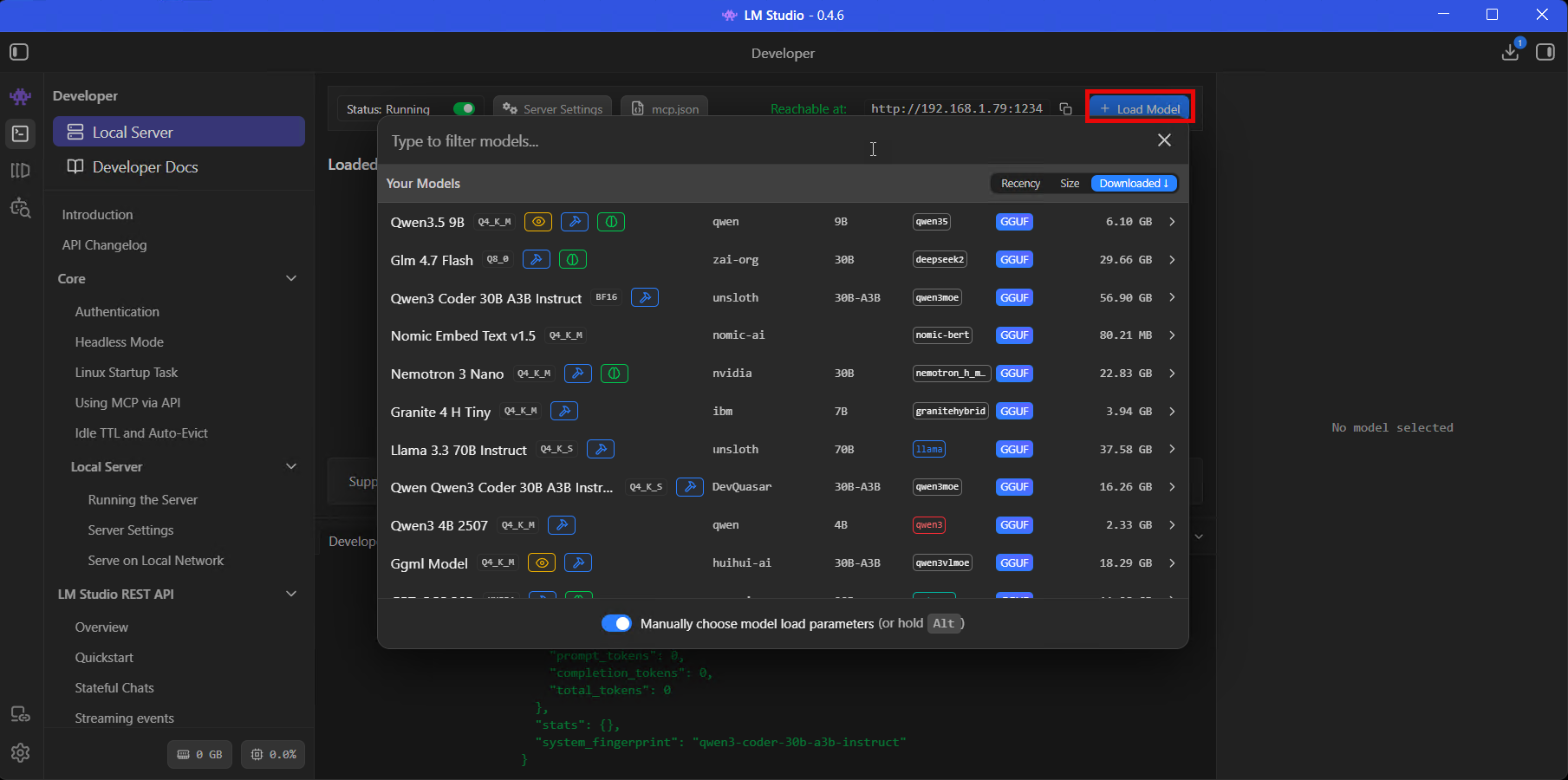
The Developer tab with the server running - you can see all loaded models, the reachable URL, and the mcp.json button.
Once running, LM Studio exposes a few different API endpoints:
/v1/chat/completions- OpenAI-compatible. Pretty much any tool that speaks the OpenAI format works with this./v1/messages- Anthropic-compatible. Useful if you're pointing Claude Code directly at LM Studio./v1/chat- LM Studio's own stateful API, new in 0.4.0. Keeps conversation state server-side, can use locally-configured MCP tools./v1/models- lists loaded models. Quick health check.
To verify it's working:
curl http://localhost:1234/v1/modelsOn my machine right now that comes back with Qwen3 Coder 30B, GPT-OSS 20B, a Nomic embedding model, and a few others I've been testing. If you want other machines on your network to hit this server - say you've got a laptop that wants to use your desktop's GPU - click Server Settings and toggle "Serve on Local Network".
LM Studio 0.4.0 also added permission keys - you can generate them from Settings > Server to control who gets API access. For a home setup probably overkill, but worth setting up if you're in a shared office or lab.
MCP servers inside LM Studio
LM Studio has its own MCP support built in. Click the mcp.json button on the Developer tab and you'll get a JSON editor where you can wire up MCP servers that the local model itself can use - this is separate from Claude Desktop's config, it's for the model running in LM Studio.
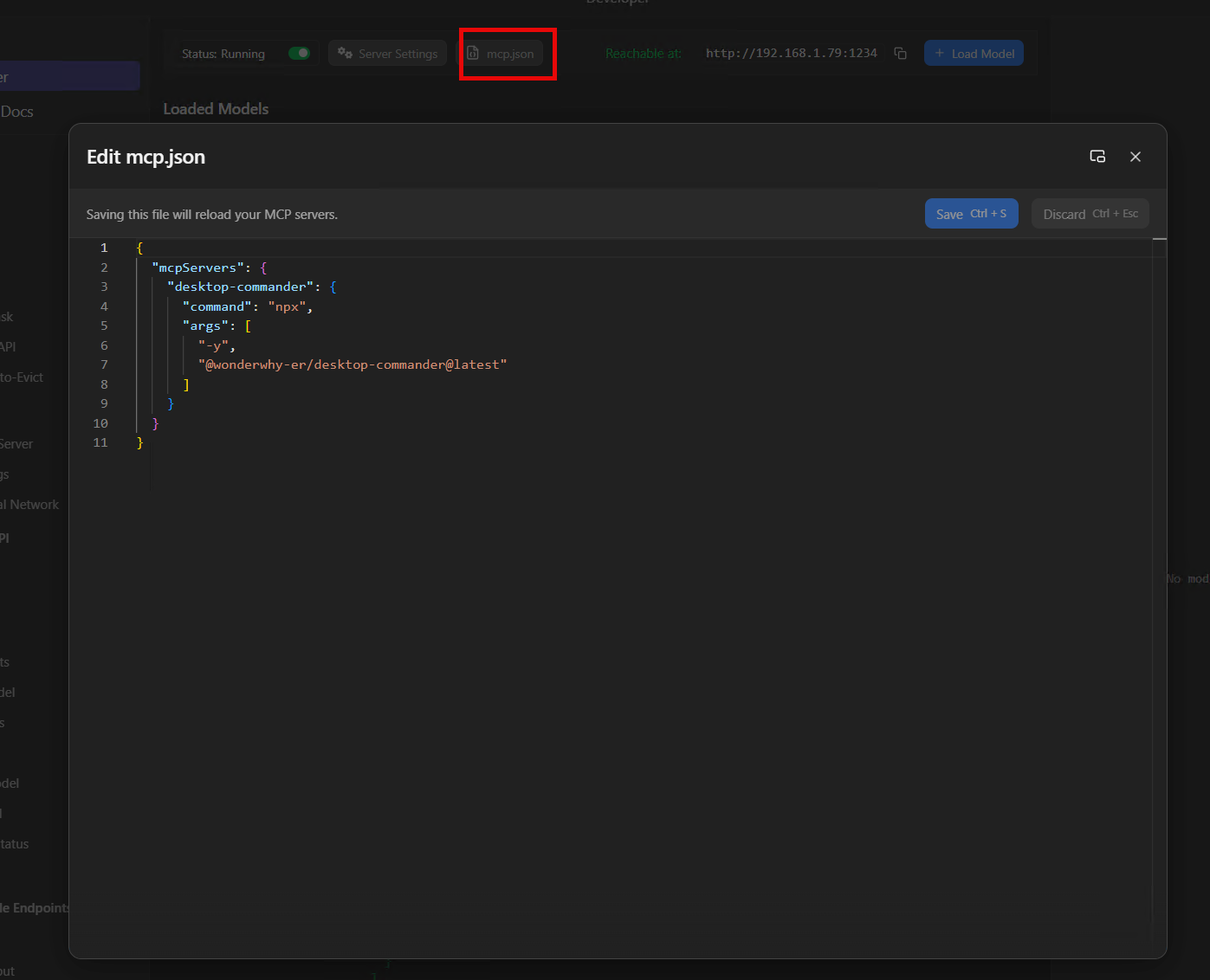
The mcp.json editor on the Developer tab - same format as Claude Desktop's config. This one has a Desktop Commander MCP wired up.
The config format is the same as Claude Desktop's:
{
  "mcpServers": {
    "brave-search": {
      "command": "npx",
      "args": ["-y", "@anthropic-ai/brave-search-mcp"],
      "env": {
        "BRAVE_API_KEY": "your-key-here"
      }
    }
  }
}
I use the MCP support in LM Studio very infrequently - way less than you'd expect. Most of my local model work goes through Claude Code via Houtini LM , where Claude handles the tool orchestration and just delegates bounded tasks to the local model. But if you want a fully local AI workflow where nothing touches a cloud API at all - local model doing web searches, reading files, calling APIs, all on your own hardware - this is how you'd wire it up.
LM Link: use models on a remote GPU
This is one of LM Studio's newer features, built in partnership with Tailscale, and it's one of my favourite things about the current version.
So the idea is: if you've got a powerful GPU sitting on another machine somewhere on your network (or anywhere, really), LM Link creates an encrypted tunnel between two LM Studio instances so you can use that remote model as if it were running locally on the machine in front of you. No port forwarding to configure, no VPN to mess about with, nothing exposed to the public internet.
I've got this running between my dev PC and hopper - a Threadripper workstation with six NVIDIA GPUs (RTX 4500, a pair of RTX 4000s, and three A4000s) and 256GB of RAM. Hopper runs the heavy stuff, 70B+ parameter models that won't fit on my dev machine. On my dev PC, those models just show up in the model loader as "Linked" models and I can use them at full speed over the local network. The latency on gigabit is barely noticeable.
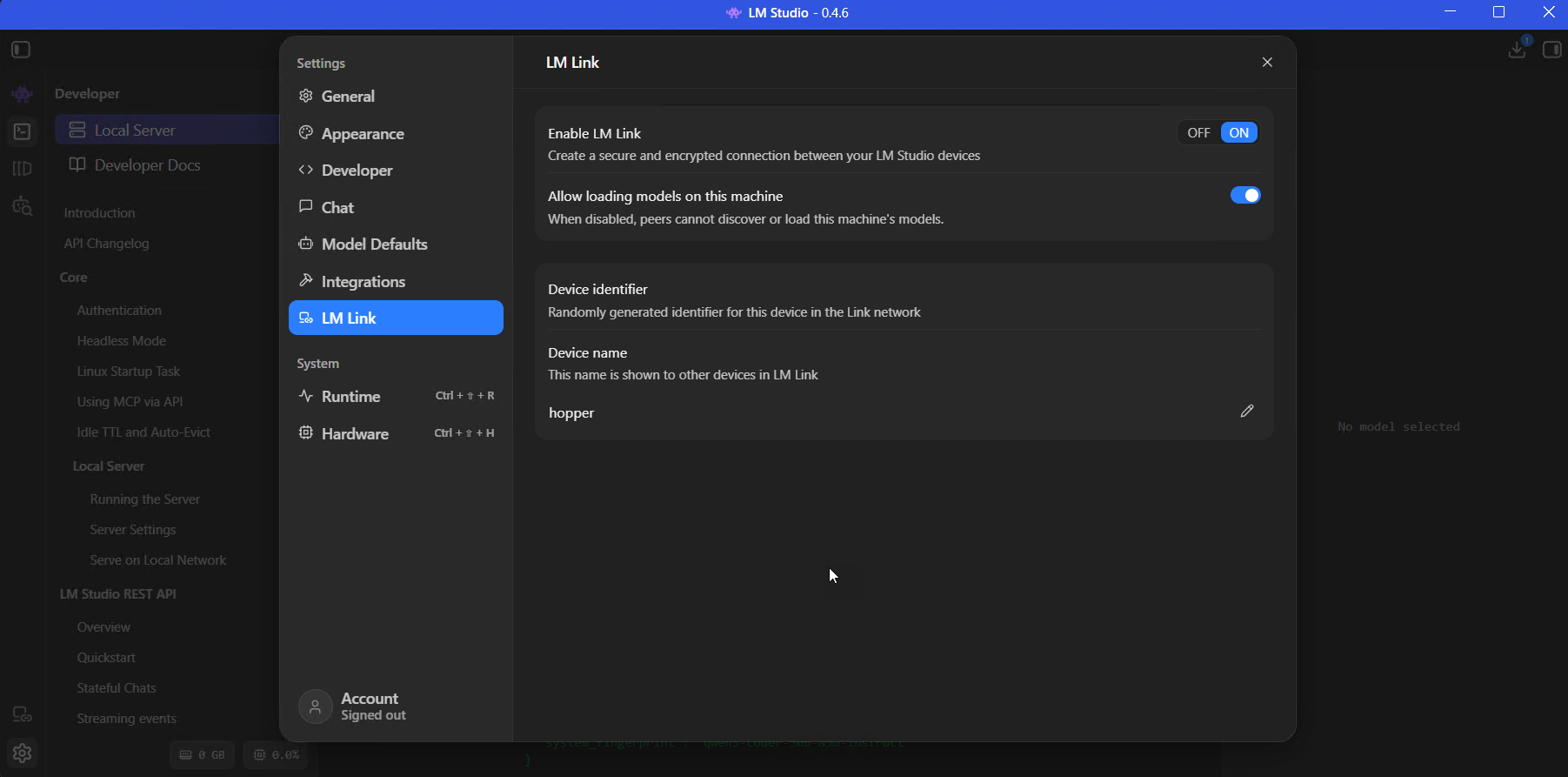
LM Link settings on hopper - enabled, with "Allow loading models on this machine" toggled on so my dev PC can trigger model loads remotely.
Setting it up
- Install LM Studio on both machines (or llmster on the headless one)
- On each, go to Settings > LM Link, toggle Enable LM Link to ON
- Sign into the same LM Link account on both - it uses Tailscale underneath
- The remote machine's loaded models appear in your model loader automatically
For headless servers:
lms login
lms link enable
The connection is end-to-end encrypted. Neither LM Studio nor Tailscale see your prompts or responses - they only handle the device discovery.
LM Studio also rolled the "Locally" iOS app into the LM Link mesh in the 0.4.16 release - the app they acquired earlier in the year. So if you're out of the house and want to hit your home rig's 70B model from your phone, that now works without any additional setup beyond signing the phone into the same LM Link account.
Connect LM Studio to Claude
Two ways to wire this up, depending on whether you want to replace Claude with a local model or augment it.
Option 1: Houtini LM (what I'd recommend)
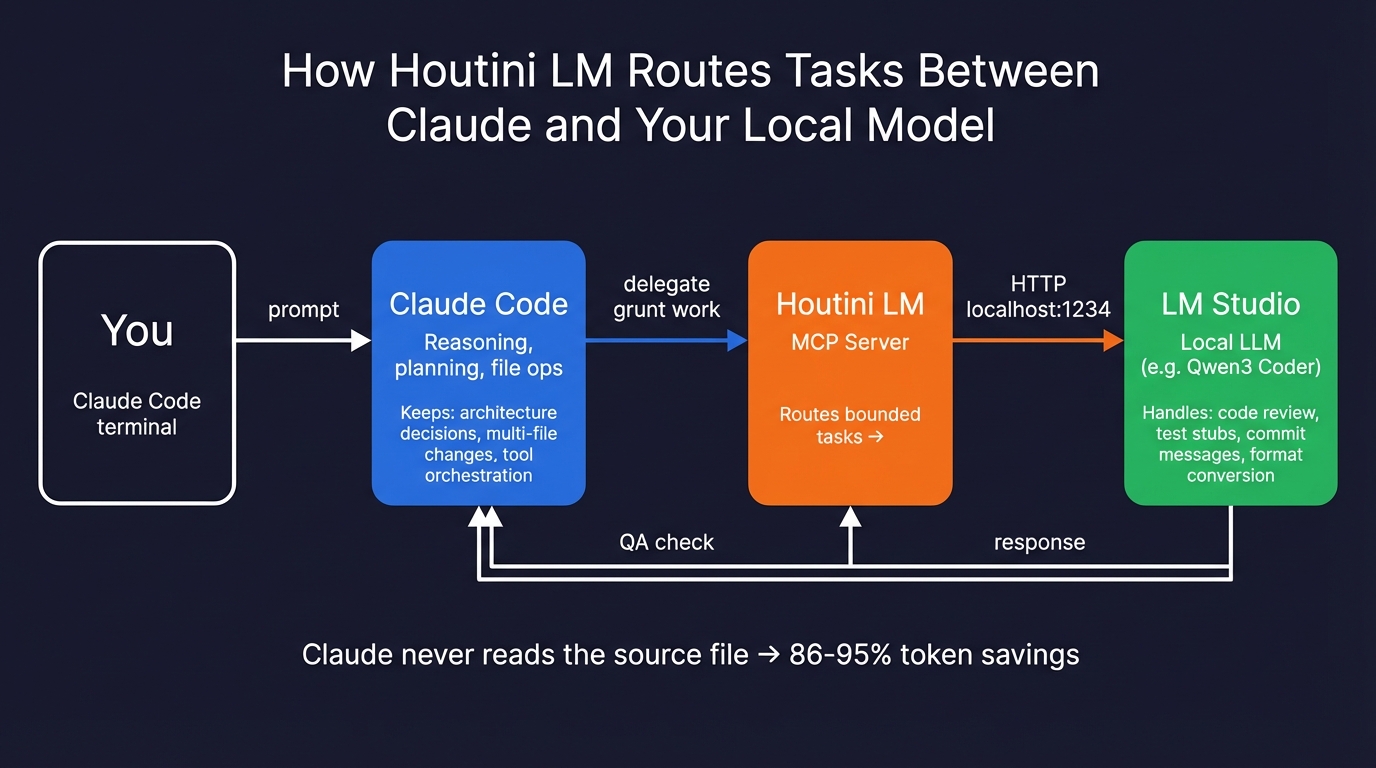
The architecture: Claude Code keeps the hard work (reasoning, planning, multi-file changes), Houtini LM intercepts bounded tasks and routes them to your local model via the LM Studio API. Claude never reads the source file, which is where the token savings come from.
This is an MCP server I built that sits between Claude Code and your local model. Claude stays the architect - reasoning, planning, file operations, the stuff it's better at. Houtini LM intercepts the bounded grunt work and routes it to your local model. Claude also checks everything that comes back, so if the local model produces something off, it catches it.
claude mcp add houtini-lm -e LM_STUDIO_URL=http://localhost:1234 -- npx -y @houtini/lmI wrote a full walkthrough of this setup with benchmarks showing 86-95% token savings on typical delegation tasks.
Option 2: Claude Code direct
You can point Claude Code straight at LM Studio's Anthropic-compatible endpoint:
export ANTHROPIC_BASE_URL=http://localhost:1234/v1
export ANTHROPIC_API_KEY=lm-studio
This replaces Claude entirely with your local model. Worth knowing: the 0.4.14 and 0.4.15 releases (May and June 2026) fixed two long-standing bugs in the /v1/messages endpoint - prompt cache dropping, and an "invalid role" system message error - that used to make this path unreliable enough to drop. With those fixes in, the direct route works well enough now to be a real option, where six months ago I'd have told you to ignore it.
The catch most YouTube tutorials skip: Claude Code's system prompt is thousands of tokens long, and your local model has to process all of that on every request. You need a context window of at least 32k, and even then it'll be noticeably slower than the API. I've seen people try this, wait two minutes for a response, and conclude local models are useless - when the real problem is that Claude Code was never designed to be lightweight on the prompting side.
The CLI: lms and llmster
LM Studio comes with lms, a command-line tool that handles most of what the GUI does:
lms chat                                    # interactive chat in terminal (new in 0.4.0)
lms get qwen/qwen3-coder-30b-a3b-instruct  # download a model
lms server start                            # fire up the API server
lms runtime survey                          # check what GPUs LM Studio can see
lms runtime update llama.cpp                # update the engine
lms daemon up                               # run headless, no GUI
lms chat is worth trying - it's got slash commands, handles think-block highlighting, and I've found it handles pasting large code blocks more reliably than the GUI input sometimes does. It's also how I interact with models on hopper over SSH.
For server deployments, llmster is the headless daemon - same engine, no Electron wrapper. I've got it running as a systemd service on hopper and it's been solid for months. The 0.4.14 release also introduced a beta "Engine Protocol" that decouples the inference engine from the GUI as a separate process. The upshot for headless deployments is faster engine updates without needing to redeploy the whole stack, and the architecture for the GUI-talking-to-engine-over-protocol is the same one llmster uses underneath. Worth tracking even if you don't enable it yet.
Troubleshooting
The model hangs and nothing happens
Nine times out of ten this scenario implies your context windows is too small. Claude Code and similar tools inject massive system prompts. Bump context length to 32k+ and try again. There's no error message, no timeout, nothing - it just sits there silently and you're left wondering whether the model crashed or the server died or your network dropped. Maddening.
Crawling at 1-2 tokens per second
Try checking the GPU Offload settings in the model loader. If it's not maxed out, the model is running on CPU. LM Studio sometimes fails to auto-detect GPUs on multi-GPU systems and defaults to CPU without telling you. You may just be running a model that needs your ram and vram - so the model being too large for your GPU VRAM might be the issue. Aim for models that are around 80% of your available vram for headroom.
Crashes mid-generation
You've overcommitted your VRAM. The memory estimator in the loader is a beta feature and doesn't fully account for KV cache growth during long generations. Drop context length or switch to a smaller quantisation. I'd rather have a Q4KM that fits comfortably than a Q6_K that crashes every third request.
Truncated responses
Some models - Qwen3 and GLM in particular - emit ... reasoning blocks before the actual answer, and those count against your max_tokens budget. Disable thinking in chat settings or increase max_tokens - this can really throw you off for a while. GLM for example, will happily spew out 4-500 tokens of <thinking> before an answer.
If you want to take this further and start routing tasks automatically between Claude and your local model, have a look at how I set up Houtini LM . That's the piece that ties all of this into a proper workflow. Get yourself setup because, as promised, there is more to come.
Continue reading.
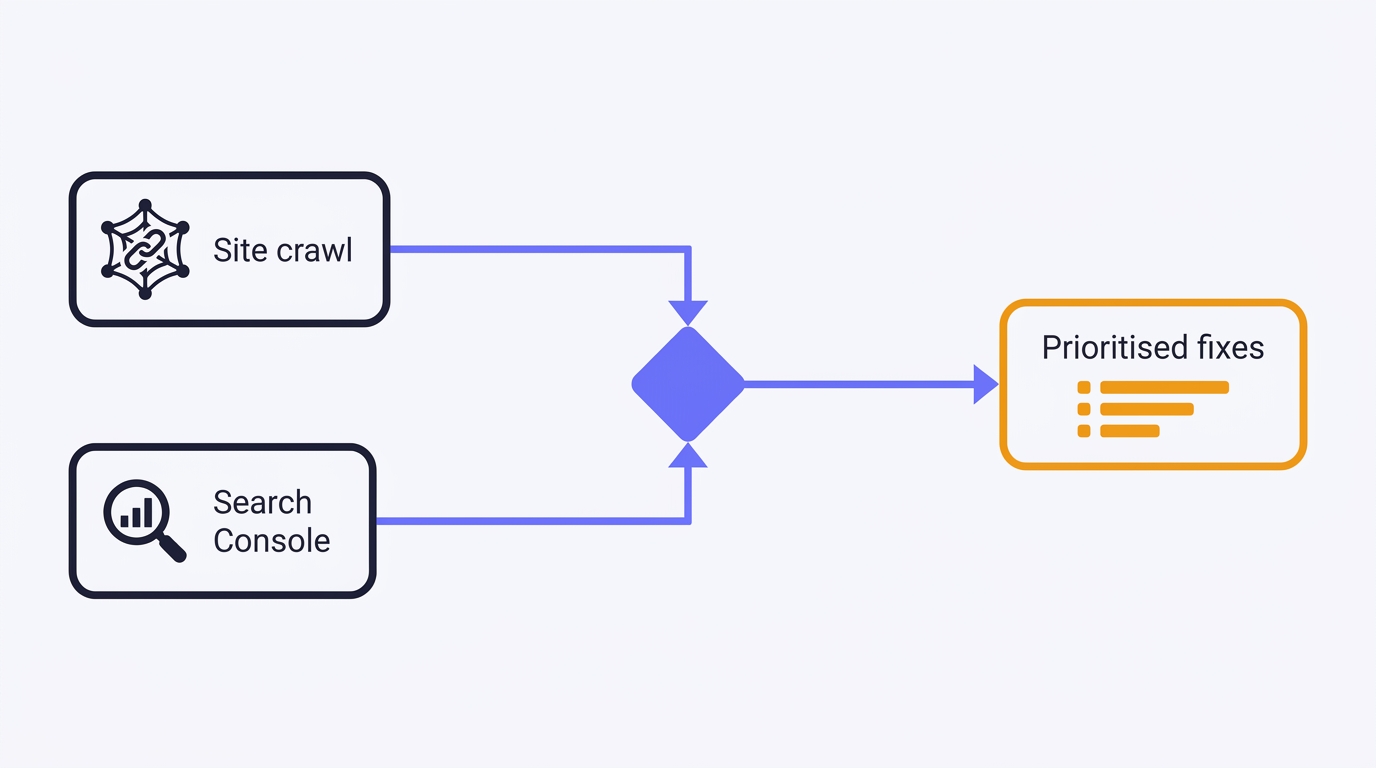
How to Do a Technical SEO Audit with Claude
A full technical SEO audit run by conversation in Claude Desktop: Search Console history and a first-party crawl merged into one prioritised, fix-writing report. The setup, the twelve prompts, the priority model, and the honest limits - walked through on a real site.
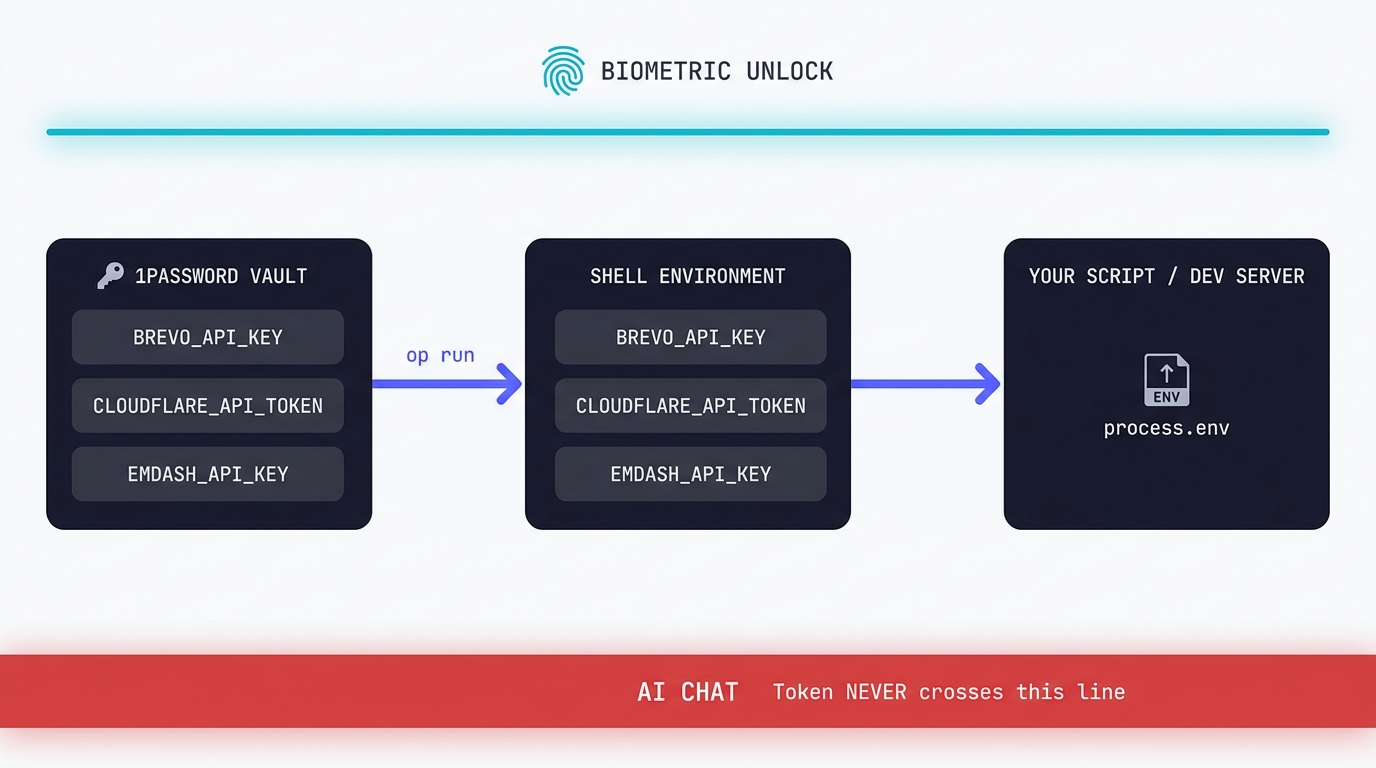
Claude Code API Key Security: A Guide to Token Hygiene
The simplest possible setup that keeps your production tokens out of AI chat windows. 1Password CLI, op run, and the conversational discipline that makes the rest of it work.
Swapping the Engine: How to Run Claude Code on Local Silicon for Zero Pennies
Claude Code's real power isn't the Anthropic model sitting behind it, it's the agentic : the file-system access, the tool use, the way it chains tasks together without you babysitting every step. I figured this out the expensive way. I ran…

A Beginner's Guide to Claude Computer Use
I've been letting Claude control my mouse and keyboard on and off to test this feature for a little while, and the honest answer is that it's simultaneously the most impressive and most frustrating AI feature I've used. It can navigate…
A Beginner's Guide to AI Mini PCs - Do You Need a DGX Spark?
I've been running a local LLM on a variety of bootstrapped bit of hardward, water-cooled 3090's and an LLM server I call hopper full of older Ada spec GPUs. When NVIDIA, Corsair, et al. all started shipping these tiny purpose-built AI…
Using a Local LLM to Audit Your Codebase - What Qwen3 Coder Next Catches (and Misses)
I ran a local copy of Qwen3 Coder Next on a machine under my desk. It pinned down a race condition in my production code that I'd missed. It also told me, with complete confidence, that crypto.randomUUID() doesn't work in Cloudflare…