

When I discovered Desktop Commander, it quickly become the everything of how I work with Claude. Put simply, this MCP solves a specific, annoying problem: Claude can tell you what to do, but without access to your filesystem, that’s all it can do.
Desktop Commander opens up an entire universe to aspiring AI tool users. It’s an MCP (Model Context Protocol) extension that gives Claude direct access to your filesystem and (very helpfully) terminal. In practice: Claude can read your files, write new ones, run commands, and interact with your computer the way you would.
The official tagline is “One Chat, Full Stack” and it’s spot on.
The Core Problem Desktop Commander Solves
Before Desktop Commander, my Claude conversations went like this:
- Me: “How do I extract this JSON field?”
- Claude: “Here’s the jq command:
jq '.data.items[]'“ - Me: copies command, switches to terminal, pastes, runs
- Me: “That gave an error”
- Claude: “Ah, try adding
-rflag…” - repeat
With Desktop Commander, that becomes:
- Me: “Extract the items array from response.json”
- Claude: reads file, writes extracted data, tells me it’s done
Context-switching and messing around with the disconnect between Claude’s internal environment and the real world kills productivity and just creates confusion. Every time I copy-paste between windows, I lose a few seconds and a bit of mental state. Multiply that across hundreds of interactions per day, and it adds up.
How I Use It
Content Updates and Creation
One of my projects is called Content Machine – a multi-phase workflow that updates articles with research, voice calibration, and WordPress deployment. Every step is executed through Desktop Commander, triggered via a multi-phase prompt file (sort of like an agent that advises you to switch to a new session, generates a handover prompt ready for you to continue).
While I don’t want to give this tool away just yet, here’s basically what it does:
Phase 1: Claude downloads the article via WordPress REST API, analyses the existing structure, catalogues shortcodes, html embeds and images.
Phase 2: Claude fetches YouTube transcripts (using Supadata MCP), runs Gemini market research, gathers Amazon product data (with my Amazon Product Advertising API MCP)
Phase 3: Claude extracts technical insights, voice-calibrates content to match my writing patterns.
Phase 4: Claude drafts in Gutenberg HTML, validates, uploads to WordPress as a new draft.
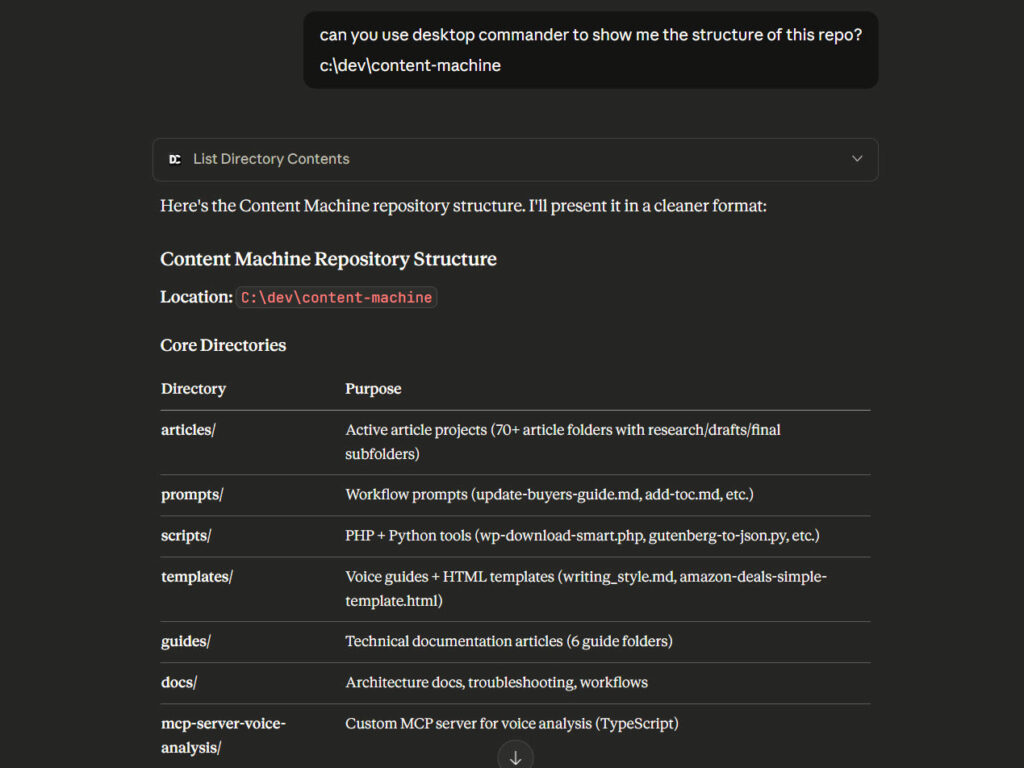
All through natural conversation. No manual file copying. No switching between terminals. The whole thing runs in Claude Desktop with Desktop Commander handling the filesystem operations. For technical writing, documenters and dare I say it, editorial staff – ideas like this will be gamechanging.
Git Operations
I can say “commit these changes with message ‘Phase 2 research complete'” and Claude:
- Checks what files changed
- Stages them appropriately
- Writes the commit
- Pushes if I ask
On Windows, this requires batch file workarounds (CMD quote escaping seems problematic), but once configured it works reliably. The cd /d command is essential for changing drives properly. You need github installed – if you’re not in that place yet, read this beginner’s guide and this setup
@echo off
cd /d C:\dev\content-machine
git add articles\research
git commit -m "Phase 2 complete"
Surgical Code Edits
Most AI coding tools rewrite entire files. Desktop Commander has edit_block – find a specific chunk of code and replace just that section.
Rewriting a 500-line file to change 3 lines is wasteful, error-prone, and often breaks things. Especially in Claude Desktop where you’re working in a 200k context window. Finding and replacing the exact section preserves everything else.
One of the testimonials I read on the DC site captures this well: “It gives Claude ability to do surgical edits, making it more like a human developer.” That’s exactly right.
The Self-Improving Pattern
There’s a YouTube video going around showing what the creator calls “self-improving AI dev.” The core insight: tell Claude to build something, then run the build process, fix errors from the output, and repeat until everything works.
The key prompt addition:
Make the project but change two things. Firstly, you must deliver a perfect project. Launch the project and self-improve both the style and look as well as ensuring everything is implemented properly. Secondly, ensure there are no errors. Fix the errors you find using the terminal logs.
This works because Desktop Commander can read terminal output properly. Claude sees the error, understands the context, makes the fix, runs the build again. The creator reported building a 107-page production-ready Next.js site in one shot.
I’ve found similar patterns work for PHP and Python scripts. The key is giving Claude access to both the code AND the execution output. npm run build fails with an error? Claude reads it, fixes it, runs again. Loop until clean.
Setup
Requirements:
- Node.js v18 or higher (we’re all running v24+ by now)
- Claude Desktop (the app, not claude.ai)
On Windows:
npx @wonderwhy-er/desktop-commander@latest setupOn macOS:
curl -fsSL https://raw.githubusercontent.com/wonderwhy-er/DesktopCommanderMCP/refs/heads/main/install.sh | bashRestart Claude Desktop. That’s it.
No API keys. No complex configuration. First thing to try: type “What can I do with Desktop Commander?” and Claude walks you through capabilities.
you can run it as an MCP from the NPM repo with:
    "desktop-commander": {
      "command": "npx",
      "args": [
        "-y",
        "@wonderwhy-er/desktop-commander@latest"
      ]
    }
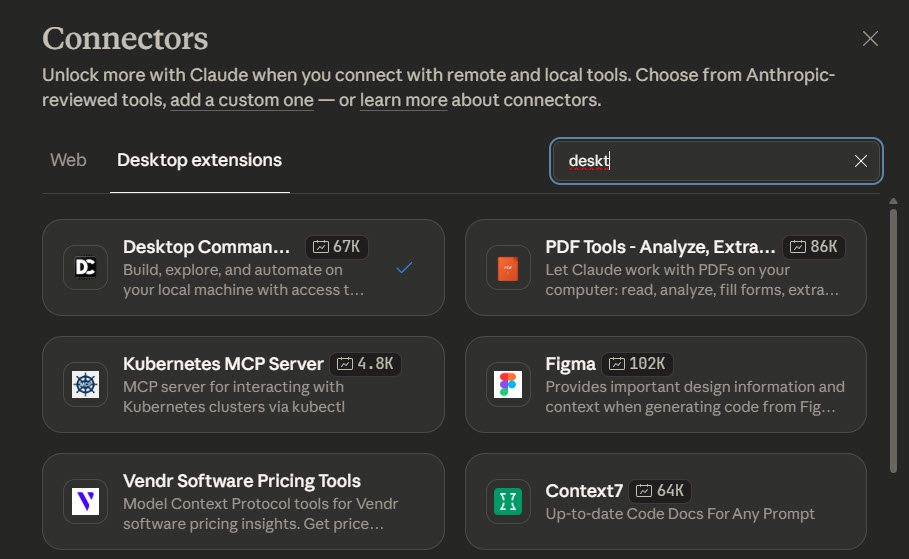
and now Desktop Commander is a Claude Extension – by far the easiest way to get started:
What Makes this Setup Different From Cursor?
Cursor is a code editor with AI baked in. It’s excellent for sitting in a codebase writing features all day.
Claude Desktop + Desktop Commander is a general-purpose AI assistant that can handle code, files, terminal, APIs, and anything else you throw at it. It’s a far better setup for a generalist like me; a marketer that needs data, a writer that needs research (using my Gemini MCP, for instance)
The use cases overlap but the mental model differs. With Cursor, you’re thinking “help me code.” With Desktop Commander, you’re asking “do this task” – and code might be part of that task. If it is (it often is) Claude will just write the script and execute it. That’s the way I see it.
The stats: 26k+ weekly NPM downloads, 4.4k GitHub stars, 9.52/10 user rating. Bravo!
Examples From This Week
WordPress article extraction: “Download article 2264 from (my website) and save the raw JSON to the research folder.”
Data filtering: “Read this CSV of products, find all items under £500 with rating above 4.0, export to a new file.”
Git housekeeping: “Show me all uncommitted changes, then commit the research files with message ‘Phase 2 research complete’.”
File audit: “List all .php files in the scripts folder that haven’t been modified in 30 days.”
None of these are impressive individually. Strung together across a full workflow, the productivity gain compounds.
Where It Breaks Down
Desktop Commander isn’t magic. Some honest caveats:
Long-running processes need care. If you start something that takes five minutes, you need to manage timeouts explicitly, and you have to keep a close eye on what’s going on. It’s OK to stop a Claude thread to check it’s on the right track.
Windows has quirks. Git commits in particular require batch file workarounds. Quote escaping in CMD is painful. The cd /d command is essential. I haven’t solved this problem yet; other than to establishe a template for these things for Claude to follow along with. Minimising mistakes takes a massive amount of pre-preparation and template files seems to be a wise workaround.
Context limits still apply. Claude’s context window is large but finite. Complex multi-phase workflows need thread management – I run each phase in a new conversation as I’ve mentioned before.
It can break things. You’re giving an AI write access to your filesystem. This is powerful but requires trust. I keep important work in Git for a reason. By “it” of course I mean Claude, not DC!
The Prompt Library
Desktop Commander has a prompt library at desktopcommander.app/library with 72+ curated use cases:
- Organise Downloads folder
- Explain Codebase or Repository
- Extract Data from PDFs
- Set Up Local Development Environment
- Generate Docker Configuration
- Manage WordPress site in natural language
- Clean Up Unused Code
Most of these are instant (quick tasks) or step-by-step (complex workflows). Worth browsing to see what’s possible.
How Important is This?
Here’s my prediction: within two years, everyone working at a desk will have Claude Desktop and Desktop Commander (or equivalent) as core operating software.
Or something similar – there’s a productivity surface application opportunity here that I don’t think anyone has mastered just yet.
The shift feels inevitable once you’ve experienced it. Why would I manually navigate folders when I can describe what I want? Why would I copy-paste code when Claude writes it directly? Why would I context-switch between terminal and browser when one interface handles both?
The best prompts aren’t in the library anyway. They’re the ones you’ll discover yourself, five minutes in, when you realise you can just ask Claude to do the task you were about to do manually.
That moment – “wait, I could just ask it to do this” – is when the tool clicks.
Useful links
Related Posts
How to Set Up LM Studio: Running AI Models on Your Own Hardware
How does anyone end up running their own AI models locally? For me, it started because of a deep interest in GPUs and powerful computers. I’ve got a machine on my network called “hopper” with six NVIDIA GPUs and 256GB of RAM, and I’d been using it for various tasks already, so the idea of … <a title="How to Set Up LM Studio: Running AI Models on Your Own Hardware" class="read-more" href="https://houtini.com/how-to-set-up-lm-studio/" aria-label="Read more about How to Set Up LM Studio: Running AI Models on Your Own Hardware">Read more</a>
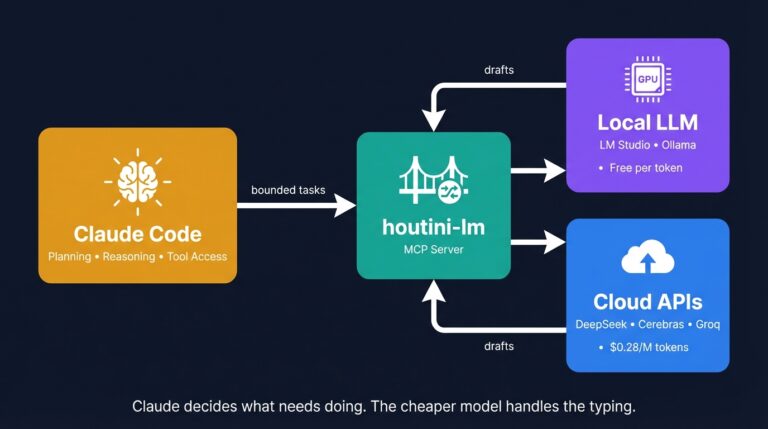
Cut Your Claude Code Token Use by Offloading Work to Cheaper Models with Houtini-LM
I built houtini-lm for people worried that their Anthropic bill might be getting out of hand. I’d leave Claude Code running overnight on big refactors, wake up, and wince at the token count. A huge chunk of that spend was going on tasks any decent coding model handles fine – boilerplate generation, code review, commit … <a title="How to Set Up LM Studio: Running AI Models on Your Own Hardware" class="read-more" href="https://houtini.com/how-to-set-up-lm-studio/" aria-label="Read more about How to Set Up LM Studio: Running AI Models on Your Own Hardware">Read more</a>
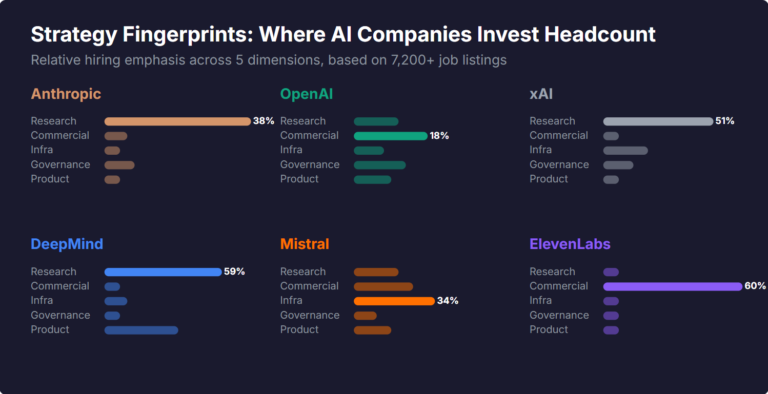
What Skills Are AI Companies Hiring For, and What Do the Jobs Tell Us About Their Strategy?
I pointed YubHub at 7,200+ job listings across the major AI labs and the hiring patterns reveal six completely different strategic bets. Anthropic is all-in on research. OpenAI reads like an enterprise SaaS company. xAI is hiring domain experts to teach Grok finance. Here's what the data shows.

How to Create LinkedIn Carousel Slides with Gemini and Claude
A developer workflow for turning blog posts into LinkedIn carousel slides using Gemini SVG generation, Puppeteer PDF conversion, and a four-line Python merge script. No Canva, no SaaS tools.
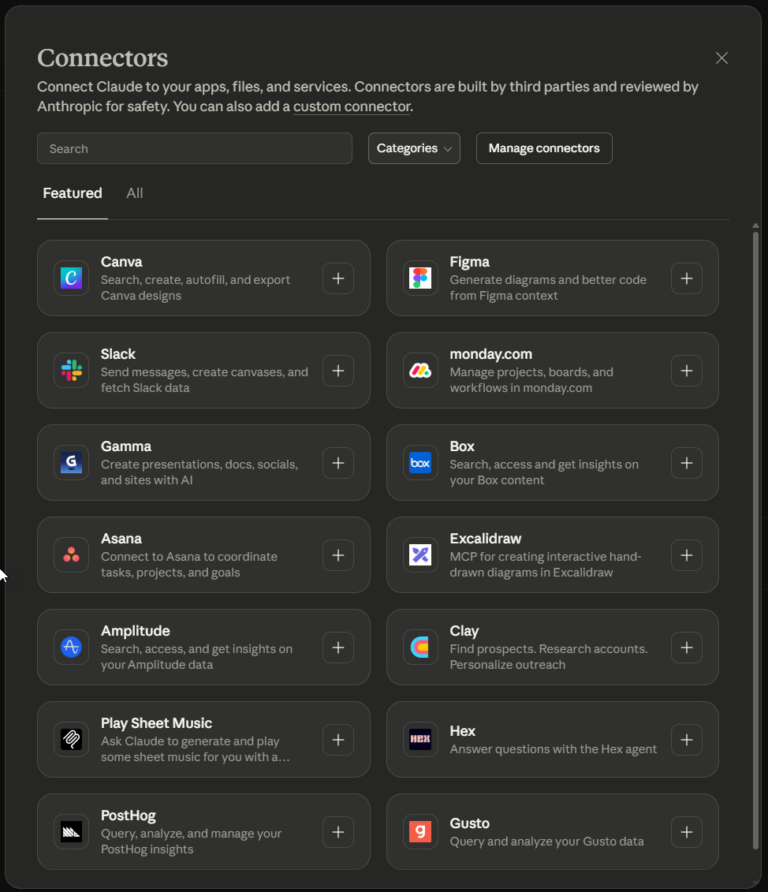
What Is an MCP Server? And, Why It Matters for AI Tool Use
My daily work literally depends on the existence of MCP servers now, spread between Claude Desktop and Claude Code. Database queries, image generation, web scraping, file management, search console data, email. Much of my daily working world lives in a conversation window. I am convinced we are at the beginning of a radical shift in … <a title="How to Set Up LM Studio: Running AI Models on Your Own Hardware" class="read-more" href="https://houtini.com/how-to-set-up-lm-studio/" aria-label="Read more about How to Set Up LM Studio: Running AI Models on Your Own Hardware">Read more</a>
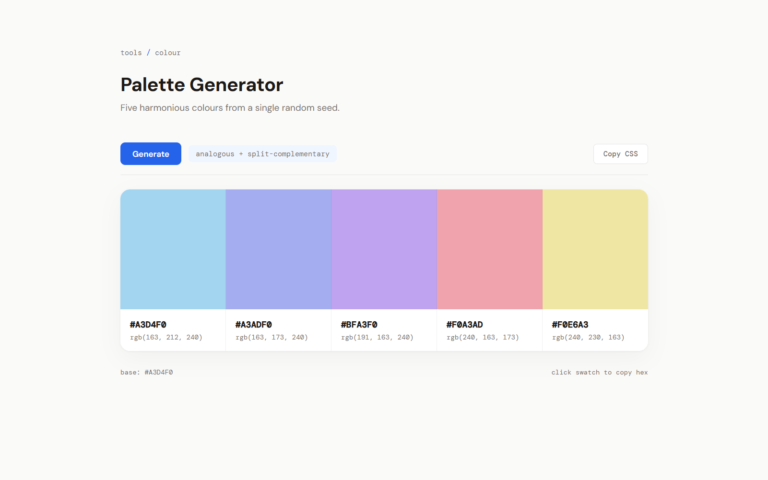
How to Improve Your AI Prototype Designs with Skills, Prompts and Gemini
I build a lot of single-file HTML prototypes with Claude Code. They work, but they all end up looking the same. I tested three approaches to fix this – Claude Skills, manual prompt engineering, and Gemini MCP feedback.