

DataForSEO is an API service that gives you programmatic access to the type of SEO data you’d normally have to click through tools like Ahrefs or SEMrush to access. Data like search engine listings, LLM visibility, keyword volumes, backlink profiles and more.
DataforSEO built their own infrastructure to collect this data and make it available at scale, so you’re not paying a “wrapped in a pretty dashboard” premium. You send an API request, you get JSON back with the raw data. This is excellent for building your own tools, automating SEO workflows, or running competitor analysis within a system of your choice, be it in your own app or (as we will be looking at today) via an MCP connection into your AI Assistant.
Where do I get a DataforSEO API key?
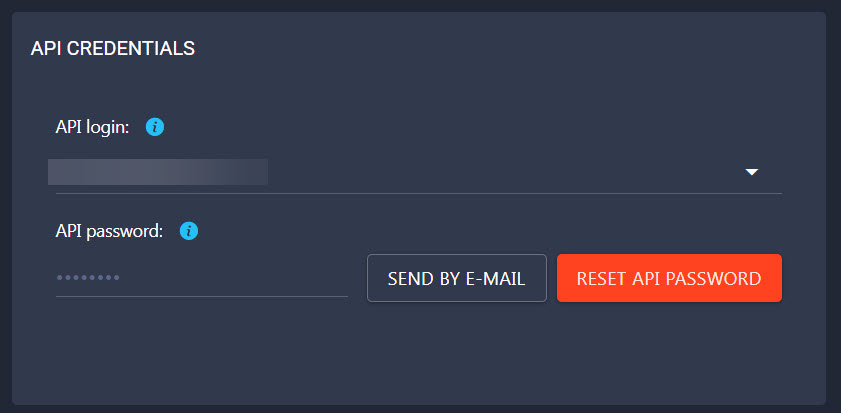
Head to: Dashboard > API Access and copy the API login and the API password:
DataforSEO has different API modules for different jobs:
- AI_OPTIMIZATION API: provides data for keyword discovery, conversational optimisation, and real-time LLM benchmarking
- SERP API: real-time Search Engine Results Page (SERP) data for Google, Bing, and Yahoo
- KEYWORDS_DATA API: keyword research and clickstream data, including search volume, cost-per-click, and other metrics
- ONPAGE API: allows crawling websites and webpages according to customizable parameters to obtain on-page SEO performance metrics
- DATAFORSEO LABS API: data on keywords, SERPs, and domains based on DataForSEO’s in-house databases and proprietary algorithms
- BACKLINKS API: comprehensive backlink analysis including referring domains, anchor text distribution, and link quality metrics
- BUSINESS DATA API: publicly available data on any business entity;
- DOMAIN ANALYTICS API: data on website traffic, technologies, and Whois details;
- CONTENT ANALYSIS API: robust source of data for brand monitoring, sentiment analysis, and citation management
The DataforSEO MCP
The MCP hooks all of this API functionality directly into Claude, so you can just ask questions like “what’s ranking for X” or “analyse competitor Y” and Claude calls the DataForSEO APIs behind the scenes, then explains the results in chat.
If you’re not familair with an MCP or how to set it up in Claude Desktop, take a look at this guide.
What You’ll Need First
Before we start, make sure you’ve got these three things sorted:
- Claude Desktop installed on your computer (works on Windows, Mac, or Linux)
- An updated Node.js version (I’m on v25.4 ish) – grab it from here if you haven’t got it
- A DataForSEO account with your API details ready – sign up here if you need one
Finding Your DataForSEO Login Details
You’ll need your API credentials from DataForSEO. Here’s where to find them:
- Head to your DataForSEO Dashboard
- Click on the API Access section
- You’ll see two bits of information:
- Your username (same as your login)
- Your password (specifically for API access)
Keep these details safe – you’ll need for teh setup but it’s important not to share API keys with chat.
It’s worth noting that DataForSEO uses Basic Authentication, which just means your username and password get combined and encoded before being sent to their servers. You’ll see where this is configured in just a moment.
Quick Setup
Here’s the simplest way to get everything running – we’ll use something called npx, which lets you run the server without installing it permanently on your computer.
We’ll need to update Claude’s settings so it knows how to connect to DataForSEO:
- Open Claude Desktop
- Go to Settings → Developer → Edit Config
- Add this bit of code to your
claude_desktop_config.jsonfile:
{
  "mcpServers": {
    "dataforseo": {
      "command": "npx",
      "args": ["dataforseo-mcp-server"],
      "env": {
        "DATAFORSEO_USERNAME": "your_username_here",
        "DATAFORSEO_PASSWORD": "your_password_here",
        "ENABLED_MODULES": "SERP,KEYWORDS_DATA,DATAFORSEO_LABS,BACKLINKS"
      }
    }
  }
}
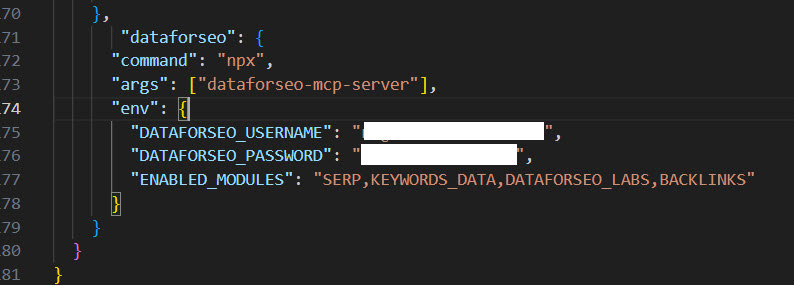
Don’t forget: Replace your_username_here and your_password_here with your actual DataForSEO details.
Here’s mine:
Choosing Which Tools You Want
DataForSEO offers different modules depending on what you need. You can pick and choose by updating the ENABLED_MODULES line. It makes sense to do this becuase of Claude’s context window. The large MCP context you set, the more context tokens you use up in every request. I rarely if ever need business listing data, for example.
Here’s what’s available:
- SERP – Real-time search results from Google and other search engines
- KEYWORDS_DATA – Keyword research, search volumes, and competition data
- ONPAGE – Website crawling and technical SEO checks
- DATAFORSEO_LABS – Advanced SEO analytics and insights
- BACKLINKS – Link analysis and backlink profiles
- BUSINESS_DATA – Business reviews and local SEO information
- DOMAIN_ANALYTICS – Website traffic estimates and technology stacks
- CONTENT_ANALYSIS – Brand monitoring and sentiment tracking
Want everything? Use this line instead:
"ENABLED_MODULES": "SERP,KEYWORDS_DATA,ONPAGE,DATAFORSEO_LABS,BACKLINKS,BUSINESS_DATA,DOMAIN_ANALYTICS,CONTENT_ANALYSIS"
Other Ways to Set It Up
Installing It Permanently
If you’d rather have the server installed on your computer permanently:
- Install it globally using this command:
npm install -g dataforseo-mcp-server - Then update your Claude config to use it directly:
{"command": "dataforseo-mcp-server"}
(instead of using npx)
Setting Up for Development
If you want to tinker with the code or customise things:
- Clone the repository:
git clone https://github.com/dataforseo/mcp-server-typescript
cd mcp-server-typescript
npm install
npm run build - Point Claude to your local version with the full path:
{"command": "node", "args": ["C:/path/to/mcp-server-typescript/build/index.js"]}
Step 4: Checking Everything Works
Once you’ve updated the configuration, here’s what to do next.
- Restart Claude Desktop completely
- Start a new conversation
- Ask Claude something like: “Can you check if the DataForSEO connection is working and tell me what tools are available?”
If everything’s set up correctly, Claude will confirm the connection and list the available tools.
What You Can Do Now
With DataForSEO setup and connected, you can ask Claude to do all sorts of SEO tasks.
Here are some examples to get you started:
Keyword Research
“Use DataForSEO to find keyword ideas for ‘content marketing’ – I need search volumes and CPC data”
Checking Search Results
“Get me the current Google search results for ‘best SEO tools 2025’ using DataForSEO”
Backlink Analysis
“Can you analyse the backlink profile of example.com with DataForSEO?”
Website Audits
“Run an on-page SEO audit of https://example.com using DataForSEO”
Fixing Common Problems
Check out this brief video from DataforSEO on common issues you may encounter and how to address them.
One last tip: Gemini mentioned that some users have found environment variables don’t always pass through correctly in Claude’s config. If you run into this issue, try passing your credentials directly in the args array instead.
The DataForSEO team are pretty responsive if you need help sorting any quirks.
Related Posts
How to Make SVGs with Claude and Gemini MCP
SVG is having a moment. Over 63% of websites use it, developers are obsessed with keeping files lean and human-readable, and the community has turned against bloated AI-generated “node soup” that looks fine but falls apart the moment you try to edit it. The @houtini/gemini-mcp generate_svg tool takes a different approach – Gemini writes the … <a title="How to Setup the DataForSEO MCP with Claude Desktop" class="read-more" href="https://houtini.com/dataforseo-mcp/" aria-label="Read more about How to Setup the DataForSEO MCP with Claude Desktop">Read more</a>

How to Make Images with Claude and (our) Gemini MCP
My latest version of @houtini/gemini-mcp (Gemini MCP) now generates images, video, SVG and html mockups in the Claude Desktop UI with the latest version of MCP apps. But – in case you missed, you can generate images, svgs and video from claude. Just with a Google AI studio API key. Here’s how: Quick Navigation Jump … <a title="How to Setup the DataForSEO MCP with Claude Desktop" class="read-more" href="https://houtini.com/dataforseo-mcp/" aria-label="Read more about How to Setup the DataForSEO MCP with Claude Desktop">Read more</a>

Yet Another Memory MCP? That’s Not the Memory You’re Looking For
I was considering building my own memory system for Claude Code after some early, failed affairs with memory MCPs. In therapy we’re encouraged to think about how we think. A discussion about metacognition in a completely unrelated world sparked an idea in my working one. The Claude Code ecosystem is flooded with memory solutions. Claude-Mem, … <a title="How to Setup the DataForSEO MCP with Claude Desktop" class="read-more" href="https://houtini.com/dataforseo-mcp/" aria-label="Read more about How to Setup the DataForSEO MCP with Claude Desktop">Read more</a>

The Best MCPs for Content Marketing (Research, Publish, Measure)
Most front line content marketing workflow follows the same loop. Find something worth writing about, dig into what’s already ranking on your site, update or write it, run it through SEO checks, shove it into WordPress, then wait to see if anyone reads it. Just six months ago that loop was tedious tab-switching and copy-pasting. … <a title="How to Setup the DataForSEO MCP with Claude Desktop" class="read-more" href="https://houtini.com/dataforseo-mcp/" aria-label="Read more about How to Setup the DataForSEO MCP with Claude Desktop">Read more</a>
How to Set Up LM Studio: Running AI Models on Your Own Hardware
How does anyone end up running their own AI models locally? For me, it started because of a deep interest in GPUs and powerful computers. I’ve got a machine on my network called “hopper” with six NVIDIA GPUs and 256GB of RAM, and I’d been using it for various tasks already, so the idea of … <a title="How to Setup the DataForSEO MCP with Claude Desktop" class="read-more" href="https://houtini.com/dataforseo-mcp/" aria-label="Read more about How to Setup the DataForSEO MCP with Claude Desktop">Read more</a>
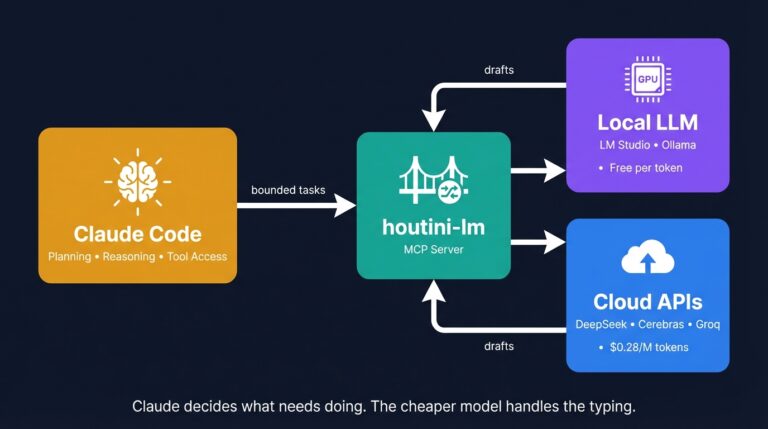
Cut Your Claude Code Token Use by Offloading Work to Cheaper Models with Houtini-LM
I built houtini-lm for people worried that their Anthropic bill might be getting out of hand. I’d leave Claude Code running overnight on big refactors, wake up, and wince at the token count. A huge chunk of that spend was going on tasks any decent coding model handles fine – boilerplate generation, code review, commit … <a title="How to Setup the DataForSEO MCP with Claude Desktop" class="read-more" href="https://houtini.com/dataforseo-mcp/" aria-label="Read more about How to Setup the DataForSEO MCP with Claude Desktop">Read more</a>