How to Create LinkedIn Carousel Slides with Gemini and Claude
A developer workflow for turning blog posts into LinkedIn carousel slides using Gemini SVG generation, Puppeteer PDF conversion, and a four-line Python merge script. No Canva, no SaaS tools.
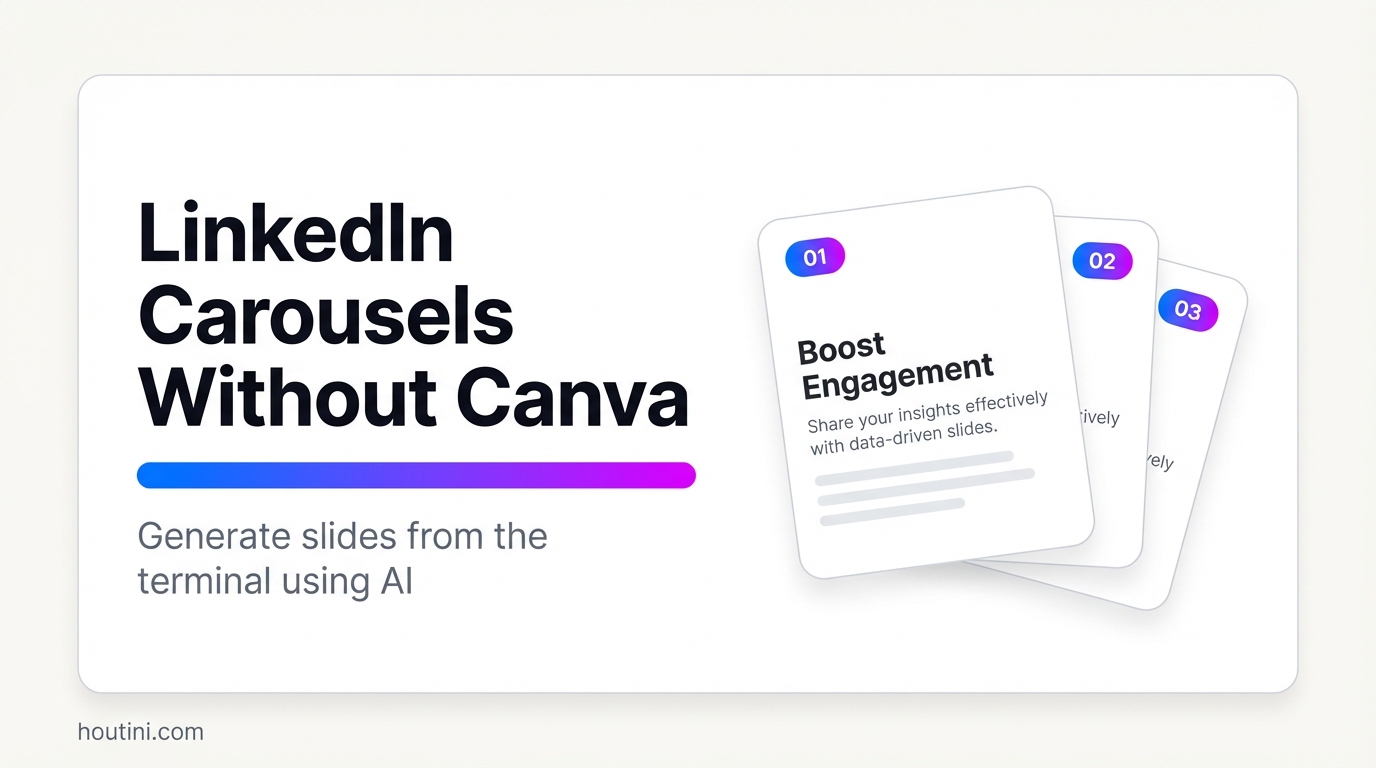
The problem with LinkedIn is it’s sort of a horrible necessity - a bit like going to visit the in-laws. That awful algorithm that prefers to reward trivial lifestyle updates over real substance really grates me. But a necessary evil, it is - there might be a client looking for exactly what you do, then again, it’s probably your peers looking for an idea to steal or an employee to rob. Clearly, then, the idea of producing any original IP for that platform is a waste of time. But having some visibility and a representation of your work and your company is a must.
If I must spend time on Linkedin I’m going to make it count, and for what it’s worth, carousels are probably the most visually impactful, attention-worthy way to go. So, I cobbled together a workflow (because of course I did) to take the pain out of production.
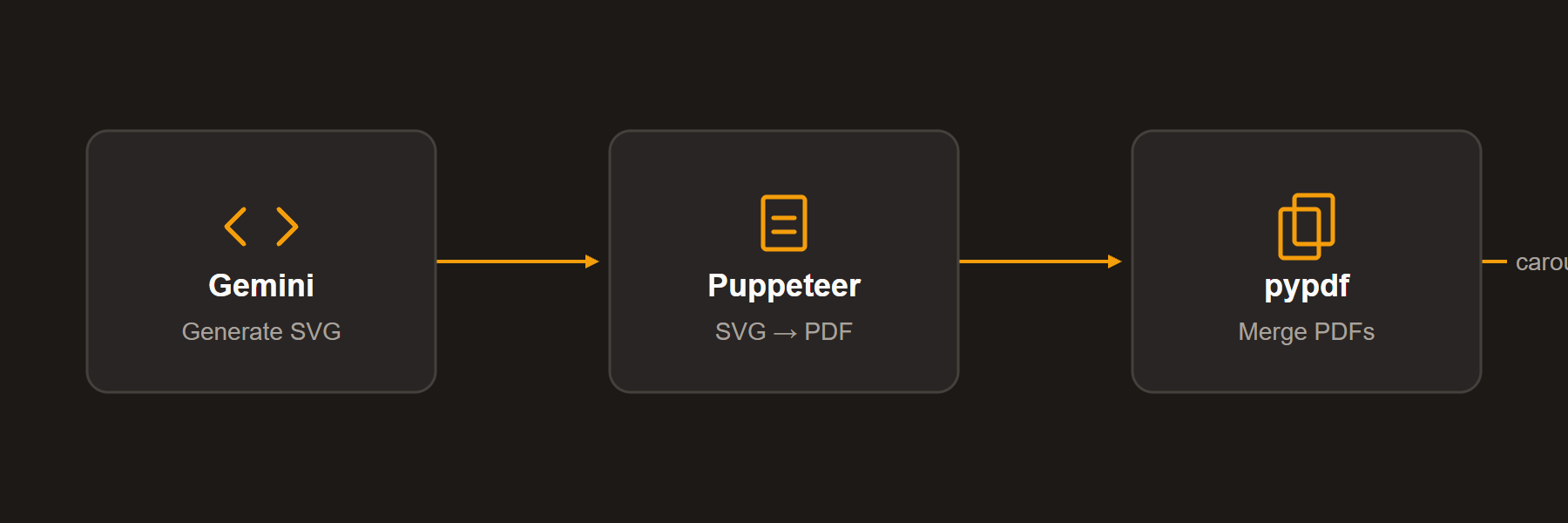
Here’s how it works: Gemini MCP generates SVG files from a text prompt, a Puppeteer script converts each one to PDF, and a four-line Python script merges them into a single file LinkedIn can read. The whole thing runs from the terminal and takes roughly ten minutes end-to-end once you’ve got the scripts set up.
What You’ll Need
- A Google AI Studio account (free tier works fine)
- Node.js installed (for Puppeteer)
- Python installed (for merging PDFs)
- A blog post or set of talking points to turn into slides
If you’ve got Claude Desktop with the Gemini MCP server, you can run this entire pipeline without leaving your terminal. Google AI Studio’s web interface works too, but you’ll be copy-pasting SVG output manually.
Why SVG, Not Images?
Most AI carousel tools generate raster images. Gemini can do that too, but the text rendering is unpredictable. Letters blur, spacing and fonts drift, and you’ll just end up fiddling with it in Canva anyway. Which defeats the whole point.
SVG sidesteps all of that. You’re generating structured markup, not pixels. Text renders as actual text, not a bitmap. Colours land on exact hex values (branding!). Every slide comes out identical in style because it’s code, not a rendered image.
There’s a less obvious advantage too: PDFs built from SVGs keep the text selectable, which LinkedIn’s algorithm, known for its thirst for quality, can index. Your readers can steal copy from it. And, there’s no pixelation on mobile either, because vectors scale to whatever viewport they land on.
Here’s how:
Step 1: Plan Your Slides
LinkedIn carousels work best between 8 and 12 slides. Try to make one point per slide. Aim for 25-50 words, max. Anything more than that will get crushed on mobile.
Here’s a decent structure:
- Cover slide - A bold question or statement that stops the scroll
- Problem slide - Why this matters, what’s broken
- Content slides (4-6) - One key point per slide
- Takeaway slide - Summary or “what I learned”
- CTA slide - Follow prompt, link to full article
If you’re repurposing a blog post, pull out the bits that stand up on their own. Most of what you wrote won’t survive the cut (my writing style can get a bit vague depending on the time of day). Try to distil your prose down to five or six usable lines from a 1,200-word post.
Step 2: Set Up Your Design System
Put the time into nailing down a colour palette and font stack (or do a good job of replicating from your brand guidelines). Then you can reuse your design system for every carousel until the inevitable rebrand project. This step is well worth the time upfront.
Example palette (all Tailwind stone/amber shades):
Background: #1c1917
Card:       #292524 (with 24px border-radius)
Accent:     #f59e0b (amber)
Title:      #fafaf9 at 84px, weight 700
Body text:  #a8a29e at 42px
Footer:     #a8a29e at 28px, centred
Use these slide dimensions for LinkedIn: 1080 x 1350 pixels. That’s LinkedIn’s recommended 4:5 portrait ratio, and it fills most of the mobile screen, which matters because, according to the stats, that’s where 70%+ of LinkedIn browsing happens. 1080 x 1080 square works too, but portrait grabs more feed real estate.
Step 3: Generate SVG Slides with Gemini
One SVG per slide. Feed Gemini your design system and the slide content, and it gives you back clean markup.
A typical prompt looks like this:
Generate an SVG slide at 1080x1350 pixels with this design system:
- Background: #1c1917, card: #292524 with rx="24", 40px margin
- Accent colour: #f59e0b
- Title: #fafaf9, 84px, weight 700
- Body text: #a8a29e, 42px

Slide 3 of 8:
Title: "Your Text Stays Selectable"
Body: "Unlike raster images, SVG-generated PDFs keep
text as actual text. LinkedIn can parse it. Readers
can copy from it. And it never pixelates on mobile."
Footer: "houtini.com | 3/8"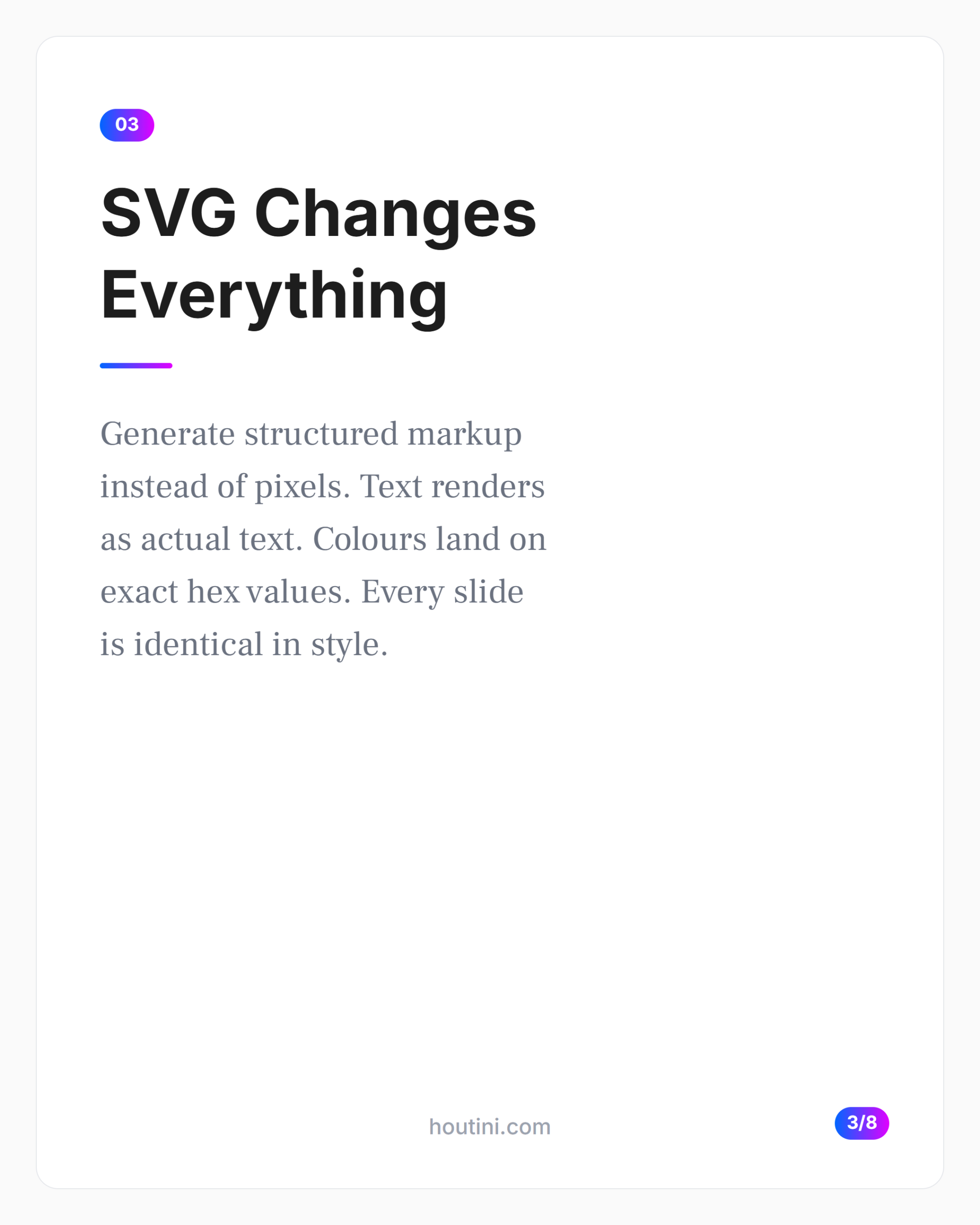
What comes back is a valid SVG. Your text renders sharply, the colours should match exactly, and hopefully, each slide follows your design system because Gemini’s working from the same prompt skeleton each time.
One gotcha that cost me a bit of time: SVG has no automatic text wrapping. Anything past about 40 characters per line, and you’re doing the wrapping yourself. I use <tspan> elements. It’s manual but predictable:
<text x="110" y="640" class="body">
  <tspan x="110" dy="0">Unlike raster images, SVG-generated</tspan>
  <tspan x="110" dy="65">PDFs keep text as actual text.</tspan>
</text>
You could also use <foreignObject> to embed HTML inside the SVG and let CSS handle wrapping. I tried it. Puppeteer choked on the rendering in two out of three tests, so <tspan> it is.
Step 4: Convert SVGs to PDF
You can use Puppeteer to go from SVG to PDF, which, as I mentioned, keeps the text as vectors. Smaller files, selectable text, sharp at any zoom.
Save this as convert.js:
const puppeteer = require('puppeteer');
const path = require('path');

async function svgToPdf(svgFile, pdfFile) {
  const browser = await puppeteer.launch();
  const page = await browser.newPage();

  await page.goto(`file://${path.resolve(svgFile)}`, {
    waitUntil: 'networkidle0'
  });

  await page.pdf({
    path: pdfFile,
    width: '1080px',
    height: '1350px',
    printBackground: true,
    pageRanges: '1'
  });

  await browser.close();
}

// Convert each slide
const slides = ['slide-01', 'slide-02', 'slide-03'];
for (const slide of slides) {
  await svgToPdf(`${slide}.svg`, `${slide}.pdf`);
}
Run node convert.js and you get one PDF per slide.
That waitUntil: 'networkidle0' flag matters if your SVG pulls web fonts via @import. Without it, Puppeteer renders before the fonts load, and you get Arial where you expected Inter. Took me two batches of ugly slides to figure that one out.
Step 5: Merge into One PDF
LinkedIn wants one PDF, not eight, obviously. But with four lines of Python, pypdf you’re good: (pip install pypdf):
from pypdf import PdfWriter

merger = PdfWriter()
for i in range(1, 9):
    merger.append(f"slide-{i:02d}.pdf")
merger.write("carousel.pdf")
merger.close()
The merged file needs to stay under 25MB, but with vector SVGs, you’ll land around 200KB-2MB for an 8-slide deck.
Step 6: Upload to LinkedIn
In the LinkedIn post composer, look for the document icon (page with a plus sign, weirdly hard to spot). Upload the PDF and give it a proper title, not “carousel.pdf.” That title sits at the top of every slide in the feed.
The text post pulls as much weight as the carousel itself. 500 characters max. I usually tease something from slide 4 or 5, so there’s a reason to swipe past the cover.
Quick Reference: Specifications
Quick reference if you’re tweaking any of this:
| Spec | Value |
|---|---|
| Format | PDF (organic posts) |
| Dimensions | 1080 x 1350px (4:5 portrait) |
| Alternative | 1080 x 1080px (square) |
| Max file size | 25MB total |
| Slide count | 8–12 ideal, 20 maximum |
| Min font size | 24pt for mobile |
Things I Got Wrong
Fonts
My first batch specified font-family: “Inter”, except I didn’t actually have Inter on my machine. Chrome fell back to Arial, and the spacing was completely off. The fix is either installing the font or adding a Google Font @import to the SVG’s <style> block. Chrome Headless fetches and renders it properly.
Wasting my life on ImageMagick
ImageMagick’s SVG renderer on Windows is awful. It just breaks: the CSS styling, it ignores gradients, and it mangles text alignment. Avoid it like the plague and just use Puppeteer, which uses Chrome’s actual rendering engine.
Too much stuff on one slide
I crammed 80 words onto each slide in my first batch. They rendered fine at 1440p but were a wall of grey mush on my phone. Cut everything to 30-40 words, and engagement roughly doubled. Turns out the 25-50 word rule exists because most people are reading on a 6-inch screen.
What I think I’ll do with this next
It’s full automation: feed a blog URL to Claude, extract the key points, generate SVG prompts automatically, pipe it all through these scripts. I’ve got a rough version working as a multi step agent prompt. It’s cool. And absolutely horrifying for the single page web app crowd.
Enjoy!
Related Articles
Continue reading.
How to Do a Technical SEO Audit with Claude
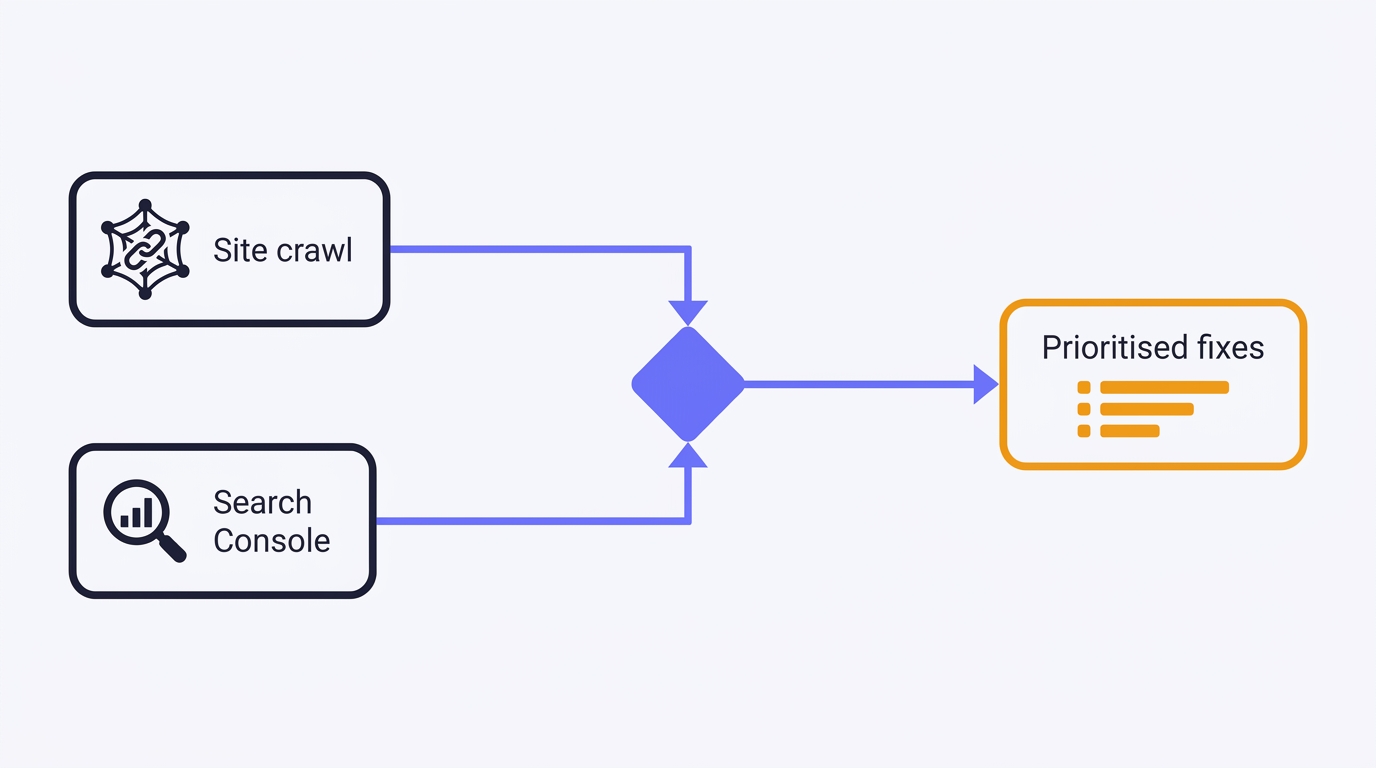
A full technical SEO audit run by conversation in Claude Desktop: Search Console history and a first-party crawl merged into one prioritised, fix-writing report. The setup, the twelve prompts, the priority model, and the honest limits - walked through on a real site.
Claude Code API Key Security: A Guide to Token Hygiene
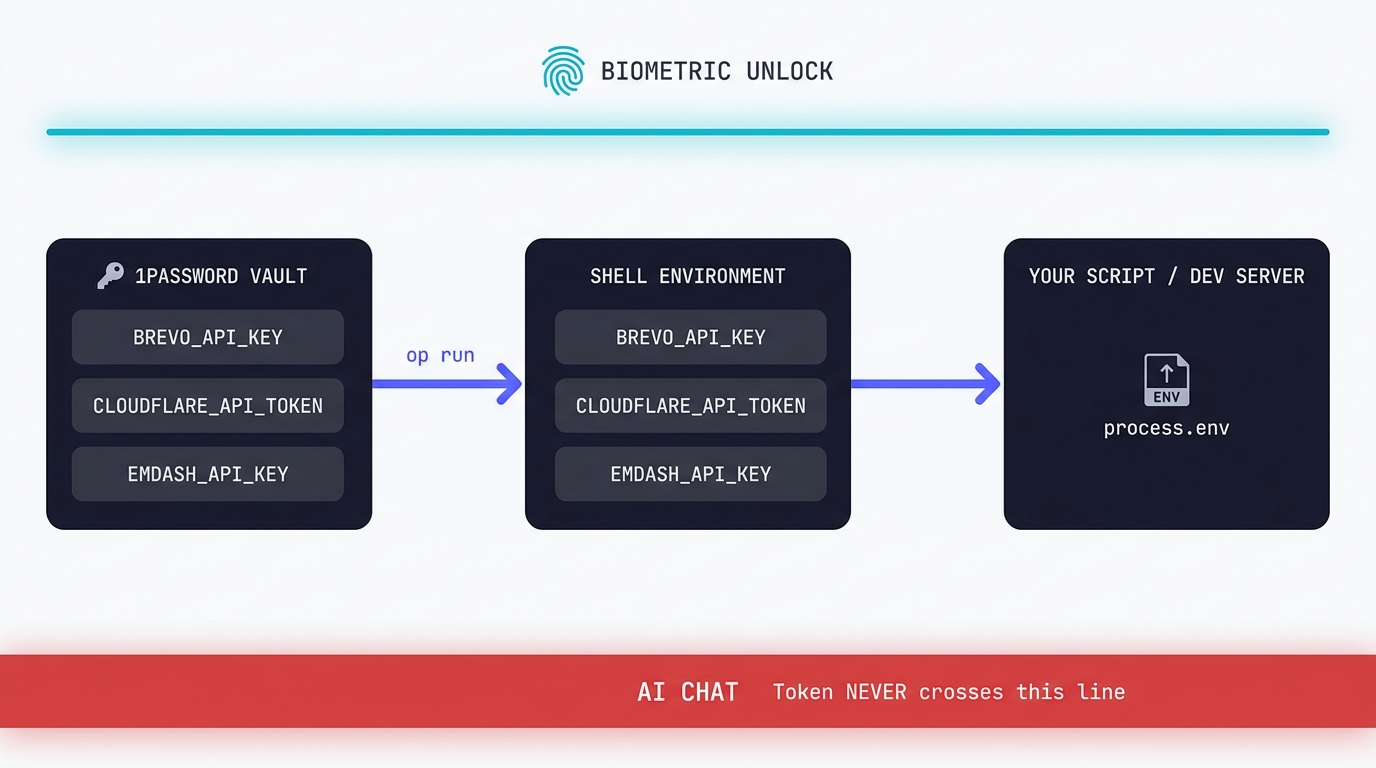
The simplest possible setup that keeps your production tokens out of AI chat windows. 1Password CLI, op run, and the conversational discipline that makes the rest of it work.
Swapping the Engine: How to Run Claude Code on Local Silicon for Zero Pennies
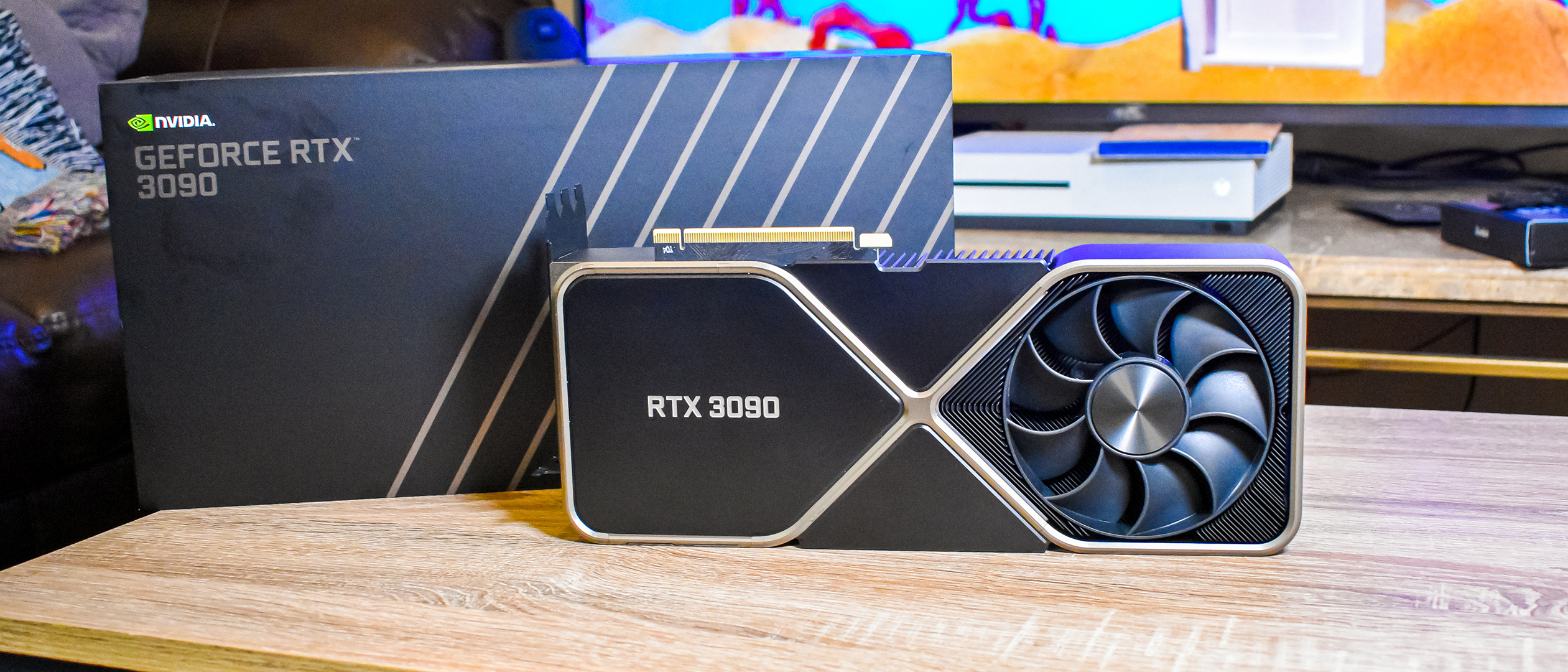
Claude Code's real power isn't the Anthropic model sitting behind it, it's the agentic : the file-system access, the tool use, the way it chains tasks together without you babysitting every step. I figured this out the expensive way. I ran…

A Beginner's Guide to Claude Computer Use
I've been letting Claude control my mouse and keyboard on and off to test this feature for a little while, and the honest answer is that it's simultaneously the most impressive and most frustrating AI feature I've used. It can navigate…
A Beginner's Guide to AI Mini PCs - Do You Need a DGX Spark?
I've been running a local LLM on a variety of bootstrapped bit of hardward, water-cooled 3090's and an LLM server I call hopper full of older Ada spec GPUs. When NVIDIA, Corsair, et al. all started shipping these tiny purpose-built AI…
Using a Local LLM to Audit Your Codebase - What Qwen3 Coder Next Catches (and Misses)
I ran a local copy of Qwen3 Coder Next on a machine under my desk. It pinned down a race condition in my production code that I'd missed. It also told me, with complete confidence, that crypto.randomUUID() doesn't work in Cloudflare…