Best MCP Servers for Claude Desktop (2026)
The MCP servers I run in Claude Desktop, grouped by job: SEO, finance, research, browser, filesystem. My real install order and the ones worth skipping.
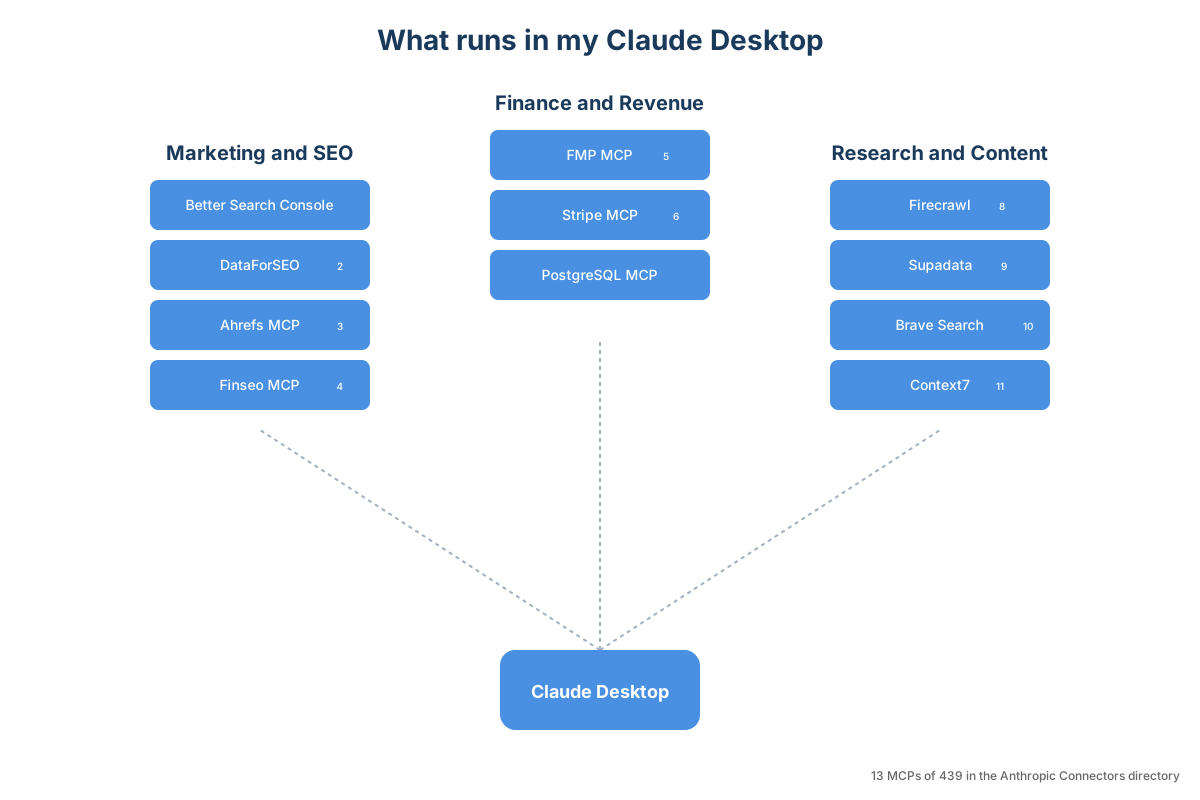
What I run in Claude Desktop
Claude Desktop is open all day on my main machine. Research, writing, data analysis, managing apps I've shipped, fact-checking my own brain when I am not sure I remember something right. Without MCP servers attached it would be a very good chat window and not much more. With the right ones wired in, it is closer to a control panel for everything I work on - my GitHub, my Stripe, my Cloudflare workers, my own search-console data, my financial research.
Since I first wrote this article a few useful new servers have surfaced that I want to add - finance, AI-search visibility, observability - and a couple of the originals do not earn their keep anymore the way they used to. The Claude Desktop UI has moved on enough that the old claude_desktop_config.json walkthrough is just out of date, too. So this version is more of a rebuild than a polish.
Here is what I run in Claude Desktop in June 2026, organised by what I am trying to do.
Quick Navigation
What I run |
The Customize panel |
Gemini MCP |
Marketing and SEO |
Finance and revenue |
Research and content |
Browser automation |
Sentry MCP |
Desktop Commander |
Knowledge Graph |
Houtini LM |
App control |
Gmail and Notion |
Worth knowing about |
Install order |
Claude Code MCPs
What Claude Desktop's Customize panel looks like in 2026

If the install path you remember is editing claude_desktop_config.json by hand, that file still exists and still works (and it is still the canonical filename, despite the older articles that called it claude_config.json). It just is not the primary path anymore. There are three ways to add an MCP server to Claude Desktop in June 2026, in roughly the order you should reach for them.
Customize > Connectors > directory card. Click Customize in the left sidebar, open the Connectors tab, pick a card from the directory at claude.ai/directory (439 verified integrations as of June 2026), authenticate via OAuth. Most directory connectors finish in two clicks. This is what you want for the major SaaS integrations (Gmail, Notion, Stripe, Linear, GitHub) where Anthropic has already done the wiring for you.
Customize > Connectors > Add custom connector. Same panel, the + button at the top. Paste the remote MCP server URL, authenticate, done. Available on every plan; Free is capped at one custom connector. This is the path for any remote MCP that is not in the directory yet, including most of the new SEO and observability servers I cover below.
Desktop Extensions (.dxt files). Anthropic introduced one-click .dxt installers for supported MCP servers in early 2026. Download the .dxt, double-click, Claude Desktop registers the server. Cleaner than editing JSON when the server publisher has packaged one.
Editing claude_desktop_config.json by hand. Still the path for traditional local stdio MCPs (anything that runs as npx <package>@latest on your machine). Location: %APPDATA%\Claude\claude_desktop_config.json on Windows, ~/Library/Application Support/Claude/claude_desktop_config.json on macOS. Open it, add a JSON block under mcpServers, restart Claude Desktop. The dates and the underlying architecture changes are covered in the Claude Desktop System Requirements article .
That out of the way, here is the stack.
The Gemini MCP: Claude's second-opinion engine
I built @houtini/gemini-mcp for the bit Claude on its own struggles with - live, grounded answers. Claude has a training cutoff. Grounded Gemini does not. When I need a current pricing number, a recent changelog detail, or a quick sanity-check that the npm package I am about to install exists at all, I ask Claude to ask Gemini, and the answer comes back grounded in what Google can see today.
I use it constantly. Drafting an article, I ask Gemini to fact-check the claims before I commit. Debugging a tricky bug, I ask Claude to propose a fix and then run that fix past Gemini for a second opinion against current community knowledge. Building a diagram, I have Gemini generate the SVG inside the same conversation. It is the cheapest, fastest "is this still true today?" loop I have in any of my work.
A quirk worth knowing: the model that ships under the hood is gemini-3.1-pro-preview (always pass this explicitly - it silently defaults to an older 1.5 Pro otherwise), and you want to leave max_tokens unset. Capping the output budget truncates the model mid-thought and surfaces as a timeout - I spent a while blaming that on grounding plus thinking_level: high before I realised the cap itself was the culprit. That combination is fine once you stop capping the tokens. Learned the hard way.
If you only install one MCP from this article, install this one. The full guide to the Gemini MCP covers setup and the prompt patterns I use most.
Marketing and SEO: the MCPs that give Claude eyes on search
This vertical is where MCPs change daily work the most. The servers I run, organised by what they show you, starting with the one I built.
seo-audit is the one I run first every morning, and it's my own. It fuses your Search Console history, a crawl of your site, Google's index status for each URL, and DataForSEO's SERP and backlink data into one local database, then answers the questions you'd otherwise build a spreadsheet for: which articles are climbing, which are quietly declining, where the keyword gaps are, what broke technically overnight. It grew out of Better Search Console, a Search Console MCP I built first, once I stopped treating Search Console as a silo and joined it to everything else. The full walkthrough is here , and it lives at /tools/seo-audit/ .
DataForSEO MCP is the one I run hardest of any SEO tool. It exposes nine module endpoints to Claude: SERP, Keywords, Backlinks, On-page, Domain Analytics, Content Analysis, Business Data, AI Optimization, and DataForSEO Labs. Live data on all of them, pay-per-query rather than a fixed monthly subscription, which is exactly the cost shape that fits agentic usage. I burn through API credits when I am researching a content brief, then it sits idle for a week. Across a year it costs me less than a single mid-tier SaaS plan would.
My most common prompt: "Check what's ranking for [keyword] in the UK and tell me what angle the top results are taking." Claude pulls the SERP via DataForSEO, scrapes the top three with Firecrawl, gives me a competitive analysis in about thirty seconds. The follow-up I run constantly: "Now pull the backlinks for those top three from DataForSEO and tell me where their authority is coming from." That second query is what closes the loop on whether the ranking is real or a brief novelty.
The full DataForSEO MCP guide is here .
Ahrefs MCP launched as an official remote MCP server in October 2025. It connects directly to your Ahrefs account: backlinks, traffic estimates, content gap analysis, AI citations data. The pairing pattern that works: BSC tells you what your own pages are doing in Google; Ahrefs tells you what your competitors' pages are doing. Together they cover the full data picture. Add via Customize > Connectors > Ahrefs.
Finseo MCP is the newest one on this list and the one I have queued up to install next. Finseo tracks AI search visibility - whether your pages get cited inside ChatGPT, Claude, Perplexity, Gemini, and Google's AI Overview, on which queries, and against which competitors. Vendor page at finseo.ai/developers/mcp. For anyone publishing content for a living, having that data inside the same chat as your BSC and Ahrefs is the obvious next step. I will write more about how it slots in once I have run it for a few weeks.
Semrush also offers an MCP at mcp.semrush.com/v1/mcp. If you are already a Semrush customer it is worth wiring in; if you are choosing fresh and you already have a Houtini-style workflow I would default to the BSC + Ahrefs + Finseo trio.
Finance and revenue: FMP MCP plus Stripe MCP
This is the second vertical I have rebuilt from scratch since the original article. Two MCPs, both in daily production use.
FMP MCP (@houtini/fmp-mcp) wraps the Financial Modeling Prep API. Live stock prices, crypto, forex, balance sheets, income statements, ratios. I built it because I kept needing Claude to verify financial claims mid-conversation and the alternatives either cost Bloomberg Terminal money or required leaving the chat. The use case I run it for most often: pre-investment due diligence on companies I am evaluating. Claude pulls fundamentals, runs ratio comparisons against the sector, summarises in seconds.
Stripe MCP is the official Anthropic-Stripe integration. I use it to manage YubHub.co's subscription revenue reporting. YubHub is a SaaS I run for employer job feeds and employment insights; its revenue runs through Stripe. The workflow that earns its keep: end of month, I ask Claude to pull current MRR, churn rate, and new subscriber count from Stripe, cross-check against the Postgres database that tracks customer state, and surface any discrepancies before I close the books. Three minutes instead of forty. The reconciliation pattern works for any pairing of Stripe + a customer-state database; PostgreSQL MCP is the standard pairing.
If you are running anything that takes money through Stripe and stores customer state somewhere else, this combination pays for itself in the first month.
Research and content: Firecrawl, Supadata, Brave Search, Context7
These are the four I cannot do my actual writing work without. All four have been in this article since the first version because none of them have been dethroned.
Firecrawl is my go-to data scraper. Six modes: scrape (single page), crawl (follow links across a site), map (discover all URLs), search (web search with optional scraping), extract (structured data via LLM), and agent (autonomous browsing). I use scrape through the MCP most days. It is what captures the screenshots in this article. It is the supporting layer behind the AI jobs board on this site. It is reliable in a way that I do not have to think about.
Supadata is the YouTube transcript layer. Find a relevant video, pull the transcript, ask Claude to extract the technical detail. Saves a forty-minute video into a five-minute read. It also handles TikTok, Instagram, Twitter, and direct file URLs. I use it for keeping current with fast-moving topics where the writeups have not caught up yet.
Brave Search is the targeted alternative to Claude's built-in web search. Dedicated endpoints for news, images, videos, and local businesses. The killer feature is the freshness flag: freshness: "pd" gives results from the last twenty-four hours, which the built-in search does not let you scope cleanly. Free tier covers casual use. Get an API key here .
Context7 solves the knowledge-cutoff problem for code. Claude's training data ends at some point; Context7 has up-to-date library documentation indexed and ready for query. My go-to prompt: "Use Context7 to find the latest libraries for this application and consider if the changes may be breaking." A few months of knowledge cutoff is a lifetime when you are shipping software.
Browser automation: Playwright over Chrome DevTools
I have run Chrome DevTools MCP for browser automation through Claude Desktop. It works, but it times out enough that I have moved my production browser automation to Playwright. Microsoft maintains @playwright/mcp as the official Playwright MCP server (github.com/microsoft/playwright-mcp); install via npx @playwright/mcp@latest.
The reason Playwright wins here is architectural. Chrome DevTools MCP wraps the Chrome DevTools Protocol, which was built for developer-tools usage (one tab, one inspector, lots of debugging surface). Playwright was built for production load (headless, multi-tab, retry-on-failure baked in). When you are running browser automation as part of a long Claude conversation, the Playwright surface is the one that holds up.
I still run Chrome DevTools MCP occasionally for one-off debugging where I want to see the inspector output directly. For everything else, Playwright. The Chrome DevTools MCP article on this site covers the legacy use cases.
Debugging and observability: Sentry MCP
Sentry's official server at @sentry/mcp-server (recent versions; npx @sentry/mcp-server@latest to install with SENTRY_AUTH_TOKEN set) exposes issue and event queries against your Sentry projects. The workflow: an error fires in production, you paste the Sentry link into Claude, the MCP pulls the full event context (stack trace, breadcrumbs, user impact), Claude proposes a fix grounded in the actual error rather than your description of it.
I am only just adding this to my own setup; the Code article will cover Sentry in more depth because that is where the workflow lives.
Desktop Commander and the Filesystem MCP
Desktop Commander lets Claude read and write files, run terminal commands, manage processes, and search your filesystem. I have run it for months across every project I work on. Pair it with the mcp__desktop-commander__start_search and read_multiple_files tools and Claude can navigate a codebase the way a human would.
Worth noting: Claude Desktop ships with its own Code Execution feature. I turn it off and rely on Desktop Commander instead. The built-in sandbox is restrictive enough that Claude loses entire files inside it, and Desktop Commander gives you per-directory scoping that the built-in does not. The Desktop Commander guide is here .
Filesystem MCP (@modelcontextprotocol/server-filesystem) is the official Anthropic alternative. It exposes a specific directory as a sandbox and stops there. If your concern with Desktop Commander is that it has too much surface area, Filesystem MCP is the tighter equivalent. I run Desktop Commander because I want the broader surface; the tradeoff is honest, and which you pick depends on your risk tolerance, not on anyone's blanket recommendation.
Knowledge graph: my own Google Knowledge Graph MCP
I built @houtini/google-knowledge-graph-mcp because I kept needing Claude to verify entity information mid-research and there was no clean way to do it. Google's Knowledge Graph has structured data about millions of real-world entities (the same data behind those knowledge panels on the right of Google search results). The MCP exposes it to Claude. The free tier covers 100,000 reads per day per Google Cloud project, which is more than any single researcher will use. Get an API key from Google Cloud here .
Local-model offload: Houtini LM
This one is for a specific kind of person. I run @houtini/lm against a modded 48GB RTX 4090 in my main machine, serving models through vLLM in Docker (the second workstation I used to run for this, hopper, has since been sold). It exposes whatever model the local endpoint has loaded as an MCP, so Claude can delegate non-frontier work to the local machine.
The pattern: heavy reasoning, hard decisions, and the prose that ends up published all stay on Claude. Grunt work, format conversion, test stubs, commit messages, and the boring parts of code review go to the local model. The local model is slower per token but it costs nothing per token. Over a long Claude Code session that delegation can save a meaningful share of your Anthropic quota.
You need a workstation with serious VRAM for this to work; an integrated GPU will not run the models worth offloading to. If you do have the hardware, the offload pattern is worth the setup. I cover the underlying hardware decisions in Best GPUs for running local LLMs .
App control: YubHub as the worked example
I built YubHub as a SaaS that produces employer job feeds and employment insights from the world's top companies. It has an MCP that manages the app, and that MCP is the engine behind the AI jobs board on this site.
I say "show me the YubHub dashboard" and Claude pulls feed stats, job counts, error rates. I trigger feed runs, check which feeds are failing, debug issues, all without opening a browser. It turns Claude Desktop into a control panel for an application that would otherwise need its own admin UI.
The reason I include this here, even though it is not a tool you can install: it is the pattern. If you are building any kind of data pipeline or content system, building an MCP for it is worth the effort. Expose your CRUD operations as MCP tools and Claude can manage the whole thing through conversation. The pattern is the same whether your app handles ten records or ten million.
Communication: Gmail and Notion
Gmail MCP turned out to be one of the more practical MCPs I run, despite my initial scepticism about giving Claude access to my email. Mostly for search and triage: "find the last email from X about Y" or "summarise the thread about the contract renewal." I do not let Claude write emails. Pulling context from my inbox while I am working on something related, that is where it earns its place. The Gmail MCP guide is here .
Notion MCP (Notion's own official server ) connects Claude to your Notion workspace: pages, databases, comments, search. I use it to pull context from planning docs without copy-pasting between tabs. "What's the current status of the content calendar?" and Claude reads the Notion database and summarises.
A few MCPs worth knowing about
The directory at claude.ai/directory has 439 verified connectors as of June 2026. A handful are worth knowing about even if they will not be in your daily stack:
Weather ( SaintDoresh/Weather-MCP-ClaudeDesktop ) hooks into OpenWeatherMap. I ask Claude "should I cycle to the office tomorrow?" and it answers from forecast data. Weirdly useful.
Public Transport ( mirodn/mcp-server-public-transport ) covers train and bus schedules across the UK, Switzerland, Norway, and Belgium. Being able to ask "what time's the next train from [station]?" mid-conversation is handy.
Spotify controls playback, queues tracks, and searches your library from Claude. Essential? No. Fun? Yes.
The community list at wong2/awesome-mcp-servers is the most-maintained directory if you want to browse further.
My current Desktop install order
If someone asks "just tell me what to install", this is the order I would do it in.
Hour one (install these before anything else):
- Desktop Commander - file access, terminal, processes
- Firecrawl - web scraping
- Brave Search - targeted web, news, image search
- Gemini MCP - grounded second opinions and image generation
- DataForSEO - live SERP, keywords, backlinks, domain analytics
Hour two (the rest of the research stack and your own data):
- seo-audit - your own GSC data, a crawl and DataForSEO, joined
- Context7 - current library documentation
- Supadata - YouTube and video transcripts
When you need them:
- FMP MCP - finance and market data
- Stripe MCP - if you take payments through Stripe
- Ahrefs MCP or Semrush MCP - if you are already paying for one
- Finseo MCP - if AIO is hitting your search traffic
- Playwright MCP - production browser automation
- Sentry MCP - if you ship code with observability
- Google Knowledge Graph MCP - entity verification mid-research
- YubHub MCP, or your own app MCP - the control-panel-for-your-app pattern
- Gmail and Notion - inbox and workspace context
- Houtini LM - if you have a workstation worth offloading to
That is what I run. Eighteen MCPs feels like a lot but they do not all activate at once. Claude only uses the ones it needs for the current prompt, so context window cost stays minimal.
If you are new to Claude and you do not already have an account, you can start with a free week of Claude Code before committing to a subscription. The MCPs in this article all work the same way across Claude Desktop, Cowork, and Claude Code, so the install effort transfers.
Looking for the Claude Code-specific MCPs?
If you are using Claude Code (the agentic coding mode that ships inside the same Claude Desktop binary), the MCP setup is similar but the priority list is different. Claude Code has its own file access, search, and editing tools built in, so Desktop Commander is less essential there. The MCPs that earn their keep in Claude Code are GitHub for PR management, Sequential Thinking for complex architecture decisions, Postgres and SQLite for database access, and Docker MCP Toolkit for running servers in containers.
Context7 and Gemini MCP work in both Desktop and Code. I run them everywhere.
The dedicated Best MCPs for Claude Code article covers the Code stack in full.
Continue reading.
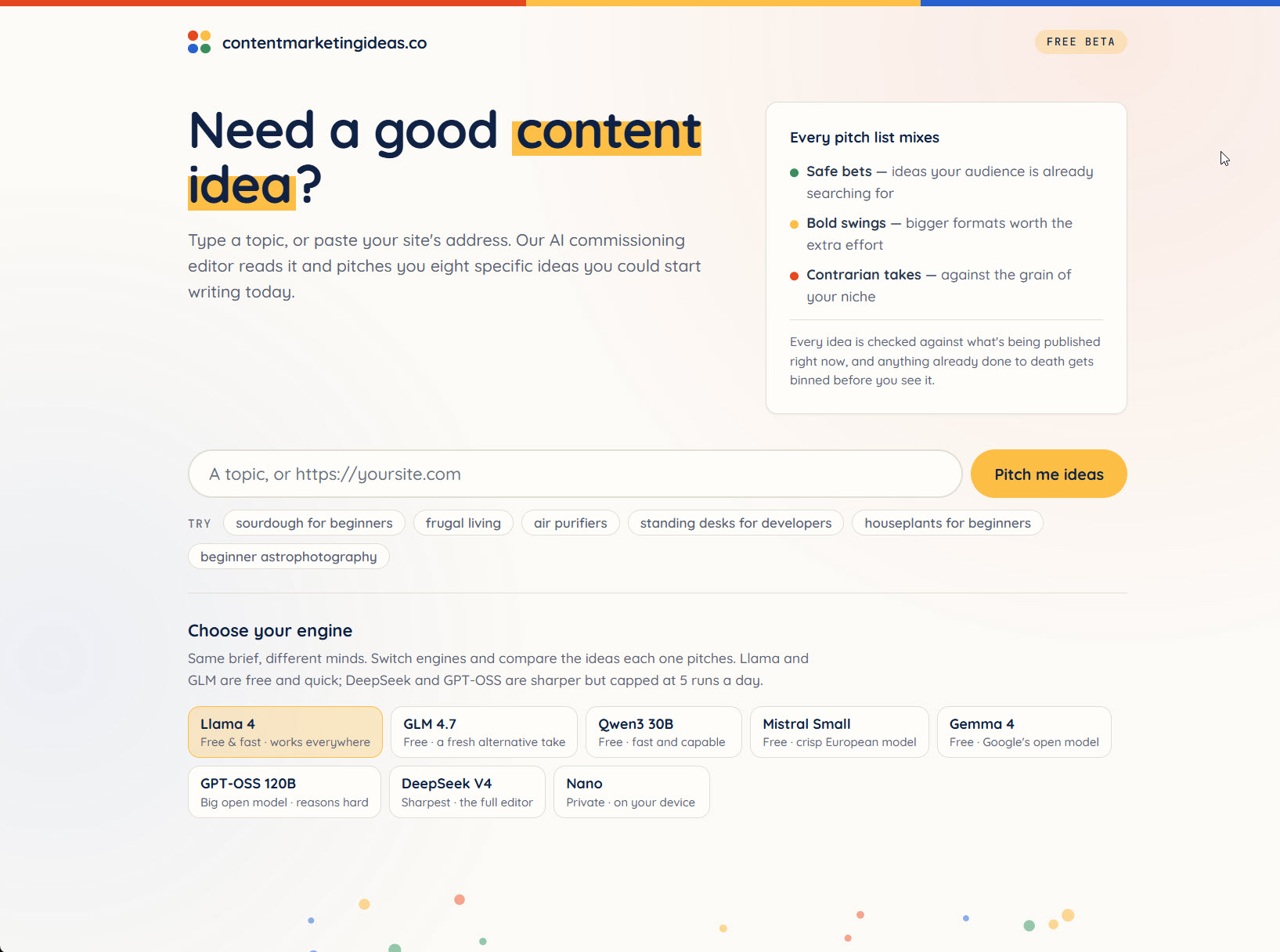
Eight AI models, one content brief: what each pitched (and why the free ones crawl)
I built a free tool that pitches eight content ideas, and it lets you choose which AI does the thinking. So I ran the same brief through all eight models to see how differently they'd think. The ideas surprised me. The speed surprised me more.
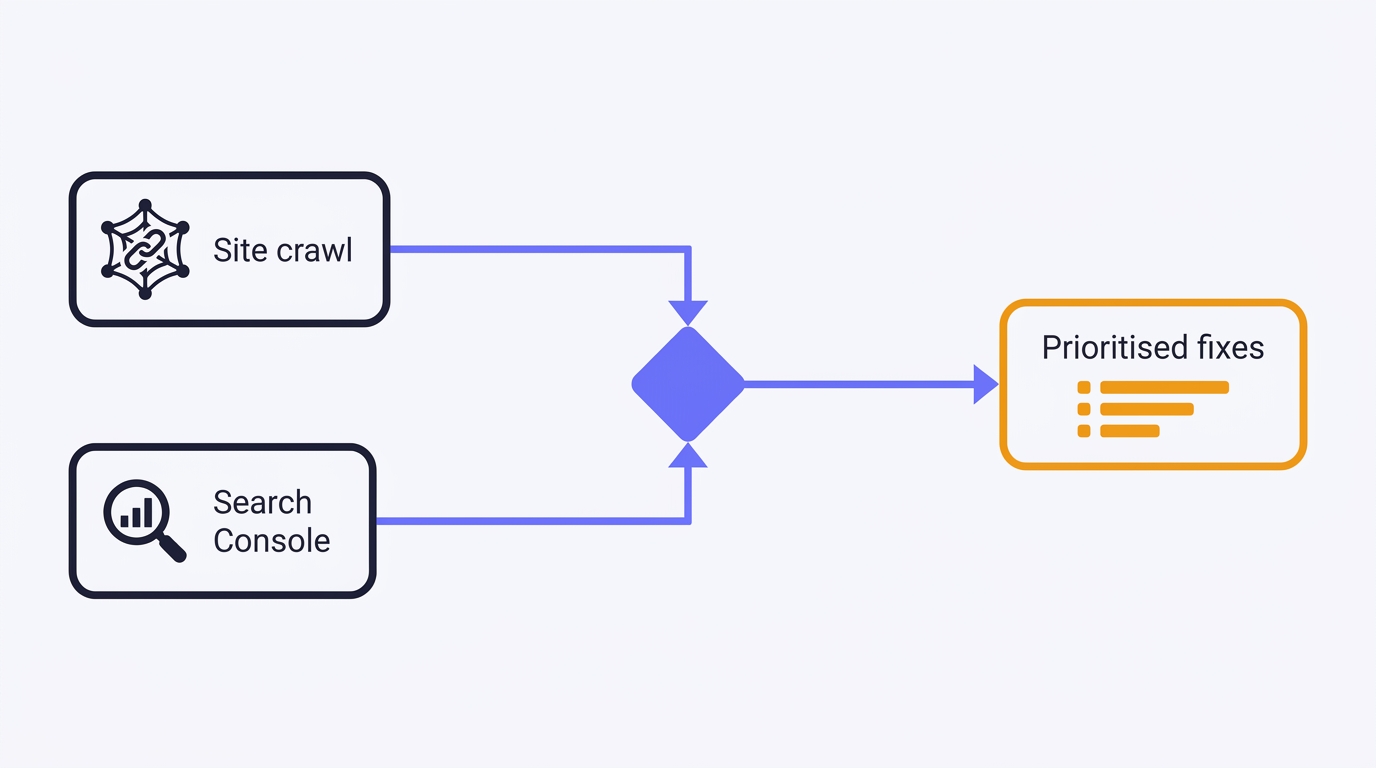
How to Do a Technical SEO Audit with Claude
A free, step-by-step technical SEO audit with Claude: your Search Console history and a first-party crawl merged in one local database, ranked by recoverable clicks - the Screaming Frog alternative you run by conversation.

The VRAM traps: why a 16GB model wouldn't load on a 48GB card
A 16GB model would not load on my 48GB card, and the reason was a shortfall of one kilobyte in a memory no spec sheet mentions. These are the fit traps a VRAM figure will never warn you about.

The Dual-4090 96GB vLLM Benchmark & Runbook
Can a £6,200 modified Ada rig match enterprise MoE throughput? The living measurement record for a dual RTX 4090 48GB vLLM rig - every number measured here.
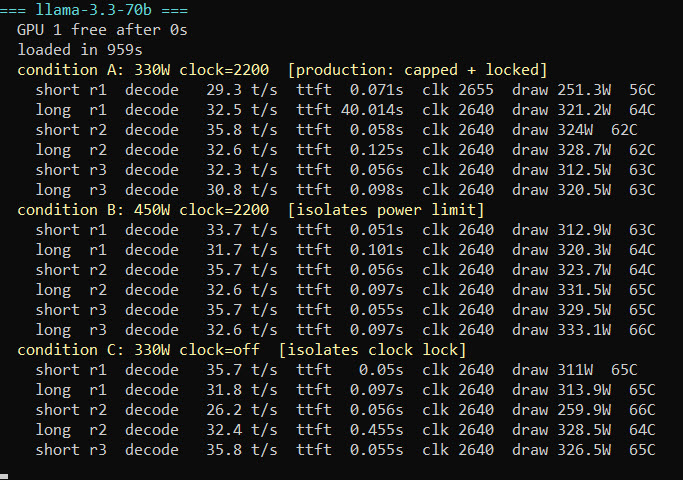
The broken rules of local LLM inference
I used to lock the clocks on my mining GPUs. The same instinct just helped kill five rules of local LLM inference on a £6,200, 96GB rig.
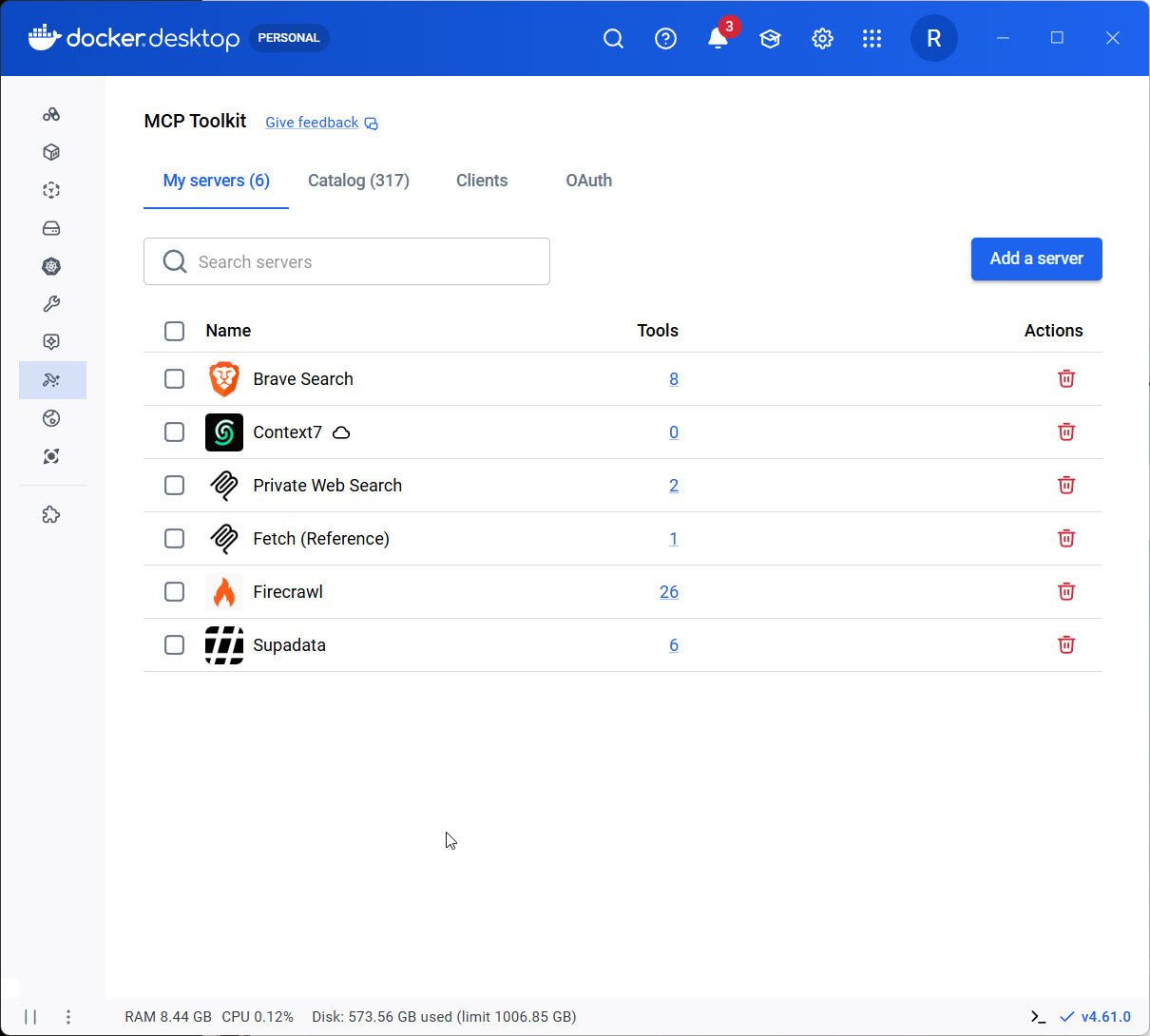
How to Stop MCP Servers Eating Your PC: One Docker Gateway for Every Claude Client
My MCP list grew until orphaned node.exe were quietly eating a 128GB workstation by mid-afternoon. Here's how I put every server behind one Docker gateway - node on bare metal gone, secrets in one gitignored file, and a single URL every Claude client points at. One evening's work you'll feel every day after.