
I’ve spent the past few months building Yubhub (launch coming soon), a job aggregator that feeds our Motorsport jobs site, fluidjobs.com. The scraper needs to pull job listings from career sites across Formula 1, automotive engineering, and racing teams. Mercedes F1, FIA, Audi, McLaren – all JavaScript-heavy React sites that traditional scrapers are very difficult to set up to work with.
The variations on these pages are broad: has schema, does not have schema, built in React, built in static HTML. Job scraping is, in my opinion, one of the hardest content mediums to scrape because most pages are so unstructured (to their detriment, I might add). Anyway.
Today I’m writing about Firecrawl; it’s a content scraper on Hyperfuel because behind the scenes, an LLM is running the show. Instead of messing around with CSS selectors or, dare I say, XPath, you instruct the LLM to look for a salary, a job description, a title. Suddenly, the variations in page structure matter less, and you can get on with the job in hand. The content scraping!
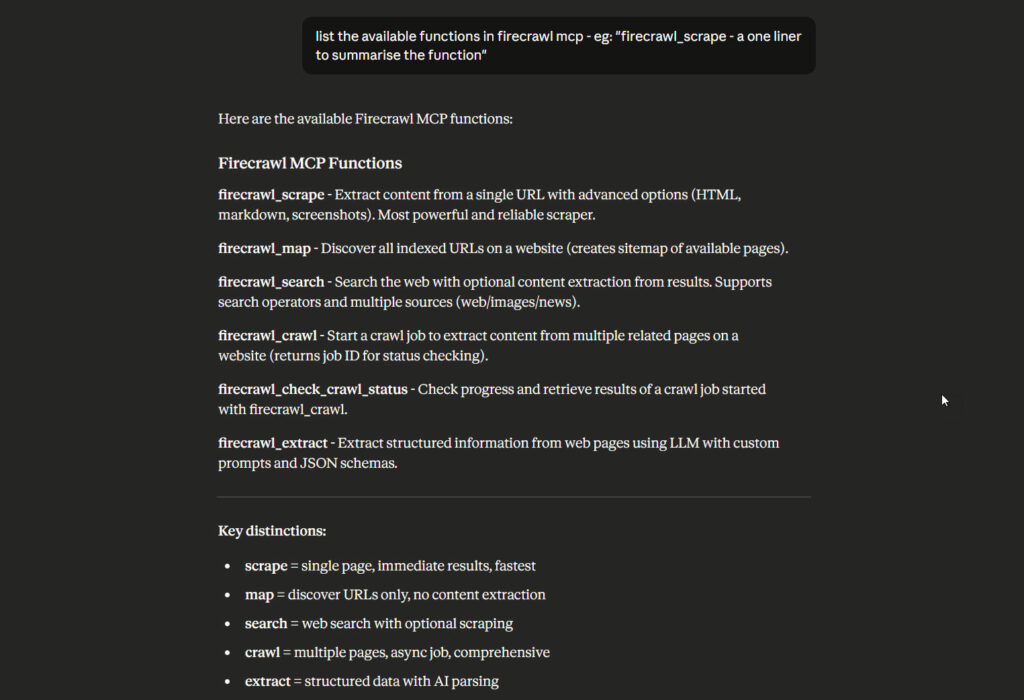
Today’s guide shows you how to set up Firecrawl’s MCP server in Claude Desktop and use it for real scraping work. No theory – just what actually works based on production experience.
The Scraping Problem Firecrawl Fixes
Modern career sites aren’t simple HTML anymore. They’re often single-page applications built with React, Next.js, or Vue. The HTML you download with a standard HTTP request is just a skeleton. JavaScript loads the actual content after the page renders in your browser. Further, they sometimes have bot protection or are simply built in a way that makes scraping hard (thanks, guys).
Traditional scraping tools, like requests in BeautifulSoup, fetch raw HTML. They can’t execute JavaScript. When you point them at a React site, you get empty <div> containers and “Loading…” spinners. Your browser sees job listings. Your script sees nothing.
Firecrawl runs a real browser in the cloud. It waits for JavaScript to execute, content to render, and images to load. Then it extracts the finished page as clean markdown or HTML, following any instructions you’ve passed on to their LLM. Firecrawl is very clever, which is why, of course, they’re a bit of a unicorn on the whole VC arena (which I have 0 interest in – just give me the tools! Firecrawl works on sites where traditional scraping libraries fail.
Setting Up the MCP Server
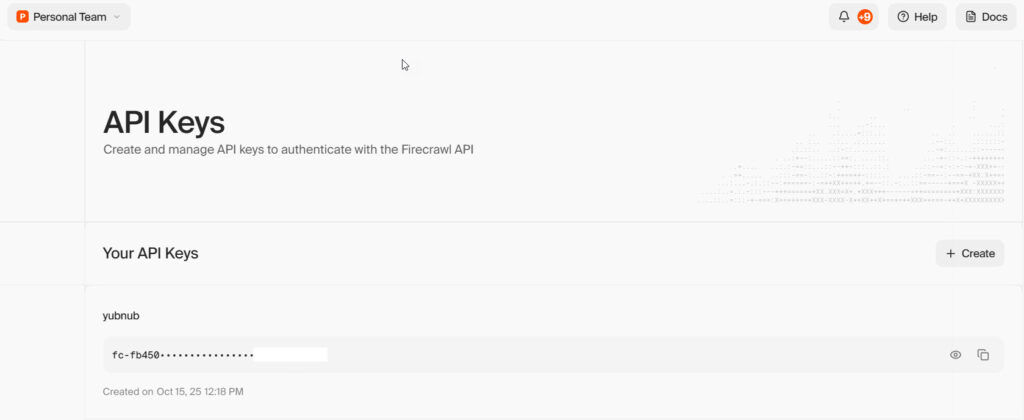
You need a Firecrawl API key first. Go to firecrawl.dev/app/api-keys and create an account. The free tier gives you 500 requests per month. Enough for testing, not enough for production.
For Claude Desktop on Windows 11, you need to edit your claude_config.json file. It lives in %APPDATA%\Claude\claude_desktop_config.json. This is installed in a standard Claude Desktop implementation and, if you’re feeling brave, ask Claude to use Desktop Commander to add the firecrawl MCP server to claude_config.json with the NPX version.
Add this configuration:
{
  "mcpServers": {
    "firecrawl": {
      "command": "npx",
      "args": ["-y", "firecrawl-mcp"],
      "env": {
        "FIRECRAWL_API_KEY": "fc-YOUR_API_KEY_HERE"
      }
    }
  }
}
Replace fc-YOUR_API_KEY_HERE with your actual API key from the dashboard. Save the file and restart Claude Desktop completely. Not just close the window – actually quit the application and reopen it.
Look for the hammer icon (🔨) in the bottom-right of Claude’s interface. If you see it, the MCP server loaded successfully. Click it to see available tools. You should see firecrawl_scrape, firecrawl_map, firecrawl_crawl, and several others.
If the tools don’t appear, check your API key. The most common mistake is copying the key incorrectly or missing the fc- prefix. If you update an MCP config, always restart Claude Desktop properly – you need to fully quit the app from the system tray, not just close the window.
Test it with a simple request: “Can you scrape https://firecrawl.dev using the firecrawl_scrape tool?” If Claude returns the markdown content of Firecrawl’s homepage, everything works!
Practical Examples
Example 1: Scraping JavaScript-Heavy Career Sites
The Mercedes F1 careers page is pure React. View source shows almost nothing. Firecrawl handles it perfectly.
Ask Claude: “Scrape this Mercedes F1 job listing: https://www.mercedesamgf1.com/careers/vacancies/REQ-250454”
Claude will call:
{
  "name": "firecrawl_scrape",
  "arguments": {
    "url": "https://www.mercedesamgf1.com/careers/vacancies/REQ-250454",
    "formats": ["markdown"],
    "onlyMainContent": true,
    "waitFor": 3000
  }
}
Development Tip
The onlyMainContent parameter strips navigation, footer, cookie banners, and social sharing buttons. You get just the job description. The waitFor parameter gives React 3 seconds to render before extraction starts.
In Yubnub’s scraper worker, I use HTML format instead of markdown:
const response = await fetch('https://api.firecrawl.dev/v2/scrape', {
  method: 'POST',
  headers: {
    'Authorization': `Bearer ${FIRECRAWL_API_KEY}`,
    'Content-Type': 'application/json'
  },
  body: JSON.stringify({
    url: jobUrl,
    formats: ['html'],
    onlyMainContent: true
  })
});
HTML preserves semantic structure (<main>, <article>, <section>) better than markdown. In my workflow, I use an enrichment worker to clean the HTML before AI processing. For this, I use the htmlparser2 library. But for simple content extraction in Claude Desktop, markdown works brilliantly.
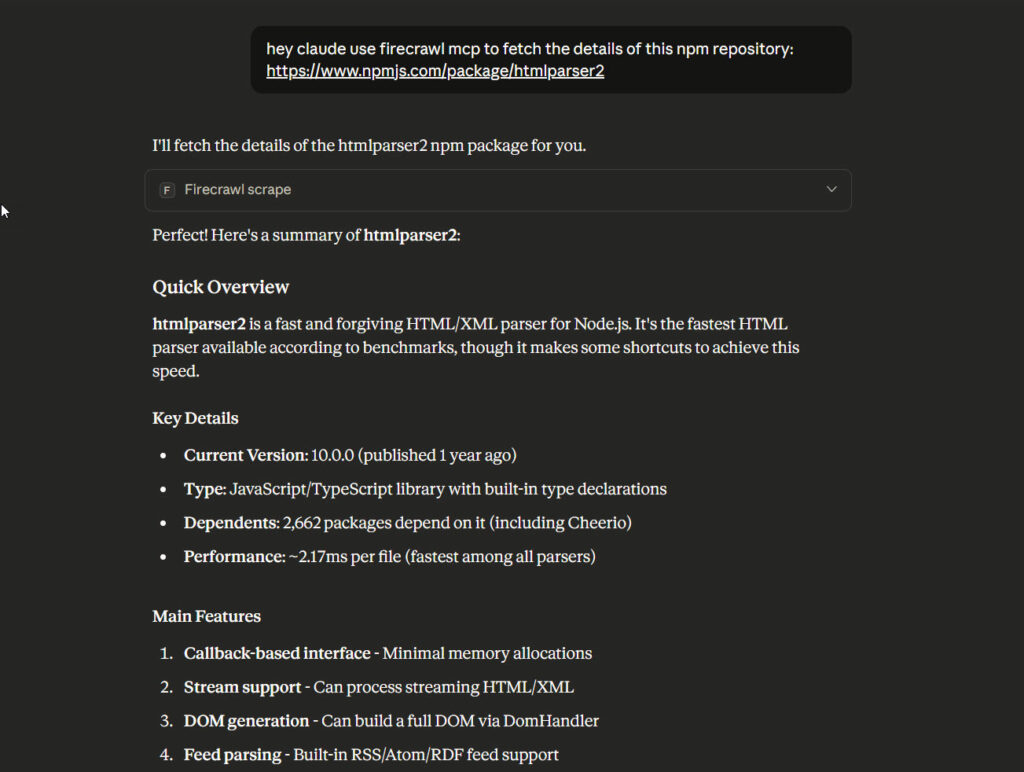
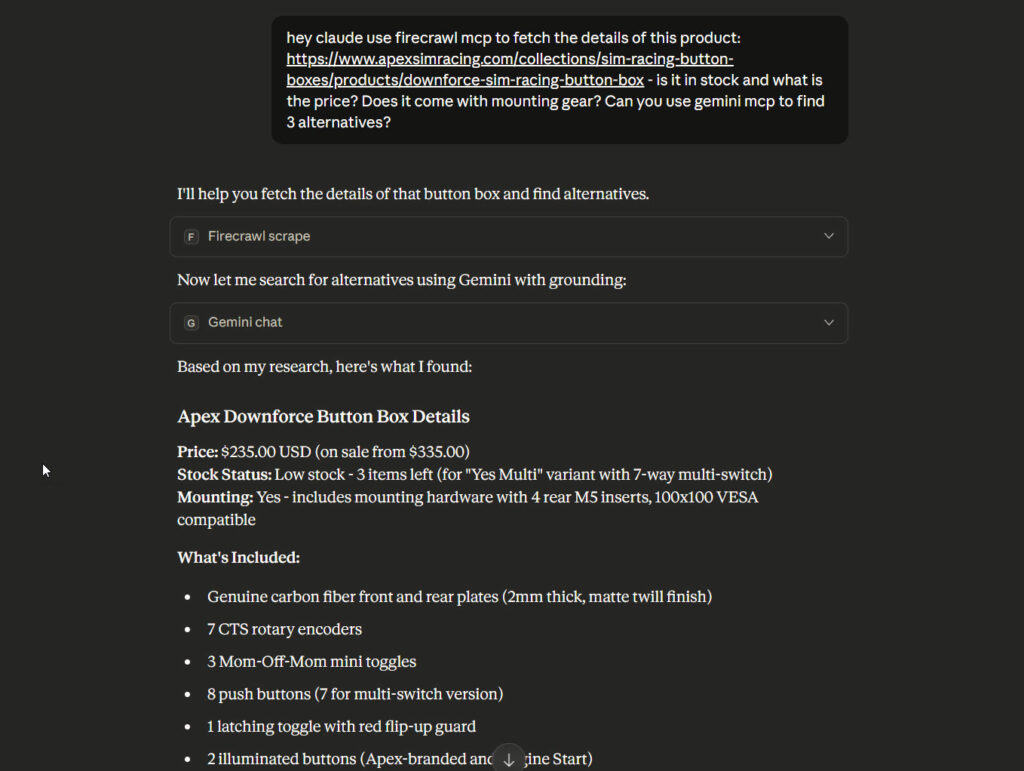
The beauty of MCP, of course, is that you can chain them together. Check out this query – fetch the spec of a product from this URL, then check for alternatives with the Gemini MCP
Example 2: Mapping a Career Site
Before scraping individual jobs, you need to discover which URLs contain job listings. The firecrawl_map tool finds all URLs on a site automatically.
Ask Claude: “Map the FIA careers site to find all job posting URLs: https://careers.fia.com/”
Claude calls:
{
  "name": "firecrawl_map",
  "arguments": {
    "url": "https://careers.fia.com/",
    "includeSubdomains": false,
    "limit": 100
  }
}
This returns a list of URLs found on the site. Look for patterns in the job posting URLs. FIA uses ?page=advertisement_display&id=305 format. You can filter the results for these patterns and then batch scrape them.
The limit parameter controls how many URLs Firecrawl discovers. Set it higher for large sites, lower for focused scraping. The free tier processes 500 requests per month total, including both mapping and scraping operations, so go easy!
Example 3: Structured Data Extraction
Claude’s MCP integration lets you extract structured JSON from pages using schemas. This is powerful for consistent data extraction across similar pages.
For job scraping, I needed title, company, location, description, and salary from each posting. Define the structure you want:
“Extract job information from this careers page as JSON: https://jobs.avl.com/job/Sala-Al-Jadida-Verification-&-Validation-Engineer-%28Casablanca%29/1175571601/
Include: job title, company name, location, job type, and a brief description.”
Firecrawl will structure the output as clean JSON. The AI model inside Firecrawl understands job posting patterns and extracts relevant fields automatically. No custom parsing logic needed.
One gotcha: if you request JSON format through the API directly (not through Claude MCP), you must provide the jsonOptions field even if it’s empty. I hit this with a 400 Bad Request error until I added "jsonOptions": {} to the request body. I think that’s a bit of a gotcha – hopefully this is useful information!
Features You Should Know About
Caching with maxAge
Firecrawl caches results by default for 2 days (172,800,000 milliseconds). This makes repeat requests a lot faster and reduces API costs by some margin. For content that changes frequently, use maxAge: 0 to force fresh scraping.
Because of the nature of job data (or pricing, stocks and so on) – I’m going to need fresh data. I always use maxAge: 0:
{
  url: jobUrl,
  formats: ['html'],
  onlyMainContent: true,
  maxAge: 0  // Force fresh scrape every time
}
For static content like documentation, product pages or archived pages, the default 2-day cache works well. Set maxAge: 600000 for a 10-minute window if you need fresher data but don’t require real-time accuracy.
Stealth Mode for E-Commerce
Some sites detect and block scrapers. Shopify stores can be particularly unpredictable. Stealth mode makes Firecrawl’s requests look more like real browsers by randomising headers, user agents, and request patterns.
Enable it with stealthMode: true in your scrape options. This adds latency but improves success rates on protected sites. I haven’t needed it for career sites, but it’s essential for competitive price scraping on e-commerce platforms.
Fast Mode vs Default
Fast mode skips JavaScript rendering entirely. Use it only for simple HTML pages where you know content loads statically. Career sites, product pages, and modern web applications need the default mode with full JavaScript execution.
I tested fast mode on Mercedes F1. Got the skeleton HTML and nothing else. Stick with default mode unless you’re scraping static blogs or documentation sites.
Batch Processing
The MCP server doesn’t directly expose batch operations, but you can queue multiple scrape requests through Claude. For production use, Firecrawl’s API supports batch scraping with a single call:
const batchResult = await fetch('https://api.firecrawl.dev/v2/batch/scrape', {
  method: 'POST',
  headers: {
    'Authorization': `Bearer ${FIRECRAWL_API_KEY}`,
    'Content-Type': 'application/json'
  },
  body: JSON.stringify({
    urls: [
      'https://careers.fia.com/?page=advertisement_display&id=305',
      'https://careers.fia.com/?page=advertisement_display&id=282',
      'https://w-racingteam.com/jobs/detail/57/electrical-technician'
    ],
    formats: ['html'],
    onlyMainContent: true
  })
});
This returns a job ID. Poll the status endpoint to check completion. Much more efficient than individual requests for bulk scraping, but I admit it adds complexity to setup and monitoring. I’ve used batch scrape and found myself reverting to the scrape endpoint.
Important: the crawl tool can return massive amounts of data that exceed Claude’s context window. I made this mistake early on – tried to crawl an entire career site and hit token limits immediately. Use map to discover URLs first, then batch scrape specific pages. It’s slower but far more reliable for large sites.
Problems I Encountered
Problem 1: Timeouts on Complex Sites
Some career sites take 10-15 seconds to fully render. The default timeout can cut off before extraction completes. I saw this with a particular career portal – Audi’s job search takes forever to render!
The solution: increase the waitFor parameter. I use 3000ms (3 seconds) minimum for career sites. For particularly heavy pages, go up to 5000ms or even 10000ms.
{
  "url": "https://careers.audi.com/index.html?jobId=8EE9983996021FE0AE96400C821EC8CE",
  "formats": ["markdown"],
  "onlyMainContent": true,
  "waitFor": 5000
}
My production scraper uses 30-second timeouts in Cloudflare Workers. Career sites are slow. Plan accordingly.
Problem 2: Rate Limiting
Free tier: 500 requests per month. Hobby plan: 20,000 requests. This sounds like a lot until you start testing with a feed that has 50 jobs.
I hit the limit fast whilst testing a few feed jobs simultaneously. Each scrape call counts against your quota. Mapping operations also count.
Best practice: Add delays between requests when testing. For production, switch to the paid tier immediately. The additional subscription fee per month is negligible compared to the development time saved.
Problem 3: Inconsistent Content Extraction
Most job sites use non-standard layouts. Firecrawl returned HTML, but not always the job description. Sometimes, got sidebar content or related job listings mixed in.
The onlyMainContent parameter helps, but isn’t perfect. Occasionally, Firecrawl returns empty pages or server errors for no obvious reason. I’ve seen this happen on the same URL – works fine on the first scrape, returns nothing on the second. Retrying usually fixes it, but it’s something to plan for in production code. I think this a forgiveable growing pain, given Firecrawl’s relative newness to at scale work.
For critical production scraping, validate the extracted content. Check for expected patterns (job title, description length, required fields). In Yubnub, the enrichment worker handles cleanup – it strips navigation and footer elements that slip through before AI processing. I also added a retry mechanism with a 5-second delay between attempts.
Problem 4: HTML Format vs Markdown
I started with markdown format. Seemed simpler. Hit problems immediately with nested lists, tables, and formatting that didn’t parse well for AI enrichment.
Switched to HTML. Much better. The enrichment worker can use a proper HTML cleaner to remove unwanted elements whilst preserving semantic structure. Markdown loses too much information about document structure.
Unless you’re building human-readable output directly, use HTML format for serious scraping work. It’s more useful from a structural perspective than markdown (as much as everyone seems to love markdown all of a sudden)/
My Results
Before Firecrawl, I used Supadata for job scraping. Complete failure on modern career sites (although Supadata is excellent for other use cases).
Supadata Results:
- Content length: 50-100 characters (snippets)
- Success rate: 20% (most sites returned nothing useful)
- Processing time: 2-3 seconds per job
- Result: Couldn’t build a production scraper
Firecrawl Results:
- Content length: 5,000-10,000 characters (full descriptions)
- Success rate: 95%+ across all tested sites
- Processing time: 8-12 seconds per job
- Result: Production-ready scraper running on Cloudflare Workers
In My Case Execution with Firecrawl: Sites successfully scraped:
- Mercedes-AMG F1 (React SPA)
- FIA Careers (JavaScript-heavy)
- AVL Jobs (Dynamic loading)
- Audi Careers (Complex portal)
- Xtrac Vacancies (WordPress with JavaScript)
- W Racing Team (Custom CMS)
All of these failed with traditional HTTP scraping. Firecrawl handled them without issues.
The processing time is slower – 8-12 seconds vs 2-3 seconds with simple HTTP requests. But Supadata’s 2-second response was useless content. Firecrawl’s 10-second response is production data. The trade-off is obvious.
What to Try Next
You’ve got Firecrawl running in Claude Desktop. You can scrape modern websites that break traditional tools. Here’s where to go from here:
- Try the branding format – Extracts colours, fonts, spacing, and UI components from websites. Useful for design analysis or competitive research.
- Experiment with actions – Firecrawl can click buttons, fill forms, and navigate sites before scraping. Essential for login-protected content or multi-step workflows.
- Set up screenshot format – Returns actual rendered images of pages. Good for visual verification or archiving how a page looked at a specific time.
- Build a production scraper – Use Firecrawl’s API directly (not through Claude MCP) for scheduled, automated scraping. This is how Yubnub runs in production on Cloudflare Workers.
The MCP server is excellent for interactive exploration and one-off scraping tasks. For production systems, integrate Firecrawl’s API directly into your application. The patterns are the same – you just control the timing and error handling yourself.
Resources
- API keys: firecrawl.dev/app/api-keys
- Official docs: docs.firecrawl.dev
- MCP server repo: github.com/firecrawl/firecrawl-mcp-server
Firecrawl isn’t perfect. Some sites still block it. Rate limits hit faster than expected. HTML extraction needs cleanup before use. But it solves the fundamental problem of JavaScript rendering that breaks traditional scrapers. For modern web scraping, it’s the best tool I’ve found.
Related Posts
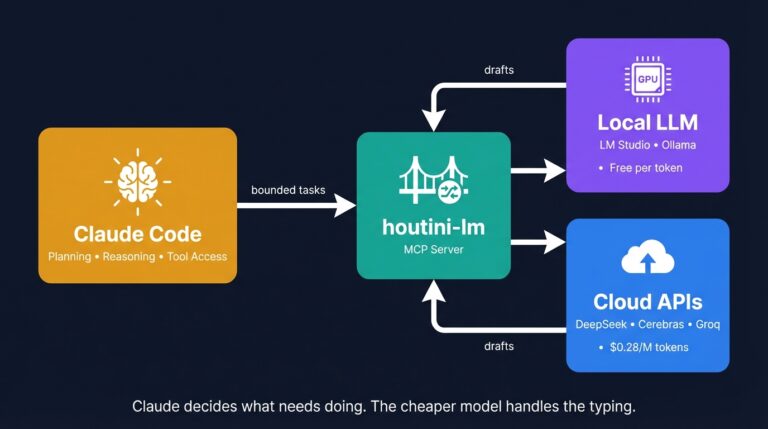
Cut Your Claude Code Token Use by Offloading Work to Cheaper Models with Houtini-LM
I built houtini-lm for people worried that their Anthropic bill might be getting out of hand. I’d leave Claude Code running overnight on big refactors, wake up, and wince at the token count. A huge chunk of that spend was going on tasks any decent coding model handles fine – boilerplate generation, code review, commit … <a title="How to Use Firecrawl in Claude Desktop" class="read-more" href="https://houtini.com/how-to-use-firecrawl-in-claude-desktop/" aria-label="Read more about How to Use Firecrawl in Claude Desktop">Read more</a>
What Is an MCP Server? And, Why It Matters for AI Tool Use
My daily work literally depends on the existence of MCP servers now, spread between Claude Desktop and Claude Code. Database queries, image generation, web scraping, file management, search console data, email. Much of my daily working world lives in a conversation window. I am convinced we are at the beginning of a radical shift in … <a title="How to Use Firecrawl in Claude Desktop" class="read-more" href="https://houtini.com/how-to-use-firecrawl-in-claude-desktop/" aria-label="Read more about How to Use Firecrawl in Claude Desktop">Read more</a>
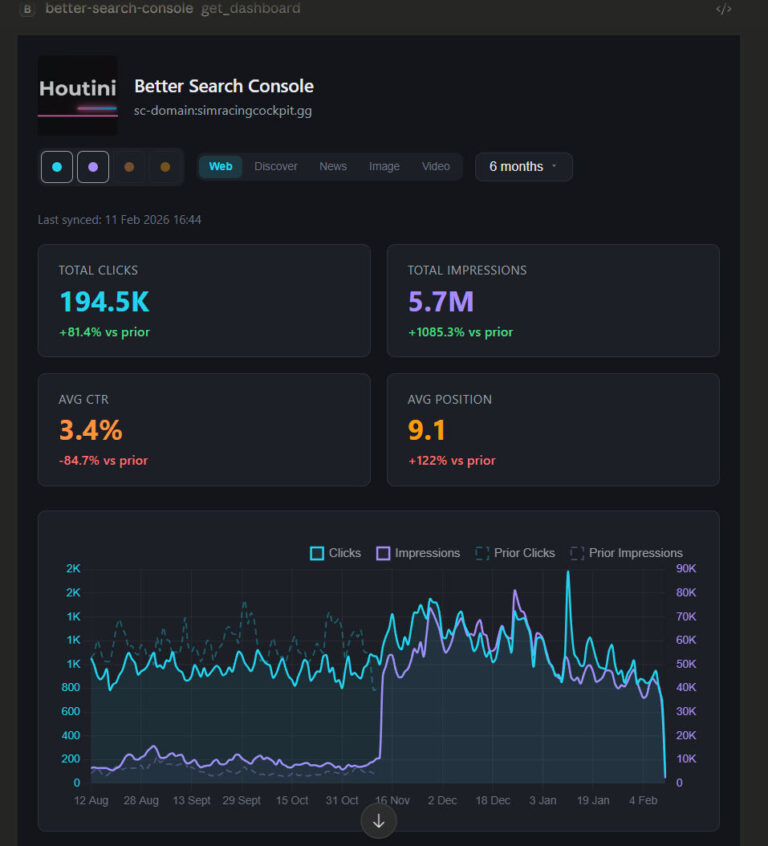
Better Search Console: Analyse Your Google Search Console Data with Interactive Dashboards
Every MCP server that connects to Google Search Console has the same fundamental limitation. The API returns a maximum of 1,000 rows per request. One or two requests in, and you’ve consumed your context window. This problem is quite universal with MCP tool use for Desktop users, so, I’ve been working on fixing it. Remember … <a title="How to Use Firecrawl in Claude Desktop" class="read-more" href="https://houtini.com/how-to-use-firecrawl-in-claude-desktop/" aria-label="Read more about How to Use Firecrawl in Claude Desktop">Read more</a>
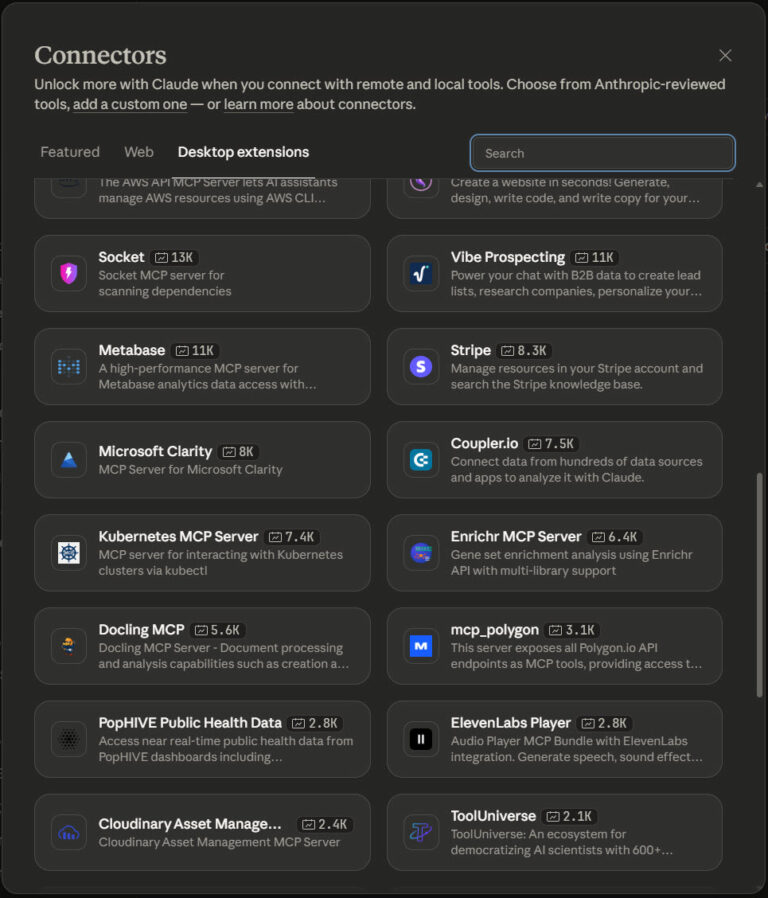
The Best MCPs for Claude Desktop (And How I Use Them)
Aside from using Claude to Code, I use Claude Desktop for various aspects of my working day. From research, data analysis and writing. It’s really powerful, reliable when used in the way it was intended, and, as a productivity tool, it’s astonishing. While Claude is brilliant, it’s the extensions, the MCP servers, that really make … <a title="How to Use Firecrawl in Claude Desktop" class="read-more" href="https://houtini.com/how-to-use-firecrawl-in-claude-desktop/" aria-label="Read more about How to Use Firecrawl in Claude Desktop">Read more</a>
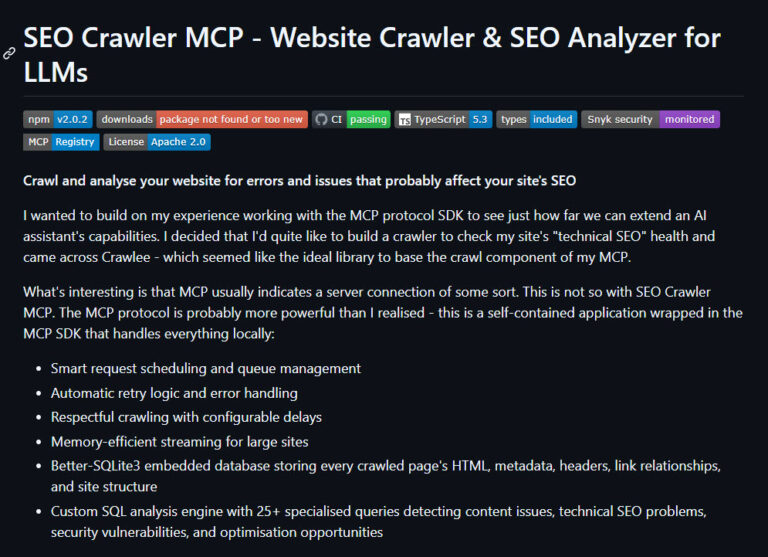
Building a Free, Open Source SEO Crawler for LLM Consumption
I wanted to build on my experience working with the MCP protocol SDK to see just how far we can extend an AI assistant’s capabilities. I decided that I’d quite like to build a crawler to check my site’s “technical SEO” health and came across Crawlee – which seemed like the ideal library to base … <a title="How to Use Firecrawl in Claude Desktop" class="read-more" href="https://houtini.com/how-to-use-firecrawl-in-claude-desktop/" aria-label="Read more about How to Use Firecrawl in Claude Desktop">Read more</a>
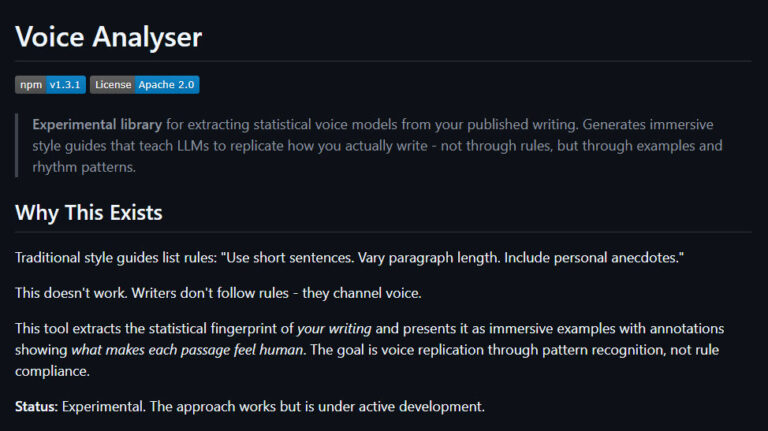
Generate a Tone of Voice Guide with Voice Analyser MCP
While AI will never replace human creativity, it can certainly help with productivity. Today I’m sharing my Voice Analyser MCP – an experimental tone of voice guideline generator that runs from a website’s XML sitemap. The point of this project was to understand how AI communicates and to learn more about the detectable patterns it … <a title="How to Use Firecrawl in Claude Desktop" class="read-more" href="https://houtini.com/how-to-use-firecrawl-in-claude-desktop/" aria-label="Read more about How to Use Firecrawl in Claude Desktop">Read more</a>